Quick answer: If a Zebra ZD620 reports Printhead Open even though the cover appears closed, do not assume the printhead itself is broken. The printer may not be registering its closure, a latch may not have seated fully, a label or ribbon may be obstructing the mechanism, or the device may be reporting an unresolved state after loading media. First confirm the exact ZD620 configuration, stop the print job safely, and compare the printer’s own status with the host application’s message. If the error persists after documented safe closure and stock checks, follow the official service path rather than bypassing the safety interlock.
The ZD620 is a printer family with variations in print method, interface, optional accessories, firmware and status-display behavior. The exact latch arrangement and menu names may differ. This independent article gives a troubleshooting decision tree, not undocumented reset instructions or a claim to have physically tested your device. For unit-specific procedures, consult Zebra support and the applicable ZD620 manual.
Printhead Open: what the message tells you
The status usually means the printer does not recognize a closed, ready printing mechanism under its current conditions. It does not prove that the printhead heating elements have failed. A printer can have a properly working imaging head while its closure-detection path or media loading prevents it from reaching the ready state.
| Observed behavior | Likely diagnostic area | First safe check |
|---|---|---|
| Error appears immediately after changing a roll | Mechanism closure, stock obstruction, ribbon path | Compare loading with official model diagram |
| Cover looks closed but status still reports open | Latch engagement or closure detection | Check supported closing and visual alignment |
| Printer itself says Ready, but Windows says Head Open | Stale host status, queue or integration | Compare device display and fresh safe test |
| Mechanism closes, but labels no longer feed | Media path, sensing or separate feed fault | Check official loading and media diagnostics |
| Error only appears during a large print run | Intermittent seating, vibration or job-related state | Record when and how the status changes |
| Printer is ready, but labels print white | Media/print mode, ribbon or data path | Use a supported image diagnostic |
| Message appeared after transport or maintenance | Physical alignment or connection condition | Inspect accessible mechanism; escalate if needed |
1. Confirm the specific ZD620 variant and print method
Read the full printer identification from its label and documentation, not just the series name. A ZD620 configured for direct thermal uses suitable heat-sensitive media; a thermal-transfer configuration has different ribbon-handling requirements. Optional devices and accessories can affect the mechanism and label route. Never assume one photo from a product listing matches all ZD620 configurations.
Record the loaded label size, roll type, driver or print application, and whether a ribbon is installed where appropriate. That information is useful if the warning followed a supply change. Our direct thermal versus thermal transfer guide explains the supply distinction without confusing it with printhead closure.
2. Stop the job before touching the printer mechanism
If a print job is active, use the supported pause or stop method and follow the printer’s loading and safety instructions. Heated printhead components and moving feed mechanisms can cause injury. Allow appropriate cooling time and avoid inserting fingers or tools into the path while the motor is running.
Keep the job’s source file and the current error available for diagnosis. Repeatedly pressing Print while the device reports a mechanical warning can create a queue of duplicate shipping labels that print unexpectedly after recovery. See thermal printer reprinting old labels if queued jobs accumulate.
3. Recheck the documented closing sequence
A cover can appear visually shut without the print mechanism being fully seated according to the printer’s design. Use Zebra’s specified safe closing method for your exact unit and confirm the expected latch engagement without forcing or striking the housing. If any part resists closure, stop and inspect for an obstruction.
Do not use tape, wedging material, magnetic tricks or improvised parts to make the printer believe its head is closed. A closure sensor can act as a safety or mechanical-readiness interlock. Bypassing it risks damage and makes subsequent diagnosis unreliable.
4. Check for trapped labels, backing paper or ribbon
After a roll change, excess label liner, adhesive buildup, wrinkled stock or misrouted ribbon may interfere with the normal mechanism. Inspect only accessible components permitted by the manual. Compare the current route with the official illustration; a label roll can be physically loaded yet leave material across a closing surface.
For thermal-transfer configurations, confirm the ribbon path and approved supply positioning separately from the label liner. An incorrectly routed ribbon might interfere with closure or create an additional Ribbon Out warning, but not every ZD620 is a ribbon printer. See ribbon-out error troubleshooting for the separate supply branch.
5. Separate the printer’s own warning from computer status
A printing application or Windows queue may display a status cached from an earlier job. If the printer’s local indicators now show Ready while the computer continues to report Printhead Open, check whether the same warning appears on the device itself. A harmless, supported short test can establish whether the printer has actually recovered under its current configuration.
Do not assume that removing a driver fixes a closure warning still visible locally. Conversely, a stale application status may call for queue or connection diagnosis, not physical disassembly. Our printer offline but connected and Windows stuck print queue articles cover host-side symptoms.
6. Check only accessible latch areas and visible alignment
Look for obvious physical causes such as loose media backing, a piece of torn label in the closing area or a cover sitting unevenly. Don’t manipulate a hidden sensor, remove a cover screw or adjust the printhead pressure hardware unless the exact manufacturer instructions authorize it.
If the mechanism will not close in the documented position even with safely removed stock, record that fact for qualified service. A repeated failure to recognize a properly seated mechanism can indicate a worn or damaged closure component, but it cannot be diagnosed reliably from one error message alone.
7. Distinguish Head Open from Media Out and Paper Out
These alerts report different problems. Head Open concerns the printer’s closure/readiness state. Media Out or a paper-detection warning suggests the printer cannot locate or handle stock as expected. A printer can have both conditions after improper loading, but calibration of a gap sensor will not necessarily make an unseated head become closed.
If closure is confirmed and the next warning is about stock, check label gaps, black marks, continuous media and supported sensor settings. Our Zebra ZD230 Media Out troubleshooting explains that separate category, while paper out with labels loaded gives a broader model-independent path.
8. Do not use calibration as an automatic reset for Head Open
Media calibration is designed to help a printer recognize label boundaries. If a head-closure warning remains active, a calibration command may not run at all, or it may fail without addressing the underlying state. Complete safe loading and closure checks first.
Only use the official ZD620 calibration procedure when the printer is ready and actual stock-detection symptoms justify it. Do not copy button timings or programming barcodes from unrelated Zebra models. Our thermal printer calibration guide explains the difference between sensing and document layout.
9. What if the error appears only with a particular new roll?
The new material may be thicker, differently wound, incorrectly routed or mechanically unsuitable for the installed configuration. Check the manufacturer’s supported media width and thickness range, then compare the actual label roll, liner and any ribbon combination with a previously known-compatible supply.
A roll being advertised as “4 × 6” is not enough to establish compatibility. A 4-inch-wide roll’s backing can be wider than its sticker body, and industrial media dimensions differ from page dimensions. See Zebra printer label sizes for the media-versus-imageable-width distinction.
10. When the message appears after moving the printer
A printer transported between packing stations may have a partially seated cover or displaced roll. Before assuming electronic damage, follow the manufacturer’s safe inspection of loading and the visible mechanism. Verify the original power and connection setup and avoid operating the printer while it is physically unstable.
If there is visible housing damage, unusual mechanical resistance, a cracked latch or repeated status failure after documented closing, stop using it and seek qualified repair. An electronic closure-detection component may require service tools beyond normal operator maintenance.
11. Check for intermittent warnings during operation
Some reports occur only after repeated feeding or during a particular handling action. Note the number of labels printed before the error, whether it follows a roll change, and whether the device’s own Ready state drops at the same moment. A repeated mechanical warning linked to vibration or stock movement is different from a one-time stale queue message.
Use the same harmless sample for comparison. Don’t replace the printhead, driver, closure switch and media together; if the symptom changes, you won’t know which factor mattered. Record supported status messages and the model identifier before escalating.
12. The printer is ready but still not printing after closure
If the warning clears and the printer shows Ready yet no physical label emerges, diagnose the next stage separately. Check whether the print job reaches the selected queue, whether the source document contains visible artwork and whether the loaded media matches the selected print method. A successfully cleared mechanical warning does not prove the host or PDF is configured correctly.
Our connected but not printing article covers delivery and host integration, while blank thermal labels covers jobs that feed white material.
13. Example: Head Open immediately after changing labels
A packing operator loads a replacement roll and closes the top cover, but the printer continues to display a closure warning. They stop safely and compare the liner position with the approved loading guide. A folded piece of backing is visible near an accessible closing surface. Correcting the routing through the supported procedure lets the cover seat properly. No driver reinstall is necessary.
14. Example: the printer is ready but Windows still reports open
The device’s local status has returned to Ready after a documented closure, but a workstation’s queue still shows the earlier warning. A harmless supported test and queue refresh establish whether this is stale host reporting. The operator records the printer state and works on the correct Windows queue instead of repeatedly opening the mechanism.
15. Example: an intermittent warning during long batches
The printer works for several labels and then reports Head Open. The operator records when the failure occurs, checks stock routing and visible closure, and repeats a short safe batch with manufacturer-approved supplies. If it persists despite correct loading and closure, qualified service may be needed. Bypassing a closure interlock is not an acceptable production fix.
16. Example: Head Open clears, then Media Out appears
After correct closure, the device reports a stock-detection problem rather than a head problem. That sequence is useful evidence. The operator now checks whether the loaded roll uses gaps or black marks and whether the printer’s supported media-tracking method matches the material. Calibration may be relevant at this stage—but only through ZD620-specific guidance.
ZD620 Printhead Open troubleshooting checklist
- Record the full ZD620 model configuration and the precise local warning.
- Stop any live job and follow the official safe loading procedure.
- Inspect accessible media and ribbon paths for visible obstruction.
- Close the mechanism using the manufacturer-documented method.
- Never bypass or tamper with a closure sensor or safety interlock.
- Compare printer-local status with stale queue or app status.
- Separate closure errors from media-sensing and document-printing faults.
- Use a harmless supported test after the device returns to Ready.
- Escalate persistent mechanical or sensor warnings to qualified service.
Frequently asked questions
Why does my Zebra ZD620 say Printhead Open when it is closed?
Possible causes include a mechanism that has not fully seated, obstructed stock or ribbon, closure-detection problems or stale computer status. Use the exact model’s documented safe closure steps before considering hardware service.
Can I bypass the ZD620 printhead-open sensor?
Do not bypass a closure or safety interlock. If a correctly closed printer repeatedly reports an error, seek manufacturer-approved service rather than tricking the detection system.
Will calibrating labels fix Printhead Open?
Calibration normally addresses media boundary detection, not the closure of the print mechanism. Resolve the local closure warning first, then calibrate only if label registration actually requires it.
Does this error mean my printhead must be replaced?
No. The warning is not proof of failed heating elements. Loading, closure and sensor status should be checked before considering parts replacement.
What if the printer says Ready but Windows shows Printhead Open?
The host could have stale status or a queued problem. Compare a safe supported printer test with the current local status and then inspect the correct print queue.
Related LabelFix Lab guides
- Zebra ZD421 setup and troubleshooting
- Zebra ZD420 driver not working
- Zebra printer media and label sizes
- Paper Out with stock loaded
- Thermal transfer Ribbon Out warning
- When label calibration helps
- Windows print queue stuck
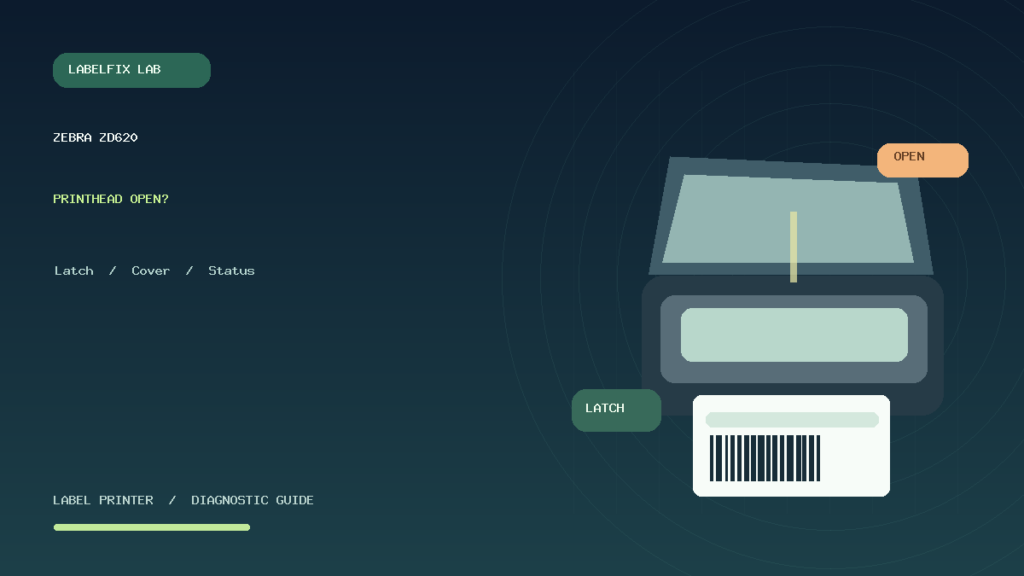
Editorial limitations: This guide explains diagnostic principles and safety considerations; it is not a hardware test or model-specific service manual. Follow official Zebra ZD620 instructions for closure, sensors and firmware operations. The featured image is an original generic thermal-printer illustration, not a photograph of a Zebra device.
Independent general troubleshooting information for shipping labels and thermal printers. Model-specific button sequences, cleaning supplies and service instructions can differ; consult your manufacturer's official documentation. Never alter a carrier-generated barcode.