“Thermal printer” describes more than one printing method. Direct thermal printers create an image on heat-sensitive media, while thermal transfer printers use a heated ribbon to transfer material onto a label surface. Choosing the wrong combination can produce blank output, weak print quality, wasted rolls or unnecessary troubleshooting.
What is direct thermal printing?
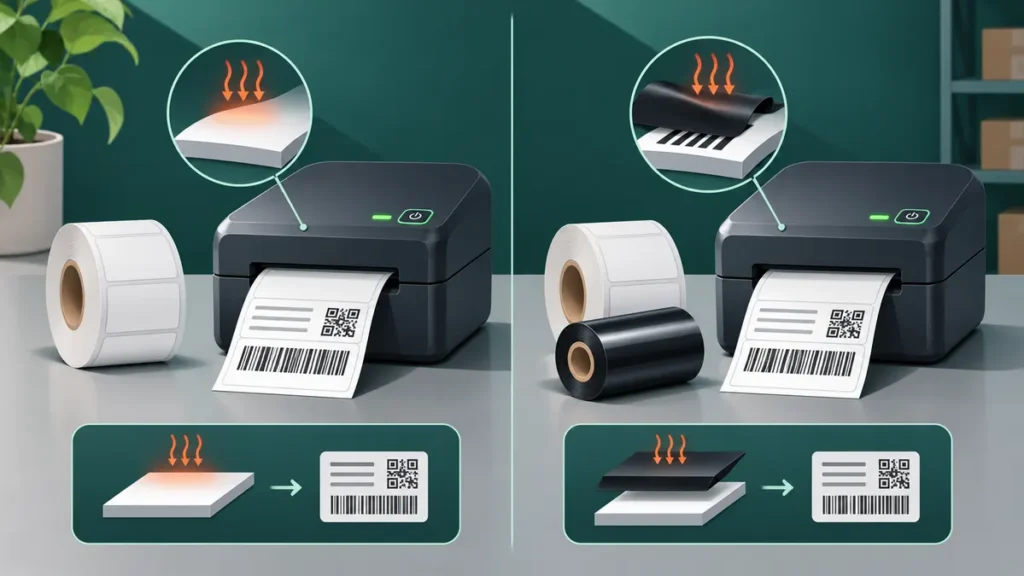
A direct-thermal printhead applies localized heat to a specially coated label surface. Areas heated by the head change color, creating text, lines or a barcode. The printer generally requires no ink cartridge, toner or transfer ribbon, but it does require compatible direct-thermal media.
Direct-thermal labels are widely used for short-life identification and shipping workflows. However, their appearance can be affected by temperature, light, surface friction, chemicals and storage conditions. Not every label product has the same resistance to these factors; its actual specification matters.
What is thermal transfer printing?
A thermal-transfer printer heats a ribbon so its coating transfers to the label or tag. Thermal-transfer stock does not necessarily have the heat-reactive coating used in direct thermal. Ribbon type, label face material, printhead condition, pressure, speed and heat all influence the result.
Thermal transfer can be suitable where label durability or resistance matters, but a particular material/ribbon combination still needs to meet the application’s requirements. It would be misleading to say every thermal-transfer label is weatherproof or permanent.
Direct thermal vs thermal transfer: the differences
| Feature | Direct thermal | Thermal transfer |
|---|---|---|
| Image creation | Heat changes coated label media | Heat transfers ribbon coating to the label |
| Ribbon required | Generally no | Yes, for a thermal-transfer job |
| Media requirement | Compatible heat-sensitive stock | Media and ribbon must work together |
| Typical print-life considerations | Can be sensitive to heat, light and abrasion | Depends on ribbon, face stock and conditions |
| Common setup error | Wrong side of the roll or wrong stock | Missing or mismatched ribbon |
How to identify the method your printer uses
1. Find the exact printer model
Check the manufacturer label on the printer and consult its product specifications or official manual. A printer that only supports direct thermal cannot be converted to thermal transfer through a software setting. A dual-mode model may require changing both consumables and its print-method configuration.
2. Look for an installed ribbon
A thermal-transfer job normally needs a ribbon loaded along the prescribed path. If there is no ribbon, the printer may be configured for direct thermal—or it may be missing a consumable. Always compare the observed setup with the supported modes in the manual.
3. Read the label roll packaging
Labels sold as “direct thermal” and those intended for thermal transfer are not necessarily interchangeable. Look for the material specification, not just a listing titled “thermal labels.” Width, length, core diameter, roll orientation and sensor type matter too.
4. Inspect the current print-method setting
On a compatible dual-mode printer, review its status/configuration print or manufacturer’s configuration utility. The setting’s label may be “Direct Thermal,” “Thermal Transfer” or an abbreviated equivalent, depending on the model. Do not assume the operating system’s generic printer panel lists every hardware option.
Does the scratch test prove a label is direct thermal?
Rubbing or gently scratching the coated surface of some direct-thermal labels can create a dark mark through frictional heat. This may offer a clue about the coating. However, the effect depends on media formulation and how the test is performed. It cannot confirm correct printer compatibility or replace the roll specification. Use a spare label; never damage a real shipping label to test the stock.
What happens when the wrong labels are used?
A direct-thermal printer may feed ordinary uncoated stock without generating an image. A thermal-transfer setup missing its ribbon may stop with an error or fail to produce a usable print, depending on the printer. If the output is blank, our blank-label troubleshooting guide walks through a safe sequence of checks.
Weak or uneven output can also involve contaminated heads, unsuitable speed/darkness settings, and pressure or alignment. If one side is consistently pale, follow the faded-on-one-side diagnosis rather than simply increasing darkness to maximum.
Which method should you choose for shipping labels?
Choose a method supported by your printer and the actual shipping and storage environment. For ordinary short-duration parcel shipping, compatible direct-thermal stock is commonly used. If labels must survive unusual heat, light, chemicals or long-term storage, compare rated products and consider thermal-transfer systems where appropriate.
Always follow the carrier’s label format and barcode requirements. The printing method alone does not guarantee a machine-readable barcode: stock, driver scaling, contrast and surface condition remain important.
Frequently asked questions
Can a thermal-transfer printer print direct-thermal labels without a ribbon?
Some dual-mode printers can, when configured for direct thermal and loaded with suitable stock. Not all thermal-transfer printers offer that mode. Check the model documentation before trying.
Can I use ordinary office paper in a direct-thermal label printer?
Ordinary non-thermal paper does not provide the coated surface needed to create a direct-thermal image. Use media approved for your device.
Why does a new roll print blank when the old one works?
Check the new roll’s coating, printable side, print method, dimensions and sensor type. A stock change may explain the difference without any hardware failure.
Does thermal printing always fade?
Resistance depends on the media, ribbon where used, and environmental exposure. Match the consumables to the required service life rather than assuming every thermal print has the same durability.
Editorial note: This comparison explains printing technologies in general. Compatibility and maintenance instructions must be checked against the specific printer and media specifications.
Independent general troubleshooting information for shipping labels and thermal printers. Model-specific button sequences, cleaning supplies and service instructions can differ; consult your manufacturer's official documentation. Never alter a carrier-generated barcode.