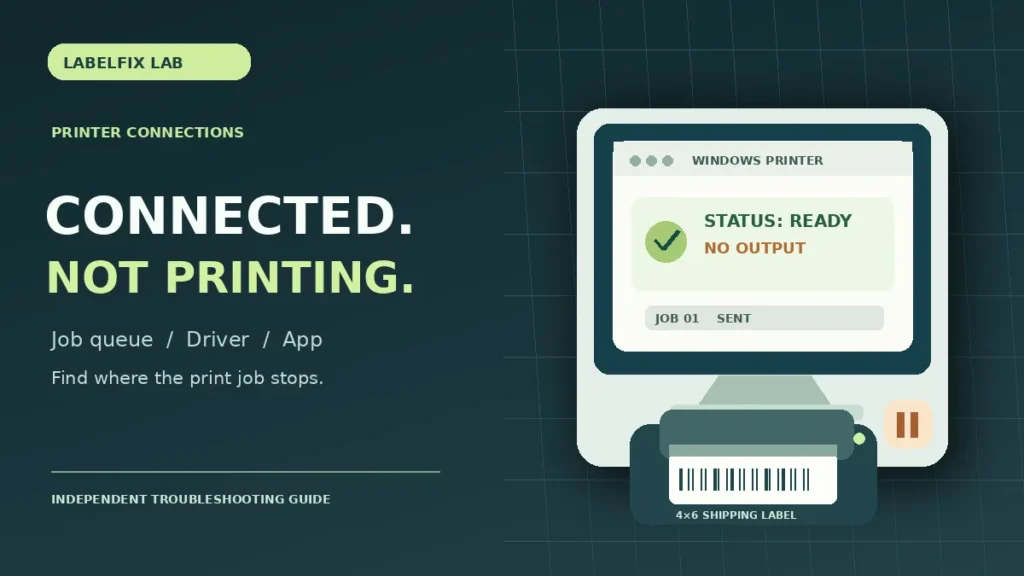
When Windows shows your thermal label printer as connected or Ready but no label comes out, the next step is not necessarily reinstalling every driver. Find out whether the computer actually sent a job, whether the queue held it, and whether the printer moved stock without printing an image. Those outcomes point to different fixes.
First: which “connected but not printing” symptom do you have?
| Observed result | Check first |
|---|---|
| Job never appears in the printer queue | Application print destination, browser or shipping software |
| Job stays in the queue with a warning | Paused jobs, port, driver, connection status |
| Job disappears but printer does nothing | Wrong queue or port, driver workflow, raw-command support |
| Printer feeds blank labels | Media orientation, print method, empty PDF or image data |
| Windows says Offline | Offline and connection troubleshooting |
| No printer appears in Windows | USB device detection troubleshooting |
This guide focuses on printers visible in the operating system. If nothing recognizes the hardware, start with the separate USB-detection guide; changing shipping-label PDF settings cannot restore a missing device.
1. Confirm the printer is actually ready
Check the printer’s power indicator, loaded labels, cover, status lights and any displayed errors. A device can appear in Windows long after a USB cable has been removed, so a saved printer icon alone does not verify that a live connection exists.
Run the manufacturer’s built-in self-test or configuration print according to the exact model manual. If it cannot print its own sample, resolve the local device fault before blaming Windows. If it prints a clear sample, you have a useful baseline for testing the host-to-printer path.
2. Select the exact printer in the application
From the shipping service, marketplace or PDF viewer, open Print and verify which device is selected. An office printer, an old USB queue, a virtual PDF printer or a second copy of the thermal printer may have been remembered as the default.
Use the exact queue name that works with your model. If multiple queues have nearly identical names, check the driver and port assignment rather than deleting all duplicates.
3. Observe what happens in the Windows print queue
Open Settings → Bluetooth & devices → Printers & scanners on a supported version of Windows, choose the thermal printer and open its queue. Watch the queue while sending just one test job. Labels may print immediately, pause, display an error, or be accepted by the print service without reaching the intended hardware.
If a job is paused, check whether the queue or printer is set Offline or Paused. If an old failed job is blocking the queue, cancel only jobs you know can be safely discarded or regenerated from the shipping platform. Avoid deleting unprinted shipping documents you cannot recover.
4. Compare a supported test label with the shipping PDF
Send a test through the manufacturer’s own diagnostic utility, if provided. Then print the carrier-generated shipping PDF using a supported reader. If the manufacturer test works but the PDF does not, the printer connection is likely functional; focus on the application, page size and document format.
For a 4×6 shipping PDF, inspect its actual page dimensions with our free 4×6 PDF Label Size Checker. It does not send the PDF to our server, and it does not repair a print queue, but it can reveal a Letter or A4 canvas being sent to a 4×6 driver preset.
5. Do not confuse no output with blank output
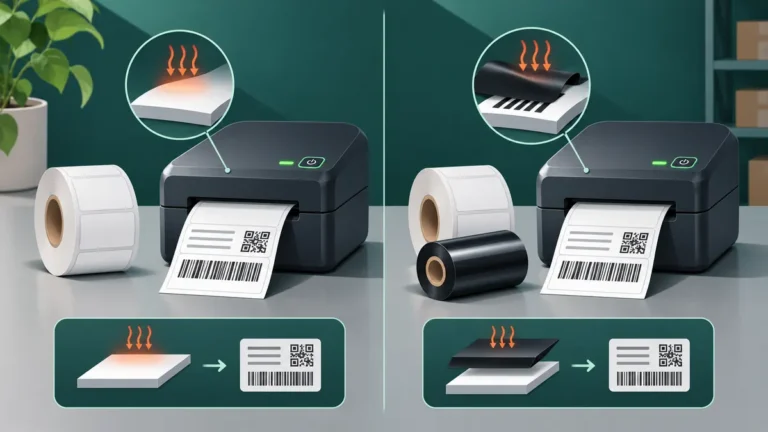
If the printer advances a label that has no text or barcode, it has received at least some kind of feed instruction. That symptom is different from a queue that never moves stock. Check media coating, printable side and the configured direct-thermal or thermal-transfer method before changing Windows ports.
Our dedicated blank thermal labels guide covers the stock and printhead checks in detail. An unsuitable label roll can make a correctly delivered job look like a software failure.
6. Verify driver and command-language compatibility
Look up the printer’s full model number and obtain drivers or configuration utilities from the official manufacturer. Label printers can use different command languages and workflows; a generic driver may show the device as connected without producing the intended output. Do not install drivers from unknown download websites.
If a job produces strange command-like symbols rather than a shipping label, see our print-language mismatch guide. That result is useful evidence and should not be treated as a blank print.
7. Inspect the selected port without changing unrelated devices
For USB printers, check that the queue is bound to the correct supported interface. A queue created with a different virtual USB port may appear Ready without communicating with the printer currently attached. For network printers, confirm that the configured destination is still the correct device; address changes require different checks from USB faults.
Document the existing port and driver before changing settings. If this is a shared shipping workstation, coordinate changes to avoid interrupting working applications.
8. Recheck the PDF print preview and stock dimensions
Open the original shipping PDF and inspect the page count, orientation and preview. A standard portrait 4×6 page is 101.6 × 152.4 mm, but shipping services can also provide full-size Letter or A4 PDFs. If the PDF page matches the loaded label, use Actual size or 100% where supported and avoid Poster, Multiple or tiled printing modes.
If the label prints but is very small, rotated or cut off, the hardware is already moving media and you should use our 4×6 print-scaling guide instead of repeating connection diagnostics.
9. Test a single known-good file after each change
Change one setting at a time, then print one test label and inspect the result. Do not send an entire shipping batch to find out whether the printer has recovered. Check the printed address, routing text and barcode, not merely whether paper came out.
If you repeatedly test the same tracking label, keep control of those copies so they are not accidentally used as valid shipment labels.
10. Escalate with specific observations
When the issue persists, note the exact printer model, interface (USB, Ethernet, Wi-Fi or Bluetooth), operating-system version, driver name and what happens to one print job in the queue. Also record whether the printer’s own self-test works. These details can help manufacturer support determine whether the fault is software, interface or hardware related.
Frequently asked questions
Why does my printer say Ready but not print?
Windows may be displaying a saved queue rather than a healthy active connection, or a job may be sent to the wrong port or app destination. Compare the queue behavior, built-in printer test and a supported sample.
Why does the print job disappear without a label?
Possible explanations include a wrong printer destination, driver or command-format mismatch, and an application that reports the job as sent before the device produces output. Check the exact queue and use the manufacturer’s test utility to isolate the path.
Should I reset the printer to factory defaults?
Not as the first step. A reset can erase network, print-method, calibration and other settings. Use documented, reversible checks first.
Is this the same as a printer showing Offline?
No. A printer explicitly marked Offline often has a communication or queue-status problem. A printer marked Ready but producing no output needs further comparison of job delivery, selected destination and device behavior.
Technical note: Printer driver names, command languages and Windows menus vary by model and software version. Follow the manufacturer’s official instructions when changing device configuration.
Independent general troubleshooting information for shipping labels and thermal printers. Model-specific button sequences, cleaning supplies and service instructions can differ; consult your manufacturer's official documentation. Never alter a carrier-generated barcode.