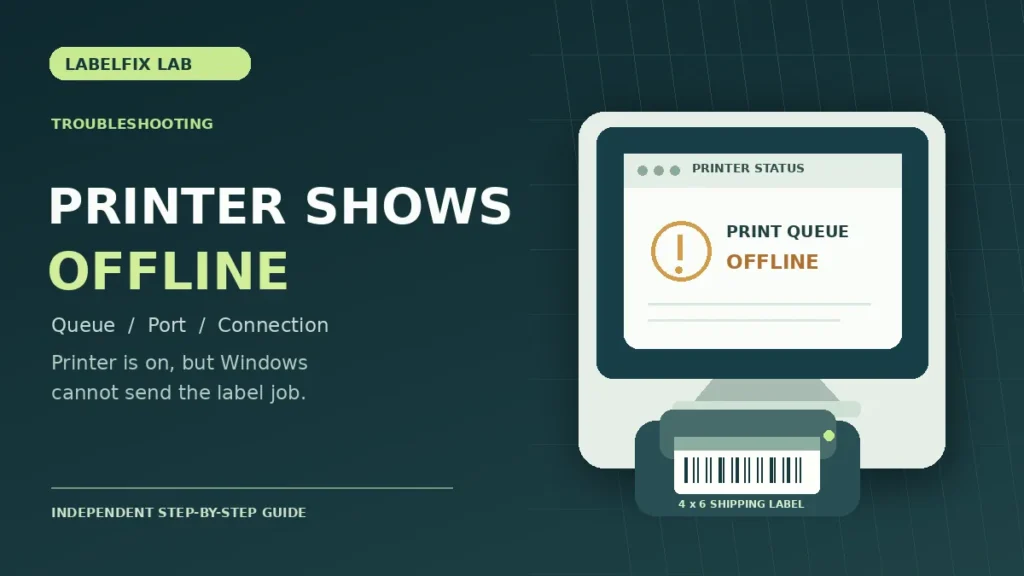
A thermal label printer may be powered on, loaded with labels and ready to print while Windows still marks it Offline. That status can be caused by an interrupted USB or network connection, the wrong printer port, a paused queue or an outdated printer entry. It does not necessarily mean the printhead or label stock is defective.
Offline vs not detected: which problem do you have?
A printer that is listed as Offline already has a Windows queue entry, even if the underlying connection is broken. A printer that is absent from printers, USB devices and the manufacturer’s utility may have a detection problem. A third case is when the printer appears Ready in Windows but one shipping app cannot send it a label; that points toward application selection or job format.
| Observed symptom | Good first check |
|---|---|
| Windows printer entry says Offline | Queue status, connection and selected port |
| Printer is entirely absent from Windows | USB detection and manufacturer setup |
| Jobs sit in the queue with an error | Paused jobs, port, driver and service state |
| Windows test works but a shipping app fails | App-selected printer, document format and stock size |
| Printer feeds but output is blank | Media type, printing method and hardware test |
1. Confirm the printer is powered on and ready
Check power, error lights, the label roll, cover closure and any visible media fault. If the manufacturer provides a self-test or configuration label, print it using the documented method. A self-test is generated by the printer and can help establish that the device itself can produce output independently of the computer.
If the printer’s own status panel reports a cover-open or out-of-media condition, resolve that before changing the computer queue. Do not force a cover shut or pull labels while a mechanism is moving.
2. Open the correct printer queue in Windows
Open Settings → Bluetooth & devices → Printers & scanners on supported Windows versions. Choose the actual thermal printer and open its print queue. Older versions of Windows may use Control Panel or different settings labels.
Check whether printing is paused, an unintended offline mode is selected, or a failed document is holding up later jobs. If the UI provides a “Use Printer Offline” option, verify whether it is enabled. The exact controls differ by driver and operating system.
3. Review failed or duplicate print jobs
A queue can appear unresponsive because an old failed print remains at the top. Before cancelling a shipping label, make sure it can be retrieved from the carrier or marketplace if necessary. Remove only jobs that should not be retried, then test with one small, known-good sample.
When the queue resumes, check the printed barcode and address before mailing a package. Avoid sending a full batch while you are still trying to identify the problem.
4. Recheck a direct USB connection
If your printer uses USB, connect directly to a known-good computer port with a suitable data cable. Avoid a dock or USB hub temporarily while testing. A device may retain its printer entry in Windows after being unplugged, so a listed queue is not proof of an active connection.
If Windows no longer registers the device at all, return to physical detection and driver setup. Changing page-size settings will not repair a broken USB data path.
5. Check network and Wi-Fi printer connections separately
Some label printers use Ethernet or Wi-Fi, while others only support USB or Bluetooth. On a supported network model, confirm that the printer and computer can reach the same network and that the printer’s configured address or host name is still valid.
A stale Windows TCP/IP printer port can point to an old address after a network change. Record the current port, address and configuration before modifying anything. If your workplace uses managed networking, ask the network administrator rather than changing security or router settings without authorization.
6. Check the printer driver and port pairing
In the printer’s properties, inspect the current driver and port settings. A duplicate queue installed with a different USB virtual port or network address may be selected by default. Match the queue to the actual device and manufacturer-supported interface.
Obtain updated or replacement drivers only from official manufacturer resources, and follow their installation sequence. Reinstalling an unrelated driver is unlikely to fix a network port mismatch, and can remove settings that were previously working.
7. Compare a Windows test with a shipping PDF
Once the queue reports Ready, try a supported printer test. If it works, open the original shipping PDF and confirm the selected printer, page count, stock size and scale. A standard portrait shipping label commonly measures 4 × 6 inches, or 101.6 × 152.4 mm, but actual carrier formats differ.
Use our free PDF Label Size Checker to inspect page dimensions if you suspect a size mismatch. The checker runs locally in the browser and reports the PDF’s page boxes; it does not diagnose network or driver faults.
8. Restart only what is necessary
Depending on the situation, restarting the print application or the documented printer interface may help after a failed job or connection change. Avoid factory-resetting the printer as an early step; network profiles, media calibration and command-language settings can be lost.
If you are responsible for a shared workstation, coordinate disruptive actions and preserve existing working settings first. Do not change firewall policies or disable security software merely to make a printer appear online.
9. Know when the symptom is no longer an Offline problem
If Windows shows the printer as Ready and it feeds labels but produces wrong content, the connection may already be working. For blank labels see our blank-output diagnosis; for raw symbols and commands see printer language and driver mismatches. These are different failures that should not be resolved by repeatedly removing the printer queue.
Quick decision checklist
- Confirm the device is ready and an internal test works.
- Identify whether Windows shows Offline, Paused, Ready, or no device at all.
- Check the queue for failed jobs or incorrect options.
- Validate the USB connection or network address for the printer’s actual interface.
- Confirm the driver, port and intended printer queue match.
- Print one test job, then try one original shipping label.
Other connection problems: Visit our Printer Setup & Connections library for USB detection, driver and printer-language troubleshooting. If Windows does not detect the printer at all, treat that as a different symptom from an Offline queue.
Frequently asked questions
Why does Windows say my thermal printer is offline when it is turned on?
Power alone does not verify an active USB, Ethernet or Wi-Fi connection. Check the print queue and current port, then compare the connection against the manufacturer’s setup guidance.
Can a print queue make a printer appear offline?
Queue settings, failed jobs and selected ports can all affect printing status and job delivery. Check whether printing is paused or a job has stalled before replacing drivers.
Does “Offline” mean the thermal printhead has failed?
No. Offline normally relates to communication or queue state. A printhead problem may cause missing or faint output after communication succeeds.
Should I uninstall every printer to fix the problem?
No. Begin with the affected device, document its working settings and change one variable at a time. Removing unrelated queues can create additional problems.
Technical note: Windows interface labels, supported ports, and recovery steps differ by device and software version. Use official printer documentation for model-specific procedures.
Independent general troubleshooting information for shipping labels and thermal printers. Model-specific button sequences, cleaning supplies and service instructions can differ; consult your manufacturer's official documentation. Never alter a carrier-generated barcode.