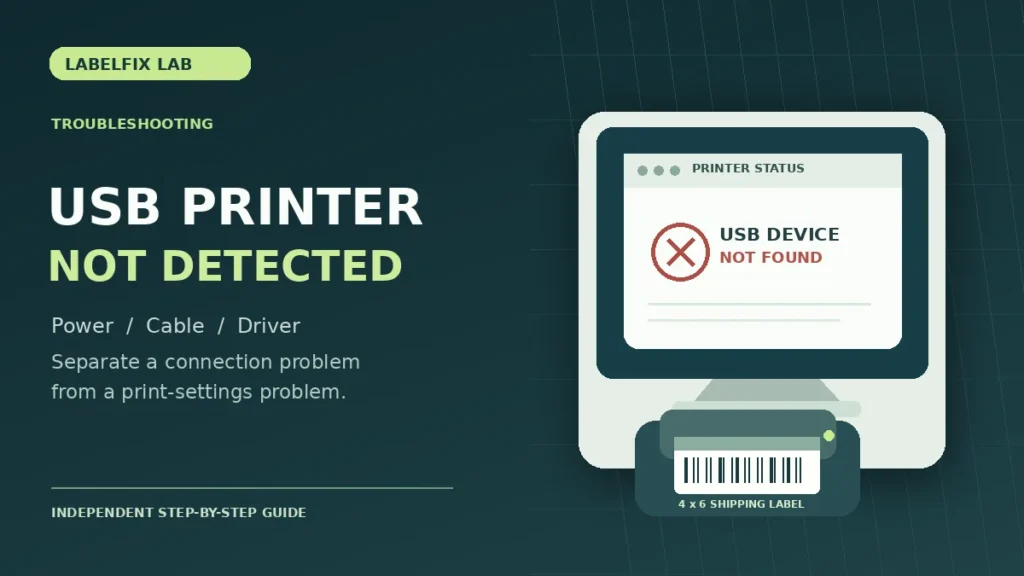
A thermal label printer that worked yesterday but is missing from Windows today can be difficult to troubleshoot because the fault may be in a USB cable, a Windows device entry, a printer driver, or the application you use to create shipping labels. This guide separates a printer that is not detected by Windows from one that is detected but will not print.
First identify exactly what Windows can see
| What you observe | Where to focus first |
|---|---|
| No connection sound, device entry or USB notification | Power, USB data cable, connector or port |
| Unknown USB device or error in Device Manager | Connection, enumeration, driver compatibility |
| Printer listed in Windows but marked Offline | Queue, port assignment and connection status |
| Windows test page works, shipping app does not | Application selection, print format and page size |
| Printer is visible but prints commands or symbols | Print-language or driver mismatch |
1. Make sure the printer itself is ready
Check its power indicator, error lights and media status. If your printer provides an internal configuration or self-test, follow its official instructions to print one. A successful internal test shows the printer can at least print independently of Windows; it does not prove that the USB or driver connection works.
If the device cannot print a built-in test, resolve the printer’s basic error first. For blank output, see our thermal printer printing blank labels guide; a device receiving commands but producing blank media is a different problem from one that Windows cannot detect.
2. Check the USB cable and port without changing software
Use a USB cable that supports data transfer, not a power-only charging cable. Connect directly to a port on the computer rather than a dock or unpowered hub for this test. Inspect the connectors for looseness or visible damage without forcing them.
Try another known-good USB port and a compatible cable. If possible, compare with another computer. A printer that is detected only with one cable or port points toward a connection problem; a printer that is never detected may still have a device, cable or compatibility fault. Do not assume the USB socket is damaged without more evidence.
3. Look in Windows Settings and Device Manager
On a supported Windows version, check Settings → Bluetooth & devices → Printers & scanners (names may differ between Windows versions). Search for the exact printer model and for old copies of its queue. Also open Device Manager to check whether a new USB device appears when you disconnect and reconnect the printer.
A printer might appear under printers, USB controllers, or another device category depending on its interface and installed driver. An unknown device or warning icon suggests Windows sees something but cannot configure it correctly. Record any error text rather than guessing which driver to install.
4. Use the manufacturer’s driver for the exact printer model
Look up the complete model number, including any suffix that identifies USB, Ethernet, Bluetooth, or supported command language. Use the manufacturer’s current official driver or installation utility for your Windows version. Do not download random “universal thermal printer drivers” from unfamiliar sites.
Follow the documented driver-installation sequence, including whether the device must be disconnected until prompted. Some printers use a Windows print driver, while others rely on application-specific utilities or raw-command interfaces. A driver intended for a similar-looking printer is not automatically compatible.
5. If Windows sees the printer, check which queue the app uses
A shipping application may remember an outdated printer queue even after a new driver is installed. Open its print dialog and select the intended device explicitly. Compare the driver’s media size with the physical label roll; a standard portrait 4×6 label uses 101.6 × 152.4 mm stock.
Print one small supported sample or Windows test page if the manufacturer recommends that method. If the printer’s test succeeds but a PDF fails, investigate the PDF application’s page-size and scaling settings instead of continuing to reinstall the device.
6. Separate Offline status from detection failure
A printer showing as Offline is generally different from a device that does not appear anywhere in Windows. Check its current connection, selected printer port and whether a job is paused or stuck in the queue. Some Wi-Fi or network connections can retain an old port or address; that should be diagnosed separately from direct USB detection.
Do not remove all working printer queues or reset unrelated network settings. Document the existing port and print driver before making changes, especially on a shared shipping workstation.
7. Clear a stuck print job safely
Inspect the queue for paused, failed or repeatedly retried jobs. Cancel only jobs that should not be resent, and make sure that important shipping documents can be regenerated before deleting them. Reopen the print application once the queue is stable, then try a single known-good label.
If the printer produces random text or commands instead of the label, our guide to printer-language and driver mismatches covers that different symptom.
8. Re-test in a controlled sequence
- Test power and manufacturer self-test.
- Test a direct USB connection with a known-good data cable.
- Observe the device’s appearance in Windows.
- Install or repair the correct manufacturer driver only if needed.
- Select the correct queue and stock size.
- Print one supported label and record the working settings.
When to seek model-specific support
If the device repeatedly reports a USB enumeration error on multiple working cables and computers, capture the exact Windows error and printer model before contacting the manufacturer. More invasive hardware or firmware actions are not general first-line fixes. Avoid opening powered equipment or installing firmware that is not explicitly intended for your exact printer.
More setup help: Browse our Printer Setup & Connections guides for related issues such as a printer that appears Offline, a print-language mismatch, or a working connection that stops sending jobs.
Frequently asked questions
Why does Windows not recognize my thermal printer?
A bad USB data path, unsupported driver or a device error can each prevent detection. Start with the physical connection and Device Manager, then move to the manufacturer’s installation steps.
Do I need a driver if Windows already lists the printer?
Possibly. A generic device listing does not guarantee a suitable print driver or command-language support. Check the specific model and the supported workflow.
Should I disable Windows security to install a printer driver?
No. Obtain the correct driver from the device manufacturer, and do not disable security controls or install untrusted packages to resolve detection issues.
What if the printer is detected but shipping labels still print incorrectly?
Investigate the driver preset and the PDF’s page size. Our 4×6 shipping label sizing guide helps isolate scaling problems that are unrelated to USB detection.
Editorial note: Windows screens, manufacturer utilities and setup sequences vary by operating-system version and device model. This is general diagnostic guidance, not a verified fix for every printer.
Independent general troubleshooting information for shipping labels and thermal printers. Model-specific button sequences, cleaning supplies and service instructions can differ; consult your manufacturer's official documentation. Never alter a carrier-generated barcode.