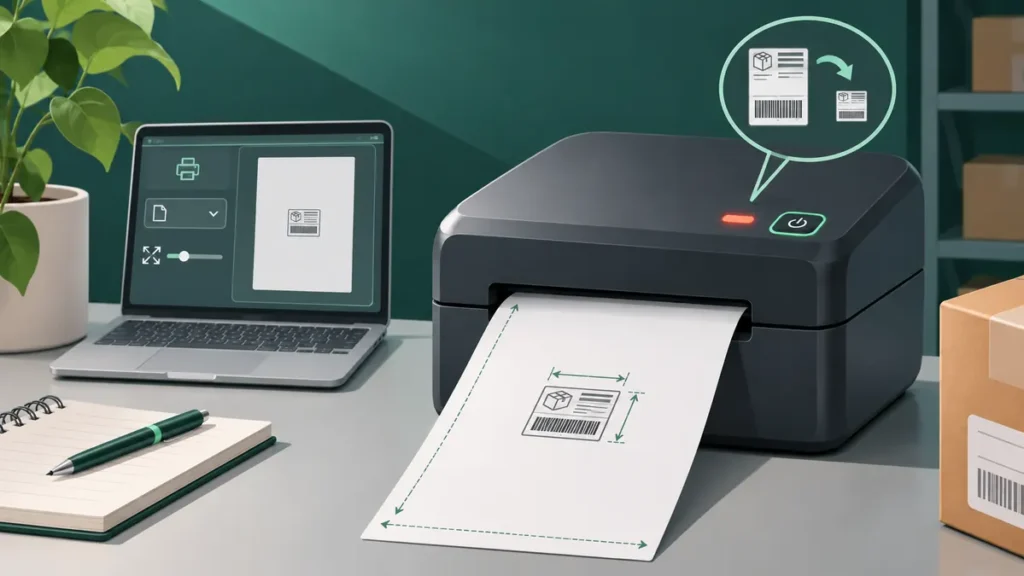
A shipping label that appears tiny in the center of a 4 × 6 inch sheet is often a document sizing problem—not a defective thermal printer. The artwork may sit on a Letter or A4 PDF page or the printing workflow may apply scaling more than once.
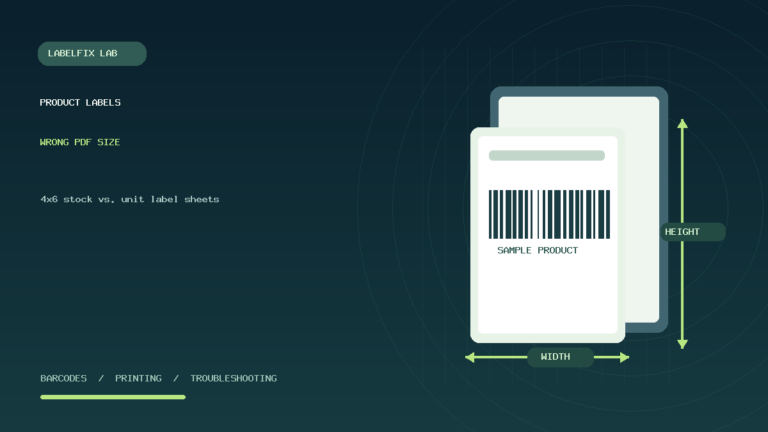
Three different sizes must agree
- PDF canvas: the physical page dimensions embedded in the PDF.
- Print dialog: the size and scaling selected in the PDF viewer or browser.
- Printer media: the dimensions that the printer driver assumes are loaded.
Portrait 4 × 6 inch stock equals 101.6 × 152.4 mm. For a USPS-specific workflow, see our USPS shipping-label PDF Actual Size guide. It is not the same orientation as 6 × 4 inches. Mixing inches, centimeters and millimeters—or combining a landscape PDF with a portrait preset—can cause shrinking, rotation or cropping.
How to fix tiny 4 × 6 shipping labels
1. Inspect the PDF page dimensions
Open the original downloaded PDF in a PDF reader and look for document or page properties. A page reporting approximately 4 × 6 inches is already label-sized. Zebra users can compare actual roll width, driver stock and metric conversions in our Zebra printer label sizes guide. A page reporting 8.5 × 11 inches or A4 may contain a smaller label image surrounded by white space.
2. Download the native thermal label if available
Many shipping services offer different output formats. If your label comes from FedEx, our FedEx 4×6 printer setup guide separates source PDF dimensions, physical stock and driver settings. For platform-specific examples, compare our Shopify thermal-label printing guide, Pirate Ship size troubleshooting, and eBay 4×6 versus Letter guide. If you see a dedicated 4 × 6 inch or thermal-printer option, choose it. This preserves the original carrier artwork, including routing codes and barcode margins, and is generally safer than resizing an arbitrary screenshot.
3. Match the driver to the roll
Select the intended printer in Windows or macOS printer settings, then set media to the actual width and height. If the driver allows a custom stock size, create 4 inches wide by 6 inches high for portrait stock. Check the driver’s interpretation of feed orientation. Smaller label makers are different: for a Brother QL-800 using DK rolls, see our QL-800 label-size troubleshooting guide rather than assuming it accepts 4-inch shipping-label stock.
4. Avoid automatic resizing of an already sized PDF
When the source PDF and stock both measure 4 × 6, try Actual size / 100%. Fit, Shrink to printable area, or Multiple pages per sheet can unintentionally reduce the label. Always inspect print preview and observe the printer’s nonprintable margins before choosing a setting.
5. Test one label and inspect every code
Before printing a batch, check the barcode bars, any human-readable tracking digits, routing marks, address lines and required carrier information. A label that looks almost correct but cuts off part of the barcode may be rejected during scanning.
What if your PDF is US Letter or A4?
Do not simply shrink the whole page onto 4 × 6 stock: the label artwork will shrink too. Our Letter-to-4×6 cropping guide explains why cropping and proportional fitting are different operations and how to avoid removing required barcode margins. For a safe, non-postage comparison, print our 4×6 SAMPLE printer alignment PDF at Actual Size and check the printed scale before working with a carrier label. First try the carrier’s correct download format. If the platform offers no alternative, crop the entire label region using a trusted PDF editor. Preserve the complete barcode, surrounding quiet areas, address and any carrier-required text, then confirm the exported page dimensions and make one test print.
Never recreate the tracking barcode from a number alone using an arbitrary online generator. Barcodes may contain carrier-specific encoding, routing information and symbology requirements.
Match the symptom to the next check
| Print result | Possible reason | Next action |
|---|---|---|
| Tiny label centered on stock | Letter/A4 page scaled down | Download native 4 × 6 PDF |
| Only half the sheet is used | Driver preset or scaling | Inspect actual size and paper width |
| Barcode cut off at an edge | Rotation or margins | Check source and preview |
| Printer advances too much stock | Feed calibration or length | Diagnose label-skipping |
Related guide: If the result is divided between two stickers rather than simply too small, see what to do when a single 4×6 shipping label prints on two pages.
Distinguish an undersized label from a split page
If the complete barcode and address fit on one sticker but look small, the likely area to inspect is document size and print scaling. If half the barcode prints on a second sticker, you have a different problem: the page may have been tiled, split across multiple sheets or interpreted with the wrong paper length. Check the PDF viewer’s page count and actual dimensions before selecting Fit or Shrink.
For a label that is the right size but rotated or clipped, use the orientation and margins troubleshooting guide. The two-page troubleshooting guide linked earlier addresses the different split-page symptom. Matching the visible result to the correct guide avoids random setting changes.
Related diagnosis: If your correct 4×6 stock setting keeps changing back to Letter or A4, see why thermal printer paper size keeps reverting. A changing driver preset is different from a wrongly sized original PDF.
Printing from a phone? Mobile sharing and printing apps can introduce their own page-size choices. Read our shipping label wrong size from phone guide if your desktop PDF prints correctly but the phone’s output does not.
Practical test: is the PDF too large, or is the artwork too small?
These are different faults. A PDF page can have correct 4 × 6 dimensions while the label artwork occupies only a small central area. Equally, a complete label may sit on a Letter-sized canvas and become tiny when the entire page is reduced to the printer’s stock. The PDF checker measures page dimensions, not the location or completeness of the barcode artwork.
| PDF page and print preview | What to do next |
|---|---|
| 4 × 6 in (101.6 × 152.4 mm), content fills the expected area | Match the printer’s stock preset, then test Actual size / 100% if supported. |
| 4 × 6 in, but the artwork is already tiny in the PDF preview | Request a new label export; changing printer darkness cannot enlarge the original artwork. |
| US Letter (8.5 × 11 in) or A4 with one shipping label | Find the shipping service’s native thermal-label or 4 × 6 export rather than shrinking the full page. |
| 4 × 6 page but content is cut off only after printing | Compare the driver’s printable area, app scaling, and media alignment rather than increasing the document size. |
One-label verification before printing orders
- Open the original carrier-generated PDF, not a screenshot or a social-media preview.
- Use the local page-size checker to confirm the document dimensions and page count.
- Confirm the loaded roll width and height, the actual printer queue, and the driver stock preset.
- Print one non-live sample using a supported reader. Compare overall content scale, barcode boundaries, and page margins with the PDF.
- If the file and stock are correct but the print is wrong, change one driver or application setting at a time and record the previous value.
Important: A 100 × 150 mm roll is close to, but not exactly, 4 × 6 inches. If a carrier specifies an exact format, follow its official label requirements. Never crop tracking-barcode quiet zones to disguise a sizing mismatch.
Use the carrier export settings and printer stock specification together
Primary references to consult: The shipping provider’s official label format/export instructions, the actual PDF dimensions and the printer manufacturer’s usable stock width and printable area. A “4×6” product listing and a 100×150 mm roll describe similar—but not mathematically identical—dimensions.
- Confirm that a portrait 4×6 inch PDF is 101.6 × 152.4 mm.
- Check whether the platform requires a specific format, rather than assuming a manual crop or resizing is accepted.
- Verify the printer’s supported printable area and document scaling in the vendor driver.
The local PDF Size Checker reports page measurements, orientation and count; it cannot certify barcode quality. See our source policy for the distinction between general calculations and manufacturer-specific settings.
When a PDF has conflicting page boundaries, a viewer may scale the visible CropBox instead of the full MediaBox. Our PDF MediaBox versus CropBox explanation shows why a shipping label can appear smaller or off-center.
Frequently asked questions
Should I use Fit to page?
Not automatically. When the PDF itself and printer stock are already 4 × 6, Actual size is typically a better starting point. Check the device’s printable area and preview.
Can I enlarge a tiny barcode with print scaling?
A large scaling factor may crop required text or margins. A correctly formatted original label is preferable.
Is the approach different on Mac?
The underlying page-size principle is the same, but print dialog names vary by operating system, driver and PDF viewer.
Always verify that the resulting label satisfies the originating carrier’s instructions before placing it on a shipment.
Independent general troubleshooting information for shipping labels and thermal printers. Model-specific button sequences, cleaning supplies and service instructions can differ; consult your manufacturer's official documentation. Never alter a carrier-generated barcode.