Quick answer: If your Brother QL-700 isn’t printing, produces blank labels, or cuts DK stock at the wrong place, first determine which part of the print workflow failed. A printer that is not recognized through USB has a different problem from one that receives jobs but has the wrong DK roll selected. A printer that prints clear text but cannot cut it correctly needs a different diagnosis from one that generates an entirely white label. Keep the source document, installed stock and printer queue separate while troubleshooting.
The QL-700 is a compact direct-thermal label printer with USB-connected workflows and supported Brother DK media. This guide is not a hands-on hardware service report. Software compatibility, label choices and cutter procedures can vary by operating system and current manufacturer support. For model-specific steps, use the latest applicable official Brother documentation rather than guessing a button sequence from a different QL family model.
First, identify the exact QL-700 symptom
| What happens? | Likely cause group | Controlled first check |
|---|---|---|
| Computer does not recognize the QL-700 | USB cable, port, driver or device state | Verify OS printer detection and approved connection |
| Printer appears but a job sits in queue | Stale queue, paused spooler, app output or driver | Submit a harmless supported sample and observe queue |
| Blank white label feeds | Source rendering, media compatibility, imaging problem | Compare manufacturer-supported test and original file |
| Incorrect DK size or roll warning | Wrong stock type, loading or label template | Check physical DK roll and selected design |
| Image prints but cutter doesn’t separate labels | Cut settings, continuous versus die-cut stock or cutter issue | Compare supported label editor setting and media type |
| Print is cropped or tiny | Source canvas, page scale, margins, printable width | Measure original file and real roll size |
| One extra blank sticker advances | PDF page count, label pitch, feed or cutting behavior | Count jobs, pages and physical stickers |
1. Confirm this really is a QL-700, not a different QL model
Read the device’s complete model identification. The QL-700 is not interchangeable with a QL-800, QL-820NWB or QL-1110NWB. Printer connectivity, supported widths, media options and software integration can differ even when the devices share the QL family name. Avoid installing a printer profile for a wider shipping-label model and assuming it will work for the narrower QL-700.
Record the operating system, app sending the job, installed DK roll and connection path. Our Brother QL-800 wrong-size guide explains a related but distinct model, while the QL-1110NWB 4 × 6 guide concerns a wider shipping workflow.
2. Check the USB connection and power state
A printer can be powered on without the computer successfully communicating with it. Confirm a compatible, data-capable USB cable is seated correctly at both ends and the printer is in the appropriate documented operating state. On a laptop, a docking station or USB hub may introduce another failure layer. If the manufacturer and workplace policy permit, try a supported direct port with the same harmless test.
Don’t disconnect the printer in the middle of a live batch. If Windows or macOS doesn’t recognize the device, investigate USB detection and supported drivers before trying to adjust label size. See our thermal printer not detected in Windows and USB label printer disconnects guides.
3. Check the exact printer queue the app is using
Computers can retain older printer entries or previous default paper settings after reinstalling a driver, updating the operating system or using another Brother device. A label application may continue to send jobs to a stale queue even while a working QL-700 is physically connected.
When you click Print, observe whether the job enters the expected queue, stays pending, displays an error or completes. An apparently completed job does not necessarily mean it printed correctly, but these observations tell you whether the failure occurs before or after delivery. A stuck job calls for supported queue and driver diagnostics, not automatic cutter replacement. See printer job stuck in Windows queue.
4. Use officially supported software for your operating system
Brother QL devices are commonly used with label design and printing software, but compatibility depends on the actual printer and OS release. Obtain supported printer drivers and applications from the manufacturer’s official support site. Do not assume an older QL-700 software bundle remains fully compatible with a recently updated host without checking documentation.
When troubleshooting, use a harmless label with short test text rather than a customer name or shipping barcode. If the supported label editor prints normally but a third-party application does not, compare the source format, paper preset and selected queue instead of removing all printer software indiscriminately.
5. Identify the DK roll before changing the template
Brother’s DK supply family can include pre-cut label shapes and continuous material intended to be cut to specific lengths in compatible workflows. Your QL-700 application must know which physical roll is actually loaded. A roll that fits inside the housing is not automatically the right type or width for the design file.
Record the roll’s official identification, physical label width and body length or continuous-roll width. Confirm compatibility with the specific QL-700. If a new roll is detected incorrectly or a saved template suddenly prints off-center, compare the previously working roll and the new material. Our thermal label roll core and stock dimensions article covers physical measurements, but QL DK compatibility still requires model-specific verification.
6. Check the label loading path and cover
Follow the official QL-700 guide to seat and route the DK roll. Misrouted liner or stock can interfere with printing and feed. A roll inserted at an angle may move sideways, wrinkle or cause cut positioning problems. Don’t try to pull stuck stock through a closed printer or force incompatible rolls into the guides.
Stop the printer and follow safe opening procedures. Keep fingers and tools away from the moving cutter and heated printhead. If the printer reports a roll or cover error, record the exact status rather than making assumptions from the color of an indicator light alone; model-specific light patterns require the manufacturer’s reference.
7. Blank labels: use a supported internal or editor test
If the QL-700 feeds a white sticker, compare a manufacturer-approved test or a safe short label from supported software with the original document. A visible test image shows that under those conditions the mechanism, media and software path formed a print. If only a specific browser PDF is blank, focus on rendering and the source.
If every safe test remains white with confirmed compatible stock, the investigation moves toward media coating, loading, documented printer-side diagnostics and possible imaging hardware. A general thermal printer guide is available at thermal printer blank labels. Do not attempt to fix a failed direct-thermal image by installing an ink cartridge.
8. Why the cutter might not cut even when printing works
Cutting and printing are separate operations. A label may receive a perfectly clear image but remain attached to the roll if the current job uses a no-cut option, if the media is intended to be continuous, or if the cutter cannot complete the configured action. Check the supported Brother label editor and the real DK stock before declaring the cutter broken.
The design workflow may support specific cutting behavior, such as separating labels in a batch. Exact options depend on software and device support. Run one harmless permitted test and observe whether the image prints, the media advances, and the cutter actuates. See label printer cutter not cutting for the distinction between job settings and physical cutter faults.
9. Do not fix cutter jams by pulling the sticker forcibly
A partially cut adhesive liner can stick near the exit or accumulate debris. If stock jams, stop the device safely and follow the manufacturer’s prescribed jam-clearing and cleaning methods. Avoid sharp tools, household solvents and reaching into the mechanism during operation.
If the cutter repeatedly jams with known-supported material and the same approved sample, record the pattern and seek qualified support rather than repeatedly cycling the motor under load. Our thermal label printer paper jam guide addresses common safety considerations.
10. Incorrect size: document canvas versus physical DK stock
A PDF page can be significantly larger than the label stock currently installed. A portrait 4 × 6 shipping PDF has an overall canvas of 101.6 × 152.4 mm. A Letter PDF is 8.5 × 11 inches. These are page dimensions, not proof that the QL-700 supports or should use that stock.
For a narrow DK roll, forcing a 4 × 6 or Letter page into the label area can shrink, crop or distort the image. The correct answer is a compatible original document and supported label template, not stretching carrier bars. Our PDF Size Checkershipping label printing too small explains scaling errors.
11. Why QL-700 is not a generic 4 × 6 shipping-label printer
The QL-700 is a compact DK label printer. It should not be treated as having the same stock width and printing workflow as dedicated wide-format shipping devices. If you need a 4-inch-wide carrier label, check actual device capability and the issuer’s authorized output format before trying to force it through a narrower printer.
A carrier document that doesn’t fit may need to be printed through a different compliant workflow. Cutting, resizing or rebuilding an official shipping symbol can remove required quiet margins or routing information. For a larger Brother QL model, see our Brother QL-1110NWB shipping label sizing guide; its hardware and media options are not interchangeable with the QL-700.
12. The template prints, but the wrong label gets cut
For continuous stock, a label editor may define the finished length and cutting position. If a saved template was designed for another roll, the cutter can separate the material before or after the intended boundary. Compare the loaded DK supply and the application’s selected label size, plus any supported cut behavior.
For die-cut stock, the sticker geometry is established by the roll. Cutting at an unexpected point may call for a different supported setting or a feed/registration check. Do not use random offsets to compensate for a mislabeled roll; first measure and identify the material correctly.
13. A blank sticker after each printed one is not the same as a cutter failure
Observe one controlled job. If a correct image prints followed by an extra unused sticker, the source might contain multiple pages, or the device might be advancing material based on a length or feed command. This is not proof that the cutter is damaged, especially if it cuts the intended sticker cleanly.
Count the source pages and print jobs separately from the physical stickers. Our extra blank label after printing guide provides a broader test path.
14. Why a browser PDF can fail when the label editor succeeds
A supported label editor knows the printer’s label layout, while a browser PDF viewer starts from an existing document’s page geometry. If a simple approved label prints but the browser job is blank or too small, compare source size, print scale and selected printer. One successful image is evidence against an immediately assumed failed printhead.
Use a trusted second viewer if your workflow permits. If the original carrier file is incomplete, obtain a legitimate re-export rather than reconstructing a tracking barcode. See Chrome shipping PDF blank and Acrobat shipping labels not printing.
15. Windows update and driver compatibility
If the QL-700 stopped working immediately after an OS update, record the exact host version, supported driver currently installed and whether the printer is visible in the system. A changed default printer, outdated driver or replaced queue can interrupt print jobs without any physical damage to the roll or cutter.
Consult Brother’s official compatibility guidance before reinstalling software. Use one harmless test in a supported app to distinguish host errors from media or cutter problems. For a general example, see thermal printer stopped after Windows update.
16. Example: new DK roll, old label template
An office installs a different DK roll but continues using the same design dimensions as before. The print is clipped and the cutter separates material at unexpected points. The operator checks the exact new roll and the current template rather than changing USB drivers. A short harmless sample reveals whether the mismatch is in stock or design.
17. Example: printer recognized but the print queue is stuck
A Windows PC lists the QL-700, but jobs remain pending. The operator confirms the actual queue and approved driver. A vendor-supported test from the correct queue works while the old shipping integration points at another printer entry. This is a print destination issue; a cutter replacement would not fix it.
18. Example: text prints but there is no automatic cut
A synthetic label prints at the right size and position but remains attached to the roll. The operator checks whether the current software job requests a cut and whether that behavior is supported for the loaded stock. If documented settings are correct and several permitted tests still fail, the next step is manufacturer maintenance or support—not reaching into the cutter while it is operating.
19. Example: a larger shipping PDF is shrunk onto a narrow roll
A seller selects a 4 × 6 shipping PDF but sends it to the QL-700 with a narrower DK roll. The viewer fits the whole page to the sticker, creating a tiny barcode. Rather than enlarging the barcode graphics arbitrarily, the seller chooses a supported device and authorized print format that preserve the complete required carrier document.
QL-700 troubleshooting checklist
- Record the exact QL-700 model, host OS and supported printing application.
- Check USB data and power, and verify the correct printer queue receives jobs.
- Identify the actual compatible DK roll and load it using official directions.
- Compare a safe vendor-supported print with the source document.
- Separate image problems, cutting problems and extra label feeds.
- Match template dimensions and cut behavior to the actual roll.
- Avoid forcing large shipping PDFs onto stock narrower than the required artwork.
- Use safe, documented maintenance when material jams or cutter behavior fails.
- Change one setting at a time, repeat the same test and record results.
Frequently asked questions
Why is my Brother QL-700 connected but not printing?
Check whether the computer recognizes the printer and whether a job enters the correct queue. Then compare a harmless print from supported Brother software with the failing application. USB detection and actual image delivery are different stages.
Why does my QL-700 print blank labels?
Check original file content, compatible DK stock and the supported print path. A successful safe test from another application narrows the fault toward the source document or its rendering.
Why doesn’t the Brother QL-700 cut labels?
Possible causes include job cut settings, loaded media type, jammed material or a physical cutter problem. Use a supported short test and official safety instructions before service.
Can a Brother QL-700 print 4 × 6 shipping labels?
Do not assume it supports the same wide stock and printable dimensions as larger QL shipping printers. Verify actual hardware and media specifications and use an authorized document format appropriate to the device.
Does the QL-700 need ink or ribbon?
It uses direct-thermal printing with suitable DK media; it does not work like an ordinary inkjet printer. Compatible stock and correct loading matter.
Related LabelFix Lab guides
- Brother QL-800 wrong label size
- Brother QL-820NWB print troubleshooting
- Brother QL-1110NWB wide-format printing
- Label printer cutter not cutting
- Windows thermal printer queue stuck
- Thermal printer blank labels
- Thermal label printer jam
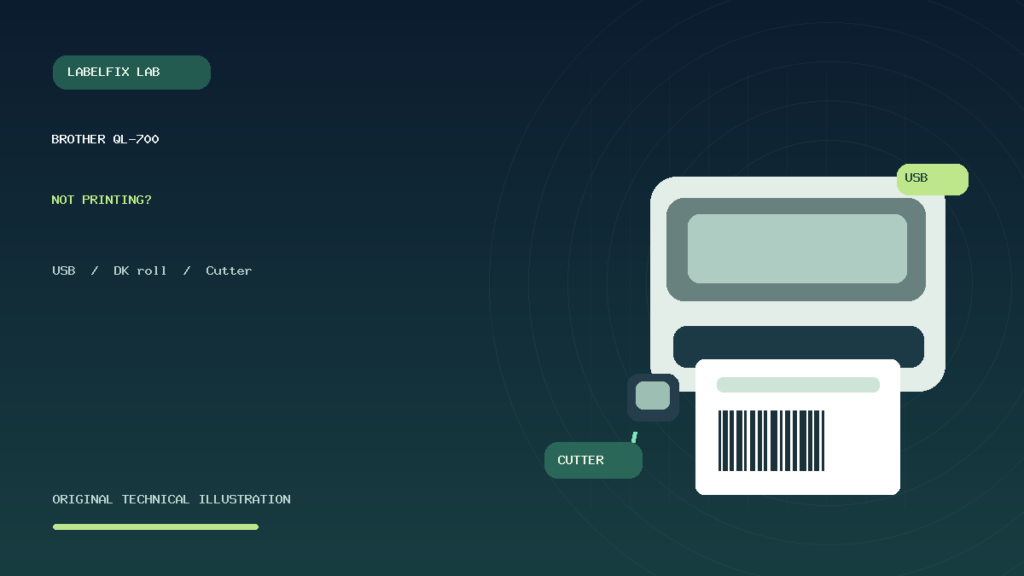
Editorial limitations: This independent guide does not report hands-on QL-700 testing. Exact software compatibility, cutter behavior and model-specific instructions should be checked with current Brother support resources. The featured illustration is original generic editorial artwork, not an official product photograph.
Independent general troubleshooting information for shipping labels and thermal printers. Model-specific button sequences, cleaning supplies and service instructions can differ; consult your manufacturer's official documentation. Never alter a carrier-generated barcode.