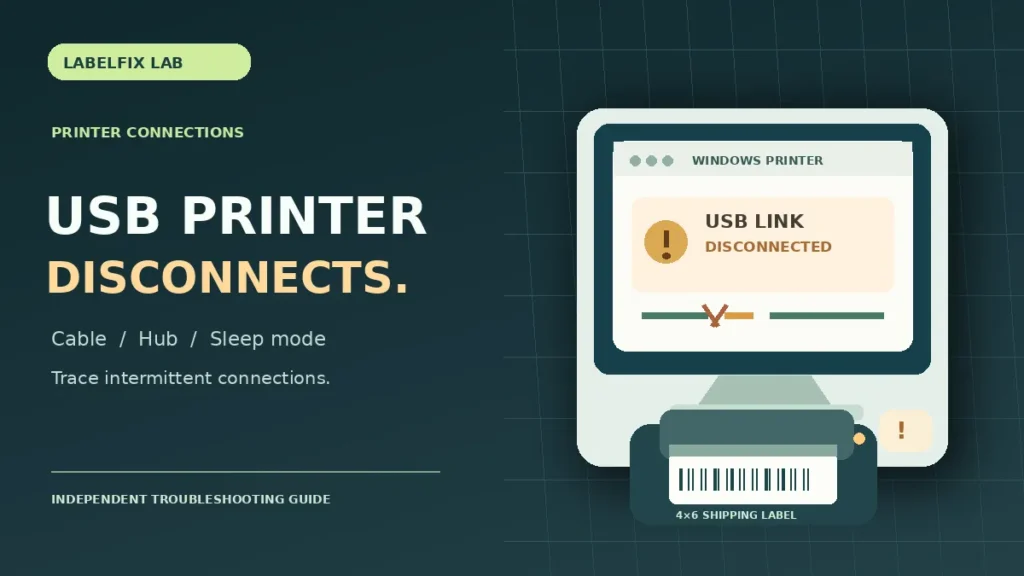
An intermittently disconnecting USB thermal printer may work for several shipping labels and then vanish from the computer, pause its queue or reappear a few seconds later. Unlike a printer that has never been detected, this device sometimes communicates correctly. A controlled connection test is usually more useful than uninstalling everything at once.
Identify the exact disconnect pattern
| Symptom | Useful first direction |
|---|---|
| Device vanishes when the cable is moved | Loose or damaged USB cable or port |
| Disconnects only through a USB hub or dock | Hub, dock, power budget or compatibility |
| Disappears after the PC wakes from sleep | Reconnection behavior and power management |
| Works on one PC but not another | Computer port, operating-system settings, driver differences |
| Printer stays visible but jobs stop printing | Print-queue and application troubleshooting |
| USB device is never recognized | First-time detection troubleshooting |
The pattern tells you whether the physical USB link is unstable or a working connection is being disrupted at the print-software layer. A USB cable can supply power while failing to transfer reliable data, so printer lights alone are not sufficient evidence.
1. Confirm printer power separately from USB
Check that the printer’s power indicator and display, if fitted, remain stable when the computer reports a disconnection. Some printers have a separate power supply; others may draw power over USB. Check only the power source supported by the device and do not substitute a different voltage or adapter.
If the printer itself restarts whenever it disconnects, note that behavior. It suggests a different investigation from a printer that stays powered on while only its computer connection drops.
2. Test a short, known-good USB data cable
Use a compatible, known-good USB cable designed for data transfer. Test with a direct connection to the computer and avoid cable extensions or adapters while isolating the problem. Do not bend connectors forcefully or rely on a damaged cable for production shipping.
If the printer remains connected with one cable but not another, that is strong evidence about the connection path. If both fail, continue to the port and system checks rather than declaring the printer defective.
3. Bypass hubs, docks and monitor USB ports
USB hubs and docking stations introduce additional connections and sometimes power or compatibility constraints. Connect the printer directly to the computer’s built-in port as a test, following your manufacturer’s requirements. If the instability disappears, investigate the hub or dock before reinstalling printer software.
In workplaces where a dock is essential, compare a powered hub recommended for the devices involved, but avoid making unverified claims that a powered hub fixes all printer models.
4. Observe the device in Windows Device Manager
Open Device Manager and check what changes when the printer disconnects and reconnects. A device may appear under printers, USB controllers or another category, depending on the interface and driver. Record warning symbols and any error description. A device that disappears from the USB device list is different from a printer queue that remains visible but pauses.
If Windows displays an intermittent “USB device not recognized” warning, record the exact message and whether the issue occurs with another known-good computer. Avoid uninstalling unrelated USB controllers or changing security policies as an initial response.
5. Check whether the fault follows Windows sleep or wake
If the printer works until the computer sleeps, test a single session with a controlled sleep/wake cycle and then a normal reconnection. Some printer drivers or interfaces take time to re-establish communication after sleep. Compare with the manufacturer’s recommendations for the printer and your Windows version.
Windows may provide USB power-management settings, but their presence and effect vary by device, hardware and policy. Don’t globally disable all USB power saving on a shared computer. If a device-specific setting is documented by the manufacturer, record the original value and test it carefully, with administrator approval when needed.
6. Inspect driver and print-port configuration
A disappearing USB device can make an existing Windows printer queue look Offline. If the hardware reconnects, the queue may still refer to a previous virtual port or outdated configuration. Confirm the installed driver matches the exact printer model and interface. Obtain updates from the manufacturer’s official support site.
A driver reinstall may be warranted after confirming the cable, port and device detection are stable. Doing it first can conceal the original cause or create duplicate queues. Our Offline printer guide explains queue symptoms separately from device detection.
7. Compare idle time with active printing
Observe whether the printer disconnects while idle, during the first page of a job, after several labels or only while a particular application is running. If Windows consistently loses the device under print load, capture that pattern for manufacturer support. Do not force a large production batch as a diagnostic test; use a few safe sample labels.
If the device never disconnects but stops moving labels, see our guide for connected thermal printers that do not print. If it advances blank stock, visit blank-label troubleshooting instead.
8. Test the same printer on another supported computer
If available, use another compatible computer with the correct manufacturer driver and a known-good data cable. The comparison can help distinguish computer-specific USB, power-management or driver behavior from a fault that follows the printer. Record the test conditions so that differences are meaningful.
Do not open the printer housing or attempt board-level repairs. A USB connector that is physically loose or damaged may require manufacturer service.
9. Preserve working settings before changes
Write down the current USB path, printer queue, driver version and any device configuration settings. Make one change at a time and print a small supported test. Once the device remains stable, save the settings and inspect every printed shipping label for complete text and barcodes.
10. Know when to ask for service
Seek official manufacturer support when the printer repeatedly disconnects on multiple known-good cables and supported computers or when the USB port is visibly damaged. Include the full model, operating-system version, cable/port tests and any Device Manager error messages. Do not attempt unsupported firmware flashing as a general fix.
Frequently asked questions
Why does my label printer keep connecting and disconnecting?
Unstable USB cables, ports, hubs, docking stations, power or a device-specific driver/interface fault may cause intermittent communication. Start with the simplest reversible connection tests.
Can Windows sleep settings disconnect a printer?
Sometimes the reconnection sequence or device power management causes trouble after sleep or wake. Compare the behavior with your printer’s supported configuration before making any changes.
Will replacing the USB cable always solve it?
No. A known-good data cable is a useful test, not a guaranteed remedy. Ports, docking hardware, drivers and the printer itself can also be involved.
Is this the same as a printer that Windows never detects?
No. This guide focuses on a device that sometimes works but repeatedly drops its connection. A device that never appears in Windows should be diagnosed using the separate USB-detection guide.
Editorial note: The exact Windows controls, USB modes and manufacturer diagnostic steps depend on the device. This article provides general checks and does not claim that every printer uses the same connection method.
Independent general troubleshooting information for shipping labels and thermal printers. Model-specific button sequences, cleaning supplies and service instructions can differ; consult your manufacturer's official documentation. Never alter a carrier-generated barcode.