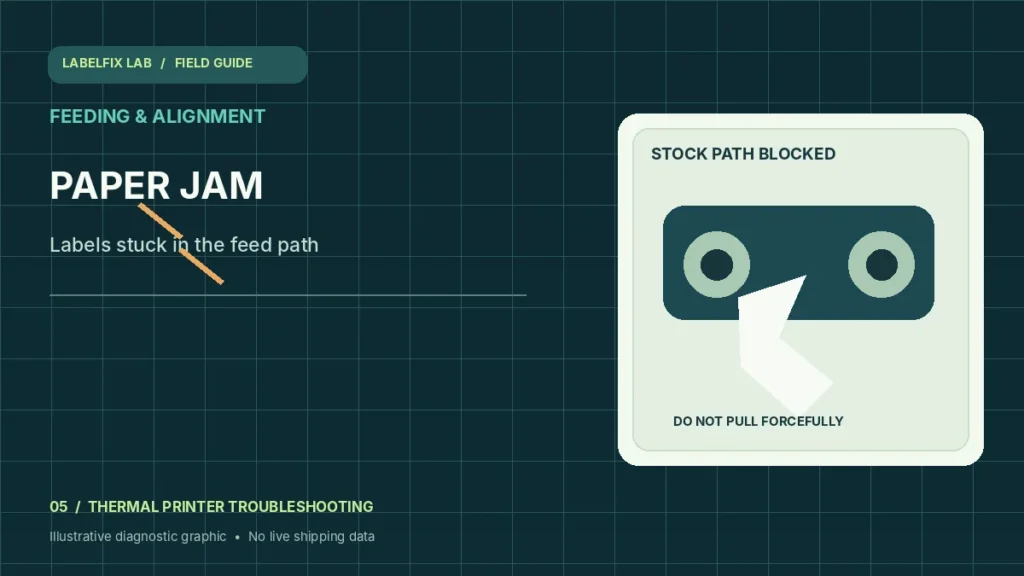
A shipping-label printer jam is a physical media-feed failure. The roll may stop moving, fold under the printhead, or leave adhesive labels attached to rollers. Do not respond by repeatedly hitting Feed, pulling hard on the liner, or forcing the cover. A controlled, model-safe clearing procedure protects the mechanism and prevents immediate repeat jams.
Identify the pattern before changing settings
The following observations help you choose a starting check, not a final diagnosis. Some symptoms have more than one possible cause.
| What you see | Check first |
|---|---|
| Liner crumpled before the printhead | Loading route, guide pressure, media damage |
| Sticker peeled away and stuck inside | Adhesive residue, roll quality, sharp media bends |
| Jam occurs only at high print speed | Media tracking or supported speed limits |
| New roll jams but old roll feeds | Core, thickness, roll width or material compatibility |
1. Stop the print job and remove power safely
Cancel active printing using the supported control and follow the manufacturer’s shutdown instructions. Allow the printhead to cool before accessing the media path; thermal elements can be hot. Unplug the device where specified. Do not place fingers near moving gears or cutters.
2. Open only the user-accessible media compartment
Follow the device manual for how to release the top cover and any media latches. Do not dismantle cutter assemblies or pry against the printhead. Photograph the position of the jam for your own notes before removing material, especially when the liner folded in an unusual way.
3. Remove torn stock in the documented direction
Release guides or levers only where the manufacturer allows. Gently remove loose labels and backing liner without sharp tools. If material has wrapped around a roller or is trapped behind a cutter, stop and seek service instead of pulling hard enough to dislodge parts.
4. Inspect for adhesive residue and damaged labels
Look for peeling label corners, loose adhesive, tears or residue on accessible rollers. Adhesive buildup can drag stock out of alignment. Clean only by the device’s approved materials and method, allowing surfaces to dry before loading new stock.
5. Verify the roll core, width, thickness and route
Use label stock within the printer’s stated dimensions and supported media types. An oversized core, distorted roll or excessive liner thickness can affect feeding. Reload exactly as documented with the printable face in the right direction for the print method.
6. Adjust guides without squeezing the label edges
The guides should support the roll rather than bend the liner. Look for wrinkled backing or significant side pressure. If stock repeatedly jams near the same position, note the location and compare a known-good compatible roll to determine whether the problem follows the material.
7. Run one short test before a full shipping batch
After clearing and reloading, print a small manufacturer-approved test. Watch the roll travel and check for skew or abrupt resistance. Do not send a fifty-label job until a few samples feed smoothly with complete barcodes and text.
8. Investigate repeat jams without forcing a fix
If repeat jams occur with multiple known-good approved rolls, the printer may need model-specific roller or cutter service. Record the location, material type, printer model and any error indicators. Persistent mechanical resistance is not normally cured by PDF scaling.
How to interpret your results
A feed jam that physically traps the liner differs from labels skipping while still moving freely. For excessive empty feeds, use continuous-feeding troubleshooting. For one blank after printing, see end-of-job feeding.
Common mistakes to avoid
- Pulling jammed labels through a closed printhead with force
- Using metal blades or unsupported chemicals around the thermal print line
- Returning to a full batch without verifying a clean test feed
Frequently asked questions
Why do adhesive labels stick inside a thermal printer?
Damaged labels, adhesive residue, an unsuitable media route or incompatible stock can contribute. Clear safely and inspect the accessible path following the device manual.
Can the wrong roll size cause a jam?
Yes, unsupported width, thickness, core or guide position can create resistance. Check the precise media specification for the model.
Should I reset firmware after every jam?
No. Begin with safe mechanical clearing and stock checks. A reset does not remove trapped liner or adhesive residue.
Editorial note: This independent troubleshooting guide explains broadly applicable checks. Printer hardware, supported media, and carrier acceptance requirements vary by model. Confirm model-specific settings and safety steps with the manufacturer’s current documentation. We do not claim hands-on testing of every printer.
Independent general troubleshooting information for shipping labels and thermal printers. Model-specific button sequences, cleaning supplies and service instructions can differ; consult your manufacturer's official documentation. Never alter a carrier-generated barcode.