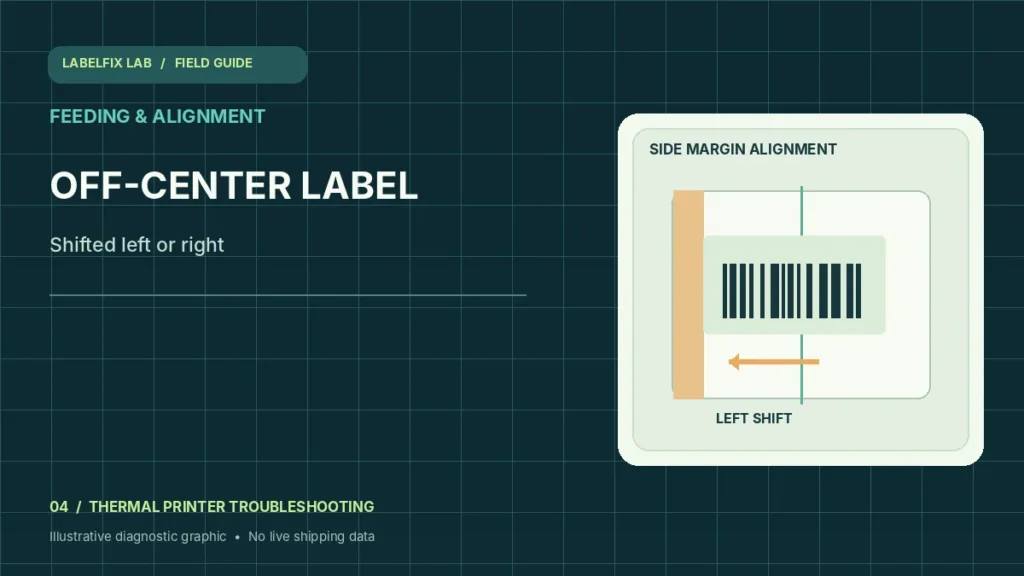
A shipping label can have the correct 4×6 page size and still print too far left or right. Off-center printing is mainly a horizontal alignment symptom: text and barcodes shift toward an edge, potentially clipping the quiet zone. It is different from a page printed sideways or a printer that repeatedly skips entire labels.
Identify the pattern before changing settings
The following observations help you choose a starting check, not a final diagnosis. Some symptoms have more than one possible cause.
| What you see | Check first |
|---|---|
| All content shifted left by a similar amount | Horizontal offset, driver width and page layout |
| Shift changes from label to label | Roll guides, stock tracking or uneven feed |
| Barcode clipped only in one application | PDF placement and app-specific margins |
| Whole page printed sideways | Orientation rather than horizontal alignment |
1. Check the unprinted PDF canvas first
Open the original shipping PDF and identify whether the address block and barcode appear centered within its own white page. A built-in margin in the carrier’s design may be deliberate, so do not assume every label should have symmetrical margins. Avoid moving real tracking bars by manual graphic editing.
2. Measure the physical stock width and driver selection
A nominal 4-inch label is 101.6 mm wide. Confirm the printer can accept that stock and the driver is set to the actual width. A mismatch between a 100 mm roll and 101.6 mm document can be relevant for edge-critical content. See the PDF size checker for exact document dimensions.
3. Inspect horizontal offset separately from vertical offset
Many drivers have an X or horizontal offset parameter. Note its original value before making a small supported adjustment. Do not change the X offset and top-of-form calibration simultaneously: otherwise you’ll lose evidence about which setting controlled the result.
4. Check the paper guides and the roll’s lateral travel
When the design shifts differently on each consecutive label, see whether the roll can wander side-to-side. Reload following the manufacturer diagram, with guides snug enough to support the stock but not crush it. Misaligned cores or unsupported widths can also cause skew.
5. Print a manufacturer test to isolate the source
A device-generated test can establish whether the printable area is stable relative to stock edges. Compare it with a carrier PDF printed at actual size. If only one application shifts the content, investigate that application’s margins and print settings rather than the physical mechanism.
6. Remove application scaling and borderless assumptions
Some print dialogs fit to printable area or apply default margins. Check Print Preview carefully. Thermal label printers may have nonprinting edges defined by the model; a page-size match does not imply genuinely borderless printing. Do not choose unsupported borderless settings just to force text to an edge.
7. Compare a small batch, not only one print
Print two or three non-live sample labels and check whether the same offset repeats. A consistent offset suggests a repeatable configuration issue; changing offset between labels suggests stock tracking or feed variation. Record this distinction for support.
8. Verify address and barcode clearance before production
Look at the complete routing text, barcode and clear spaces around it. If any part is clipped, reprint a clean original label after resolving the cause. Carrier scanning success should not be inferred from a barcode merely looking present.
How to interpret your results
For content that’s rotated 90 degrees or clipped vertically, follow the rotation and margins guide. If the printer feeds labels with inconsistent vertical positions, compare sensor and gap troubleshooting. Keeping these symptoms separate avoids changing every driver field at once.
Common mistakes to avoid
- Adding random manual margins to an already-correct carrier barcode
- Tightening label guides until the roll cannot move freely
- Changing page width, scale and X offset simultaneously
Frequently asked questions
Why does a correct 4×6 PDF still print off-center?
The document can be correctly sized while the driver width, horizontal offset, app margins or physical stock placement is wrong.
Should I use Fit to Page to center a label?
Not by default. Fit may change barcode dimensions. Start with the correct stock and actual-size printing, then investigate documented offsets.
What if alignment gets worse as labels feed?
That pattern suggests tracking or feed instability rather than one fixed horizontal offset. Compare the media path and supported guides.
Editorial note: This independent troubleshooting guide explains broadly applicable checks. Printer hardware, supported media, and carrier acceptance requirements vary by model. Confirm model-specific settings and safety steps with the manufacturer’s current documentation. We do not claim hands-on testing of every printer.
Independent general troubleshooting information for shipping labels and thermal printers. Model-specific button sequences, cleaning supplies and service instructions can differ; consult your manufacturer's official documentation. Never alter a carrier-generated barcode.