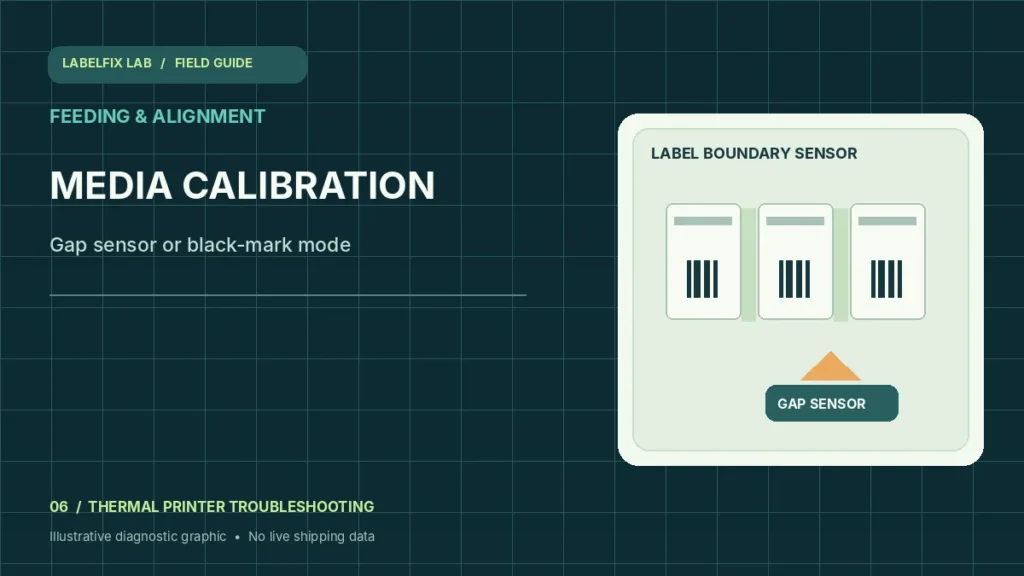
Thermal-label calibration helps a printer identify where one label ends and the next begins. It is useful when stock stops at the wrong position, labels skip, or the printer cannot detect the next gap. But not every print defect is a calibration issue, and there is no universal button combination that works across all brands and models.
Start with the observable symptom
These patterns narrow the troubleshooting path; they are not a guarantee of a specific cause. Record what actually happens instead of changing multiple settings together.
| What happens | Where to start |
|---|---|
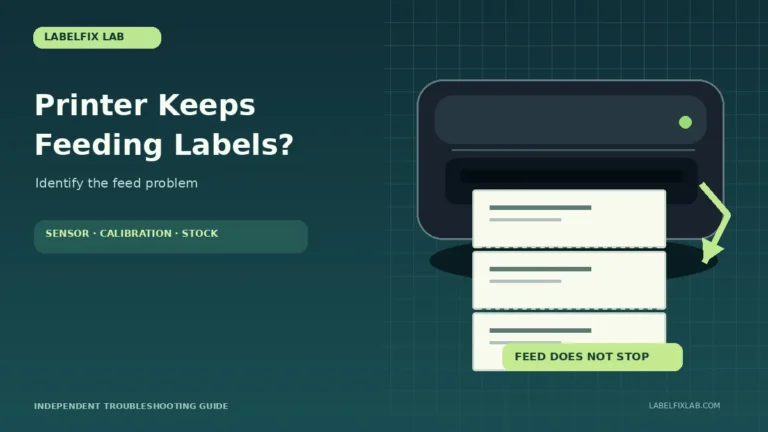
| Blank labels advance while sensor searches | Mismatch between gap, black-mark or continuous mode |
| Stops partway through the next label | Boundary detection or stock length |
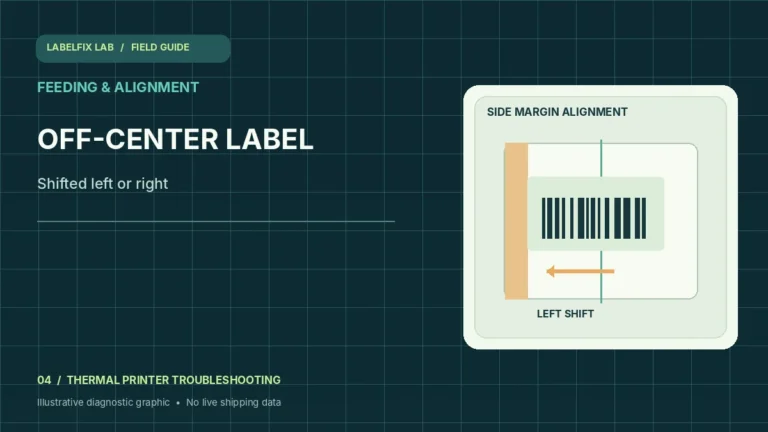
| Text prints off to one side | Usually horizontal alignment, not calibration |
| Prints a tiny image in the middle | PDF and driver scaling, not media calibration |
1. Identify the stock’s registration method
Look at the backing liner between adjacent die-cut stickers. Gap media has a detectable separation; black-mark media uses a registration mark, often behind the liner; continuous rolls do not offer a regular boundary. Select the sensing mode supported by your exact printer and stock instead of assuming all 4×6 rolls are the same.
2. Read the model-specific calibration procedure
Locate the full model and interface variant on the printer label. Use the official manual for the documented calibration sequence. A two-button combination on one printer can reset configuration or run a different test on another, so do not follow random sequences just because they appear in a video.
3. Load the stock correctly before starting
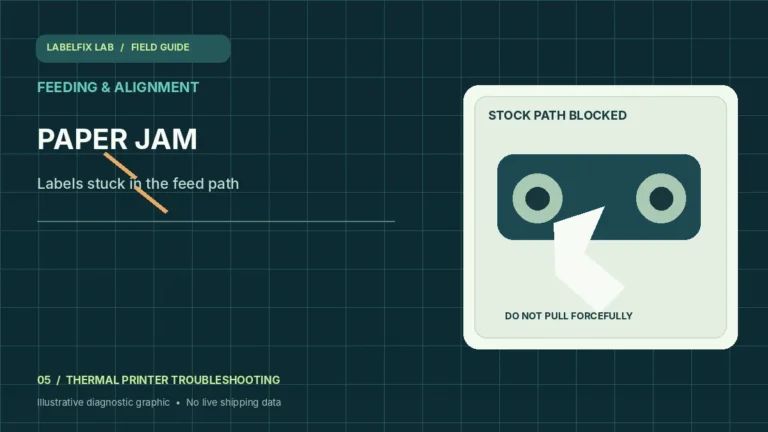
Check the printable side, core placement, liner path and media guides. Folded backing, peeled labels and skewed rolls can make good sensors appear unreliable. The printer must be able to advance stock freely; don’t run calibration through a jam. See the jam troubleshooting guide when resistance occurs.
4. Record the printer’s working configuration
Note existing media type, print method, label dimensions and sensor selections before modifying any setting. Some printers store media calibration values in memory. A reset or switching print modes can erase a known-good configuration and create additional problems.
5. Run only the supported calibration step
The printer may advance several blank labels while looking for repeating gaps or marks. This can be normal behavior during calibration, depending on the model. Let the documented process finish without pulling on the roll; if the device reports an error, record its exact message.
6. Test one feed command after calibration
Use the manufacturer’s Feed control to check whether it advances to the expected next boundary. A single button press may behave differently in cutter or presentation modes. Compare the stop position over a few labels without sending a shipping batch.
7. Compare the internal test with a shipping PDF
If the printer now feeds accurately but prints a 4×6 document too small, calibration has likely solved a different part of the problem. Inspect page dimensions with the PDF size checker and match the driver stock preset. Calibration cannot turn a Letter-sized PDF into a native label document.
8. Escalate sensor or stock detection faults safely
If multiple supported rolls fail the documented calibration, follow approved sensor-inspection and cleaning guidance. Never bypass interlocks or adjust an optical assembly that is not user-serviceable. Document the sensor mode, media type and failed test for manufacturer support.
Interpret the outcome before changing more settings
The symptom matters: skipped labels involves missed label boundaries, while continuous feeding may reflect the wrong sensor mode or a repeated host job. If printing is horizontal or clipped, see rotation and margins instead of recalibrating repeatedly.
Avoid these common mistakes
- Using a button sequence from a different printer model
- Running calibration with a damaged or incorrectly loaded roll
- Expecting gap calibration to correct PDF scaling or barcode blur
Frequently asked questions
Does calibration use up labels?
Many printers feed several labels during a documented calibration routine. The exact number depends on the model and stock.
Should I calibrate every time I print?
Usually not if the printer consistently detects its media. Follow the manual, especially when changing roll type or sensing mode.
Can calibration fix sideways printing?
It generally targets media boundary detection, not PDF page orientation. Use the rotation and print-layout controls for sideways output.
Editorial note: This independent guide provides general troubleshooting, not guaranteed fixes for every model or carrier. Device-specific calibration and safety steps must follow the official printer manual. Label dimensions and software options vary by shipping service.
Independent general troubleshooting information for shipping labels and thermal printers. Model-specific button sequences, cleaning supplies and service instructions can differ; consult your manufacturer's official documentation. Never alter a carrier-generated barcode.