Quick diagnosis: If a Brother QL-1110NWB prints a 4 × 6 shipping label too small, sideways, clipped or shifted, start with the actual DK roll and the physical size of the source document. These need to agree with the label design and printer driver. A full Letter PDF squeezed onto a smaller label can shrink the barcode, while a native 4 × 6 document forced onto the wrong DK stock can cut off addresses or bars. A printer that cannot be found over Wi-Fi requires a different troubleshooting path from one that accepts the job but produces a wrong-size sticker.
The QL-1110NWB is a wide-format Brother QL label-printer model used for larger shipping and product labels in supported setups. Actual printing capabilities, roll options and mobile/network software vary by current compatibility documentation and installed host configuration. Do not assume every roll sold as “4 × 6” is accepted or that every phone app exposes the same settings. Refer to official Brother support for the exact model, roll and operating system.
Identify your printing problem before making changes
| Printed result | Most useful first suspect | What to compare |
|---|---|---|
| Barcode and text look tiny on a large sticker | Source page was scaled down | PDF canvas size versus selected DK label size |
| Label is cropped on its right side | Source width, printable margins or rotation | Real stock width and device imageable width |
| Text begins too low but label height is correct | Print origin or leading margin | App/driver top-offset settings |
| First label is correct, later labels drift | Mismatch between design pitch and physical stock | Media dimensions, gap and handling method |
| Wrong roll or paper warning | Unsupported/mismatched DK roll or load | Actual stock identification and official instructions |
| Printer visible but no job prints | Connection, queue, software or driver | Approved harmless test print |
| One label prints plus an extra blank label | Source page count, feed or cutter behavior | PDF pages and physical feed count |
1. Read the DK roll identification, not just the advertised dimensions
Brother QL printers use supported DK label supplies that may be die-cut or continuous, depending on the specific roll and application. Different rolls have different widths, label lengths, backing or cutting behavior. Two packs marketed for “shipping labels” are not automatically interchangeable.
Inspect the actual roll’s part identification and the manufacturer’s supported supplies for the QL-1110NWB. Determine whether the installed label is a pre-cut rectangle or continuous material used with an application-defined cut length. Confirm which orientation the roll uses in the documented media path. A saved printer preset for an older roll can make a new roll print incorrectly even when the app says “4 × 6.”
2. Measure the real sticker and the source PDF separately
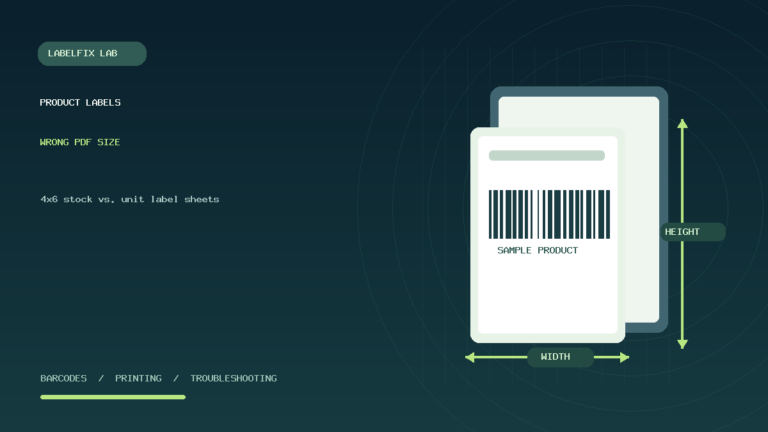
A US-style portrait 4 × 6-inch page is 101.6 × 152.4 mm or 288 × 432 PDF points. A Letter PDF measures 8.5 × 11 inches or 612 × 792 points. An A4 PDF is 210 × 297 mm. Those numbers describe the full document canvas, not necessarily the visible printed label inside it.
Check the original PDF’s page properties and compare with the actual DK roll. If a Letter PDF has a 4 × 6 graphic floating on it, fitting the entire Letter page to the roll will reduce that graphic. If the source is already 4 × 6, an additional fit-to-page adjustment can make it smaller than intended. Our PDF Size Checker
3. Know the difference between stock width and printable width
The physical width of a roll and the maximum area the printhead can image are not necessarily identical. Printers can also have required side margins or feed limitations. A document that uses every millimeter of its 4-inch width may clip when its image falls outside the device’s actual printable region, even though the DK stock seems wide enough.
Check Brother’s current specifications for the precise roll and driver. Do not stretch or independently shrink the barcode bars just to make them fit. Use an authorized file and layout that match the supported output area, preserving all address text and required barcode quiet margins. See barcode quiet zone cut off to understand how clipped edges affect scanning.
4. Select the correct printer and roll in the application
A shipping portal, PDF reader or label editor may remember a previous printer and its stock preset. Confirm that the QL-1110NWB is selected and that the actual DK media is represented correctly in the supported printing software. An older template created for a narrower Brother QL model can produce unexpected whitespace, cutting or scaling on a wider device.
Save a copy of the original document before changing layout settings. Print one harmless, clearly marked test rather than a live carrier barcode. If the test is wrong, record whether the failure is scale, lateral offset, height, orientation or paper feed. Each symptom points to a different layer.
5. When to use Actual Size and when not to
If a source PDF has the same page size as the intended physical label, Actual Size / 100% is a good starting point because it avoids automatic shrinking. This is not a universal instruction for every document. If the PDF is Letter and you select a smaller roll, Actual Size may crop most of the page.
The right response to a mismatched source is to obtain a genuine authorized label document in a compatible format or use a supported workflow that correctly places the required content on the chosen stock. Do not arbitrarily crop or generate a replacement carrier barcode. If a shipping service offers different format options, use those specified for the actual shipping workflow.
6. Avoid double rotation
The source artwork can be portrait while the paper roll, application or driver uses a rotated coordinate system. If you rotate the page in the PDF viewer and the driver rotates it again, the result may be sideways or clipped. Record which layer is currently responsible for orientation, then change only one setting and test.
A portrait 4 × 6 sticker is not made correct merely by rotating the visible barcode horizontally while the remaining document stays in its old page geometry. The complete issued shipping label must fit within the printable region with its required details and clear margins intact. Our shipping label sideways or cut off guide covers this general failure.
7. Compare a trusted label-editor sample with a PDF print
Use an approved Brother-compatible label application to print a simple synthetic test with a short line of text and a harmless sample barcode or shape. Select the actual installed roll. If that prints in the correct physical position but a shipping PDF does not, the printer and media have demonstrated basic function, and the PDF rendering or print-dialog geometry deserves attention.
If even the compatible editor test fails to match the stock, investigate roll identity, installed printer profile and documented loading. Keep test content free of real tracking numbers and private customer data. See label editor, driver and PDF viewer differences for a breakdown of their responsibilities.
8. Why a shipping PDF from a browser may look too small
Browsers can open a PDF and apply their own printing scale, margins, paper selection or page-header handling. An embedded graphic inside a Letter document may appear appropriately sized on screen while printing much smaller onto DK stock. Inspect the physical PDF page size and print preview rather than judging the thumbnail.
In supported cases, compare with another trusted PDF viewer using the same printer and roll. Don’t assume that Chrome, Acrobat, a shipping platform and Brother’s label editor all produce identical output settings. Our shipping PDF printing blank in Chrome and Acrobat printing troubleshooting cover failures in those paths.
9. How continuous DK rolls differ from pre-cut stock
For a supported continuous roll, an application may specify the length at which the printer cuts the label. With die-cut stock, the length and gap between labels are physically defined by the material. A saved template intended for one type may not behave correctly with the other.
When the printer cuts too early, advances excess material or produces unexpected whitespace, check stock type and document page length before changing cutter settings. Never place fingers or tools into the mechanism while the cutter operates. Use official safe loading and maintenance instructions for your model.
10. Distinguish image offset from label feed drift
A constant shift—every barcode starts 4 mm too far left, for example—is often a page-origin or layout issue. Progressive drift across a series of labels suggests a pitch, stock length or feed-registration mismatch. If the first image and the tenth are displaced by exactly the same amount, that is different evidence from each image moving farther down the roll.
Measure the actual printed position of several harmless samples. Keep the file and stock constant while comparing settings. Our off-center label printing guide provides a general positioning diagnostic.
11. When a DK roll is not recognized
If the application warns about incorrect or missing roll stock, confirm the supplied roll, the supported compatibility list and correct loading. Do not assume an off-brand roll with a similar outside width has the same detection arrangement or stock dimensions. A label printer’s media identification and print geometry can both affect the workflow.
A roll warning should not be bypassed using an undocumented sensor override. Compare an authentic known-compatible supply where available and follow Brother support advice for the exact model. If that stock works while a particular replacement fails, the difference helps narrow the cause without replacing hardware.
12. Wi-Fi and Bluetooth failures are separate from wrong paper size
The QL-1110NWB has supported connectivity workflows, but discovery and app compatibility are different from layout. If jobs never arrive wirelessly, check the intended connection, network association, current printer address, selected queue and host/application support. Don’t recalibrate label stock just because the printer appears offline in a phone app.
Conversely, if a job reaches the printer and a clearly visible but wrong-size sticker emerges, connectivity has succeeded for that test. Focus on page and stock geometry. Our Brother QL-820NWB Wi-Fi, USB and DK guide discusses related connection principles without assuming identical media or button controls.
13. Label width changes after Windows printer updates
An operating-system or driver update can change the default paper preset, recreate the queue or make the application select another printer. Record the previous supported profile and compare current physical stock selection with the document. Avoid installing unrelated generic drivers when a vendor-supported path is available.
For a print job stuck in Windows, inspect the queue rather than repeatedly submitting live carrier labels. For a paper size that keeps reverting to a larger default, see thermal printer size keeps changing to Letter and Windows stuck print jobs.
14. Example: a 4 × 6 PDF comes out with huge white margins
A user downloads a shipping document and selects the QL-1110NWB. The printer outputs a sticker, but the barcode occupies a small patch in the center. Checking the PDF page properties reveals a Letter canvas with a smaller shipping graphic. The correct fix is a compatible authorized label layout and matching stock, not simply stretching the barcode within the existing page.
15. Example: the right edge of the barcode is missing
A 4 × 6 shipping PDF opens correctly, but its printed barcode is cut off on the right. The operator checks the actual DK stock and maximum printable width, then reviews orientation and scaling. Because barcode quiet zones and entire bars may be lost, the sticker should not be used for shipping until the output is complete. A new thermal darkness setting cannot restore clipped geometry.
16. Example: one good print followed by an empty sticker
A supported test produces a correct label but advances one blank afterward. The operator checks whether the original file has a second page, whether die-cut or continuous stock is loaded, and whether the handling mode requests an extra advance or cut. This differs from a printer that generates an entirely white image for its only page.
17. Example: a new roll changes every output
The printer worked with one identified DK roll but produces clipped layouts after switching to another roll. Its saved template still selects the previous width or cut length. Comparing the actual material with the application layout reveals the mismatch. The test should be a harmless document; there is no need to change the shipping barcode itself.
18. Example: phone sees the printer but can’t print the document
A compatible mobile device discovers the printer over a supported network path, but the chosen app does not present the desired label stock or PDF size. Discovery alone does not prove that the document can be rendered correctly on the DK roll. Check the currently supported Brother printing application and document format before changing router security or hardware sensors.
Practical 4 × 6 printing checklist
- Identify the exact Brother QL-1110NWB and installed compatible DK roll.
- Check the real label width, height, die-cut versus continuous stock and cutting behavior.
- Inspect the original PDF’s physical page size and page count.
- Match the roll, supported printable width and document orientation.
- Use Actual Size only when source and target dimensions genuinely match.
- Avoid stretching or recreating any authorized shipping barcode.
- Compare a safe label-editor test and trusted PDF output.
- Separate clipping, scaling and feed registration from connection failures.
- Retest with one controlled harmless sample before batch printing.
Frequently asked questions
Why does my Brother QL-1110NWB print 4 × 6 labels too small?
Check the source PDF size, selected DK roll, print scaling and driver paper preset. A Letter-sized page fitted to smaller label stock is a common possibility even when the visible label graphic looks correct.
Can the QL-1110NWB print 4 × 6 shipping labels?
Use an officially supported DK roll and printing workflow for the model. The paper dimensions, printer’s actual imageable area and the source label format must all be compatible; not every roll advertised as 4 × 6 is interchangeable.
Why does the printer cut off the barcode edge?
Check printable width, media selection, orientation, page origin and unintended cropping. Don’t ship a label with bars or quiet zones missing.
Why does the printer add one blank sticker after a job?
Inspect the source page count, stock type, page length and cut/feed handling. A blank advance is different from a blank image.
Does changing Wi-Fi fix wrong-size labels?
Not when the image already reaches the printer but is scaled or clipped. Networking and page geometry are separate layers and should be diagnosed independently.
Related LabelFix Lab guides
- Brother QL-820NWB connection and DK-roll issues
- Brother QL-800 wrong label size
- Shipping label printing too small
- Sideways and clipped shipping labels
- Printer paper size keeps switching to Letter
- Inspect PDF page dimensions
- DYMO 4XL not printing 4 × 6 labels
Editorial note: Product roll compatibility, app menus, connectivity options and print settings should be confirmed using current Brother documentation for your hardware. This article is independent diagnosis, not physical testing of a QL-1110NWB. The original featured artwork depicts a generic wide-label printer, not an actual Brother product.
Independent general troubleshooting information for shipping labels and thermal printers. Model-specific button sequences, cleaning supplies and service instructions can differ; consult your manufacturer's official documentation. Never alter a carrier-generated barcode.