Quick diagnosis: If Amazon FBA product-unit labels print too small, stretch across a sticker, misalign on a sheet, or clip the barcode, begin by identifying the kind of document you downloaded. A multi-label PDF page intended for an adhesive label sheet is not the same as a single small product-label file, and neither is automatically the same as a 4 × 6 carrier shipping label. The source page, the actual label cells, the stock, and the printer’s page settings must match the intended workflow.
This guide addresses physical layout problems when printing authorized FBA product labels. If the original label PDF fails to download or remains blank before printing, use our Seller Central PDF download and print diagnostic instead. The exact label format, dimensions, identifiers, accepted materials and preparation rules can change by inventory setup and marketplace. Use the current instructions for your shipment in Amazon Seller Central rather than relying on an old screenshot or someone else’s preset. It is not a guide to creating or buying shipping labels.
Start with the right document type
| Document | Typical layout | Common print failure |
|---|---|---|
| Product-unit barcode label sheet | Several small label cells arranged on Letter or A4 paper | Every cell drifts or shrinks due to page scale or sheet mismatch |
| Single product-unit barcode label | One individual small label with its own intended dimensions | Printer uses a generic 4 × 6 preset or oversized origin |
| FBA box/shipment label | Separate label for cartons or other shipment handling | Printed or applied where a product-unit code was required |
| Carrier shipping label | Frequently a different page size and transport barcode | Confused with the product label, or incorrectly resized |
Use the label type requested by the actual fulfillment workflow. Don’t crop a carrier document into product stickers and don’t assume an 8.5 × 11-inch product-label sheet should be shrunk onto a thermal shipping roll. The printable area, barcode quiet margins and other required information may be lost.
1. Check the original PDF canvas before printing
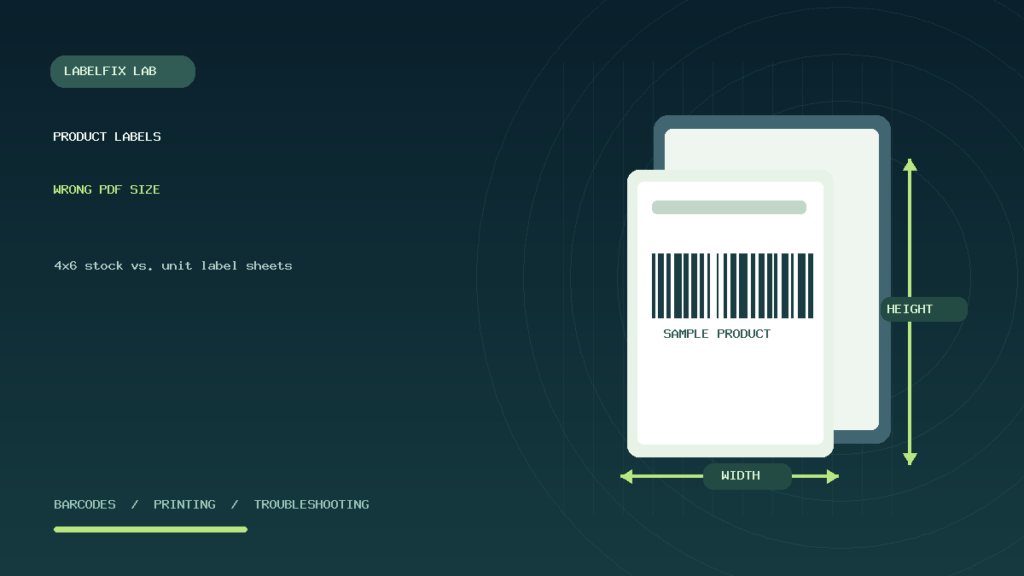
Open the authorized file in a trusted PDF reader and inspect its page properties. A US Letter page measures 8.5 × 11 inches or 612 × 792 PDF points. A standard A4 page is 210 × 297 mm. A portrait 4 × 6-inch page is 101.6 × 152.4 mm, equivalent to 288 × 432 points. These measurements describe the PDF page itself, not the size of each barcode cell printed on it.
For example, a Letter document can contain many small product stickers in a grid. The viewer may report 8.5 × 11 even if the labels within the page are much smaller. Our PDF Size Checker tells you the page dimensions locally, but it cannot automatically validate each cell or its fit to a proprietary sheet template.
2. Match the exact adhesive-sheet layout
Adhesive label sheets differ in their number of columns and rows, each cell’s width and height, side margins, gaps, and whether any part of the page has already been used. Even two sheets with the same number of labels can have different top offsets or label pitch. Compare the purchased stock’s actual specifications with the authorized source format rather than just choosing “labels” in the paper-type menu.
If the first row looks correct but lower rows drift progressively, suspect that the printed row pitch differs from the physical distance between labels. If every row is offset by the same amount, suspect a fixed top/left margin or paper feed placement. Those symptoms need different corrections.
3. Use a real-size test without wasting product stock
For a sheet-style file, print a harmless geometry sample on ordinary paper using the exact same page size and scaling as the intended adhesive sheet. Overlay the test sheet behind an unused label sheet under bright light to check whether the cell outlines align. This is an alignment check only: it does not prove a real FNSKU barcode will scan or meet the current program’s labeling rules.
Keep the test document free of live customer or product-identifying data where possible. If you use the authorized label artwork to verify positioning, retain it securely and prevent misprinted labels from being used on products. Only run a full product-label batch after the alignment is acceptable.
4. Avoid Fit to Page when the sheet and PDF already match
If the source is a native Letter PDF and the printer has the correct Letter paper loaded, a trustworthy starting point is Actual Size / 100% with no unintended shrink-to-printable-area behavior. Fit can introduce small scaling changes that make a grid drift across many labels, even if the first sticker seems acceptable.
But if the source and stock do not match, printing at 100% may crop the page. The solution is to obtain an authorized layout for the actual stock and set the driver accordingly—not to stretch barcode graphics until they visually fill the adhesive. Avoid selecting “Multiple pages per sheet” or an automatic borderless photo preset without verifying the consequences.
5. Distinguish a page-size mismatch from an origin mismatch
| What the print looks like | Most useful first check | Likely layer |
|---|---|---|
| Entire sheet is uniformly too small | Check scale percentage and source page dimensions | PDF viewer or driver shrink setting |
| Entire grid is shifted left or right by a fixed amount | Compare paper registration, driver margins and template start offset | Page origin or feed alignment |
| Rows drift farther off target down the page | Compare physical label-row pitch with PDF template pitch | Wrong stock grid or scaling |
| Barcode occupies only half of its individual sticker | Inspect original label cell size and content placement | Source layout or label-template configuration |
| Image looks blurry or melted together | Compare known-good sample and thermal media/darkness | Print-quality problem after geometry |
| Barcode is missing at the edge | Check printable width, margins and cell boundary | Clipping or unsupported label origin |
Check measurements rather than guessing. A uniform horizontal shift of several millimeters is not the same as proportional scaling; increasing the printed barcode size may make the grid worse.
6. What if you use a desktop thermal label printer?
A roll-fed direct-thermal or thermal-transfer printer can be suitable for certain product-label workflows if the exact unit label, printer and stock are compatible with the current requirements. Confirm the physical roll width and length, gap or black-mark sensing type, printable width and image origin. A factory default 4 × 6 shipping preset is not the right choice for every small product label.
If the printer advances several blanks, check media sensing and pitch independently from the document’s dimensions. If the printer outputs the correct number of small stickers but the barcode is shifted inside each one, investigate alignment and page origin rather than the sensor. Our thermal printer calibration guide separates gap registration from image layout.
7. Why cutting a Letter PDF to 4 × 6 is usually the wrong first fix
A full-sheet FBA unit-label PDF may contain many different labels for multiple products. Cropping a rectangle out of that sheet to fit a 4 × 6 shipping printer does not automatically create a correct individual product label. It can split barcodes, remove quiet zones or combine content from neighboring cells.
Our 4 × 6 PDF page converter is a general document-geometry utility; it is not a certified FBA product-label generator and cannot determine which product barcode should be used or whether a crop complies with current requirements. Prefer the authorized original in a format intended for your actual printer and stock.
8. Check printer driver, orientation and preview settings
Make sure the selected printer is the intended device. A previously used office printer, duplicate Windows queue or a generic PDF printer can retain an old Letter/A4 preset. For a sheet printer, verify the actual paper size and portrait orientation unless the source specifically instructs otherwise. For a roll printer, match its media preset to the genuine stock and the required label artwork.
Inspect the preview before consuming adhesive media. Look for unexpected margins, fit scaling, pages per sheet, duplex printing or orientation rotation. A setting saved in the source application may override an operating-system default, so identify which layer actually controls the job.
9. Protect barcode readability after you solve alignment
Once the layout fits the stock, check the physical barcode edges, contrast and clear space around the symbol. A barcode can fit inside its sticker while still being too faint, distorted or compressed for reliable reading. Do not fix a small code by increasing its width independently of the rest of its encoded geometry.
Use suitable printer supplies and manufacturer-supported heat/speed settings. Our blurry barcode print guide and Amazon FNSKU not-scanning diagnostic cover physical decoding separately from page geometry.
10. Example: the first row aligns, but the bottom row misses
A seller selects a multi-label product sheet that looks similar to the downloaded template. The first row aligns, but each subsequent row moves slightly downward relative to the adhesive labels. This is evidence that the vertical label pitch or global scale is wrong. The fix is to use matching stock and source layout and verify a real-size print, not manually move every barcode or increase printer darkness.
11. Example: a label roll prints one tiny product code per 4 × 6 sticker
A thermal printer retains its shipping-label paper preset from yesterday. Today it receives a small product-unit label graphic, centered in a large 4 × 6 canvas. The printed code is tiny and an entire shipping sticker is wasted. Check the source file and supported label printer workflow for the intended small label stock. A hardware sensor calibration alone cannot change the artboard size.
12. Example: the printed label is correct but placed on the wrong item
A packer prints a sheet of barcodes for several SKUs, then separates them without keeping a record of their order. Each code appears crisp and well aligned, but a label is applied to the wrong variation. That’s an inventory identification failure, not a print-quality problem. Keep batch order and SKU verification under control and use the current official relabeling process if a mismatch occurs.
Product-label printing checklist
- Confirm whether the required document is a product-unit label, box label or carrier label.
- Check the source page’s actual dimensions and individual label-cell geometry.
- Match the correct adhesive sheet or roll dimensions to the authorized source.
- Test alignment at actual size before using valuable stock.
- Check all rows for progressive drift and all columns for constant offsets.
- Inspect every barcode’s readable bars and quiet zones.
- Match the exact identifier to the product variation and current inventory workflow.
- Follow live Seller Central label-placement and preparation instructions.
Frequently asked questions
Why are my Amazon FBA product labels printing too small?
Check whether the PDF is being fitted to different paper, whether the printer uses a shipping-label preset, and whether the source is a multi-label sheet rather than an individual sticker. Match physical stock and source geometry first.
Should I use Letter or A4 paper for FBA product-label sheets?
Use the authorized sheet format and stock specified for the actual document and fulfillment workflow. Letter and A4 are different dimensions and should not be swapped without checking the layout.
Why do labels start aligned and drift down the page?
Progressive drift suggests a mismatch in vertical pitch or overall scaling. Compare the physical distance between sticker rows with the source template rather than adjusting each row separately.
Can I resize a product-label sheet to a 4 × 6 PDF?
A generic 4 × 6 conversion can change page geometry without creating compliant unit stickers. It may shrink several labels together or crop required information; obtain the appropriate authorized unit-label layout instead.
Does a correctly sized FNSKU label always scan?
No. Physical geometry is only one requirement. Print quality, quiet zones, barcode content and the receiving system’s expected identifier also matter.
Related LabelFix Lab guides
- FNSKU barcode not scanning: print and data issues
- Free local PDF page-size checker
- Paper size keeps reverting to Letter
- Thermal gap and black-mark calibration
- Shipping labels printing too small: separate document type
- Protect barcode IDs in spreadsheet imports
Editorial scope: This is general PDF and printer troubleshooting, not an inspection of a current Seller Central account or an assertion of up-to-date label sizes for all Amazon programs. Consult the live marketplace and program documentation before choosing actual production stock. The featured illustration is custom-made and not an official Amazon label image.
Independent general troubleshooting information for shipping labels and thermal printers. Model-specific button sequences, cleaning supplies and service instructions can differ; consult your manufacturer's official documentation. Never alter a carrier-generated barcode.