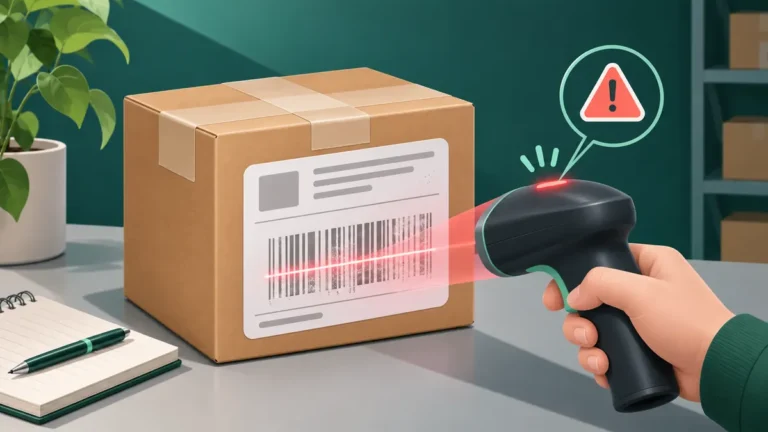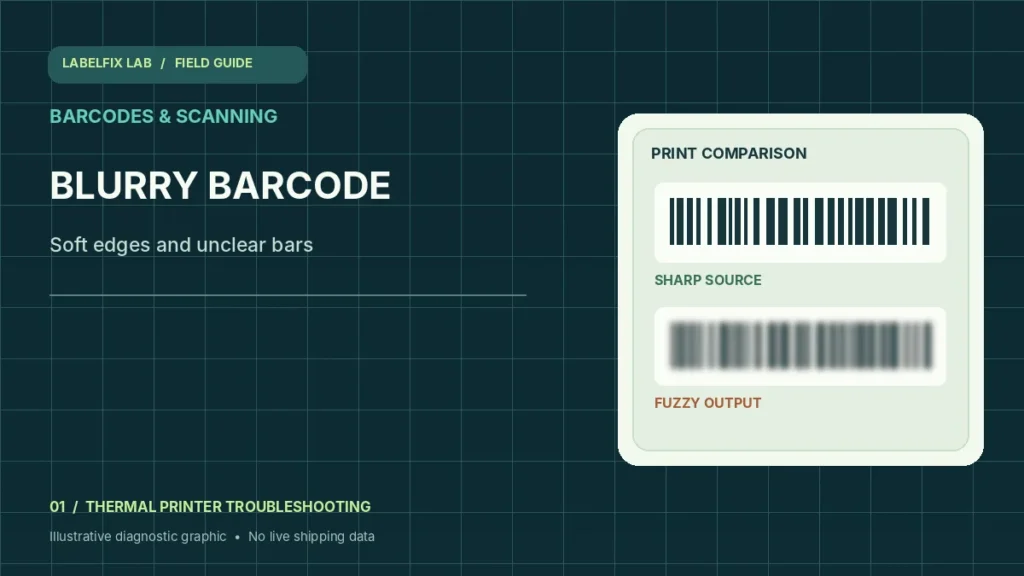
A barcode can be technically present and still print with soft edges that make scanning unreliable. This guide is for a blurry or fuzzy printed barcode, not a barcode that looks sharp but fails because of the wrong data format. Start with the original shipping PDF and one controlled print; do not compensate for blurred edges by repeatedly enlarging a screenshot.
Identify the pattern before changing settings
The following observations help you choose a starting check, not a final diagnosis. Some symptoms have more than one possible cause.
| What you see | Check first |
|---|---|
| Source PDF is already pixelated | Original document, screenshots and export resolution |
| Only the printed barcode is blurry | Driver, scaling, speed and thermal energy |
| All text and graphics are fuzzy | Media coating, printhead contact or original artwork |
| Bars merge into a dark block | Too much heat; compare the darker-print guide |
1. Inspect the original document at a useful zoom
Open the shipping service’s original PDF instead of a screenshot from a browser or messaging app. Zoom in on the bars and surrounding quiet zone. A screenshot is made of pixels; enlarging it does not restore lost detail. If the original is visibly pixelated, request a native label export.
2. Confirm the PDF’s physical page size
Use the 4×6 PDF Label Size Checker to inspect page dimensions and orientation. A US Letter page squeezed onto a 4×6 roll can alter small details. A correctly sized PDF is a prerequisite, but matching dimensions alone does not verify barcode quality.
3. Print at actual size when the stock already matches
Set the intended stock size in the printer driver and compare with the document dimensions. Where appropriate, print at Actual size or 100% instead of Fit, Shrink or Poster. Avoid repeatedly scaling a pre-rendered barcode, which can cause edge interpolation and alter bar-to-space proportions.
4. Compare a printer-generated test and the label PDF
Follow the exact printer manufacturer’s documented self-test procedure. If built-in lines look sharp but only the shipping PDF is blurry, investigate application rendering and source quality first. If both samples are fuzzy, media contact, thermal settings and hardware maintenance become more likely.
5. Review print speed and darkness together
The supported speed and thermal-energy settings interact with the chosen label stock. Record the starting values, change only one setting by a small amount within the manufacturer’s guidance, and compare one sample. Excessive energy can broaden bars; insufficient energy can create weak or broken ones.
6. Check the media is compatible and loaded straight
Use stock specified for the printer’s direct-thermal or thermal-transfer method. A roll with a different coating or an unsuitable ribbon may react differently even at identical settings. Reload without crushing the edges and check whether blur follows a particular media batch.
7. Inspect for residue without damaging the printhead
Power down and allow the device to cool according to the manufacturer before approved cleaning. Do not scrape the heated line, apply unsupported solvents or open electrical covers. If the output has repeating missing stripes instead of blur, the lines-and-streaks guide is more relevant.
8. Assess the final barcode, not just the preview
Inspect complete bars, white spaces and quiet zones on an actual printed sample. A phone camera successfully recognizing a code is not proof that the carrier’s automated system will accept it. Reprint a visibly compromised label from the shipping provider’s original.
How to interpret your results
If the printed barcode is crisp but a particular scanner still fails, the diagnostic question changes to scanner configuration, symbology, quiet zones and carrier rules. Use our shipping barcode not scanning guide instead. If bars have merged because the whole label is excessively dark, review thermal printing too dark.
Common mistakes to avoid
- Enlarging a low-resolution screenshot instead of downloading the original PDF
- Increasing darkness to maximum without comparing the barcode gaps
- Judging carrier acceptance solely by scanning once with a phone
What a blurry barcode test should actually compare
Barcode blur should be evaluated against the original file at its native dimensions, not against a scaled browser thumbnail. A blurry symbol and a solid dark block need different first checks.
| Comparison | What it tells you |
|---|---|
| PDF preview blurry before any printer is selected | Possible low-resolution original or poor image export; obtain the native carrier file. |
| Native PDF looks sharp, but the same print is blurry on one stock | Media coating, compatible print method and thermal settings deserve attention. |
| Thin bars become wider until gaps close | Potential over-dark printing; see merged-bar troubleshooting. |
| Barcode has a sharp white line passing through every printed copy | A repeatable printer-line issue, not general blur; see line defects. |
A repeatable test without wasting live shipping labels
Use one supported sample PDF, record the roll specification and current speed/darkness, and print a single copy at the intended actual size. If a change is warranted, vary only one manufacturer-supported setting and compare the bars and quiet zones. A successful phone scan is not proof of carrier acceptance; replace a compromised tracking symbol using the carrier’s original export.
Frequently asked questions
Why is only the barcode blurry while text looks normal?
The barcode may have been rasterized at a different resolution or resized within the original PDF or application. Compare the native document and a supported test pattern before blaming the printer.
Does a 203 dpi printer always create blurry labels?
No. Print quality depends on the device, source document, barcode size and printer settings. Some very small or dense symbols may require a different approved format or hardware capability.
Can I sharpen a screenshot to repair a shipping barcode?
Do not rely on image sharpening to reconstruct tracking bars. Download the shipping service’s native label file again and use its supported format.
Editorial note: This independent troubleshooting guide explains broadly applicable checks. Printer hardware, supported media, and carrier acceptance requirements vary by model. Confirm model-specific settings and safety steps with the manufacturer’s current documentation. We do not claim hands-on testing of every printer.
Independent general troubleshooting information for shipping labels and thermal printers. Model-specific button sequences, cleaning supplies and service instructions can differ; consult your manufacturer's official documentation. Never alter a carrier-generated barcode.