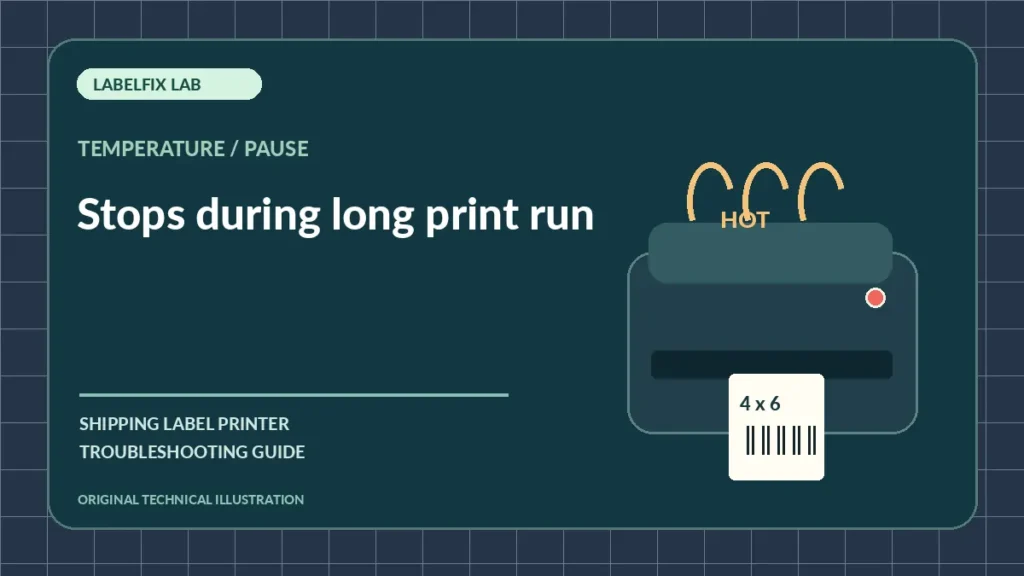
A thermal label printer that stops during a long batch and resumes later may be responding to temperature limits, a power issue, a blocked feed or a host queue interruption. Heat-related pauses are model-dependent; do not assume every mid-job stop is an overheated printhead without checking device status and repeating the test under controlled conditions.
Diagnose by the visible symptom
A single observed pattern is a starting point, not a guarantee of a specific cause. Compare the PDF, the print job and the printer’s independent test when relevant.
| Observation | First check |
|---|---|
| Stops after many labels, then resumes after cooling | Possible model-specific thermal protection |
| Power light briefly turns off | Power supply or electrical connection |
| Queue pauses but printer remains Ready | Host/driver/connection processing |
| Media stops and jams | Physical roll path rather than thermal protection |
1. Record exactly when and how the printer stops
Note labels printed before the pause, status LEDs, error text, whether the motor stops, whether the print queue stays active and whether the device requires a restart. Repeated timing after similar workloads is useful evidence, but it does not prove heat protection.
2. Consult the model’s supported duty cycle and indicators
Manufacturers may specify maximum print speed, continuous operation limits or over-temperature warnings. Use the exact model manual and its status legend. Never bypass a temperature protection feature or continue running an erroring device.
3. Check ventilation and the surrounding environment
Keep the printer’s documented vents unobstructed and use it within its specified ambient temperature range. Avoid direct sunlight and placing the unit against heat sources. Never open electrical covers or direct liquids or compressed air into an energized printer.
4. Inspect power stability and the proper adapter
Use the manufacturer-approved supply and verify connectors are secure. A power interruption can resemble a temperature pause, particularly when the device restarts mid-job. Do not swap arbitrary power supplies with different ratings.
5. Look for a jam or stock resistance at the stopping point
A roll that becomes tight as its diameter changes, a torn liner or adhesive buildup may cause repeated pauses. After following the safe shutdown procedure, inspect the user-accessible media path and compare with our jam checklist.
6. Review darkness and speed within recommended ranges
High print energy and sustained workload can affect thermal conditions on some printers. Record the current profile; if the manual recommends a lower supported duty setting, test one controlled change. Don’t use extreme speed or energy values to chase production volume.
7. Compare shorter batches and queue behavior
Print a few non-live labels, then compare with a longer supported run. If the queue reports Pending or Error while the device stays ready, software deserves attention; read the stuck-job guide.
8. Stop and seek support if thermal errors repeat
Give the manufacturer your model, firmware if available, stock type, darkness/speed settings, room conditions, batch length and status pattern. Repeated warnings after normal use may require authorized service; do not defeat sensors to keep shipping.
How to distinguish this from a related failure
A printer that goes Offline after a router change is a network issue addressed in the router/network guide. Faded print from one side but without pauses follows the print-quality checklist.
Final test before using the label
Test with a supported sample and inspect the original shipping file and final print. Verify the complete barcode, quiet zones, address and routing details; check the page-size selection and media if applicable. A successful phone scan is not proof of acceptance by a shipping carrier’s automated systems. Escalate a persistent error with exact device and software details rather than guessing a generic reset.
Frequently asked questions
Do thermal printers overheat?
Some models have thermal limits or protection behavior, but the exact thresholds and response vary. Check official model documentation.
Should I leave the printer turned on until it resumes?
Follow the displayed warning and manufacturer’s instructions. Do not ignore an overheating or electrical fault indicator.
Can a stuck print queue look like an overheat pause?
Yes. Observe both printer LEDs and the host queue to distinguish a device protection condition from job processing.
Editorial note: These diagnostic checks are independent and general. Device behavior, print drivers, media specifications and shipping requirements vary; follow the exact manufacturer’s current procedures. We do not claim hands-on verification of every model.
Independent general troubleshooting information for shipping labels and thermal printers. Model-specific button sequences, cleaning supplies and service instructions can differ; consult your manufacturer's official documentation. Never alter a carrier-generated barcode.