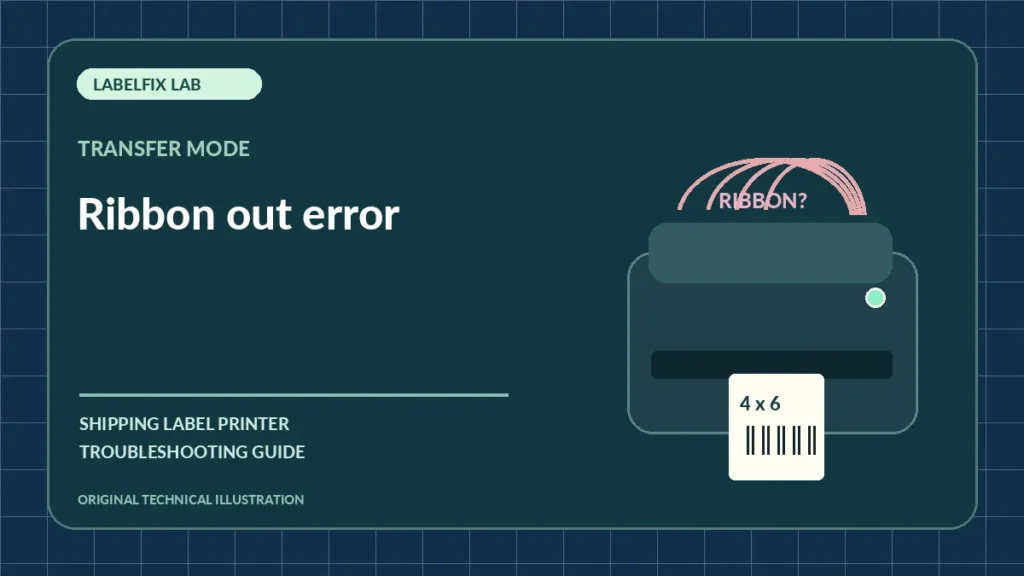
A printer that reports Ribbon Out with a ribbon already inside may be reacting to how the ribbon is routed, which print method is configured, or how its sensor detects the material. This problem affects thermal-transfer printers; a direct-thermal printer may be designed to run without a ribbon at all. Correct identification of the print method is more useful than randomly changing darkness or rebooting Windows.
Identify the exact failure pattern
The pattern of the error provides a more useful starting point than changing several settings without comparison.
| Symptom | First area to inspect |
|---|---|
| Ribbon error immediately at startup | Print mode, ribbon presence and loading path |
| Ribbon advances then errors | Sensor detection, take-up winding or material |
| Only one new ribbon brand triggers it | Compatible ribbon width, grade and core |
| Label prints blank and ribbon doesn’t move | Printing method, media installation and device status |
1. Check whether ribbon is required for your selected media
Direct-thermal stock has a heat-sensitive coating and normally doesn’t require a transfer ribbon. Thermal-transfer media uses a compatible ribbon that deposits the image. Some dual-mode printers can be configured for either method. Confirm what your roll and ribbon packaging say; our direct thermal vs thermal transfer guide explains the distinction.
2. Record the error wording before altering settings
The exact code, status light and display message depend on the manufacturer. A message labeled Ribbon Out may also represent ribbon-end detection or an incompatible print mode, depending on model. Write down the complete wording, model number and what happens to the ribbon when you print one safe sample.
3. Reload the ribbon according to the model diagram
Power down and allow the printhead to cool as instructed. Open only the user-accessible media compartment and verify the supply and take-up cores, ribbon direction and route around approved guides. A reversed or misrouted ribbon may not move as expected. Don’t pull ribbon against a closed printhead.
4. Verify that take-up winding is working
When the manufacturer allows an observed test, check whether used ribbon is being wound onto the take-up core rather than bunching near the printhead. A loose core, unsupported adapter or incorrectly seated spindle can stop the ribbon and trigger a sensor. Never put hands near moving winders during printing.
5. Compare the ribbon width and type with printer specifications
Ribbon width, core size, coating orientation and formulation must be compatible with the model and face stock. A ribbon that fits physically isn’t automatically supported. If a previously working manufacturer-approved ribbon is available, compare it without altering driver settings to see whether the failure follows the consumable.
6. Check the configured printing method
Review the printer’s documented media and print method settings. A device configured to require a transfer ribbon won’t behave like one using direct-thermal stock without ribbon. Record the original setting and change it only when the loaded stock and model support the alternate method.
7. Inspect approved ribbon sensor cleaning instructions
Dust, lint or adhesive residue may affect accessible ribbon sensing or movement. Follow the exact manufacturer’s maintenance instructions and use only approved materials. Avoid spraying solvent inside the housing, bending a sensor arm or overriding safety interlocks to silence the error.
8. Compare a built-in test with an application job
Where supported, run a manufacturer-generated test on known-good compatible media. If it works but a specific shipping application reports Ribbon Out, look at the selected queue, print mode and printer control language. If both fail at the same mechanical point, the PDF is unlikely to be the sole cause.
9. Escalate repeat failures rather than forcing production
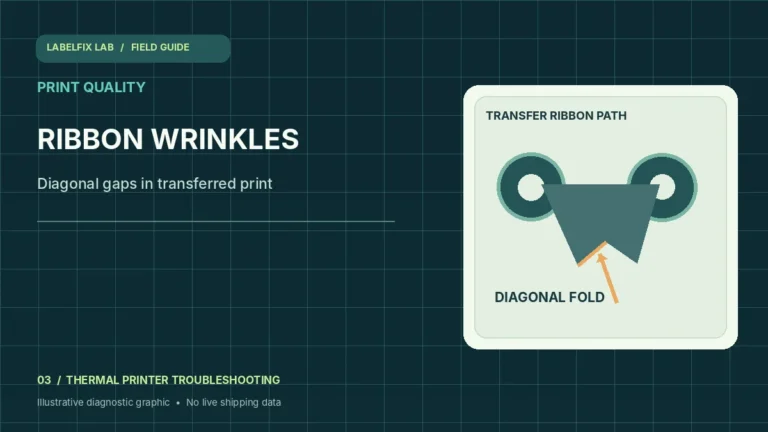
If an approved ribbon is properly loaded, configured for transfer printing, and still consistently reports missing across supported tests, seek model-specific service. Record the exact ribbon part specification and which spindle moves before the error. Stop if ribbon is tearing or wrapping around rollers; our ribbon wrinkling guide covers those patterns.
What the test results mean
A missing-ribbon alert has to be interpreted alongside the configured print method. Distinguishing direct thermal from thermal transfer prevents unnecessary consumable changes. When the ribbon is required, the most useful controlled comparisons are the documented loading route, compatible ribbon specifications and a built-in test.
Frequently asked questions
Can a thermal printer print without ribbon?
Direct-thermal printing generally uses coated stock without a ribbon. Thermal-transfer printing needs a compatible ribbon and label material. Check the model and selected method.
Why does a full ribbon roll trigger Ribbon Out?
It may not be moving or detected correctly, or the printer’s chosen method/sensor configuration may not match the installed materials. Model-specific error definitions differ.
Can increasing darkness fix Ribbon Out?
Not usually. Darkness affects thermal energy, not the presence of a correctly loaded, detected ribbon.
Editorial note: This independently written guide is general technical education, not a claim of manufacturer affiliation, specific product testing or a guaranteed repair. Follow official device documentation for model-dependent buttons, safe maintenance and supported software.
Independent general troubleshooting information for shipping labels and thermal printers. Model-specific button sequences, cleaning supplies and service instructions can differ; consult your manufacturer's official documentation. Never alter a carrier-generated barcode.