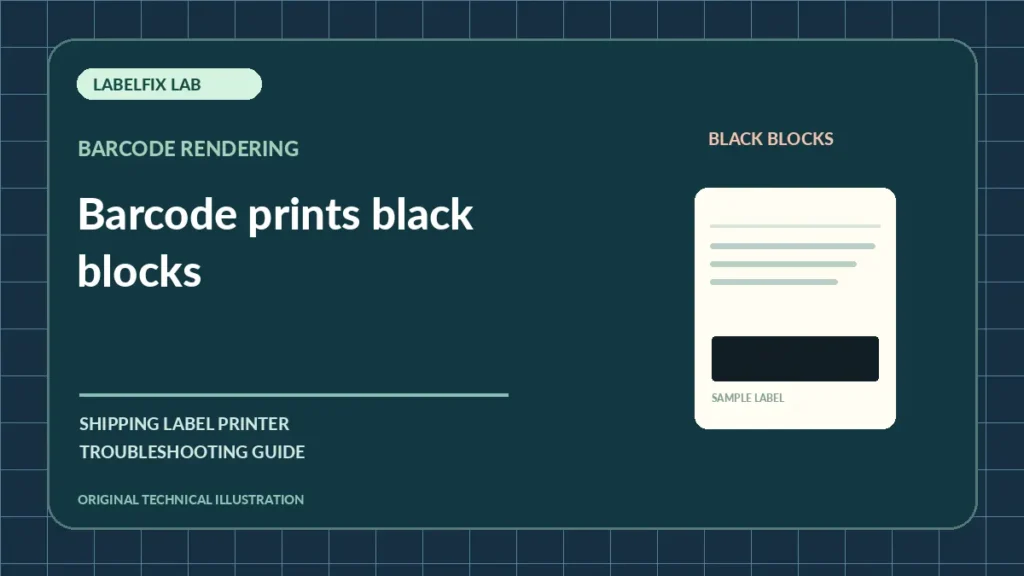
A shipping barcode that turns into a large solid black rectangle or blocky squares after printing may no longer be readable. This is distinct from a simple blurred barcode: sometimes the PDF preview contains normal thin bars while the printer replaces whole areas with filled blocks. Distinguishing whether the block exists in the source file, in the print job or on the physical label helps locate the fault.
Diagnose by the visible symptom
A single observed pattern is a starting point, not a guarantee of a specific cause. Compare the PDF, the print job and the printer’s independent test when relevant.
| Observation | First check |
|---|---|
| PDF displays a black square instead of bars | Document export or viewer rendering |
| PDF displays bars; only printed label shows blocks | Driver, image processing or thermal energy |
| Bars gradually merge with extra darkness | Energy and coating response |
| Only one platform’s labels fail | Provider export or app-specific print path |
1. Inspect the barcode in the original downloaded PDF
Open the actual file, zoom in on the symbol and confirm whether the vertical bars and white spaces are visually distinct. A block visible on screen is not a printhead defect. Request a corrected source from the shipping provider when the native file itself is wrong.
2. Compare a second supported PDF viewer
Try another trusted local reader with the same document. If it displays the bars correctly while the original app does not, the renderer or export interpretation deserves attention. Do not convert a real shipment barcode using an unknown third-party site.
3. Print a device-generated pattern and another supported sample
A manufacturer test can isolate whether the printer can produce thin lines. If its internal lines are clear but one PDF becomes a block, focus on document rendering and the selected queue. If all samples show merged black regions, stock and energy settings become more plausible.
4. Check thermal darkness without going to extremes
Excess heat can widen adjacent bars and close gaps, especially on sensitive media. Record current speed and darkness, then make one small manufacturer-approved change. Our too-dark printing guide explains this mechanism.
5. Check printer resolution and application scaling
A tiny code enlarged from a raster screenshot may become square-looking blocks. Always prefer the original carrier-generated document. Verify page size and actual-size printing where appropriate instead of scaling a full Letter sheet onto 4×6 stock.
6. Use the official driver and correct print-language mode
Unsupported drivers can mishandle bitmap data and produce unexpected blocks or blank areas. Confirm the exact model and compatible driver. If the printer produces literal code commands, refer to raw command output troubleshooting.
7. Inspect media type and repeatability
A new direct-thermal roll or an incompatible transfer ribbon can change darkness. Compare a known-good approved stock. If the same block appears at an identical location on unrelated prints, inspect approved printhead cleaning and device service guidance.
8. Treat unreadable shipping symbols as failed output
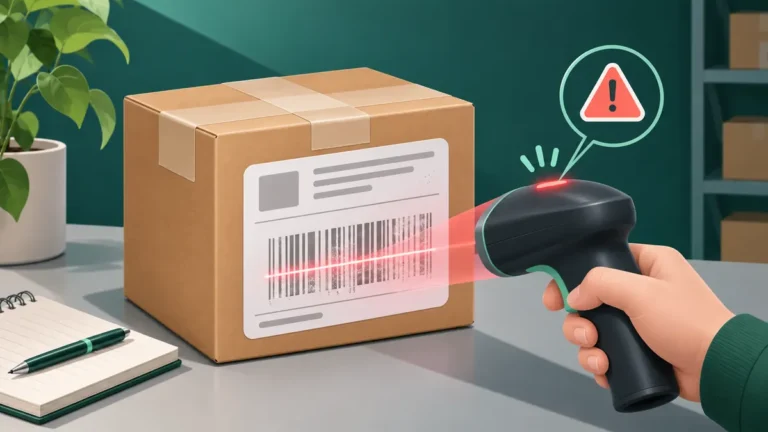
A barcode needs complete bars, spaces and clear margins; do not use labels where a symbol has become a filled black square. Regenerate and print the original label correctly. See the scanning checklist if the code looks clear but scanners reject it.
How to distinguish this from a related failure
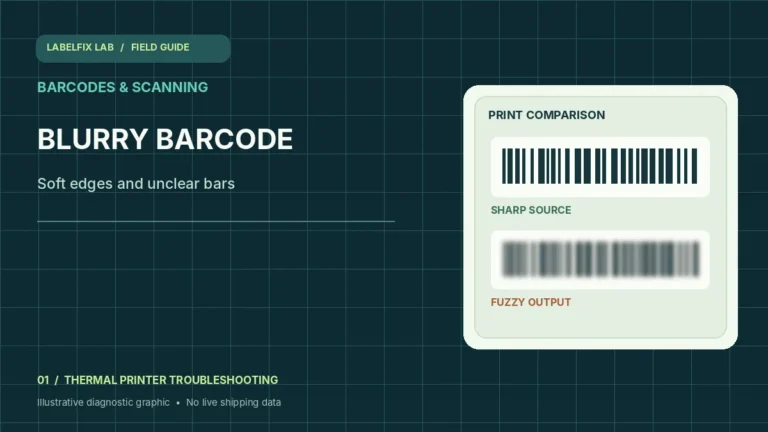
A narrow straight missing line through the barcode is closer to printhead lines and streaks than solid blocks. A blurry but still structured barcode is handled by barcode blur troubleshooting.
Final test before using the label
Test with a supported sample and inspect the original shipping file and final print. Verify the complete barcode, quiet zones, address and routing details; check the page-size selection and media if applicable. A successful phone scan is not proof of acceptance by a shipping carrier’s automated systems. Escalate a persistent error with exact device and software details rather than guessing a generic reset.
Frequently asked questions
Can heat cause a barcode to print as one black block?
Excessive thermal energy can make bars merge on some stock, but a solid rectangle can also come from PDF rendering or driver errors.
Will increasing DPI in a screenshot fix squares?
No. Changing metadata or enlarging a low-resolution raster does not restore missing bar geometry. Obtain the native carrier export.
Should I use a barcode generator instead?
Do not reconstruct carrier tracking symbols without the provider’s approved workflow. Use the original valid label.
Editorial note: These diagnostic checks are independent and general. Device behavior, print drivers, media specifications and shipping requirements vary; follow the exact manufacturer’s current procedures. We do not claim hands-on verification of every model.
Independent general troubleshooting information for shipping labels and thermal printers. Model-specific button sequences, cleaning supplies and service instructions can differ; consult your manufacturer's official documentation. Never alter a carrier-generated barcode.