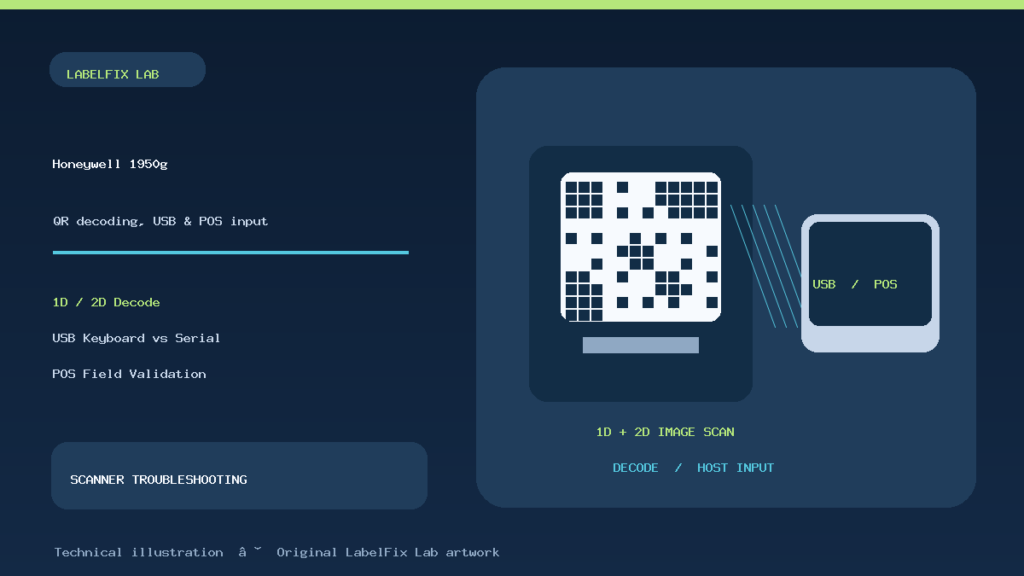
Quick answer: If a Honeywell Xenon XP 1950g will not scan a QR code, start by identifying whether the scanner fails to decode the symbol, beeps but sends no characters, or sends data that the POS application rejects. The Xenon XP 1950g is a corded 1D/2D area-imaging scanner; unlike a 1D-only laser reader, compatible 1950g variants can decode 2D symbols. However, USB interface mode, enabled symbologies, barcode print quality and the receiving application’s data rules determine whether the result is usable.
Honeywell publishes a 1950g product page and Quick Start Guide with programming barcodes for USB PC Keyboard and USB Serial modes, plus keyboard-country and scan-suffix settings. These are different host configurations. Keep a harmless, known-good QR and Code 128 test sample nearby and compare the two before changing settings.
Read the symptom rather than starting with a factory reset
| Observed behavior | Most likely area | First controlled test |
|---|---|---|
| Scanner never beeps on a QR | Image quality, distance, lighting or symbology setting | Try a crisp known-good QR at different normal distances |
| Code 128 works but QR does not | 2D setting or problem with this QR symbol | Compare with a different, verified 2D sample |
| Scanner beeps, text editor stays empty | USB interface mode or input focus | Check USB PC Keyboard vs USB Serial |
| Text editor shows data but POS says invalid | App validation, expected SKU or payload format | Record the exact decoded text safely |
| Characters are wrong or extra Enter appears | Keyboard country, prefix or suffix | Compare neutral editor output with the expected string |
| Only printed stickers fail | Scaling, clipping, contrast or damaged media | Compare on-screen source and one clean print |
1. Check the exact 1950g model and connection
Read the hardware label. The Xenon XP 1950g is the corded scanner covered here; it should not be conflated with the related wireless 1952g, battery-free 1952g-BF or healthcare-specific 1950h. These may share some documentation and decode capabilities but have different communication or power checks. Honeywell lists USB and other supported host interfaces for the general-duty 1950g family.
Inspect the interface cable at both ends and check that the computer detects the device. Power or an illuminated aiming pattern alone does not guarantee that the intended host data mode works. Avoid installing unrelated device utilities until you have identified which interface the scanner was configured to use.
2. Confirm what QR and Code 128 actually are
A QR code is a two-dimensional matrix symbol with square finder patterns, while Code 128 is a linear barcode made of bars and spaces. Both may be supported by the 1950g, but the test conditions differ: QR data can contain a URL or other text that a POS system might not accept as a product code. A successful decode is not proof that the decoded payload represents a valid inventory item.
Try an ordinary printed, non-sensitive QR from a reliable source and a known-good Code 128 sample on clean paper. If both work, investigate the troublesome label or application. If a supported 1D sample works while several well-made QR samples fail, check the exact reader configuration and enabled 2D symbologies. Our 1D versus 2D barcode explanation clarifies the distinction.
3. Use the scanner’s normal reading distance and angle
An area imager still needs sufficient focus, contrast and an unobstructed symbol. Hold the 1950g within the working range appropriate to the exact optics and barcode size, present the full QR to the scanning window, and tilt slightly if glare from clear tape or glossy packaging reflects directly into the reader. A very dense tiny QR code can be harder to decode than a large clean one, even when the device reads ordinary shipping labels.
Do not place the reader against an abrasive surface or force its cable while changing position. A cracked window, heavy adhesive residue or extreme lighting can also affect image capture. Follow Honeywell’s approved cleaning guidance instead of using harsh chemicals on the scanner window.
4. Check for clipping, scaling and poor thermal output
Look at the QR’s three major finder corners and the quiet light margin around the whole symbol. If a PDF crop removes part of a finder pattern, a carrier label gets scaled into a much smaller area or thermal bars merge from excessive darkness, decoding becomes unreliable. Black and white should remain distinct in the printed squares; large pixelated screen zoom does not repair a low-resolution source image.
Print at the intended native dimensions where the application and stock match. Compare the exact same source on a different clean material to isolate printer effects. See our QR-code printing troubleshooting guide and thermal barcode print-quality checks when only physical labels fail.
5. A beep is not the same as successful data delivery
The scanner may provide an audible good-read signal after decoding a symbol while the host application never receives ordinary keystrokes. Click into a neutral text field and scan a harmless sample. If the scanner is configured for keyboard emulation, the decoded text should appear at the cursor. If there is no text, check the interface mode, application focus, cable connection and computer device recognition.
Do not assume the reader is faulty just because a warehouse program shows no result. A receiving application may require an event-driven or virtual COM interface rather than keyboard typing. The general scanner-beeps-but-does-not-type guide helps separate the host path from the optical decode.
6. USB PC Keyboard versus USB Serial mode
Honeywell’s official 1950g Quick Start Guide contains dedicated setup barcodes for USB PC Keyboard and USB Serial. The former sends data as keyboard input to a focused field. The latter emulates an RS-232-style COM port and may require an appropriate Windows driver and application-side COM-port configuration; the guide says macOS may recognize it as a USB CDC class device.
Choose the mode required by your POS or inventory software. If you expect characters in Notepad but the scanner was deliberately set to USB Serial, a blank editor does not prove decode failure. Conversely, changing the scanner into keyboard mode can break a POS integration that listens for serial events. Record the existing mode and follow the manufacturer’s programming sequence only if a change is justified.
7. Fix wrong keyboard-country characters
In USB keyboard emulation, output may depend on both the scanner’s configured keyboard country and the host operating system’s active layout. A printed barcode containing hyphens, brackets, currency signs, at-signs or other punctuation can decode to a different character than expected if the two layouts disagree. Honeywell includes keyboard-country programming in its Quick Start Guide.
Test a harmless string that deliberately contains relevant punctuation. Compare exactly what appears in a simple text editor with the intended value. Align the keyboard-country configuration with the computer and verify again. Do not change the product database to match a scanner typing problem; correct the input route at its source.
8. Examine Enter, Tab, prefix and suffix options
Many inventory workflows deliberately add an Enter or Tab suffix after each scan. One POS might require Enter to submit the SKU; another may submit an entire order prematurely or jump focus to an unintended field. Honeywell’s programming guide describes host and output settings, but barcode setup sheets are model-specific and should not be substituted from a different scanner.
Observe whether scanning into a simple editor moves the caret or inserts an extra line after the value. If the raw data is correct but the application reacts unexpectedly, check prefix/suffix behavior and app focus rules. Our unexpected Enter and Tab guide
9. A QR code can decode correctly but still fail at checkout
Suppose the reader decodes a QR as a web URL, but the retail POS expects a numeric SKU or UPC identifier. The app may reject it even though the scanner, cable and USB interface worked perfectly. Scan the same QR into a neutral editor and inspect the decoded payload without exposing customer identifiers. Compare the app’s documented expected field format, minimum and maximum lengths, allowed punctuation and any prefix stripping.
If an internal warehouse label has a QR with a proprietary command or structured payload, verify that the app or middleware expects that payload. This is particularly important in mixed GS1, carrier and store-specific environments. Avoid altering original carrier data to make a rejected code “look like” a product SKU. Our wrong SKU and inventory-mismatch guide
10. Why only certain barcode sizes fail
Not every barcode has the same visual density. A large Code 128 test on matte paper can be readable while a dense 2D code compressed into a tiny shipping label fails. Compare source print resolution, ink or thermal contrast, white margins and any glossy tape. If a small code is at the limit of the exact scanner optics, a sharper image or properly sized symbol is usually a better first change than random configuration resets.
Honeywell offers different focus variants within the broader Xenon family. Read the exact model suffix before assuming a particular close-range or long-range performance claim. A barcode’s intended symbol size and the scanner’s optics must be compatible.
11. Document a reliable scanner-versus-POS test sequence
For repeatable support, create a short test card using only dummy data: one large QR encoding harmless sample text and one Code 128 encoding a known identifier. Test both in a neutral editor under the intended interface. Then test one valid SKU in the actual POS. Record whether the scanner beeps, whether characters arrive, whether a suffix follows and whether the application accepts the item. One change at a time keeps the result meaningful.
If the same scanner and cable fail on multiple compatible hosts even with verified symbologies and correct configuration, contact Honeywell support with the exact unit identifier, firmware, connection mode and controlled results. Avoid repeated factory resets when a POS may depend on customized enterprise settings.
Honeywell 1950g troubleshooting checklist
- Confirm the unit is a corded Xenon XP 1950g and inspect its cable.
- Compare a known-good QR and Code 128 test.
- Adjust angle, distance and remove glare.
- Inspect QR finder squares, quiet margins and print sharpness.
- Decide whether the problem is decode, host input or POS validation.
- Check USB PC Keyboard versus USB Serial settings.
- Verify keyboard-country and Enter/Tab output behavior.
- Test the exact app field with a safe known-valid SKU.
- Record failures before vendor-supported service.
Frequently asked questions
Can the Honeywell Xenon XP 1950g scan QR codes?
Yes, compatible 1950g configurations are 1D/2D area imagers. A specific QR can still fail because of configuration, quality, optics or host software.
Why does my 1950g beep but not type?
It may have decoded the symbol while the selected interface is USB Serial, the field lacks focus or the receiving application expects another input path.
Is the Xenon XP 1950g Bluetooth?
The 1950g covered here is a corded model. Do not confuse it with the related wireless 1952g; check your exact hardware label.
Do I need a Windows driver for USB Serial?
Honeywell’s guide indicates a Windows driver for its USB Serial emulation. USB keyboard mode follows a different path. Match the mode to your application.
Manufacturer references
- Honeywell Xenon XP 1950g official product and document list
- Honeywell 1950g Quick Start Guide (USB modes, keyboard country)
Editorial scope: Source-based troubleshooting, not a statement of physical hands-on testing. Verify settings against the current manual and exact scanner variant before changing enterprise programming.
Independent general troubleshooting information for shipping labels and thermal printers. Model-specific button sequences, cleaning supplies and service instructions can differ; consult your manufacturer's official documentation. Never alter a carrier-generated barcode.