Quick answer: When a barcode scanner selects the wrong product, SKU, variant or inventory record, it is often a product-data and lookup problem, not a failed scanner. A handheld reader can accurately decode the printed bars and still return an unexpected item if the barcode was assigned to the wrong variant, duplicates exist in the product database, or the receiving application interprets the data differently. First capture a known, harmless raw scan through a supported input path, then compare the decoded value with the stored product identifier and the application’s lookup rules.
Inventory and point-of-sale systems can use UPC/EAN, GTIN, internal SKU, vendor codes, serial numbers or GS1 data. These fields do not automatically mean the same thing. Diagnose the exact format and application before changing any production barcode, stock count, or pricing record.
Wrong SKU after scanning: the diagnostic table
| Symptom | Possible cause | What to compare first |
|---|---|---|
| One barcode opens another product | Duplicate or incorrect barcode mapping | Exact decoded code against all associated records |
| Correct product but wrong size or color | Variant label or variant-level identifier mismatch | Printed barcode against exact variant record |
| Scanned digits differ from label text | Scanner prefix/suffix, keyboard layout, source code type or decoding | Neutral text-editor output and source barcode specification |
| Code appears in editor, but app reports “not found” | Product status, database mapping or expected code field | App’s accepted identifier and item availability |
| Leading zeros disappear | Spreadsheet numeric conversion or import transformation | Original scan and text-formatted product record |
| Only lot/expiry data is incorrect | GS1 field parsing or data-format mismatch | AI fields and separator handling |
| One scan adds two items | Duplicate event, scan mode or app submission logic | One input in a basic editor versus app events |
1. Distinguish a barcode from an SKU
A stock keeping unit (SKU) is commonly a merchant’s own identifier for managing products and variants. A GTIN is a globally structured identifier used in certain standardized product barcode systems, with UPC/EAN being common visual encodings or related numbering formats in retail. A single item record may contain both an internal SKU and an external barcode field.
A scanner typically decodes the data contained in the physical symbol. It does not know which field your database considers the master SKU. A WMS may use a GTIN to find a SKU; a Shopify-style POS workflow may expect a barcode/GTIN field rather than an internal SKU; another custom application may use a completely different reference. The right fix depends on the application’s documented lookup contract.
2. Capture the actual decoded value without modifying inventory
Choose a harmless test product or a sandbox environment. With a scanner configured for supported keyboard-emulation mode, focus a plain text editor and scan once. Compare every character with the expected value, including leading zeros, punctuation and any extra Enter/Tab suffix. Avoid using a live sale as a test, because duplicate or incorrect product selection can affect customer billing and stock.
A device intentionally configured for serial/COM or managed scanner events may not type into the editor. In that case, use the receiving application’s approved diagnostic route. Our USB scanner setup for Windows explains the difference between keyboard and serial input modes.
3. Check whether a single barcode is assigned to more than one item
Duplicate barcode values across several products or variants are a common source of unexpected lookup results. Search the item master for the exact decoded string, not just the visible product name. If two records share a value that is supposed to uniquely identify one sellable unit, the application may choose one arbitrarily, warn, or return the first matching record depending on its design.
Verify which record is authoritative before editing data. Do not simply delete a duplicate to make a scan work if it represents active stock or historical transactions. The warehouse or catalog owner should decide the correct mapping, ensure barcode assignments follow the relevant standard, and update labels and systems consistently.
4. Wrong size, color or pack quantity after a scan
When the scanner selects the correct product family but the wrong variation, inspect the exact variant identifier. Different sizes, colors, packaging counts and bundled quantities can require different SKUs or product-level barcode assignments according to the merchant’s and platform’s rules.
A worker may accidentally stick the label for a 12-pack onto a 6-pack, or print product-label sheets for neighboring color variants and mix the rows. In that case, the barcode might be perfectly readable and valid for a different variation. Compare packaging, the actual variant record, and the authorized label file. Our FBA FNSKU barcode article covers unit-label identity and preparation issues in an Amazon-specific context.
5. Why leading zeros matter in inventory matching
Suppose a scanner returns 001234567890 but a spreadsheet import stored 1234567890. These are not the same text identifiers. Excel and some data tools interpret codes as numbers, removing zeros or altering long digit strings. The scanner may be working correctly while the database contains a transformed value.
Capture the original code and inspect the system’s import history. Store barcode and tracking identifiers as text strings, not quantities. Once digits have been rounded or discarded, changing a cell’s format will not reliably reconstruct the original source. See barcode scanner Excel leading zeros and scientific notation.
6. Check prefix, suffix and keyboard layout before changing product data
Some scanners add characters before or after the decoded barcode, such as a configurable prefix, Enter or Tab suffix. If the receiving application includes a prefix in its lookup value or submits a form early, an item can be rejected or looked up incorrectly.
Compare the raw characters in a supported neutral test destination. If dashes or other punctuation appear different but ordinary digits are correct, look at the scanner’s configured keyboard-country mapping and the operating system’s active keyboard layout. Do not change real product identifiers to hide a host-input problem. Our scanner extra characters guide explains how to identify suffix-related behavior.
7. Confirm the app expects the code you’re scanning
Sometimes a barcode printed on a product package is meant for inventory receiving, while the application’s current field expects a bin location, order number or shipment tracking code. The reader transmits a valid string, but the system returns the wrong type of record or no result. Check the screen and input field’s expected identifier rather than changing scanner optics.
For a retail POS application, verify its supported scanner hardware, connection mode and barcode-to-variant mapping. Our Shopify POS barcode lookup guide shows a platform-specific example, with the caveat that supported devices and account options can change.
8. Are you scanning Code 128, UPC/EAN or a GS1 symbol?
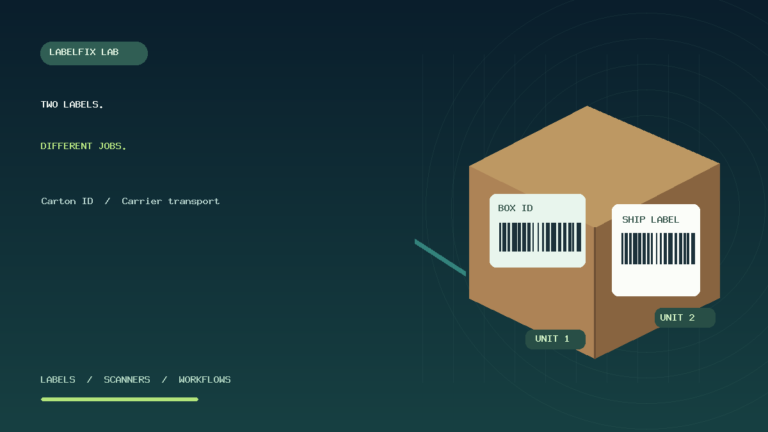
A sticker may contain a Code 128 asset ID, a UPC/EAN retail barcode, GS1-128 fields or a 2D data carrier. Two codes on the same package can identify different things. If staff scan the wrong symbol, a perfect barcode reader can return a value that doesn’t match the product lookup process.
Verify the required symbology and label according to the warehouse procedure. Do not assume the human-readable text on an FBA label is identical to the UPC elsewhere on the product. Our 1D versus 2D barcode overview helps with hardware compatibility, while GS1-128 parsing and FNC1 covers structured logistics data.
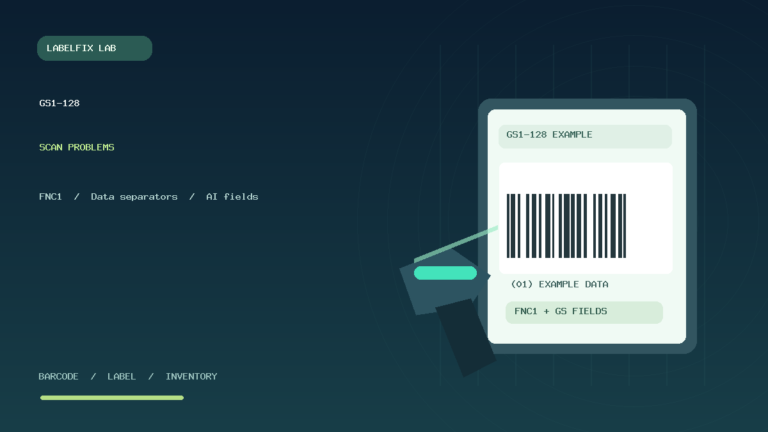
9. GS1-128 can decode correctly but map to the wrong item
GS1-128 may contain multiple Application Identifiers, so an ordinary numeric string comparison can be misleading. For example, the business record might expect a GTIN field but a custom WMS lookup is reading a batch or serialized field instead. The scanner’s decoded bytes and the WMS’s parsed AI values must be compared according to the system’s actual data contract.
Be cautious with variable-length fields and separators. A correct FNC1 or group separator may be invisible in Notepad. An app that drops it or fails to parse it can create a seemingly wrong identifier even when the bars are printed correctly. Use approved diagnostics rather than guessing how encoded fields should be rearranged.
10. Why one scanner finds the item but another doesn’t
Different readers may have different enabled symbologies, keyboard layouts, prefixes, AIM identifiers or output modes. If the same barcode behaves differently on two workstations, keep the physical label constant and compare the raw output of each scanner through an appropriate test interface.
For example, a scanner can add a leading prefix that the app expects while another omits it. Or one reader may be configured to decode a code family that the other has disabled. Don’t assume swapping devices proves the label is compliant; it merely narrows the compatibility question.
11. Duplicated scan events can look like the wrong product
Some application workflows process two events for one physical scan, especially when keyboard input and an app-managed scanner integration are both active. The first event could add an item, while the next advances the cursor into another field or triggers a second lookup. That is different from a database record pointing to the wrong SKU.
Use a non-billable test item and compare one scan in a neutral input destination against the application’s recorded actions. See barcode scanner scanning twice before resetting the scanner or editing product data.
12. Verify product availability and location context
A product may exist in an organization’s catalog but be unavailable to the specific store, warehouse, bin or sales channel used by the application. Some systems keep archived, inactive or location-specific item records. If manual search also fails, the issue may be catalog availability rather than barcode decoding.
Compare a known working item within the same workflow. Check whether the app filters results by location, selling status, warehouse or pack configuration. Ask the responsible catalog administrator to confirm any correction before changing shared inventory records.
13. Avoid guessing barcode check digits or changing item numbers
Standardized barcode identifiers can include verification structures such as check digits. If a label is rejected because an issued code or data mapping is wrong, don’t randomly change the trailing digit until the scanner accepts it. That can create an identifier that matches an unrelated record or fails the intended standard.
Use the trusted source for the product’s actual identifier and the relevant numbering authority or business system. The fact that a generic barcode generator produces a scannable pattern does not prove it is the correct code for the merchandise.
14. Example: the correct shirt, wrong size
A barcode on a medium-size shirt selects the large variant in a warehouse tablet. A neutral scan confirms the scanner transmits the same code each time. A database review shows that the large and medium variations share an incorrect barcode entry. The fix belongs in authorized variant mapping and physical relabeling, not in thermal printhead darkness or scanner pairing.
15. Example: warehouse receiving selects a different pack quantity
A product shipped in cartons of 24 is identified by a code that the application maps to a single unit. The code can be valid for a product level other than the one required at receiving. Check the expected packaging hierarchy and registered item identifiers with the responsible inventory team. Don’t substitute the carton carrier tracking number as a pack-level item barcode.
16. Example: Excel imports shorten a valid code
The scanner transmits 000739120055, but a CSV-based item master contains 739120055. When the application searches for the full value, no exact match exists. The inventory team retrieves the original text records and corrects the import process before reloading the verified identifiers. The scanner doesn’t need replacing.
17. Example: one station works, the other fails
Two identical-looking scanners are connected to different terminals. The first returns the intended product, while the second adds a suffix or outputs another host interface. Comparing the raw scan and configuration reveals an input-mode mismatch. The correct solution is to align the documented scanner/host integration after verifying the application’s requirements—not to edit the same product code differently for each station.
Checklist before correcting any SKU
- Capture the raw decoded value through a supported, non-sensitive test.
- Identify the expected field: SKU, GTIN, barcode, variant, serial or location.
- Search for the exact value across relevant active and duplicate records.
- Check variation, pack quantity, item availability and location context.
- Verify input prefix/suffix, keyboard layout and GS1 field parsing if applicable.
- Preserve exact digits, including leading zeros and check digits.
- Change only verified catalog mappings or labels with authorized approval.
- Retest the same sample before returning the station to production.
Frequently asked questions
Why does my barcode scanner pull up the wrong product?
Possible causes include duplicate barcode assignments, incorrect variant mapping, scanning a different code on the package, or an application receiving an altered identifier. Compare raw input and exact product records before replacing the scanner.
Is a SKU the same as a product barcode?
Not necessarily. A SKU is typically an internal stock identifier; UPC/EAN and other barcodes may represent separate standardized or application-specific identifiers. The receiving app determines how it maps a scanned value.
Can scanner settings change which product is selected?
Yes, if prefixes, suffixes, keyboard mapping or GS1 output formatting change the value the app receives. A correctly decoded barcode can still lead to the wrong lookup when transmitted differently.
Why does my scanner find the correct product but wrong color?
Check the exact variant’s barcode assignment and the label attached to that item. The barcode may belong to a different variation even when the product family is correct.
Can losing a leading zero cause a wrong SKU lookup?
Yes. Barcode identifiers are text values, so removing leading zeros can change the string and its database match. Preserve identifiers as text through scanning, import and storage.
Should I change the barcode number until the system accepts it?
No. Changing digits arbitrarily can produce a different or invalid identifier. Use the authorized source and correct the underlying data mapping or label through the responsible workflow.
Related LabelFix Lab guides
- GS1-128 FNC1 and AI parsing problems
- Shopify POS barcode and SKU mismatch
- Excel destroys barcode leading zeros
- Scanner adds unexpected prefixes or suffixes
- Duplicate barcode events
- Amazon FBA unit-label verification
- Print product barcode labels using Excel data
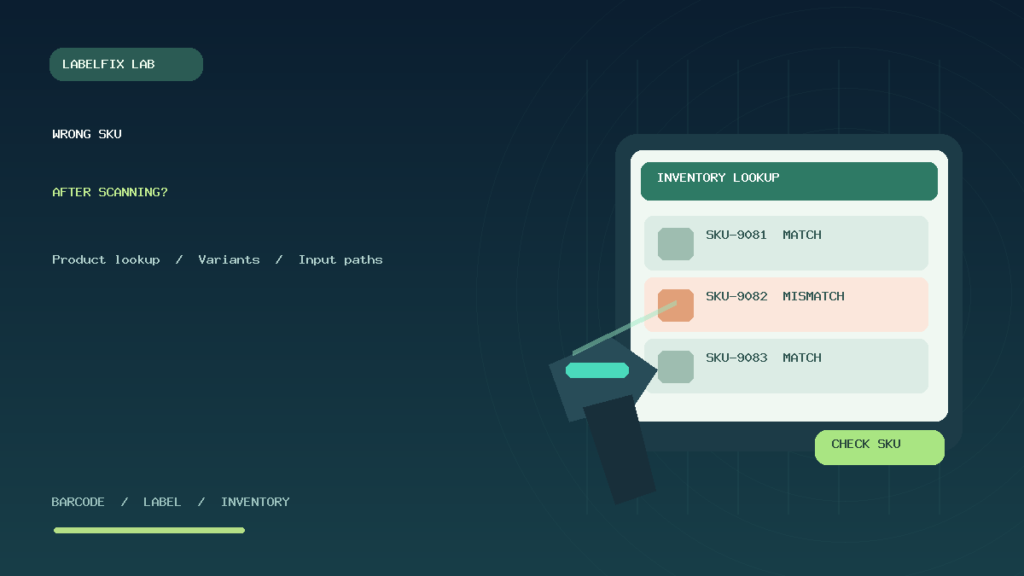
Editorial scope: This article provides general scanner and inventory-data diagnostics, not evidence that any named POS, WMS or inventory system was physically tested. The accompanying artwork shows fictional inventory entries and not a verified product database. Respect each application’s current support documentation and product-identification rules.
Independent general troubleshooting information for shipping labels and thermal printers. Model-specific button sequences, cleaning supplies and service instructions can differ; consult your manufacturer's official documentation. Never alter a carrier-generated barcode.