Quick diagnosis: When a barcode scanner works somewhere else but does not add or find a product in Shopify POS, first determine which part of the workflow actually failed: the scanner never decoded the symbol, the device failed to deliver the scanned data to the POS app, or the app received a code that does not match an available product record. Those failures can look identical at the checkout counter, but they require completely different fixes.
Start with one non-sensitive sample product, the exact scanned value, and a documented scanner/host combination. Shopify POS supported peripherals, settings and interfaces can change between app versions and devices. This article does not assert that a particular third-party USB or Bluetooth scanner is currently certified for every Shopify POS installation. Check official Shopify Help and the scanner manufacturer’s compatibility documentation for the actual setup.
Choose your troubleshooting path
| What happens at checkout? | Likely layer | First useful comparison |
|---|---|---|
| Nothing changes after a scan, and no scan signal is confirmed | Power, pairing, device support or decode | Try a clean, supported test barcode and check scanner status |
| The scanner decodes but no value reaches a supported input destination | Host connection, interface mode or app integration | Check connected state and the documented input pathway |
| Code appears in a neutral input field but POS cannot find an item | Product data, product availability or search rules | Compare the exact decoded value with the variant’s barcode field |
| One product works, another doesn’t | Code format, product record or physical label | Test the failing item and a known working item under identical conditions |
| One scan adds two items | Double input, duplicate events or an unintended retry | Compare one physical scan with the exact number of received events |
| Wrong product is selected | Incorrect or duplicate product code, mapping or variant choice | Review the record associated with the decoded value before selling |
1. Confirm that you’re troubleshooting the actual POS app
The Shopify admin website, a web-based storefront, the Shopify POS application and an unrelated checkout integration do not necessarily use the same scanner support or search behavior. Identify the device running the checkout, the app name and version, the barcode scanner’s full model identifier, and whether the scanner connects through USB, Bluetooth or a special supported accessory path.
Don’t assume a scanner is compatible merely because it pairs successfully with a tablet. Pairing establishes a transport connection; it does not prove the POS application accepts scans from that device or interface. For a supported integration, start with the manufacturer’s and platform’s instructions rather than generic Bluetooth configuration sheets.
2. Separate decoding from data delivery
Choose a clean test symbol whose content you know, and confirm that your scanner supports that type of code. A linear UPC/EAN-style product barcode and a square QR code are different formats. A 1D-only laser scanner cannot acquire 2D capability through an app setting. If the scan signal never occurs, test label quality, aim, print contrast and symbology support first.
For scanner models intentionally configured as ordinary keyboard input, a neutral local text field may show the raw characters received by the operating system. That test is useful for a Windows or other compatible host, but it is not necessarily the approved input path for the Shopify POS app. If a supported POS scanner uses a managed integration instead, a failed Notepad test does not prove hardware failure.
When you can verify the exact code outside the POS app, note whether any suffix or additional characters appear. This evidence helps distinguish a valid decode from an app lookup problem.
3. Check model compatibility and host connection
Find the complete model, interface cable, radio mode and supported operating systems. A generic scanner advertised as “Bluetooth barcode reader” might offer Bluetooth HID keyboard emulation, a dedicated 2.4 GHz receiver, vendor serial integration or several selectable modes. The receiving app may support only particular methods and hardware.
For a supported device, check whether the host currently reports it as connected rather than only paired. Battery power, a disconnected dongle, another paired device or an unsupported software update can interrupt scanning. Do not scan programming barcodes to change modes until you have recorded the original configuration and checked what the POS application expects.
Our wireless barcode scanner disconnect guide covers radio and sleep problems; our USB HID versus COM guide explains why a connected scanner might not type into a normal field.
4. Verify the exact barcode stored on the product variant
Inventory systems often distinguish a product’s SKU from its barcode/GTIN field. An internal SKU such as TSHIRT-NAVY-M may be useful to staff but is not automatically interchangeable with the numbers encoded on a printed UPC/EAN label. Identify the exact product variant and compare the scanned characters, including leading zeros, with the code recorded for that variant.
Do not rely on a shortened value visible on a label photo or a spreadsheet screenshot. Record the entire raw string in a text-preserving field and compare it with the product record. If product identification relies on a barcode field in the current Shopify POS workflow, entering the code into an unrelated SKU field alone may not satisfy the lookup. Check the platform’s current requirements for that account.
5. Watch for leading-zero and formatting errors
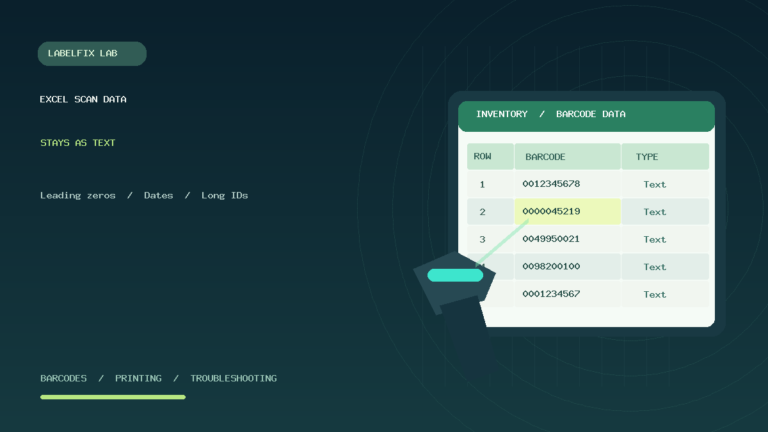
A barcode might represent 001234567890 while an exported spreadsheet turns it into 1234567890 after interpreting the ID as a number. Our Excel barcode guide explains zero loss, scientific notation and accidental date conversion. Those strings are not identical. This can lead to failed matches even when the scanner is working and the barcode is readable.
Compare the raw scan in a simple text field, preserve all characters as text, and inspect the record imported into the commerce system. If a spreadsheet or data migration tool modified identifiers, fix the source mapping carefully rather than programming the scanner to omit digits. Our Excel and barcode scanner setup article explains how numeric formatting causes this error.
6. Check product and location availability
If the correct product code reaches the software but an item is not found, check the product’s current availability and the store/location context being used. Inventory location, publishing status, variant configuration or other account settings can affect whether the checkout workflow offers the intended item. Exact behavior depends on the platform’s current rules and the permissions associated with the account.
Test with a simple product that is known to appear in the same POS interface. If manual lookup finds the item but the scan does not, focus on code mapping and scan input. If manual lookup also fails, determine why the product is unavailable in that store or view before reinstalling the scanner.
7. Inspect duplicate and conflicting product barcodes
When a scan opens the wrong item, investigate whether multiple products or variants share the same barcode value, whether an old stock label was attached to the wrong variant, or whether a migration duplicated identifiers. Do not suppress warning messages or let staff choose the first result without verification.
Use a controlled test product, document the current value and check all relevant product/variant records before changing a live barcode. Correcting product data can affect inventory accounting and checkout accuracy, so coordinate with the store owner if records are shared among locations.
8. Enter and Tab suffixes can alter checkout behavior
Some scanners append Enter or Tab to each code. In an ordinary search field, Enter may submit a search; in a managed POS integration, the application may handle scan events differently. An unexpected suffix can produce a premature form submission, lost focus or a second action after the value arrives.
Before changing scanner programming, test whether the exact code includes extra characters, and compare one physical trigger pull with the number of input events. If you observe two events for one scan, use our suffix troubleshooting guide as a starting point and avoid modifying several settings simultaneously.
9. Check the physical barcode before reprinting labels
If one product is always problematic but others scan normally, inspect the label. Small bar widths, missing quiet margins, damaged edges, curved wrapping and glossy or reflective surfaces can interfere with optical reading. Different barcode families also require compatible scanner capabilities and enabled symbologies.
Use a known-good non-sensitive sample to separate optical decoding from product identification. A barcode that looks correct to a person may still be unscannable. If the print itself is damaged, fix the source label and printing process without inventing or modifying a carrier tracking code. See our barcode scan-quality checklist for related print defects.
10. Run a controlled checkout-desk test
- Record the tablet/terminal, Shopify POS app version, scanner model and interface type.
- Choose one permitted test product with a confirmed barcode value.
- Check whether the scanner decodes that barcode and the host receives it through the supported pathway.
- Compare the full decoded characters with the correct product variant’s stored barcode.
- Look up the same product manually in the same store/location context.
- Scan once and confirm that the correct item is selected exactly once.
- Change only the failed layer and repeat with the same test item.
Don’t modify live inventory records blindly or use a real customer’s order as the first troubleshooting test. When a shop has multiple registers, compare a known working station with the failing one only after documenting their differences.
Example: scanner reads code but Shopify POS says item not found
A product is present in the store’s catalog. Its printed label decodes to 008762340015, but the imported spreadsheet retained only 8762340015. The scanner can be functioning correctly even though the item lookup fails. A text-preserving comparison reveals the mismatch. The responsible product record should be corrected under the store’s normal data-management process, rather than changing the scanner’s output to guess which digits are optional.
Example: a scanner works in another application but not the POS app
A scanner types into a neutral text field, but the checkout app ignores it. That indicates a functioning decode and keyboard path under that test, not proof that the app supports the selected scanner interface. Check the supported integration path and account/device compatibility before purchasing another scanner or reinstalling the entire app.
Example: one scan creates two line items
A single physical trigger pull produces two identical items at checkout. The right question is whether the scanner transmitted the value twice or whether the application processed one transmission twice. Compare a neutral input field, record any suffix and observe whether both events occur only inside the POS workflow. See our duplicate barcode scans troubleshooting guide for a detailed test sequence.
Frequently asked questions
Will any Bluetooth barcode scanner work with Shopify POS?
Do not assume universal compatibility. Confirm the full scanner model, interface type, host operating system and currently supported peripherals in official Shopify POS and hardware documentation.
Why can I scan into another app but not find products in POS?
Keyboard input in a different app proves only that a particular host input path works. The POS app may need a supported scanner integration, and product lookup may depend on the correct barcode or variant records.
Does a SKU equal a UPC or barcode?
No. A SKU is typically an internal merchant identifier. UPC/EAN or another printed code may be used as a barcode identifier; the POS workflow’s lookup field and product mapping determine which value matters.
Why does the scan return the wrong variant?
Check the raw scanned value against all relevant variant barcodes. Duplicate identifiers, old packaging labels or mismatched imports can cause the wrong record to be selected.
Should I reset the scanner first?
No. Preserve the working host configuration and identify whether the failure is decoding, connection, application integration or product data. A reset may disrupt a supported setup without fixing an incorrect product record.
Related guides
- Barcode scanner adding products twice
- USB barcode scanner HID and spreadsheet setup
- Scanner beeps but no data arrives
- Wireless barcode scanner disconnecting
- Scanner adds Enter, Tab or other suffixes
- 1D vs 2D scanner capability
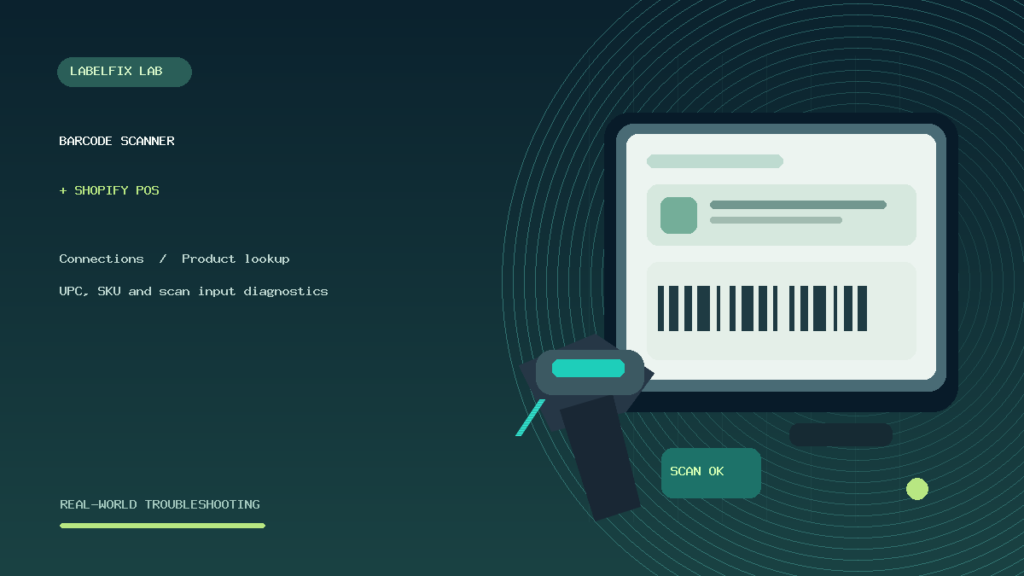
Editorial scope: This is an independent troubleshooting guide, not a verified snapshot of current Shopify POS hardware compatibility or user-interface menus. The illustrated checkout hardware is generic and not an official Shopify device. Refer to the platform’s latest support material for precise account-specific instructions.
Independent general troubleshooting information for shipping labels and thermal printers. Model-specific button sequences, cleaning supplies and service instructions can differ; consult your manufacturer's official documentation. Never alter a carrier-generated barcode.