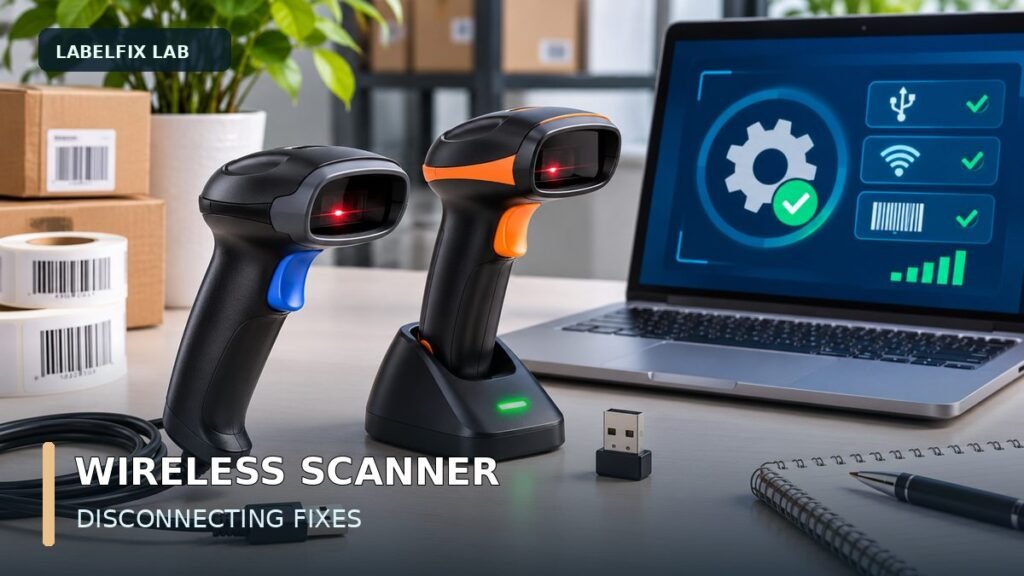
Quick answer: If a wireless barcode scanner works briefly and then stops sending data, don’t immediately reset it. First determine whether it uses a proprietary 2.4 GHz USB dongle or ordinary Bluetooth, and then compare connection distance, battery state, host sleep behavior and application input. A successful barcode beep confirms neither a stable radio link nor delivery to the receiving program. The correct fix depends on where the data flow stops.
This guide covers the recurring connection problem across compatible handheld scanners. It complements our model-specific Tera and NETUM articles rather than replacing their official pairing procedures. A scanner’s programming barcodes, battery indicators and reconnection behavior vary by model. Always follow the exact device manual when making configuration changes.
Fast diagnosis: what exactly disconnected?
| Symptom | Likely layer | Controlled test |
|---|---|---|
| USB receiver disappears from the host | USB port, hub, cable/adapter or host power | Inspect the OS device list with receiver plugged directly into a supported port |
| Receiver stays visible, scans stop at a distance | Radio interference or range | Repeat at short unobstructed range, same test code |
| Scanner shuts down after sitting idle | Sleep/auto-off or low charge | Compare behavior after a full approved charge and documented wake-up action |
| Bluetooth paired, but scan characters don’t arrive | Connection state, HID profile or destination focus | Check connected state and a plain text input |
| Scans appear in a batch after reconnection | Buffered/offline inventory mode | Check documentation for real-time versus storage transfer |
| Only the shipping website loses the scan | Browser/app focus or validation | Compare with an ordinary text editor using the same scanner |
1. Identify the radio connection instead of guessing
A USB wireless receiver may use a proprietary link and cannot necessarily be replaced with any generic dongle. Bluetooth pairing normally uses the host’s Bluetooth system and a supported scanner profile. Some models support both methods but require deliberate mode switching. Keep those two paths separate throughout troubleshooting.
Record the full scanner model and receiver details, whether it connects to Windows, Mac, Android, iOS or a POS terminal, and whether the problem began after changing ports, software, batteries or location. Even devices using the same radio band may require completely different pairing procedures.
2. Prove the scanner can decode a known-good barcode
Choose a harmless sample with a known value, such as TEST-WIRELESS-123 if that content is encoded in a format the scanner supports. Verify the pattern is intact and suitable for your hardware. Do not begin with damaged shipping labels or a real customer tracking number when testing a link problem.
For a keyboard-emulation connection, click into a plain local text editor and scan a single sample. Compare the full output, including any Enter/Tab suffix. If it arrives correctly at short range, you have established a baseline for decoding and delivery. Repeat from progressively different locations while changing no other setting; that isolates range or environment from document quality.
3. Check whether the host sees the original receiver
For a 2.4 GHz dongle scanner, inspect the USB receiver connection at the host. In a controlled test, use a supported direct USB port instead of a hub or adapter if one is available. A dongle that repeatedly disconnects at the OS level points toward USB power/data, connector strain or hardware issues—not a barcode that has somehow become unreadable.
Do not substitute a random 2.4 GHz receiver. Even receivers that look identical may be paired to different hardware or use incompatible firmware. If the original dongle is missing, consult the scanner vendor for a compatible replacement and matching pairing procedure rather than entering random host-interface commands.
4. Move the receiver away from interference and obstructions
Many warehouse environments contain metal racking, powered USB 3 devices, Wi-Fi access points and multiple wireless peripherals. These can change the radio conditions experienced by a scanner, but the effect varies with the hardware and placement. Test at a short, clear line of sight with the original receiver. If reliable nearby scans fail only at greater distance, investigate positioning and documented operating range.
Try relocating the supported USB receiver away from a metal cabinet using an approved USB extension where permitted. Keep the same barcode, host and device charge during the test. Don’t claim a specific guaranteed operating distance based on marketing figures alone; actual working range depends on the environment.
5. Check battery charge and documented standby behavior
A cordless scanner may dim indicators, sleep or power off after inactivity. Other models maintain a link and wake on trigger; still others must reconnect when activated. Compare the device’s behavior immediately after a full manufacturer-approved charge with behavior after a known idle interval. Look for documented sleep, wake and reconnection patterns for your exact model.
If the device fails only after long use and improves after charging, consider battery condition or charging hardware. Do not replace or open a battery pack unless the manufacturer permits it and provides safe instructions. A worn battery or charger is a different fault from a poor barcode print.
6. Bluetooth: distinguish remembered pairing from active connection
Bluetooth settings can list a scanner as “paired” even when no active link is passing data. Confirm the current connected status and the documented host interface. A scanner paired to a different phone or tablet may attempt to reconnect there, depending on its model and supported host-switching function.
When using keyboard-style Bluetooth HID, test with a focused text field. If the barcode types correctly in Notes or another simple application but fails in a warehouse app, investigate the receiving software’s data requirements and input mode rather than deleting Bluetooth pairings without a plan.
7. Recognize a storage-mode problem masquerading as a disconnect
Some wireless scanners can store scans while disconnected and transmit them in batches later. That is useful for inventory work away from the host, but it can look like an intermittent radio fault when a packing desk expects a real-time response. Check the model’s documentation for offline collection, real-time transfer and memory-clear actions.
Before resetting a scanner, protect any stored stocktaking records. A factory reset could remove configuration or stored data. If the workflow needs immediate shipping verification, confirm the scanner is in the right documented mode and that the business application acknowledges each scan as it arrives.
8. USB power management and operating-system standby
A Windows laptop or other host may suspend USB devices as part of its power policy. This can affect the receiver depending on hardware, operating-system settings and driver support. Record whether failures happen immediately after the computer wakes, after the display sleeps or when the host switches power source.
Before changing global sleep policies, consult IT on managed systems and check the scanner vendor’s supported recommendations. An overly broad workaround—disabling security or power controls across the whole computer—may create new problems. A targeted, reversible setting change and repeated test are preferable.
9. Separate the scanner’s output from the business app
Suppose a scanner consistently types into a plain text editor but the shipping dashboard receives only some scans. The problem may involve field focus, browser re-rendering, an unexpected Enter suffix, a scan speed that the field mishandles, or validation rules for the expected barcode. Compare the exact transmitted string rather than assuming radio failure.
If Excel strips leading zeros, it may be treating scanned identifiers as numbers; change destination formatting to Text and retest. Our Windows scanner and Excel guide covers HID, COM and spreadsheet input differences.
10. Check whether the scanner can read the intended symbol
A device that works perfectly with a standard linear product barcode may not support a square QR or Data Matrix mark. Even compatible imagers can fail on poor label print quality, reflective tape or missing barcode quiet zones. That’s a decoding issue, not necessarily a wireless disconnect.
Inspect the shipping label’s original PDF and physical output. A barcode that was shrunk or cropped during printing may not scan reliably. Consult our 1D versus 2D barcode guide and shipping label scan checks before resetting radio settings.
11. One-variable testing protocol for a shipping desk
- Record the complete scanner/receiver model and current host connection method.
- Choose one clean non-sensitive test code and a simple input field.
- Charge the scanner through its approved method and test near the host.
- Observe whether connection state changes before or after idle time.
- If short-range scans work, test position and interference while changing one factor.
- Finally repeat in the intended warehouse or shipping software and check its focus/suffix behavior.
Write down the exact failure and the first change that restores function. Repeated untracked resets conceal intermittent problems and make escalation harder. Preserve production configuration if a device is shared among employees.
Case study: scans disappear only near warehouse shelving
A cordless scanner behaves normally beside the computer but stops transmitting when the operator moves behind a tall metal rack. Using the same test barcode, the worker compares the short-range baseline with the obstructed route and then tests a vendor-approved receiver placement change. This supports investigating the wireless path and environment rather than cleaning the label printer.
Case study: disconnects follow the laptop sleeping
A scanner transmits correctly throughout active packing but stops after the host wakes from standby. The operator checks whether the USB receiver is still enumerated and whether the application has retained input focus. If the receiver itself disappears, the relevant investigation involves host power and reconnection; if it stays present but the app does not accept text, focus or application state may be responsible.
Case study: scans appear only after reconnecting
A worker scans inventory items out of range; after returning to the workstation, all values are uploaded together. A supported offline-storage mode can explain this on devices offering that feature. The key decision is whether batch collection is intentional; for a packing verification station requiring real-time confirmation, change only to a documented compatible transmission mode after protecting stored data.
Before replacing the scanner
- Confirm the original receiver/compatible host and actual connection protocol.
- Check charge, supported standby behavior and data storage mode.
- Try one clean sample at short range and compare in a basic input field.
- Separate OS-level USB disconnects from app-level missing data.
- Preserve settings and recorded scans before any reset.
- Use official model support for firmware, receiver replacement or safe battery work.
Frequently asked questions
Why does my wireless barcode scanner work for a few minutes and stop?
Check documented sleep/power behavior, battery condition, receiver connection and whether the host itself enters standby. If it stops only at distance, investigate the radio path and environmental obstruction.
Can a USB 2.4 GHz scanner be paired through Bluetooth settings?
Not automatically. A proprietary receiver may use a separate radio protocol. Only models supporting Bluetooth with the proper mode are discoverable through host Bluetooth pairing.
Why does my scanner beep but the laptop shows no text?
A decode beep is not proof of data delivery. Check the receiver or Bluetooth link, intended host mode, focused input field and whether the scanner is storing rather than sending the scan.
What causes barcodes to arrive in a batch after reconnecting?
Some scanners support offline/buffered collection and later transfer. Check the model’s operating mode and preserve stored records before changing configuration.
Can I fix a wireless disconnect by recalibrating the label printer?
No. Printer calibration addresses label feed registration and media sensing. A radio or host-input interruption is a separate problem unless the actual failure is inability to decode the printed code.
Related guides
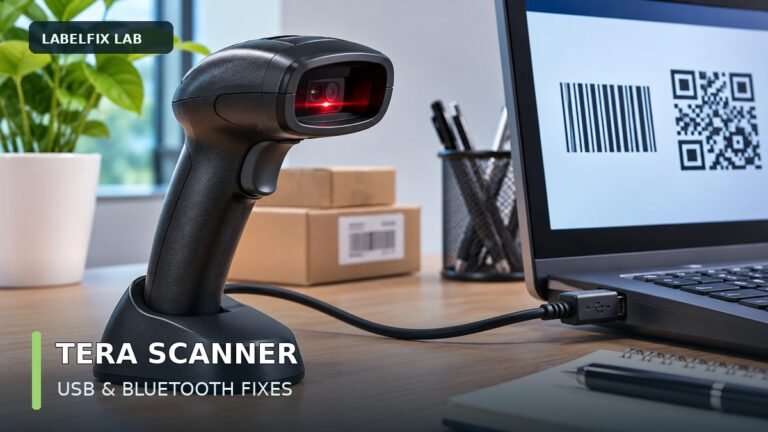
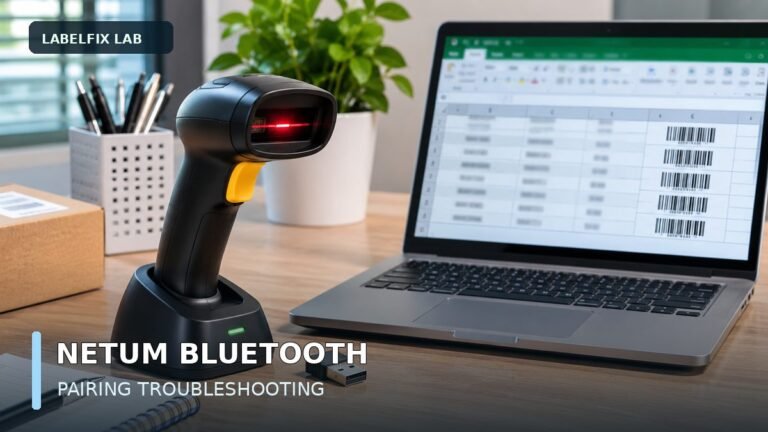
For device-specific connection modes, compare Tera receiver and Bluetooth issues with NETUM Bluetooth and mobile pairing.
- USB scanner Windows setup and Excel
- Scanner beeps, but no tracking data appears
- Extra suffix or unexpected characters
- QR-code scanning failures
- Shipping barcode print-quality checks
Editorial note: This article discusses common categories of wireless-scanner failure without claiming a specific brand or unit was physically tested. Illustrations show generic equipment. Actual radio modes, sleep behavior, stored-data handling and supported service procedures depend on the model’s official documentation.
Independent general troubleshooting information for shipping labels and thermal printers. Model-specific button sequences, cleaning supplies and service instructions can differ; consult your manufacturer's official documentation. Never alter a carrier-generated barcode.