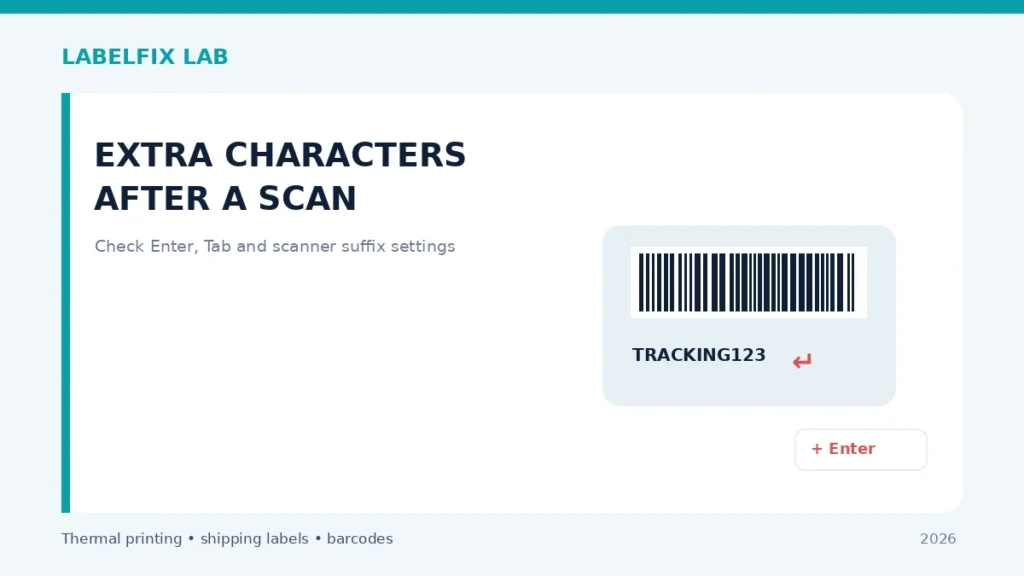
A scanner that transmits the right barcode but also inserts an Enter, moves to the next field, or produces unexpected punctuation can create order-processing errors. The root cause often lies in scanner output formatting or the host keyboard layout, not in the printed label. The first test is to capture the exact character sequence in a neutral text editor.
Before changing settings: Use a non-live sample, record the exact hardware and software versions, and keep real tracking numbers and customer details out of screenshots shared publicly.
Symptoms and what they suggest
| What happens | First direction to investigate |
|---|---|
| Correct number followed by a line break | Configured carriage return or Enter suffix |
| Cursor jumps into another field | Tab suffix or application focus rule |
| Digits correct but punctuation differs | Keyboard locale or scanner keyboard-country mapping |
| A leading letter or code always appears | Programmed prefix or transmitted symbology identifier |
Step-by-step diagnostic checks
1. Capture the output in an empty text editor
Use a non-live test code with known characters. Put the cursor in a plain text document and scan once. Compare the entire line before and after the scan, including a new line, space or prefix. Do not infer the output solely from a shipping portal that may automatically move focus.
2. Distinguish suffixes from application shortcuts
An Enter/Return suffix often submits a form; Tab often switches fields. However a shipping application can also change focus on its own. Repeat the exact scan in a simple text editor and then on a supported test form. A difference between contexts is evidence about the application, not proof of scanner damage.
3. Check the manufacturer’s programming configuration
Many scanners use model-specific programming barcodes to set prefixes, suffixes, keyboard locale and output mode. Their sequences are not universal. Use the official manual for the exact device and record current settings; a factory reset might remove required warehouse or point-of-sale configuration.
4. Compare keyboard layout on scanner and computer
Keyboard-wedge scanners may emulate keystrokes. When country settings differ, characters such as slash, dash or punctuation can map differently. Compare a known safe sample containing digits and special characters, then align scanner and host locale using documented options without editing the tracking label.
5. Preserve leading zeros and the barcode’s actual content
Tracking values are identifiers, not quantities to round or convert. If an app strips zeros, check whether it treats input as a numeric data type. Compare raw scanner output in the text editor before changing a scanner prefix; do not reconstruct a shipping code by guessing missing characters.
6. Understand optional symbology prefixes
Some scanner interfaces can transmit an additional identifier indicating the barcode type. This may be useful to an inventory system but unwanted in a simple carrier tracking field. The appropriate solution depends on the scanner protocol and receiving software.
7. Test one field at a time before returning to production
After an approved change, scan a non-live sample into the correct field, observe whether the form submits or shifts focus, and compare the exact transmitted characters. A configuration that works in Notepad but breaks warehouse software still needs application-level validation.
8. Keep the barcode image unchanged
If the human-readable test digits on the carrier label match the barcode but the host displays extra characters, the thermal printer is not necessarily the cause. Refer to scanner input troubleshooting if no data appears at all.
How to interpret the results
A consistent extra suffix in every application suggests scanner programming. Only one web form misbehaving suggests the application’s input handling. Character substitutions that depend on the computer suggest a keyboard-mapping difference.
Verify before returning to production
Record what changed, test with the original supported document or test symbol and confirm the actual value received by the application. For a physical shipping label, inspect the whole barcode, address, routing marks and surrounding clear area. If the specific carrier or device manufacturer publishes requirements, those take priority over general guidance.
Worked example: a hypothetical diagnostic case
Imagine a scanner that enters a correct tracking identifier into a packing form, then immediately submits the form. In an empty text editor the same scan creates a new line after the identifier. That pattern supports checking an Enter suffix in the scanner’s documented output configuration. In a different case, a scan looks correct in the text editor but jumps to another field only inside a marketplace portal. The application may have its own auto-advance behavior. Compare these cases with a safe test value containing leading zeros and one allowed separator. Do not assume all unexpected field movements come from the barcode or printed label itself.
What not to conclude from one test
A prefix or suffix may be an intentional part of a warehouse workflow. Do not remove it globally until the applications that use this scanner have been checked, and never silently strip leading zeros from tracking identifiers.
For an accountable troubleshooting record, note the exact model, source document or sample, current interface and settings, the test performed, and which symptom changed. Keep production tracking numbers and customer information private. This is an illustrative case, not a claim of first-hand testing.
Frequently asked questions
Can I turn off Enter after every barcode scan?
Many scanners support configurable suffixes, but the procedure and availability depend on the exact model and receiving application.
Why does scanning into a web form skip a field?
A Tab suffix or the site’s own form handling may move focus. Compare the same scan in a text editor.
Should I remove a scanner prefix before shipping?
Only when your receiving application expects raw data and the prefix is not required. Verify with the workflow owner.
Editorial note: This is independent, general troubleshooting advice, not a scanner certification or a claim that we tested every device. See our technical verification policy and consult the exact scanner and carrier documentation for model-specific steps.
Independent general troubleshooting information for shipping labels and thermal printers. Model-specific button sequences, cleaning supplies and service instructions can differ; consult your manufacturer's official documentation. Never alter a carrier-generated barcode.