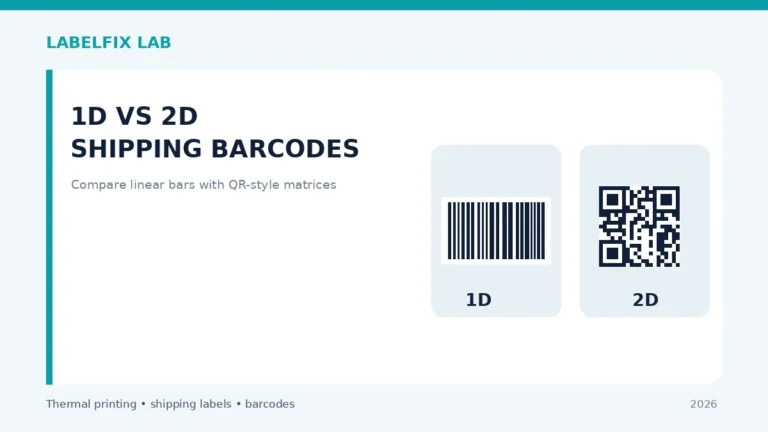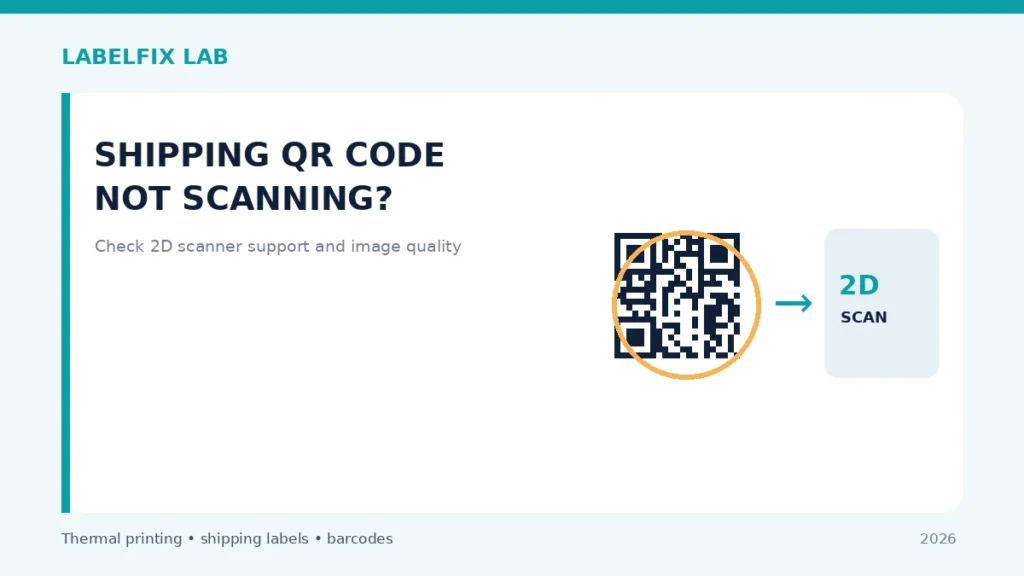
Shipping labels may contain a square two-dimensional symbol alongside a conventional linear barcode. A device that reads long striped barcodes is not automatically able to read QR Codes or other 2D formats. When a square code fails, identify the exact symbol type and scanning device before changing label size or trying to regenerate the code.
Before changing settings: Use a non-live sample, record the exact hardware and software versions, and keep real tracking numbers and customer details out of screenshots shared publicly.
Symptoms and what they suggest
| What happens | First direction to investigate |
|---|---|
| Linear tracking barcode reads; square code does not | Scanner may support 1D but not 2D |
| Square code unreadable only on the printed label | Print scale, contrast, damage or quiet area |
| Phone camera reads it; handheld scanner does not | Device capability, supported formats or configuration |
| Both codes fail on the same sheet | Source quality, clipping, media or scanner workflow |
Step-by-step diagnostic checks
1. Confirm the square symbol’s actual type
A square symbol is not necessarily a QR Code; carrier documents can also include other 2D symbologies. Consult the carrier’s label guidance or barcode data specification rather than assuming every square pattern uses the same reader. Do not replace an unfamiliar carrier symbol with a home-generated QR Code.
2. Check the scanner’s documented 2D support
Read the exact scanner model’s supported symbology list. Some older laser scanners read only 1D codes; many area-imaging scanners handle a range of 1D and 2D formats. Capability and enabled settings vary by device, so a successful scan of an EAN or Code 128 bar does not establish support for the square mark.
3. Compare the original digital document and the print
Open the carrier-generated PDF at high zoom and inspect whether the modules are distinct and the surrounding area is unobstructed. Then compare the physical sticker. If the square code is already damaged in the PDF, ask the carrier or platform for a fresh original export.
4. Verify actual printing scale and physical stock
Check the PDF page dimensions with the local PDF size checker and confirm the driver matches the stock. Fitting a full Letter page onto 4×6 media can make small squares merge or shrink. Avoid enlarging a low-resolution screenshot as a substitute for the native label file.
5. Inspect contrast, thermal energy and coating
Over-dark settings can merge adjacent dark modules; very pale print or poor media can make modules difficult to distinguish. Compare an approved test print at documented settings. The too-dark printing guide explains why maximum darkness is not automatically best.
6. Check the surrounding clear area
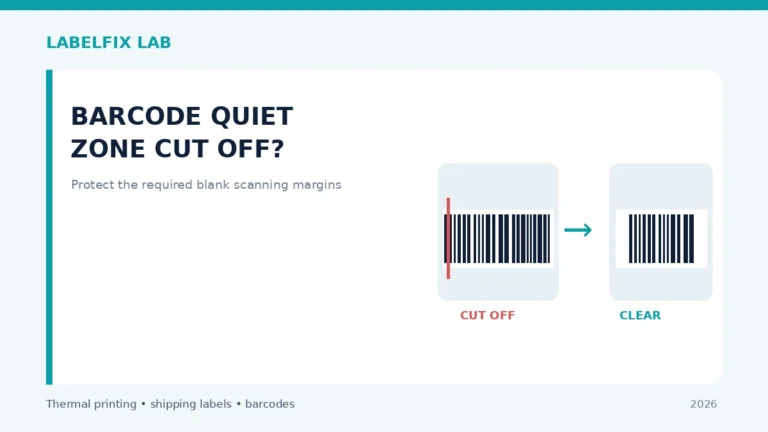
Two-dimensional symbols also require a suitable unprinted perimeter according to their particular symbology. Avoid crop marks, tape glare and label edges touching the code. The exact quiet-zone requirement must come from the code and carrier specification, not a guessed universal pixel count.
7. Try a supported alternative device as a diagnostic
A compatible smartphone scanning application can help check whether the printed mark is decodable, but this is not proof a carrier’s industrial system will accept it. If one reader works and another does not, compare supported formats and configuration before reprinting every label.
8. Follow carrier rules for real shipments
If the carrier requires a particular printed 2D symbol, preserve the original, full-resolution artwork. Never paste a different QR Code over a failed mark or assume the linear tracking barcode makes the missing 2D code optional.
How to interpret the results
If the square symbol is sharp but the device only supports 1D scanning, change the scanning workflow or compatible device, not printer heat. If both compatible readers fail on the paper but the original digital symbol is clear, inspect scaling and print quality.
Verify before returning to production
Record what changed, test with the original supported document or test symbol and confirm the actual value received by the application. For a physical shipping label, inspect the whole barcode, address, routing marks and surrounding clear area. If the specific carrier or device manufacturer publishes requirements, those take priority over general guidance.
Worked example: a hypothetical diagnostic case
Suppose a 4×6 label contains a tall linear barcode and a compact square code. The linear code reads on an older scanner but the square never does. First consult that scanner’s supported symbology list; it may not be an area imager. If a manufacturer-approved 2D-capable reader decodes a clean sample but not the square mark on this print, compare the original carrier PDF with the paper at the same scale. A dark merged pattern, clipped perimeter or low-resolution screenshot can make the output unreadable even with an appropriate scanner. If the symbol is already compromised in the original file, a new carrier export is the priority.
What not to conclude from one test
The fact that a phone camera decodes an example QR Code does not mean your carrier’s specific code is a QR Code, nor does it prove warehouse acceptance. Preserve the exact carrier-issued artwork and required page format.
For an accountable troubleshooting record, note the exact model, source document or sample, current interface and settings, the test performed, and which symptom changed. Keep production tracking numbers and customer information private. This is an illustrative case, not a claim of first-hand testing.
Frequently asked questions
Is every square code on a shipping label a QR Code?
No. Other two-dimensional codes exist. Identify the type using the carrier or platform documentation.
Can a normal barcode scanner read QR Codes?
Only if that model supports the relevant 2D symbology and its configuration allows it.
Does a phone scanning the code prove the label is accepted?
No. It is an informal diagnostic, not carrier barcode verification.
Editorial note: This is independent, general troubleshooting advice, not a scanner certification or a claim that we tested every device. See our technical verification policy and consult the exact scanner and carrier documentation for model-specific steps.
Independent general troubleshooting information for shipping labels and thermal printers. Model-specific button sequences, cleaning supplies and service instructions can differ; consult your manufacturer's official documentation. Never alter a carrier-generated barcode.