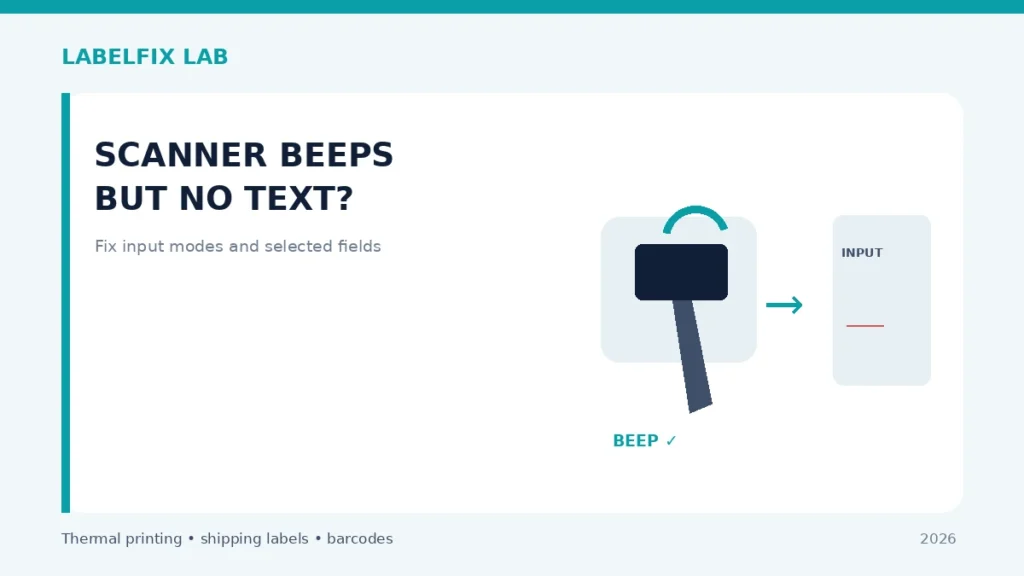
A successful beep tells you that a scanner recognized something or acknowledged a trigger; it does not necessarily confirm that the host application received the tracking number. Many scanners can act as a USB keyboard, but others use serial, BLE, a vendor application or another configured output mode. Before changing labels or printer darkness, find out whether the missing data is a host-input issue.
Before changing settings: Use a non-live sample, record the exact hardware and software versions, and keep real tracking numbers and customer details out of screenshots shared publicly.
Symptoms and what they suggest
| What happens | First direction to investigate |
|---|---|
| Beeps, nothing appears in a plain text field | Connection, data-output mode or host interface |
| Number enters Notepad but not a shipping portal | Field focus, app validation or browser behavior |
| Works over USB but not Bluetooth | Pairing, HID support or vendor app mode |
| Reads one barcode type but ignores another | Scanner symbology support and configuration |
Step-by-step diagnostic checks
1. Start with a harmless plain-text test
Open a blank text editor on the intended computer and place the insertion cursor in its empty document. Scan a non-sensitive test barcode using the scanner’s documented trigger or scan mode. If characters appear there, the scanner is at least delivering text to the operating system. If nothing appears, the shipping platform is not yet the right place to troubleshoot.
2. Check which output interface the model uses
Look up the exact scanner model’s connection documentation. USB HID keyboard emulation, serial/virtual COM, Bluetooth HID and Bluetooth Low Energy vendor-app modes are not interchangeable. A scanner configured for a serial port will not necessarily type characters into Notepad. Only change interface settings through the manufacturer’s official configuration procedure.
3. Observe focus and field behavior in the shipping application
Click the actual tracking-number input immediately before scanning, and compare with manual typing of a dummy value. Some pages move focus after a scan or validate a known carrier format. If Notepad receives the scan but the app does not, record the app and browser version and examine its documented scan workflow rather than adjusting the thermal printer.
4. Check for a trailing Enter or Tab action
A configured suffix may submit a form or move focus before you notice the text. Test in an empty plain-text field and watch whether a new line or tab appears. If characters arrive and the form unexpectedly submits, use the approved scanner configuration to manage the suffix; see extra characters after scanning.
5. Test another known-supported printed symbol
Use a clear manufacturer or vendor-approved sample with a symbology the scanner supports. A beep for a QR code does not mean the device is capable of transmitting that content to every host app. Read the manual’s supported barcode-type list, and avoid assuming that a laser-only one-dimensional scanner reads two-dimensional codes.
6. Check the wireless connection without repeated blind pairing
If wireless, inspect the scanner’s documented connection indicator and the host’s paired-device or app connection state. Some units can be paired yet inactive or connected to another host. Disconnect using official guidance and test once again, without changing unrelated network or security settings.
7. Separate character delivery from barcode quality
If the scanner transmits some symbols but refuses a particular shipping-label barcode, inspect the original PDF and printed quiet zones. The barcode not scanning guide focuses on the physical print; it will not fix a text field that never receives output.
8. Verify one full, unmodified tracking value
Compare the scanned sample against the original human-readable test value, including leading zeros. Do not publish real customer labels or store tracking data in a shared test document. If a character is lost or changed, investigate keyboard locale and scanner programming before trusting the workflow.
How to interpret the results
If Notepad receives the scan but the shipping site does not, focus on the website or form workflow. If neither receives data, check the scanner’s documented host interface. If both receive data but characters differ, diagnose prefix/suffix and keyboard mapping, not the printer.
Verify before returning to production
Record what changed, test with the original supported document or test symbol and confirm the actual value received by the application. For a physical shipping label, inspect the whole barcode, address, routing marks and surrounding clear area. If the specific carrier or device manufacturer publishes requirements, those take priority over general guidance.
Worked example: a hypothetical diagnostic case
A warehouse employee hears the normal confirmation beep, but the shipping portal’s tracking field remains empty. The first controlled test is to open a blank text editor and scan a non-live code while the insertion cursor is visible. If nothing appears there, it would be premature to change the portal settings; the scanner may be paired in an app mode rather than keyboard mode. If the same test does type the complete identifier in the editor but not in the portal, the host connection is likely working and the portal’s focus or accepted input format deserves attention. A scan that sends only part of the value adds a third branch: compare prefix, suffix and keyboard mapping before trusting the result.
What not to conclude from one test
A beep is not a receipt of correctly transmitted tracking data. Avoid printing dozens of fresh labels or replacing a scanner until you know whether the output fails in every text field or only in one receiving application.
For an accountable troubleshooting record, note the exact model, source document or sample, current interface and settings, the test performed, and which symptom changed. Keep production tracking numbers and customer information private. This is an illustrative case, not a claim of first-hand testing.
Frequently asked questions
Does a beep guarantee a successful scan?
No. Its meaning varies by model and may indicate a decode, button event or another status without confirming transmission to the application.
Will changing printer darkness fix a scanner that types nothing?
Only if the barcode itself fails to decode. A host interface or focus problem requires a different investigation.
Why do leading zeros disappear?
The application may interpret tracking data as a number rather than text, or scanner programming may alter output. Compare raw input first.
Editorial note: This is independent, general troubleshooting advice, not a scanner certification or a claim that we tested every device. See our technical verification policy and consult the exact scanner and carrier documentation for model-specific steps.
Independent general troubleshooting information for shipping labels and thermal printers. Model-specific button sequences, cleaning supplies and service instructions can differ; consult your manufacturer's official documentation. Never alter a carrier-generated barcode.