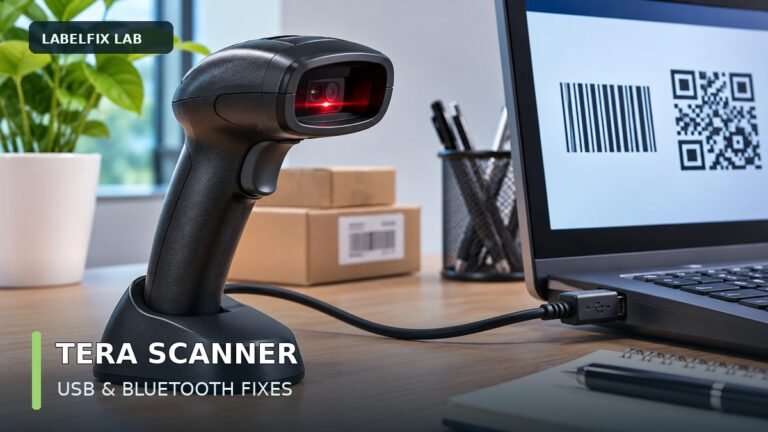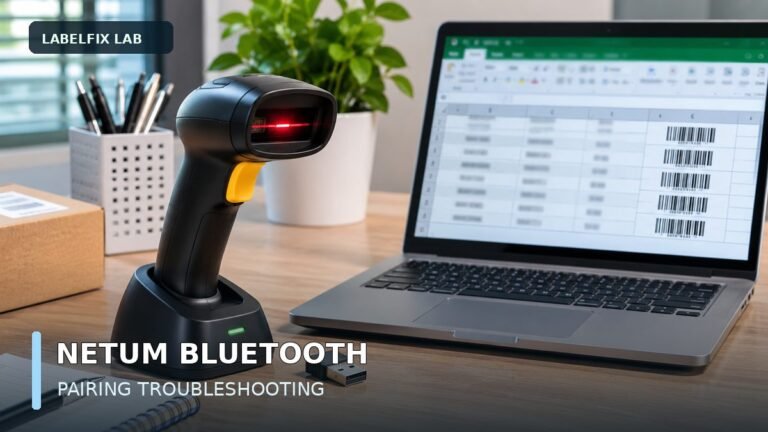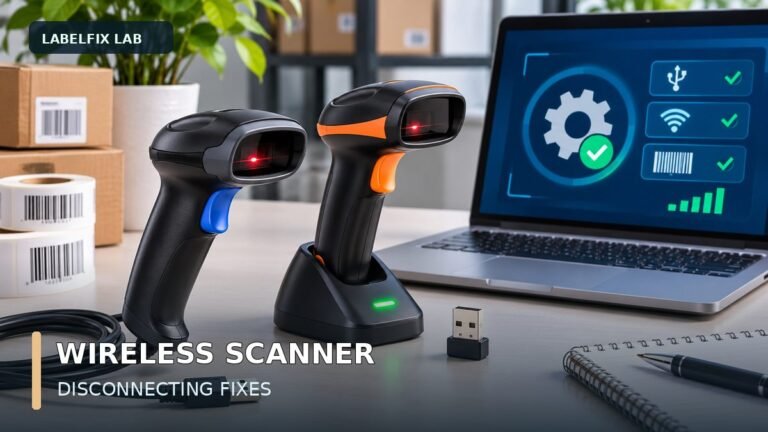
Start here: A Zebra DS2208 that beeps but does not enter a barcode into your software is not necessarily a faulty scanner. First separate decoding (did the scanner recognize the symbol?) from host output (did the computer receive characters?) and application handling (did the receiving field accept them?). The DS2208 belongs to Zebra’s DS2200-series 1D/2D scanner family, but host interfaces, enabled symbologies and setup options can depend on configuration. Use the official manual for your exact scanner and interface before changing programming barcodes.
This guide focuses on handheld USB-connected workflows in warehouses, packing desks and retail systems. It does not provide unverified factory-reset codes or assume a particular software release. If you are setting up a completely generic keyboard-style scanner rather than a DS2208, see our scanner beeps but doesn’t type diagnostic for a wider starting point.
Choose the right DS2208 diagnostic branch
| What happens | Likely layer | First controlled test |
|---|---|---|
| Light or aiming indicator appears, but no barcode is read | Symbol, distance, print quality, symbology or decode settings | Scan a known-good, supported test code |
| Audible decode, but no characters appear on screen | USB host mode, active text field, driver or output route | Open a plain text editor and focus the cursor |
| Code appears in Notepad but not in the shipping platform | App focus, input validation or field handling | Compare the same code in both destinations |
| Scanner sends the code plus Enter or Tab unexpectedly | Configured suffix or keyboard emulation | Observe the last character or focus movement in a text editor |
| QR code will not decode, but some linear codes work | Symbol quality, enabled decoder or specific QR handling | Try a non-sensitive, known-good supported QR sample |
| Scanner disconnects repeatedly | Cable, powered USB port, hub, operating-system event | Try a direct supported USB connection and compare device detection |
1. Identify the actual DS2208 unit and cable
Read the printed model label and record the full hardware identifier, firmware or configuration information if visible, connection cable and computer operating system. Do not assume a cable with a familiar connector forces a single host interface mode. Some enterprise scanners can present keyboard-style input in one configuration and a serial or application-managed interface in another.
Inspect the USB port, cable strain and connector fit. A device that receives power is not necessarily enumerating correctly as a host device. If your computer identifies the scanner but the business app cannot see it, the next step depends on the selected host mode; reinstalling the shipping app without checking that mode may not help.
2. Try a known-good, non-private code
Choose a simple sample with known contents and appropriate symbology, rather than beginning with a damaged shipping label or a customer’s address. A readable, high-contrast code allows you to separate the scanner’s basic decoding from the condition of a particular label. Avoid claiming success from the scanner’s audible response alone: a sound or illumination state can have different meanings under different scanner configurations.
Check the printed code for sufficient clear space around the pattern, intact edges, reasonable module size and no glare. Curled labels, shrink-wrapped packages and reflective tape can interfere with optical decoding. Hold the code at a suitable distance and angle based on the scanner’s official documentation. A scanner cannot compensate for missing barcode content that was clipped during printing.
3. Test USB keyboard output outside your business software
Where the DS2208 is configured to emulate a USB keyboard, place the text cursor in a simple local text editor, then scan the non-private sample. If the exact expected characters appear, the scanner and host keyboard path have demonstrated an important baseline. If the text does not appear, do not yet assume the decode engine is defective: check focus, USB enumeration, supported host interface and any scanner-specific data-delivery mode.
If the scanner is configured as a virtual serial/COM device or uses a managed point-of-sale integration, typing in Notepad may not be expected. Confirm the chosen host mode in the official Zebra configuration guide and in the application’s support documentation. Changing to keyboard mode can disrupt software that intentionally expects serial or managed scanner input, so preserve the working setup before modifying it.
4. Distinguish 1D and 2D scanning requirements
Unlike a traditional 1D-only laser scanner, the DS2208 model family is intended for both linear and two-dimensional codes. That does not mean every barcode format is automatically enabled, correctly printed or accepted by your application. A 2D code that fails might use a disabled symbology, have damaged modules, lack adequate contrast, or contain data the business software refuses.
Start with a test symbol from the manufacturer’s supported list. Test a standard linear sample and a known-good 2D sample separately to isolate whether failures track a symbol family. If the scanner reads a QR code into a text editor but your delivery software rejects it, the scanner is passing content and the issue may be data format, field expectations or application validation rather than optics.
5. Verify the right keyboard layout and character handling
A scanner in keyboard-emulation mode can depend on a host keyboard layout mapping. If letters appear right but punctuation, dashes or special characters change, compare operating-system keyboard language and scanner host country/layout settings. Do not modify the barcode’s original data to compensate for a keyboard layout mismatch. Save the exact observed input sequence and the expected sample for a controlled comparison.
Leading zeros are another common trap. A scanner may transmit 0012345 correctly while a spreadsheet interprets the value as a number and displays 12345. To diagnose that, compare plain-text input against the application or spreadsheet. If the text editor retains the zeros, adjust the destination column’s text treatment, not the decoder hardware.
6. Recognize Enter, Tab and other suffix behavior
Business scanners often use a configurable suffix, such as a carriage return or tab, to advance workflow after a scan. This is useful for some inventory systems but can unexpectedly submit forms, skip fields or scan into the next row. If a code appears and the cursor immediately jumps, isolate whether a suffix is configured before assuming the label itself contains that character.
Test in an editor that lets you see line breaks or repeated entries. Use documented programming options for your DS2208 model if you need to change the suffix, and coordinate the change with the software’s field requirements. Our extra characters after scanning guide gives a broader decision tree for prefix/suffix issues.
7. Investigate the shipping label separately
When the DS2208 reads a clean test barcode but fails a shipping label, compare the label’s source and physical print. Look for low resolution, over-darkened bars, thermal fading, insufficient quiet space, stickers wrapped around a package edge or glossy tape over the symbol. A label that appears readable to a person might have a code that is truncated or physically scaled below the required size.
A carrier shipping label can contain several machine-readable symbols with different purposes. Use the symbol the shipping workflow actually expects. Do not recreate a code from the human-readable tracking number and assume it includes all necessary carrier routing information. Read our shipping barcode not scanning guide for output-quality checks.
8. Distinguish optical decoding from the destination software
If a sample code appears perfectly in a text editor but a warehouse management field remains empty, check whether the application has keyboard focus, whether it expects a particular character count, and whether it receives inputs from keyboard-emulation devices. Some integrations require a specific host interface or scan event instead of plain keystrokes.
Do not change the scanner’s host mode solely because one website did not accept input. First repeat the test in a supported inventory or POS field, observe any error message, and verify that the application is configured for its scanner method. Where vendor support is needed, give them the exact operating system, host mode and non-sensitive sample output—not customer tracking numbers.
9. What to do when the USB device keeps disconnecting
Check the cable strain, port, hub and connector fit. A powered device can still have intermittent data connection. Where safe and supported, compare the same scanner on a directly connected computer port using the same known-good sample and unchanged scanner settings. If connection status changes before any scan, prioritize transport and host detection rather than barcode print quality.
Do not repeatedly change USB host modes, firmware and keyboard settings together. Those changes make the failure harder to reproduce. Record the device name and timestamp of a disconnection, then consult Zebra’s current supported troubleshooting procedures for that exact DS2208 hardware revision.
Worked example: DS2208 beeps, but nothing is typed
The scanner powers up and gives a decode indication. The user opens a text editor, clicks in it and scans a known-good test code. No text appears. The user next checks whether the device is in USB keyboard mode or a serial/integration-specific mode. If it is deliberately configured for serial output, Notepad is not the correct test destination. This avoids treating a host-interface mismatch as a damaged scan engine.
Worked example: barcode reads but Excel strips zeros
The same sample reads as 00073142 in a text editor but becomes 73142 in a spreadsheet column. The discrepancy is in the destination application’s number interpretation, not necessarily in the DS2208. Assign the destination a text data type and test again before changing scanner programming. For live tracking data, preserve the entire issued sequence as text.
Worked example: QR code appears to scan but app rejects it
The scanner produces a complete data string from a known-good QR in a local text editor. A specific shipping application’s lookup field rejects it. This narrows the question to whether the application expects that QR payload, a linear tracking code, or another exact data format. Changing scanner optics or printhead temperature will not fix a software field that expects different content.
Before applying a reset or configuration barcode
- Record the scanner’s current model and connection/host mode.
- Test a non-sensitive sample code in a simple input destination.
- Confirm whether the scanner must emulate a keyboard or use serial/integrated output.
- Check the official manual for the precise programming barcode and its effect.
- Do not scan random programming sheets from unrelated scanner models.
- Verify application behavior after one controlled change.
Frequently asked questions
Can the Zebra DS2208 scan QR codes?
The DS2208 is a 1D/2D scanner family and can be used for compatible two-dimensional symbols. Actual decoding depends on the symbology, configuration and print quality. Check the exact model’s supported list for the code you need.
Why does my DS2208 beep but not type into Notepad?
Check the cursor focus and whether the scanner is configured as a USB keyboard, virtual serial device or other host interface. Beeping does not guarantee that keystrokes are being sent.
Does the DS2208 need a driver?
That depends on the host interface and supported operating system. A keyboard-emulation configuration may work with standard OS input support, while other modes or software integrations may need vendor-supported configuration. Check official support for the chosen mode.
How do I disable Enter after every scan?
Identify whether an Enter suffix is configured and use the documented programming procedure for the actual model. Avoid copying programming barcodes from an unrelated scanner because they can change other settings.
Why does the scanner read a test barcode but not a shipping label?
Inspect the physical label, barcode quiet zones, size, contrast, expected symbology and application field. A clean test proves only that one test path works, not that every carrier symbol is readable.
Related LabelFix Lab guides
Compare model capabilities and input setup with our Zebra LS2208 1D laser scanner guide and USB scanner setup for Windows and Excel.
- Scanner beeps but does not enter the tracking number
- Unexpected Enter, Tab or extra characters after a scan
- 1D versus 2D codes on shipping labels
- Shipping-label QR code not scanning
- Barcode quiet zone cut off
- Shipping barcode scan-quality troubleshooting
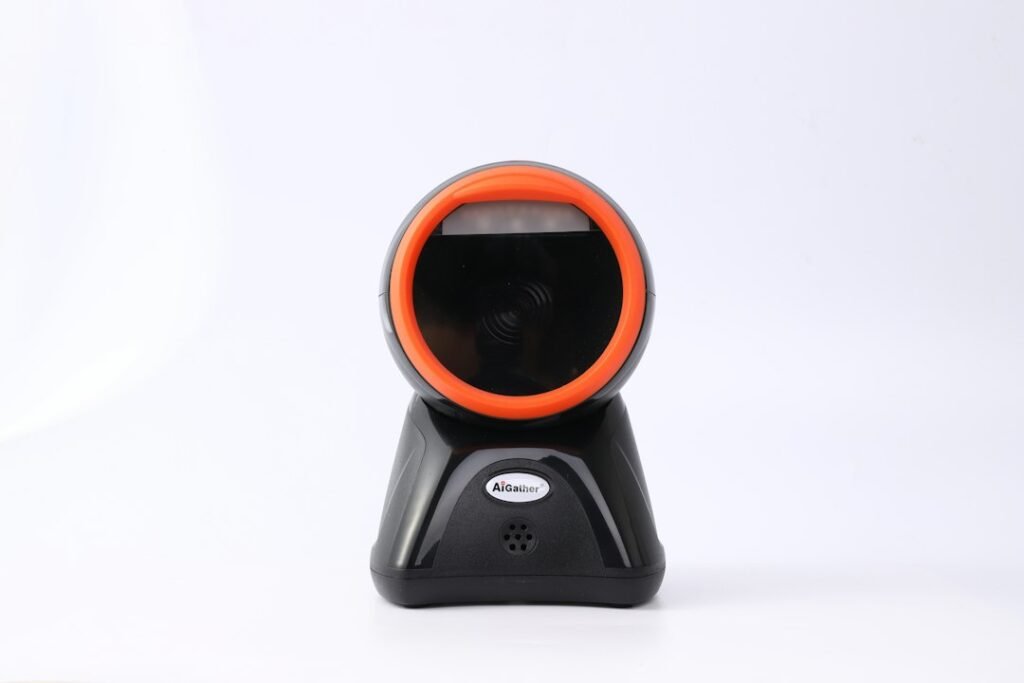
Featured image: Laura Chow / Unsplash. Illustrative generic 2D barcode scanner photograph; not a Zebra DS2208 product image.
Editorial scope: This article explains a reproducible troubleshooting framework, not a hands-on test of a DS2208 or the latest Zebra firmware. Exact host-interface support, configuration barcodes, symbology defaults and applicable operating systems must be checked against the official manual for the connected scanner.
Independent general troubleshooting information for shipping labels and thermal printers. Model-specific button sequences, cleaning supplies and service instructions can differ; consult your manufacturer's official documentation. Never alter a carrier-generated barcode.