Quick setup: Before connecting a new USB barcode scanner to a Windows inventory computer, decide how the receiving software expects data: as keyboard keystrokes (USB HID), through a serial/COM-port interface, or via a vendor-supported application integration. Those modes are different. For a scanner intentionally configured as a USB keyboard, an easy first check is to click a local text editor and scan a known, non-sensitive test code. If the expected characters appear, you have verified the basic input path before introducing Excel, a shipping portal or warehouse software.
This is a general setup workflow for compatible USB scanners, not a universal programming sheet. For devices using a dedicated receiver or Bluetooth, see our wireless barcode scanner connection guide and Tera USB receiver troubleshooting. Different manufacturers use different configuration barcodes, driver requirements and supported host modes. It also differs from diagnosing a broken printhead or unreadable label: first get the reader connected and sending expected test data, then evaluate production barcodes.
USB scanner setup in one table
| What you need | Start with | What success looks like |
|---|---|---|
| Type item codes in ordinary text fields | A compatible USB HID keyboard-emulation mode | Focused text editor receives exact expected characters |
| Send events to a serial-based inventory application | A vendor-supported virtual COM or serial interface | The intended software receives data on its configured port |
| Enter part numbers into Excel | Keyboard-mode scanner plus text-formatted columns | Leading zeros and full codes remain unchanged |
| Scan QR or Data Matrix codes | A compatible 2D imager with the needed symbology enabled | The reader decodes the full intended symbol |
| Automatically move to the next row | Check whether the software expects Enter or Tab as a suffix | Focus moves exactly once and values land in the right fields |
| Read shipping labels | Confirm the symbol and payload that the app expects | Correct field receives exact authorized tracking content |
Step 1: Identify your scanner and the types of code you need
Check the full model and physical interface on the unit, not just the retailer’s name for it. Some scanners read only traditional linear 1D barcodes; others are 2D imagers that may handle QR or Data Matrix formats subject to their capabilities and configuration. A 1D-only scanner cannot be converted to QR support through a new Windows driver. Select suitable hardware before troubleshooting application software.
Determine whether you’ll use internal SKU labels, UPC/EAN product identifiers, Code 128 inventory tags, shipping carrier barcodes or 2D codes. Your application may expect a particular symbology, prefix, full data payload or tracking number rather than whichever visual symbol you scan. For shipping workflows, use the original authorized label.
Step 2: Learn the three common host interfaces
USB HID keyboard mode presents decoded barcode characters as keyboard input to the focused text field. For a supported plug-and-use scanner, this may require no separate vendor application for basic input, although configuration and special behavior vary by model.
USB virtual COM / serial mode sends data through a serial-style port. A program may need to open that port and apply the correct supported settings; text generally will not appear in Notepad just because the scanner is working. The operating system or manufacturer may require an appropriate device driver.
Vendor-managed or POS mode uses an application-specific or supported scanner service for events and settings. It may not function as ordinary keyboard input. Changing to a different mode merely to make Notepad work could break a production POS integration. Ask the software owner which interface is supported before scanning any configuration or reset barcodes.
Step 3: Connect the USB cable and confirm device detection
Use a supported USB cable and port. Inspect the connector seating and cable condition. A scanner may illuminate even when data communication isn’t working; power alone is not proof that Windows has recognized a usable input device. If possible, observe the operating system’s device connection state after plugging it in.
If the scanner repeatedly appears and disappears, check cable strain, an intervening USB hub or a port with intermittent power/data. Test one change at a time. On managed work computers, device access may be controlled by IT policy, and unsupported driver installation should not be used to bypass those restrictions.
Step 4: Test decoding independently of Excel
Use a known-good, harmless code of a symbology that the scanner supports. Avoid beginning with a customer’s tracking number or an unreadable parcel label. Where the scanner is configured as a keyboard, open a simple text editor, click an editable position and scan once. Compare every character with the original test value. Notice any trailing newline, tab or unexpected punctuation.
If the correct value appears: connection, decoding and keyboard input work for that sample, so proceed to the business application. If nothing appears: check focus and host mode first. If only wrong characters appear: investigate layout mapping or suffix settings before changing barcode generation. A successful sample test is a useful baseline, but it does not validate every possible barcode format.
Step 5: Prepare Excel to preserve SKU and tracking data
Excel and other spreadsheets may treat scanned values as numbers, dates or scientific notation. That can remove leading zeros, convert long numeric identifiers or alter symbols in ways that change the business data. Before scanning actual stock codes, format the destination cells or column as Text and check the exact input behavior of the version you’re using.
For example, if the scanner transmits 000057421 but Excel shows 57421, compare the same code in a text editor. If the editor retains the zeros, the scanner probably sent the full value and Excel applied numeric formatting. If a long code appears in exponent notation or the last digits change, again test the original characters outside the spreadsheet before modifying the scanner. Do not add apostrophes or prefixes blindly if they would become part of the stored inventory ID.
Step 6: Choose Enter, Tab or no suffix intentionally
A suffix is additional input configured to follow a decoded barcode, such as Enter or Tab. In one inventory layout, Enter may advance to the next row; in another, it may submit a form prematurely. Tab may switch between a product-code field and a quantity field, but it can also skip an unexpected control.
Test the application’s desired behavior using a harmless code. Then compare with the scanner’s actual output in a text editor. Use manufacturer-specific programming instructions only after you know which suffix the workflow requires. Randomly scanning a “disable Enter” programming code found online for a different manufacturer can change other settings.
Step 7: Differentiate the scanner’s keyboard layout from Windows language settings
Keyboard-emulation output can depend on the scanner’s host keyboard-country setting and the active Windows keyboard layout. A barcode containing hyphens, slashes or punctuation may appear with substituted symbols if the two disagree. If simple digits scan correctly but punctuation does not, compare the settings documented for the scanner and Windows.
Do not rebuild inventory labels or adjust database records to hide a keyboard mismatch. Preserve the expected sample and read the exact output in a neutral text editor; then correct only the relevant host-layout layer.
Step 8: What if your scanner beeps but nothing reaches the program?
A decode indication tells you the scanner recognized something, not necessarily that it sent ordinary keystrokes to the correct application. For USB HID mode, verify an editable field is focused and the operating system sees the intended input device. For serial or managed modes, use the software’s supported interface rather than expecting ordinary text.
If a text editor receives characters but the warehouse program does not, investigate field focus, enabled input method and validation rules. Some software expects a full code with check digits, a vendor event or a specific symbology. See our beeps-but-doesn’t-type troubleshooting guide for the failure-specific approach.
Step 9: Why a shipping barcode may fail despite successful setup
Printer scaling, thermal media quality, barcode quiet-zone clipping, smudging and reflective tape can make a shipping label hard to read. Compare the intended symbology with the scanner’s capabilities. A handheld reader that can decode linear labels might not handle a QR code, while a 2D imager may still fail a damaged or unsupported 2D symbol.
Use the carrier-issued original barcode, and check print size rather than stretching the bars independently. If the test code scans while one label does not, examine the specific label and app expectations. Our shipping barcode scanning guide covers this print-versus-reader distinction.
Step 10: Set up a small inventory scanning workflow safely
Choose a consistent SKU or product identifier format, then decide which fields should accept it. Test one code, multiple codes and a deliberately invalid code in the actual application. Verify that scans add to the right record, avoid unintended duplicate submissions and preserve leading zeros. When you use quantity fields, confirm whether the app expects one scan per unit or a separate quantity entry; these are business process choices, not universal scanner behavior.
Keep a non-sensitive test sheet for new employees and computer changes. Include a clean supported 1D sample, an optional 2D sample only when the reader is capable, and expected data strings. Check that the scanner and computer reliably produce the same results after restarting the destination application.
Worked example A: no characters appear after USB connection
A warehouse worker plugs in a scanner, sees its light and hears an indication on a scan. The text editor remains empty. The worker checks whether the unit is configured for keyboard input or whether the inventory integration expects a virtual COM port. If serial mode is intentionally selected, Notepad is not the correct destination. This prevents wasting time reinstalling Excel or adjusting barcode print darkness.
Worked example B: Excel drops the first three zeros
The scanner types 00040817 in a text editor but Excel displays 40817. Since the original characters arrive intact, the likely issue is numeric conversion inside Excel. Formatting the destination as Text and repeating the sample test addresses the receiving workflow rather than changing the scanner or label printer.
Worked example C: each scan accidentally submits an order
After scanning a SKU into a web order form, the page submits instantly. The scanner might be transmitting a trailing Enter that the form interprets as submission. Observe the suffix in a neutral input field, check what the form expects and adjust the scanner configuration only if the exact model supports the change. Removing Enter from the code itself is not an appropriate fix.
Worked example D: the reader scans product codes but not return QR codes
The hardware reads UPC-type linear product codes but will not read a square return QR symbol. Confirm whether the scanner is a 1D-only laser device or a 2D imager. For 1D-only hardware, a compatible 2D reader is required. For a 2D-capable scanner, check supported QR decoding and the condition of the actual symbol. Do not promise that a new USB driver adds optical hardware capability.
Security and data-handling rules
- Use non-sensitive samples for initial tests, not customers’ tracking numbers.
- Do not install unsolicited drivers or remote-access software from scanner troubleshooting ads.
- Record the correct host mode before modifying configuration barcodes.
- Preserve exact identifiers, including leading zeros and check digits.
- Do not allow scanned content to execute commands, macros or untrusted URLs automatically.
- Ask workplace IT before changing scanner policy on a managed computer.
Frequently asked questions
Does a USB barcode scanner work like a keyboard?
Many compatible units offer USB HID keyboard emulation, but others can use serial-style or vendor-managed interfaces. Confirm your model’s actual host mode and the receiving software’s requirements.
Why is my barcode scanner not typing into Excel?
First test a known-good code in a plain text editor in keyboard mode. If the editor works, check Excel focus and formatting; if it doesn’t, investigate scanner detection and host interface.
How do I keep leading zeros when scanning barcodes into Excel?
Set the destination field or column to Text before scanning and verify with a known sample. Numeric cell formats can remove zeros even when the scanner transmits them correctly.
What is the difference between HID and USB COM mode?
HID keyboard mode delivers decoded characters like keystrokes into focused input fields; virtual COM mode provides serial-style data to software that opens the port. They are not automatically interchangeable.
Can all USB barcode scanners scan QR codes?
No. QR decoding requires supported two-dimensional imaging capability and compatible configuration. A 1D-only scanner cannot become a QR reader simply through a driver update.
Can I scan shipping-label barcodes into a spreadsheet?
You can capture data from supported symbols when permitted by the relevant workflow, but use the correct code and preserve the exact transmitted value. Scanning a carrier barcode into a spreadsheet does not by itself validate its shipping eligibility.
Related LabelFix Lab guides
For specific Zebra models, use the separate DS2208 1D/2D host-interface guide or LS2208 1D scanner guide.
- Scanner beeps but doesn’t type into the computer
- Scanner adds extra characters, Enter or Tab
- 1D vs 2D barcode hardware
- QR code will not scan: hardware and label checks
- Shipping label barcode print issues
- Barcode quiet zone clipping
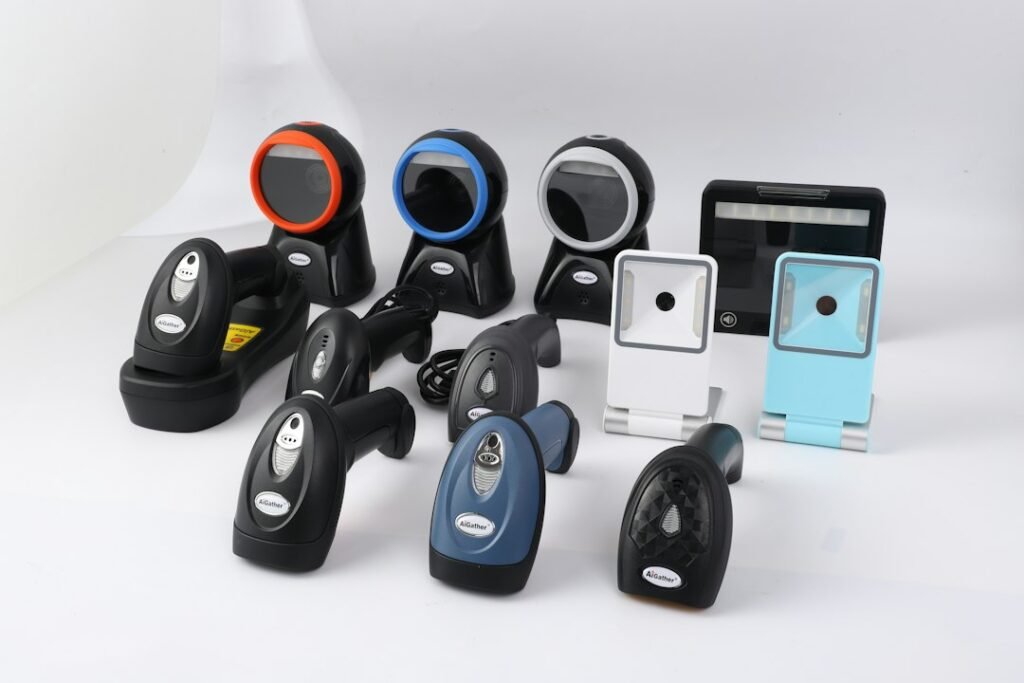
Featured image: Laura Chow / Unsplash. Illustrative generic scanner equipment, not a verified USB scanner model.
Editorial note: This article covers general USB-scanner and spreadsheet input concepts. It does not claim to test every scanner or a particular Windows/Excel release. Confirm compatibility, supported programming barcodes and any managed workplace setup with the scanner manufacturer and your application provider.
Independent general troubleshooting information for shipping labels and thermal printers. Model-specific button sequences, cleaning supplies and service instructions can differ; consult your manufacturer's official documentation. Never alter a carrier-generated barcode.