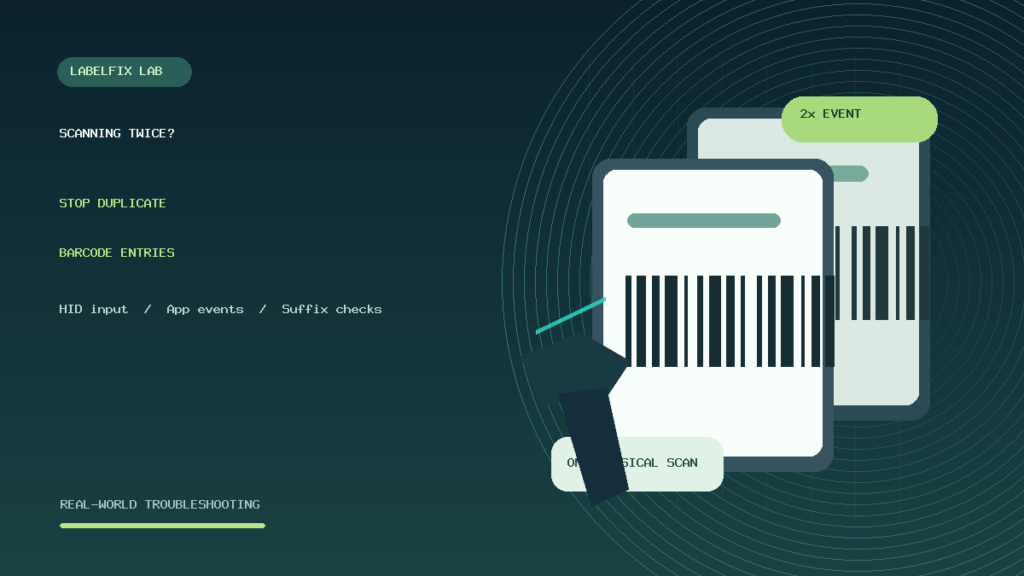
Quick answer: If one barcode scan adds two items, submits a form twice or enters the same SKU on two rows, determine whether the scanner transmitted two identical values or the receiving application processed one value twice. Those are different failures. The quickest starting point for a keyboard-style scanner is a controlled test in a plain text editor using a harmless, known barcode, followed by the same test in the POS or inventory application.
A duplicate sale or stock movement can affect real inventory records, so use a test environment or approved dummy product. Do not repeatedly test against a live order that may bill customers, change quantities or print labels. This guide applies to compatible USB, Bluetooth and dedicated-receiver scanners; exact configuration options vary by model and software.
One scan, two results: the symptom matters
| Observation | Likely area | Useful first check |
|---|---|---|
| Two identical strings appear in a basic text editor | Scanner output, repeated trigger or host input path | Observe the physical trigger and configured data mode |
| One string appears in the editor, but two products appear in POS | Application event handling, duplicate processing or workflow logic | Check the supported POS integration and app input path |
| Same barcode appears on two Excel rows | Possibly two scans, Enter suffix or worksheet behavior | Inspect exact input and row changes in a neutral test |
| Two different barcodes appear after one scan | Multiple symbols in scan field, parsing or composite output | Inspect the actual label and supported symbol settings |
| Duplicates appear only after reconnecting | Offline memory, buffered sends, app retries | Check storage/real-time mode and pending records |
| Two physical labels print after each scan | Print job or media feed, possibly app action duplicated | Separate scanner events from print queue and label sensing |
1. Count the physical trigger action before changing settings
Some handheld readers keep scanning while a trigger is held or when a presentation mode continuously detects a barcode. Depending on the model, moving the code in front of the sensor can generate more than one decode event. Verify whether the scanner is in manual trigger, continuous, auto-sense or another supported mode, using its own official guide.
Use a clean test card with one barcode. Hold the scanner steady and make one deliberate activation. Observe the device’s decode indicators and the number of complete data strings in a suitable test field. If the physical reading mode causes repeated scans, look for the manufacturer’s documented read interval, presentation behavior or trigger release configuration rather than deleting duplicate records after the fact.
2. Test in a neutral text editor when the host mode permits it
For a device configured as a USB HID or Bluetooth keyboard, open a local text editor, focus a blank area and scan a known code once. A code such as ITEM-00421 is sufficient when encoded with a symbology the scanner supports. Copy only test data into the editor and count complete strings.
If the editor shows one complete value while the POS app records two line items, the scanner’s keyboard output is not duplicating that value in this particular test. Investigate the application or its integration. If two values appear in the editor, begin with scanner read mode, multiple connection pathways, buffered output or host input duplication before changing database product records.
Not every enterprise scanner uses keyboard emulation. Virtual COM, vendor-managed or app-specific scanner interfaces may require a corresponding diagnostic tool; the absence of text in Notepad can be normal in those modes. Our USB scanner HID versus COM guide covers the difference.
3. Look for two active data connections from the same scanner
A multi-mode wireless scanner may support a USB cable, a 2.4 GHz receiver and Bluetooth, but these are not automatically equivalent or simultaneously intended for use. When two input paths are accidentally active—or when a POS system has both a managed scanner event and keyboard input enabled—one physical scan might be consumed more than once.
Record the currently selected connection mode and remove only a redundant, unsupported path after checking official instructions. A dedicated USB receiver is not necessarily a Bluetooth device. Avoid random pairing resets; they can interrupt a working integration. If the failure began after adding a new app, docking station or scanner service, compare the before/after input paths.
4. Investigate the Enter or Tab suffix carefully
Many scanners can append a carriage return, line feed or Tab after decoded data. In a spreadsheet, Enter may move the selection to the next row. In an inventory web form, Enter may submit a record. In a custom POS system, a suffix may trigger processing when the application is already reacting to each input event.
That does not mean a suffix by itself always creates two identical barcodes. The question is whether the destination app reacts to more than one event: for example, one handler processing the scan immediately and another submitting again on Enter. Compare the exact neutral-editor output and the application’s processing behavior. Our extra characters and Enter suffix troubleshooting guide explains how to isolate suffixes without altering the encoded label.
5. Check whether the application has duplicate scan handlers
Custom inventory and POS software may listen for keyboard input, barcode scanner service events, form submission and camera scanning. If two event paths process the same received code, the application can create duplicate records even when the scanner physically transmits once. The application developer or administrator should inspect its supported scanner integration, event logs and duplicate-submission protection.
Do not disable security checks or transaction validation simply to hide duplicate line items. For a self-managed application, log a non-sensitive scan event ID or controlled timestamp and observe whether a single input is being processed twice. For commercial platforms, use the documented support route and give them the scanner model, app/device version and reproducible test result without customer private data.
6. Check the app’s debouncing and read-retry behavior
Some receiving applications intentionally debounce scanner inputs or reject very rapid identical values to prevent duplicate inventory movements. Others accept every scan because repeated scans represent real quantities sold. Neither behavior is universally correct. A cashier may deliberately scan two identical units; a receiving clerk may be performing a single stock-check action.
If the software supports a duplicate-prevention setting, confirm it matches the business process. Do not globally block identical scans for several seconds without evaluating whether that would prevent legitimate consecutive unit sales. A robust fix identifies the duplicate event source and applies the documented workflow policy.
7. Offline inventory and batch upload can resend records
Some cordless readers support memory-based stocktaking or buffered transfer while out of range. When reconnecting, a previously captured value can be uploaded in a batch. If the same record was also transmitted earlier, the destination might see it again unless its workflow deduplicates deliveries or a manual upload is repeated.
Check the exact scanner’s documentation for real-time transmission, offline inventory memory, buffer-clear options and reconnection behavior. Preserve stored inventory records before changing modes or resetting. For a packing station that demands an immediate confirmation for every parcel, a correctly configured real-time workflow may be preferable to an unknown buffered mode.
8. Excel may look as though it scanned twice
With a scanner in keyboard mode, a suffix can move the active cell; macros or event handlers may copy or process input after a cell change. Some users also accidentally hold the trigger as the scanner sees the label again. Test a fresh workbook with macros disabled when allowed by workplace policy, a Text-formatted column and one controlled scan.
Count the actual values and note whether Excel has duplicated the code, moved to the next row, or merely displayed a formula result in another cell. These are separate symptoms. Avoid concluding that a scan was duplicated just because the active selection moved twice.
9. Shopify POS, checkout and inventory app duplicates
If the failure occurs only inside a particular retail app, compare its approved scanner integration and the decoded product/variant mapping. A barcode identifier, internal SKU and item quantity are different fields. A single device may be supported through a managed API rather than plain keyboard input, so don’t assume every app should accept generic Bluetooth HID keystrokes.
For a Shopify checkout workflow specifically, our Shopify POS barcode scanner diagnostic covers scanner connectivity, barcode versus SKU mapping and lookup behavior. Do not alter a live customer’s sale or charge while experimenting with duplicate scan handling.
10. Why two printed labels are not necessarily two scanned codes
A printer can advance two stickers because its driver is set to an incorrect page size, the source PDF contains two pages, the print job is duplicated or the media gap sensor isn’t registering correctly. That is different from a handheld scanner sending two item IDs. Record whether the source application generated one or two print requests before touching the scanner.
If a shipping label prints twice after a barcode is scanned, first establish whether the scan triggered two software print actions or one print action resulted in two physical feeds. See our 4 × 6 shipping label on two pages guide for source pagination and media geometry distinctions.
11. Test one variable at a time
- Choose a harmless test barcode and a supported scanner mode.
- Record the connection path: USB HID, Bluetooth, dedicated dongle or managed integration.
- Make one physical scan, and count the output in a suitable neutral test destination.
- Test the same code once in the target app without touching live transactions.
- Compare any Enter/Tab suffix and the application’s submit behavior.
- Inspect buffered/offline settings only if the timing suggests delayed sends.
- Apply one documented fix and repeat the exact test.
Keep observations of the input, the app’s response and any printed result separate. A reproducible record is more useful to manufacturer support than a list of untracked factory resets.
Example A: one scan adds two items only inside a POS app
A checkout scanner types SKU00045 exactly once in a neutral editor. In the POS app, one deliberate scan adds two units. That result directs attention to the app’s event processing, quantity logic, form submission or an extra integration pathway—not necessarily a damaged scan engine. The operator reproduces the problem with a test item and records the device, app version and input method for support.
Example B: repeated values appear even in Notepad
One physical action produces two identical lines in a basic editor. The operator checks whether the scanner is configured in presentation mode, whether the trigger remains active, and whether both a cable and wireless receiver are delivering keyboard data. A change to one approved setting at a time isolates the duplicate output without modifying stock records.
Example C: duplicates appear after a reconnect
A warehouse scanner works near the computer, loses its wireless link in the back room and later uploads values in a burst. The operator checks whether the device supports buffered scans and whether its upload process has been repeated. Preserving recorded counts before changing its mode prevents an attempted fix from discarding legitimate inventory events.
Example D: scanning a label seems to produce two shipping stickers
A barcode scan triggers a label print, and the printer advances two stickers. The operator checks the app’s generated job count, the PDF page count and the printer’s label-sensing mode. If the scanner supplies only one code and the application issues one print job, sensor or page-length settings may be the relevant cause. A barcode scanner reset would be a distraction.
Frequently asked questions
Why does my barcode scanner scan twice when I press once?
Possible causes include repeated decode mode, multiple active input paths, buffered output, an unintended trigger action or an application processing one scan twice. A neutral input test can help locate the layer.
Does an Enter suffix cause duplicate scans?
It can cause additional application actions in some workflows, but it doesn’t automatically mean that the scanner has sent two barcode values. Compare the raw input and receiving app’s event handling.
Why does a barcode appear twice in Excel?
Check the raw scan, the selection movement from Enter/Tab, macros or worksheet automation, and whether the scanner output is actually duplicated. Format code identifiers as Text to preserve them accurately.
Can a wireless scanner resend the same barcode after reconnecting?
Models with offline or buffered collection may transfer stored data later. Verify the exact scanner’s documented behavior and whether records were uploaded previously before clearing any memory.
Should I block every repeated barcode in my POS app?
Not universally. Customers can legitimately buy two identical items in succession. Choose duplicate-prevention behavior appropriate to the checkout workflow and fix unintended event duplication at its source.
Related LabelFix Lab guides
- Shopify POS barcode scanner not working
- Scanner adds Enter, Tab or extra characters
- USB scanner setup on Windows and Excel
- Wireless scanner reconnects or buffers data
- Scanner beeps but does not type data
- Thermal printer double printing or ghosting: a different issue
Editorial scope: This article describes diagnostic methods, not tests of a particular POS app, custom integration, scanner firmware or payment system. The original accompanying artwork is illustrative. Follow documented device and business software procedures when adjusting production scanning behavior.
Independent general troubleshooting information for shipping labels and thermal printers. Model-specific button sequences, cleaning supplies and service instructions can differ; consult your manufacturer's official documentation. Never alter a carrier-generated barcode.