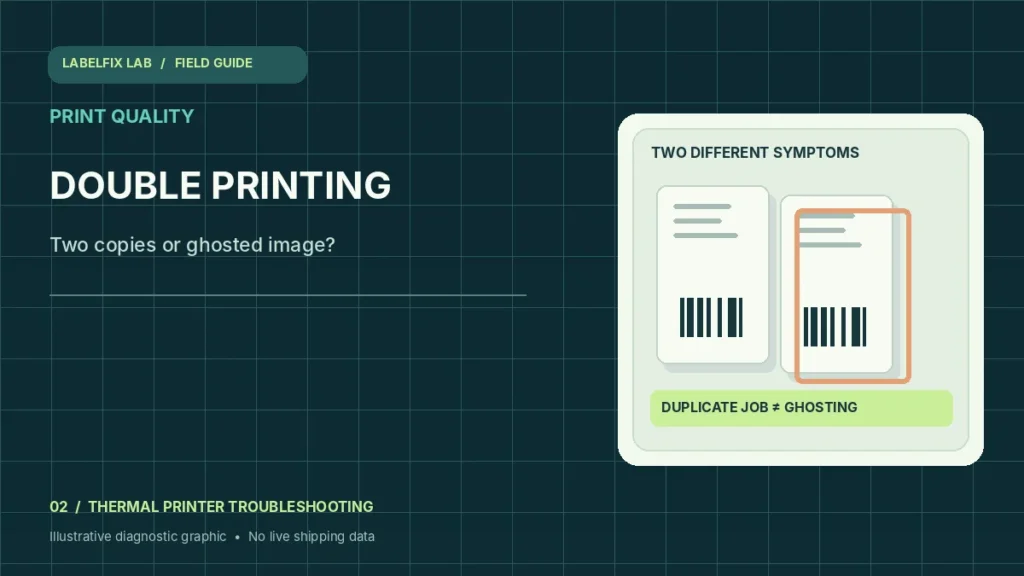
Two identical labels coming out one after another is not the same failure as a faint shadow or second impression on a single label. People often call both problems double printing. Identifying which result you actually have prevents unnecessary printhead replacement and avoids accidentally producing duplicate live shipping labels.
Identify the pattern before changing settings
The following observations help you choose a starting check, not a final diagnosis. Some symptoms have more than one possible cause.
| What you see | Check first |
|---|---|
| Two complete identical labels | Duplicate application job, copies setting or queued retries |
| Two images overlap on one sticker | Feed registration, page length or rendering offset |
| Faint shadow trails the printed content | Printhead, media, ribbon or motion interaction |
| Only some batches duplicate | Queue retry and software session timing |
1. Separate duplicate jobs from a ghost image
Look at the physical result. Two separate complete labels usually imply two jobs or a copies setting; a pale second image on the same label is a different mechanical or media pattern. Photograph only a test label without real customer details so you can compare repeatability.
2. Check copies and repeated jobs before touching hardware
Open the application Print dialog and inspect copies, label quantity and any marketplace batch-print setting. Look in the operating-system print queue before reprinting. A shipping platform may retry a timed-out job, making duplicates possible even when the printer is healthy.
3. Verify whether the printer’s internal test also ghosts
Use a manufacturer-approved self-test with compatible stock. If the internal pattern is sharp but one PDF shows overlapping text, focus on page scaling, print data and application selection. If the independent test repeats a faint shadow, the source PDF is less likely to be the sole cause.
4. Inspect page length and label-boundary detection
When two images overlap rather than duplicate, compare the label’s printed height and the driver stock length with the real media. For gap or black-mark rolls, use the correct sensing mode and supported calibration. Our skipping-labels guide covers related boundary detection symptoms.
5. Check the roll is not slipping or binding
Reload the roll according to the model instructions. Observe whether the liner travels straight and whether guides distort the label edges. An uneven feed path can shift text between print passes. Do not pull on stock during operation or open moving assemblies.
6. For ribbon printers, inspect the ribbon path
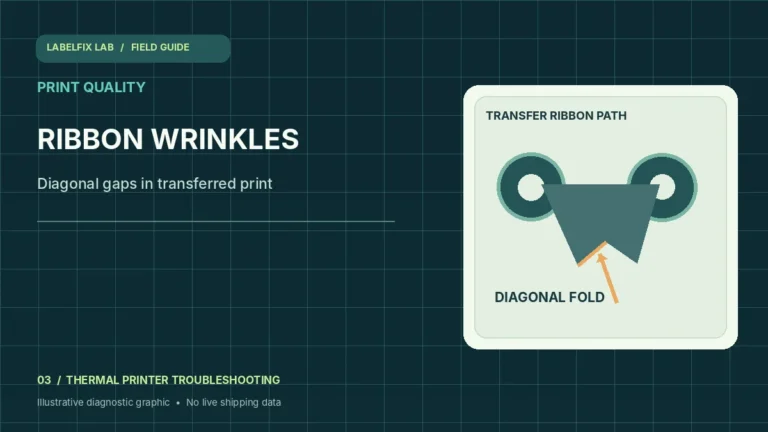
Thermal-transfer printers have a ribbon that must match the stock and be installed with the correct path and tension. Wrinkles or an incompatible ribbon can affect image transfer. Direct-thermal printers do not use a transfer ribbon, so this check should be skipped for those models.
7. Test one supported speed/darkness change
Record the current thermal settings. Make one small change if permitted by the manufacturer and compare consecutive samples. Excessive speed or energy may affect some stocks, but darkness settings are not an appropriate fix for a double-sent job.
8. Stop and document if ghosting persists
A repeatable artifact on an internal test after correct media loading and approved cleaning may require professional diagnosis. Record the model, media, ribbon if used, sample images and whether the fault recurs at the same distance along the feed.
How to interpret your results
To separate ghosting from double-feed behavior, print just one test label while observing the queue. If the printer advances an extra blank sticker rather than a second printed copy, follow our extra blank label guide. If only raw command symbols appear, use printer language troubleshooting.
Common mistakes to avoid
- Reprinting a real tracking label repeatedly without controlling duplicate copies
- Resetting the printer before checking the application copies setting
- Assuming every faint shadow proves that a printhead needs replacement
Frequently asked questions
Why does my thermal printer print two of every shipping label?
Check the application’s copies count, duplicate print requests and any queued retry before investigating hardware. Two complete outputs usually warrant a software-side check first.
What causes a faint second image on a single label?
The cause depends on printer design and media. Compare a built-in test with the original PDF, check ribbon if present, and inspect the feed path and maintenance guidance.
Can calibration fix double printing?
Calibration may help if output is shifted between label boundaries. It cannot fix an application deliberately sending two copies.
Editorial note: This independent troubleshooting guide explains broadly applicable checks. Printer hardware, supported media, and carrier acceptance requirements vary by model. Confirm model-specific settings and safety steps with the manufacturer’s current documentation. We do not claim hands-on testing of every printer.
Independent general troubleshooting information for shipping labels and thermal printers. Model-specific button sequences, cleaning supplies and service instructions can differ; consult your manufacturer's official documentation. Never alter a carrier-generated barcode.