Quick answer: If a Code 128 barcode fails to scan on a thermal label, don’t assume your scanner or printer is broken. A scan can fail at several different layers: the reader cannot decode the physical bars, the barcode artwork was distorted during printing, the scanner has an incompatible configuration, or the destination software doesn’t accept the decoded value. Start with a known-good supported Code 128 sample and compare its result with the problem label under the same conditions.
Code 128 is a dense one-dimensional (1D) linear barcode symbology used in many business applications. Some shipping and logistics codes use Code 128 or related GS1-128 formats with specific data conventions. Those are not interchangeable simply because they both have vertical bars. This guide provides diagnostic principles rather than declaring an arbitrary code carrier-compliant. For live shipment labels, use the original authorized barcode and its issuer’s requirements.
What happens when you try to scan?
| Symptom | Likely area | First comparison |
|---|---|---|
| Scanner does not acknowledge the symbol | Optical decoding, printed bars, supported symbology or scan range | Try a clean known-good Code 128 sample |
| Scanner acknowledges it but nothing appears on the computer | USB/Bluetooth host mode or input focus | Test the reader in its documented keyboard or managed input path |
| Code works in a text editor but fails in inventory software | Data format, field expectations or app validation | Compare the exact decoded value with the required business identifier |
| Code prints as thick blocks or blurred bars | Printer darkness, scaling, head resolution or low-quality source | Print the same authorized file with a supported quality baseline |
| Only codes close to the label edge fail | Barcode quiet-zone clipping or sticker placement | Inspect the required clear margins |
| Some long codes fail but short ones scan | Code density, bar width, print resolution or formatting | Compare physical module width and source artwork, not merely character count |
1. Identify Code 128 before changing your scanner
Code 128 is not the same as QR, EAN-13, UPC-A or a generic line pattern. It can encode different data sets using defined internal code sets and control characters. A label that visually resembles Code 128 could represent a specialized logistics application or another symbology. Identify the exact supported format in the source application or generator before choosing a decoder setting.
A traditional 1D laser scanner may read compatible Code 128 symbols, but that doesn’t imply support for QR or all GS1-specific parsing rules. An area imager may read both 1D and 2D formats, subject to enabled decoders and physical quality. Check the manufacturer-supported symbology list for the scanner you actually own.
2. The first test must use a known-good symbol
Use an intact, non-sensitive Code 128 sample prepared by a trusted source and containing known example text. Present it on a flat, non-reflective surface. If the scanner reliably decodes that sample, you have evidence that the scanner can read at least one compatible Code 128 symbol under the current conditions.
Now use the same scanner and distance on the failing printed label. If only the real label fails, look for print geometry, material condition, quiet margins, source data and label placement. If neither sample decodes, check reader configuration, optic condition, power and host interface according to the scanner manual before reprinting a large batch.
3. Code 128 needs correct bar and space geometry
A linear barcode consists of dark bars and lighter spaces whose relative widths represent encoded information. When a print application squeezes the artwork into a narrower rectangle, the relative or absolute dimensions may no longer be suitable for reliable decoding. Resizing a low-resolution screenshot can also blur edges and merge spaces, especially on small thermal printers.
Preserve the original vector-quality barcode artwork when available. Don’t independently stretch only the black bars, remove a start/stop portion, or reconstruct the code from human-readable digits. The encoded format can include structural information the printed caption does not show.
4. Quiet zones are part of the barcode’s usability
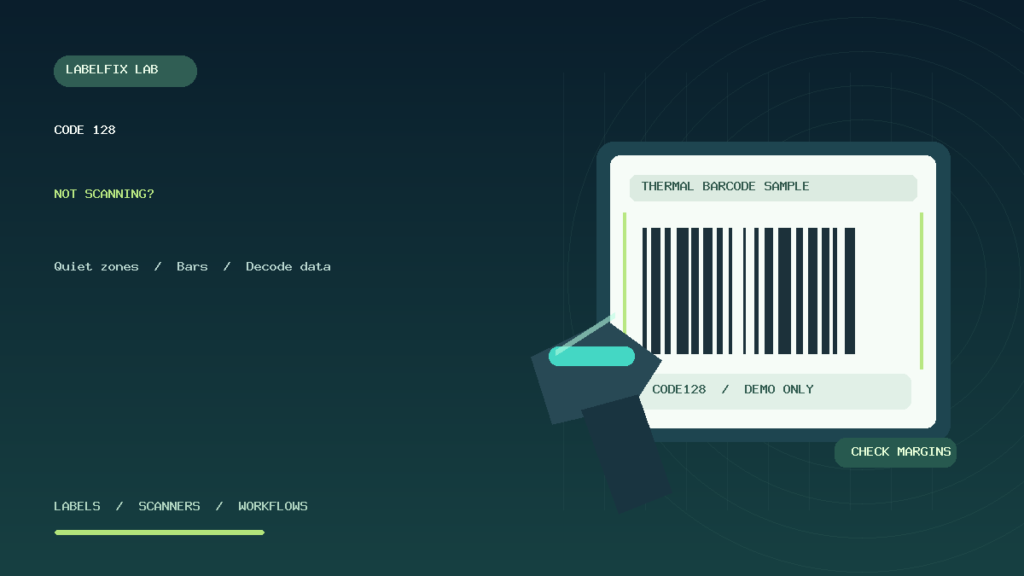
A quiet zone is the intentionally blank area bordering the barcode. When another graphic, sticker edge, paper cut, fold or packing tape obscures it, a scanner can struggle to detect where the symbol begins and ends. This is especially relevant for dense codes printed near narrow label borders.
Keep the entire symbol and its standard-required clear margins within the available printable area. Exact dimensions depend on the symbology’s relevant specification and the particular application; do not use a guessed universal millimeter rule. Read our barcode quiet-zone clipping guide for a practical diagnosis.
5. Check printer resolution, darkness and stock
Thermal printers vary in dot density and supported print methods. The printer must reproduce the narrowest bars and spaces clearly enough for the scanner and workflow. A common 203 DPI printer has a different dot grid from a 300 DPI model, but simply switching to more DPI does not repair incorrect barcode artwork or a damaged label.
If the bars are faint or have missing vertical portions, test compatible thermal labels, printhead contact and documented print energy. If the black bars spread into the white spaces, excessive energy or speed/media mismatches may be contributing. Compare one manufacturer-supported test at a time rather than maximizing darkness. Our 203 vs 300 DPI guide and blurry thermal barcode guide cover those layers in more detail.
6. Prevent accidental page scaling and image resampling
If the barcode is on a shipping PDF, read the source file’s actual page dimensions. A portrait 4 × 6 PDF measures 101.6 × 152.4 mm, equivalent to 288 × 432 PDF points. Fitting an entire Letter-sized page onto 4 × 6 stock can shrink the contained barcode to a fraction of its intended physical size.
For compatible native document and media sizes, Actual Size / 100% is a useful starting point. If the source is larger than the stock, forcing 100% can clip the symbol. The proper remedy is to obtain an authorized output format that matches the stock rather than independently scaling live postage codes. Use our PDF page-size checker to inspect the canvas.
7. Look for partial barcode clipping or vertical print lines
If a section of bars is missing, check whether the printhead has dirty or damaged areas, whether the code crosses the device’s printable width, or whether the document was cropped. A recurring pale vertical line in the same physical position across several labels suggests a printer imaging issue. A one-off clipped edge may instead be source geometry or alignment.
Compare a harmless full-width sample on the same stock. If the defect persists independent of the file, follow the printer’s documented safe maintenance process. Our thermal printer vertical lines guide helps distinguish a printhead defect from a PDF crop.
8. Check the scanner’s enabled symbologies
Some enterprise scanners allow individual decoding families to be enabled or disabled. A reader can successfully scan UPC/EAN labels while not accepting Code 128 if the relevant decoder is disabled or restricted. Use only the official programming instructions for the exact scanner model and preserve its current configuration before changing settings.
Don’t scan a random “enable all” code sheet from an unrelated brand. A programming barcode may change interface mode, suffixes or keyboard layout as well as symbology settings. Our Zebra LS2208 guide and DS2208 guide explain model-family input tests without inventing universal configuration barcodes.
9. A beep without computer input is a different problem
A scanner may decode the bars and provide an audio or light indication while the host receives nothing. For an appropriate USB HID keyboard setup, focus a neutral text editor and scan a harmless known sample. A scanner configured for a serial or managed interface may require a different supported test destination instead of Notepad.
If a known code reaches the editor but the shipping application ignores it, you have evidence of functioning input under that test. Investigate field focus and application data expectations before replacing the laser or changing printer stock. See scanner beeps but doesn’t type for a host-input decision tree.
10. Code 128 versus GS1-128: why the text can look different
Some logistics workflows use GS1-128, an application-specific use of Code 128 that can include defined application identifiers and special separator behavior. A scanner or receiving system may be expected to interpret that structure, not merely deliver a string of visible digits. Some control characters are not displayed as ordinary printable text in a simple editor.
That means a label can decode but still be rejected by a business application if its payload or expected format is wrong. Do not “fix” the barcode by removing special data characters or guessing what should be encoded. For real logistics labels, use the official issuer’s output and the receiving system’s documented data contract.
11. Why long Code 128 symbols are harder to print on small stickers
More encoded data usually requires a longer barcode or smaller physical bars when forced into a fixed width. Dense labels can be difficult to print cleanly on low-resolution hardware or small stock, particularly after an additional reduction in the PDF viewer. Instead of compressing the printed art arbitrarily, use a supported source format and stock dimensions appropriate for the official workflow.
If the code is generated for an internal warehouse process, review the barcode standard and equipment capabilities with the responsible system owner. If it is carrier-issued postage or regulated logistics data, don’t edit it outside an authorized reprint process.
12. Why the scanner types extra characters or submits a form
Barcode scanners can add a configurable prefix or suffix after the decoded value, such as Enter or Tab. A warehouse form might interpret that character as an action. That does not mean the Code 128 artwork contains the entire extra sequence. Test the raw output in a suitable neutral input destination and identify whether the addition comes from scanner configuration or app processing.
Our extra characters after scan guide distinguishes scanner suffixes from data content. If a code appears twice, check duplicate scanner events instead of assuming a barcode checksum error.
13. Spreadsheet applications can silently alter a correctly decoded value
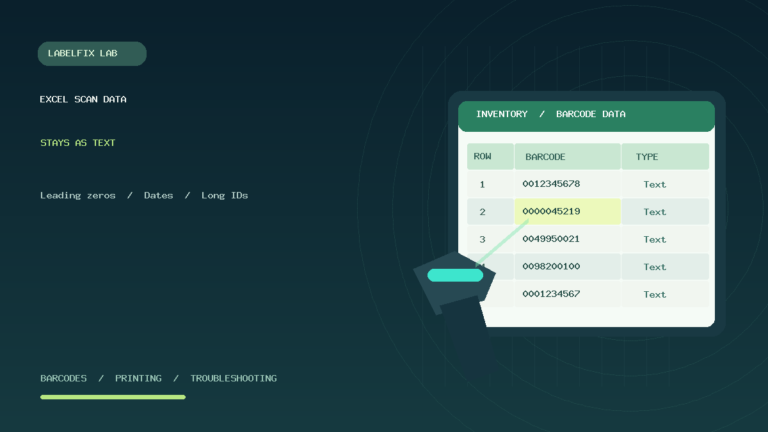
A barcode might correctly decode to an identifier with leading zeros, but Excel can remove those zeros when interpreting the input as a number. Long numeric strings may also be displayed in scientific notation or lose precision. That’s a data-type failure in the destination, not necessarily a Code 128 decoding problem.
Use Text-formatted identifier columns and compare the original raw scan against the stored value. For a full diagnostic, see Excel leading zeros and scientific notation. Never recreate missing long-ID digits by guessing.
14. Example: printed Code 128 scans on paper but not on a thermal roll
A sample laser-printed on clean office paper decodes correctly, but the same data printed on a much narrower thermal sticker fails. The operator compares the original bar geometry with the reduced physical output and finds that the print job has scaled the artwork significantly. The correct fix is to match source page, stock, and supported barcode size rather than increase scanner sensitivity through unknown settings.
15. Example: a Code 128 label decodes, but inventory rejects it
A handheld scanner delivers a complete code to an ordinary text field, but the WMS displays “item not found.” This narrows the problem to expected identifiers, data mapping or application validation. The operator checks whether the system expects a SKU, an externally assigned tracking ID or another data format; reprinting a darker code cannot make the wrong identifier belong to a different item.
16. Example: the left edge of the barcode is cut off
A roll label prints its code close to the sticker’s left edge, and the first portion of the symbol appears truncated. Inspect the original artwork, driver origin and printable width. If the code or required blank margin is cut off, it may be unscannable regardless of print contrast. Return to the authorized source or compatible layout before using the label in production.
Code 128 troubleshooting checklist
- Confirm that the source symbol is actually Code 128 or its specified GS1-128 use.
- Test one clean, known-good supported code with the exact reader.
- Inspect intact start/stop regions, bars, spaces and clear margins without redrawing them.
- Compare original page geometry with printed physical size and stock.
- Check media compatibility, print resolution and supported darkness baseline.
- Verify the scanner’s appropriate decoder and host input mode.
- Preserve the full decoded value as text in the receiving software.
- Do not modify authentic shipping or GS1 data outside its authorized workflow.
Frequently asked questions
Can a regular barcode scanner read Code 128?
Many 1D and 2D readers support Code 128, but compatibility and enabled decoding options vary by exact model. Check the manufacturer’s supported symbologies and configuration.
Why does my Code 128 barcode look fine but not scan?
Possible causes include narrow or distorted bars, missing quiet zones, unsuitable print media, low contrast, unsupported scanner settings or a damaged source image. A clean reference code helps identify the failing layer.
Is Code 128 the same as GS1-128?
GS1-128 uses Code 128 symbology under additional GS1 data-structure rules. A receiving system may expect application identifiers and control-character behavior, not only a visible numeric string.
Does increasing thermal printer darkness always help?
No. Too much energy can cause bars to thicken and narrow spaces to close. Compare compatible stock and manufacturer-supported image settings rather than maximizing darkness.
Can I convert the human-readable tracking number into Code 128 myself?
Don’t assume a carrier’s machine-readable symbol contains only the visible tracking number. Use the original authorized shipping label or supported reprint, not a reconstructed replacement barcode.
What if Excel changes the scanned Code 128 data?
Keep identifiers as Text, including leading zeros. A scanner can transmit the correct value while a spreadsheet modifies it through automatic numeric or date conversion.
Related LabelFix Lab guides
- Shipping barcode not scanning
- Barcode quiet zones cut off
- Thermal printer blurry barcodes
- 203 versus 300 DPI on label printers
- 1D versus 2D symbologies
- Excel changes scanned barcode values
- FNSKU label not scanning
Editorial limitations: This article provides general Code 128 troubleshooting, not formal barcode grading, physical testing of a scanner or verification of carrier acceptance. The featured illustration contains synthetic sample artwork and must not be used as a shipping label or a standard-conformance test.
Independent general troubleshooting information for shipping labels and thermal printers. Model-specific button sequences, cleaning supplies and service instructions can differ; consult your manufacturer's official documentation. Never alter a carrier-generated barcode.