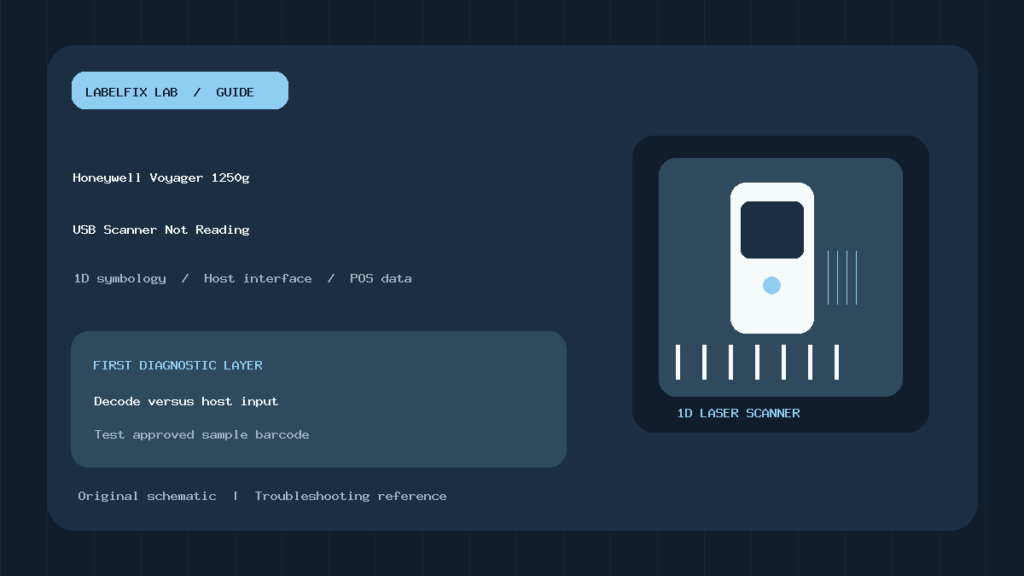
Quick answer: If your Honeywell Voyager 1250g isn’t scanning, determine whether its laser never decodes a barcode, it beeps but sends no readable text, or the POS receives text but cannot find an inventory item. The 1250g is a corded, single-line 1D laser scanner, not a Bluetooth or 2D QR-code reader. Start with a known-good supported linear barcode and the host interface selected for your computer or cash register.
Honeywell’s official 1250g product and documentation page lists USB, keyboard-wedge and serial connection options. The company’s Quick Start Guide shows separate interface, suffix and configuration workflows. Do not scan arbitrary setup barcodes from unrelated models.
Identify the failure before changing the reader
| What you see | Likely issue | First controlled check |
|---|---|---|
| Laser does not activate or scanner gives no feedback | Power, cable, trigger or device state | Check the approved physical connection |
| Laser lights but no beep on any known 1D code | Optics, distance, damaged bars or symbology setting | Use official sample barcode and correct range |
| Beep occurs, but no text reaches a simple input field | Host interface, USB mode or focus | Compare USB keyboard versus serial mode |
| Text reaches Notepad, but POS ignores it | Application input path or POS integration | Test a supported item in the POS |
| UPC works, but QR Code fails | 1D versus 2D hardware capability | Verify 2D imager requirement |
| Data appears with an unwanted Enter or Tab | Programmed suffix | Review official suffix configuration |
1. Confirm the scanner model and what it can read
The Voyager 1250g is designed to read linear barcodes. Its product specifications describe a 1D laser engine and corded host interfaces. QR Code, Data Matrix and PDF417 are 2D symbols requiring compatible imaging hardware; the 1250g cannot be converted into a 2D scanner by changing a Windows driver. For the hardware distinction, see our 1D versus 2D barcode reference.
Read the actual model label. Honeywell has other Voyager devices with different radio or image-capture capabilities. The 1250g should not be diagnosed using Bluetooth pairing advice intended for cordless scanners.
2. Check USB or POS cabling safely
Inspect the scanner’s data cable and host connector for damage and secure seating. Honeywell’s Quick Start shows separate connection arrangements for USB, RS232, RS485 and keyboard-wedge interfaces. Use the cable and interface suitable for the specific POS terminal; do not force an incompatible connector or infer that a USB port on the computer guarantees the scanner is in keyboard-emulation mode.
A corded scanner that is not powered or recognized may need its supported connection sequence rechecked. In managed checkout equipment, ask the administrator before unplugging shared devices or power-cycling a cash register in active use. Once a hardware link is established, use a harmless test barcode rather than a customer payment credential.
3. Test an official supported sample symbol
The Honeywell 1250g user documentation includes sample barcodes for testing decoding. Choose a printed, known-good 1D symbol supported by the scanner and keep the scan window clean according to Honeywell’s recommendations. Try an appropriate distance and angle; reflections, tiny bars, broken quiet zones and poor thermal print quality can affect a laser scanner even when the code looks plausible to the eye.
If it decodes the sample but not the shipping label, inspect the printed barcode type and quality. Our Code 128 not scanning guide
4. A beep does not guarantee text appears
A successful-decode beep means the reader recognized a barcode according to its current settings. The host still needs to receive the data through the selected interface and the application must handle it. A simple text input such as an approved diagnostic field can help isolate a USB keyboard-emulation connection from a POS that uses a dedicated scanner API or serial port.
If text enters a basic editor but not a POS, investigate app focus, supported scanner integration, product identifier mapping and suffix behavior. Our scanner beeps but doesn’t type checklist
5. Match USB keyboard mode to the intended host
Honeywell supports multiple interface modes for the 1250g. Its guide describes USB PC keyboard and other interface configurations, including USB serial emulation. A POS that expects a serial COM port will not necessarily accept data from a device configured as a keyboard, and a simple Windows text editor won’t show serial data as typed keystrokes.
Use the exact Honeywell configuration code for the authorized host interface and the corresponding driver if required. The manufacturer also documents a HID fallback mechanism in certain serial configurations; a unique beep sequence and temporarily limited barcode scanning can occur in that mode. Do not mistake a fallback state for a permanently damaged laser.
6. Confirm Code 128 is enabled when relevant
Honeywell’s support article says Code 128 is enabled by default on Voyager 1250g models covered by that guidance. However, configuration can be changed. If ordinary UPC symbols scan but a known valid Code 128 does not, compare the target symbology against official sample codes and review whether Code 128 was disabled or restricted by length and formatting rules.
Use the approved enable/disable barcode from Honeywell Code 128 support, not a random image from a third-party article. Other settings such as expected minimum length, check characters or application formatting can cause a “scanner won’t read” symptom without altering the actual optical sensor.
7. Handle Enter, Tab and suffix rules deliberately
The Quick Start Guide documents configuration codes for adding carriage return or Tab suffixes, as well as removing them. These affect the characters sent to the host after each scan. A POS may expect Enter to confirm an item, while an Excel sheet may move to a different cell unexpectedly when the suffix is present.
Do not indiscriminately scan “factory reset” or “add Enter” codes from a search result; interface defaults and prefixes/suffixes can be modified together by certain plug-and-play codes. Honeywell notes that changing a terminal mode can also overwrite custom pre/suffix settings in specific workflows. Keep a record of the existing configuration first. See our scanner Enter/Tab and character output fixes for generic host symptoms.
8. Keyboard layout can change decoded characters
In keyboard-emulation mode, the host’s active keyboard layout can affect punctuation or special characters in a decoded value. Honeywell’s Quick Start includes a keyboard-country configuration section. If digits scan accurately but punctuation differs from the printed code, compare the scanner’s keyboard-country setting with the host locale and the app’s expected input behavior.
Do not manually modify a valid logistics tracking barcode to work around a language mismatch. A print or keyboard-layout issue should be corrected at the right layer rather than changing a carrier-assigned identifier.
9. Scans correctly, but inventory reports the wrong SKU
Barcode decoding and product lookup are separate tasks. A scanner may send the exact UPC, but the inventory system may map it to a different product, have lost a leading zero or store a packaging-level code instead. Verify the literal decoded value in a safe controlled environment and compare it with an approved inventory record.
Our wrong SKU and inventory mismatch guide
10. Stand operation and reread delay
The 1250g has a hands-free stand option and supports configurable reread delays. If the scanner appears to ignore repeated scans of the same barcode, check whether the configured reread interval is suppressing an immediate duplicate. Honeywell’s Quick Start documents a reread-delay setting intended to prevent accidental repeats.
For automatic scanning in a stand, verify that the particular reader and stand are correctly configured. Honeywell has specific support guidance for Voyager 1200g/1250g presentation-mode problems. Do not assume a trigger fault solely because a paper label isn’t detected in a stand at one particular angle.
11. Worked example: the laser beeps but nothing reaches Excel
A warehouse worker scans a Code 128 label and hears a beep, but the selected Excel cell remains empty. First test a manufacturer sample in a simple allowed text field. If nothing appears, confirm the scanner is connected in USB keyboard mode rather than serial emulation or a POS-specific path. If text appears in the editor, check spreadsheet focus, formatting and suffixes. Repeat with a known-good label, changing one variable at a time.
This avoids disabling symbologies or resetting the device before confirming whether the issue is decoding or host input.
12. When to escalate
If the 1250g can’t decode official sample symbols on a known compatible host after proper connection and approved configuration, collect the model, interface type, test barcode, response tone and visible damage observations. Contact the official service channel rather than opening the laser housing. Never stare into the laser beam or use unsafe optical workarounds.
Frequently asked questions
Can a Honeywell Voyager 1250g scan QR codes?
No. It is a single-line 1D laser scanner. Use a compatible 2D imager for QR or Data Matrix.
Why does it beep but not type?
The decode may work while the host interface, selected application or input focus is wrong. Compare a simple keyboard-mode test with the intended POS path.
Is Code 128 enabled by default?
Honeywell documents it as enabled by default on the 1250g, but configuration can be changed; verify with official sample and support instructions.
Does the reader need a special Windows driver?
It depends on the selected interface. USB keyboard emulation and USB serial emulation use different host paths. Follow Honeywell’s documentation for your mode.
Manufacturer documentation
- Honeywell Voyager 1250g product, user guide and specifications
- Honeywell Voyager 1250g Quick Start Guide
- Honeywell: Code 128 symbology configuration
Editorial scope: This is a research-based diagnostic guide, not a report of physical testing. Honeywell’s current instructions for the exact reader hardware and POS interface take precedence.
Independent general troubleshooting information for shipping labels and thermal printers. Model-specific button sequences, cleaning supplies and service instructions can differ; consult your manufacturer's official documentation. Never alter a carrier-generated barcode.