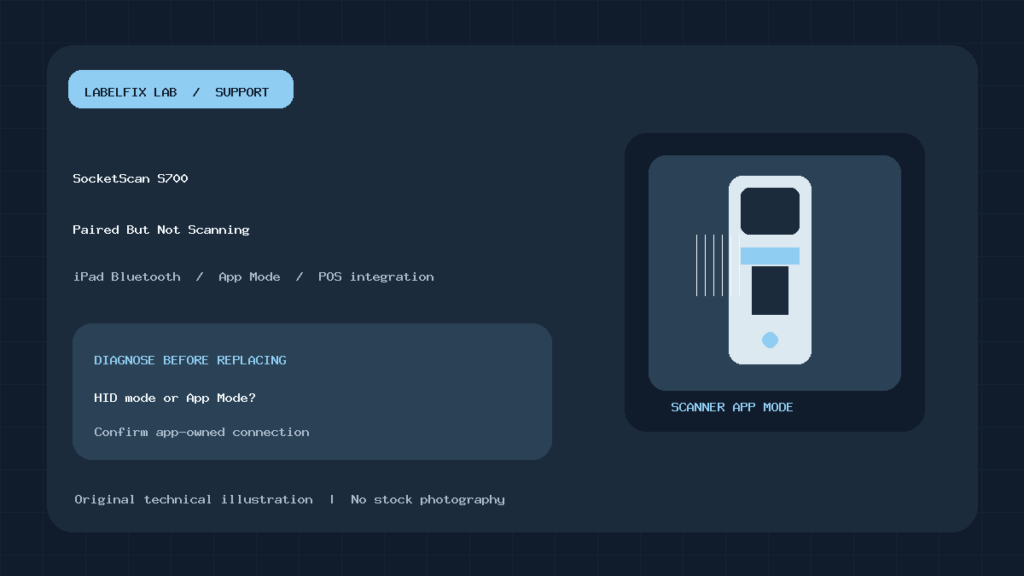
Quick answer: If a SocketScan S700 won’t connect to an iPad or shows as Bluetooth-paired but does not scan into Shopify POS or Square, check its connection mode before replacing the scanner. Socket Mobile distinguishes a basic keyboard-style HID mode from its Application Mode used by supported POS integrations. A scanner paired directly in the iPad’s Bluetooth settings can be connected at the operating-system level yet unavailable inside the business app.
Follow the pairing workflow for the exact reader, iPad/iPhone, app and current version. Socket Mobile publishes separate Shopify and Square setup instructions, along with the SocketScan 700 Series User Guide. The S700 is a linear (1D) barcode reader; it is not the right tool for every 2D QR or Data Matrix workflow.
First, identify what “not connecting” actually means
| What happens? | Likely layer | Safe starting point |
|---|---|---|
| S700 never appears in a pairing workflow | Power, discovery, stale bond or device mode | Check reader status and manufacturer pairing instructions |
| S700 is paired in iPad Settings but absent in POS | HID versus Application Mode | Use Socket Mobile Companion or in-app setup |
| Scanner beeps, no product added to cart | Mode, app focus, missing product or identifier mapping | Compare decoded data and known product |
| Ordinary 1D UPC works, 2D QR does not | Symbology capability | Confirm whether scanner supports that code type |
| Reader disconnects after inactivity | Power management or tablet/app connection state | Review documented sleep and reconnection behavior |
1. Verify the reader is really a SocketScan S700
Confirm the model on the reader label. Socket Mobile has several 700-series readers with different capture capabilities, including newer 1D/2D models. The SocketScan S700 is primarily a 1D barcode scanner; its product information identifies it as a linear barcode model. Do not troubleshoot an unsupported 2D code as though it were a Bluetooth failure.
Check that the reader is charged and its scan, power and Bluetooth indicators behave as described in the manufacturer guide. A reader that cannot power on or execute its own supported test should be evaluated before pairing. Do not open the housing, short contacts or attempt an undocumented firmware flash.
2. App Mode versus HID keyboard mode
In basic HID keyboard mode, the scanner can behave like a Bluetooth keyboard and type decoded data into a focused text field. That may work in Notes or a spreadsheet, but it does not prove a point-of-sale application has registered the scanner as its managed hardware. Some supported POS apps expect Application Mode, which permits app-level interaction with the reader using Socket Mobile’s supported integration.
Socket Mobile’s guide recommends the Socket Mobile Companion app to configure the reader in App Mode for supported partner applications such as Shopify and Square. Do not scan random “mode switch” barcodes from third-party forums. Use the official guide and make sure your exact model and app combination is supported.
3. Set up the S700 with Shopify POS on an iPad
Socket Mobile’s Shopify support instructs iPad users to set up their reader through the Shopify hardware workflow or Socket Mobile Companion, rather than relying on a direct pairing made only in iOS Bluetooth Settings. If you originally paired through Settings and the Shopify app cannot connect, the manufacturer advises removing that old Bluetooth association and restarting the iPad before performing the official app-driven setup.
- Update the approved Shopify POS app and iPadOS within your business’s change policy.
- Make sure the SocketScan S700 is charged and discoverable.
- Run the latest compatible Socket Mobile Companion for the supported reader, or follow Shopify POS’s current hardware reader setup.
- Connect the reader in its intended application-aware mode.
- Open Shopify POS and verify it recognizes the barcode reader under its hardware configuration.
- Scan a known-good retail barcode tied to an existing product, then compare the result.
The exact names and positions of Shopify settings can change. Prefer the live help flow from Socket Mobile and Shopify over a screenshot from an older release. Also note that scan success and product lookup are independent: an app can receive the right UPC but report no product if your inventory record has a different identifier.
4. Square POS pairing is an app-specific workflow too
Socket Mobile likewise directs Square POS users on iPad to configure the reader through Square or Socket Mobile Companion. The manufacturer’s support page has documented version-specific connection issues in the past, so checking supported app versions and release notes is part of a professional diagnosis. Avoid assuming a previously reported version bug still affects the current version without verifying it.
If the scanner works as a basic keyboard in another app but Square doesn’t list it, investigate whether the reader is in the correct Socket Mobile App Mode and whether Square supports that device/software combination. Do not delete the store’s product catalog or rebuild a Square account to repair a local pairing problem.
5. Safely recover a stale Bluetooth association
If the reader appears connected to an old tablet or is missing from the new pairing screen, follow the manufacturer-documented reset/discovery procedure for the 700 Series. The Socket Mobile Shopify/Square help pages include a step sequence using the reader’s scan and power buttons, followed by removing the stale pairing from the iPad. Only perform the sequence when you’re prepared to re-pair the reader in the intended POS app.
Record which iPad and store were associated with the reader, especially in multi-register environments. Unpairing a shared scanner can interrupt a checkout lane. A few minutes with an isolated test device is better than resetting every scanner in a retail fleet at once.
6. Beep without data? Test the right input path
A beep indicates the scanner recognized a scan event or decoded a symbol according to its current configuration. It does not prove Shopify or Square received the intended product identifier. In HID mode, test a safe input field to see whether data appears. In application mode, use the manufacturer’s supported Companion or POS test to inspect reader connection and scanning state.
If text appears in one app but not in POS, check whether the POS supports the reader and mode, whether a form or scan window has focus, and whether an app permission or connection changed. Our scanner beeps but does not type guide explains the generic distinction between decode and host input.
7. The S700 cannot read every barcode
Socket Mobile describes the S700 as a 1D linear scanner. Common retail 1D symbologies include UPC and Code 128 when properly supported and configured. By contrast, QR Code, Data Matrix and other 2D symbols require compatible imaging hardware. If a printed 2D code isn’t read, do not immediately reinstall Bluetooth: verify the barcode format and the S700’s supported capture types.
For the hardware difference, see our 1D versus 2D barcodes explainer. If a known-supported UPC scans but maps to the wrong product, our wrong-SKU troubleshooting guide covers the inventory layer. The reader and the POS catalog must both be correct.
8. App receives a scan but can’t find the item
Use one genuine product with a verified UPC or other identifier recorded in the POS catalog. Compare the decoded data to the stored SKU/UPC, paying attention to leading zeros, packaging levels and alternate supplier codes. Don’t relabel inventory with a new UPC just to make a single scan match. Product lookup configuration is a database problem, not an S700 radio failure.
If multiple barcodes exist on the same package, isolate which one is being scanned. A delivery-tracking Code 128 and a retail UPC may both be 1D, yet only one may be registered to your store’s item. Avoid testing customer payment information or exposing production inventory exports to unofficial online tools.
9. Intermittent disconnections and tablet sleep
If the S700 worked earlier but disconnects after the iPad sleeps, record the app version, reader battery level, time since last activity and whether reopening the app restores the link. Examine the manufacturer’s current guidance for sleep, auto-lock and connection recovery. Socket Mobile’s FAQ discusses iOS auto-lock and Application Mode as possible factors in some workflows, but changing device-wide policies may require administrator approval.
Keep the reader reasonably close to the tablet during a controlled test, and remove avoidable radio interference. If every scanner fails after one POS update, a shared integration issue is more plausible than simultaneous hardware defects.
10. Worked example: paired in Settings, invisible in Shopify
An iPad shows a SocketScan S700 in Bluetooth Settings. A text field receives UPC digits, but Shopify POS says no scanner is connected. First establish whether the reader is in HID keyboard mode rather than App Mode. Back up the working store configuration, follow Socket Mobile’s recommended procedure to forget the old pairing, and reconnect via Companion or Shopify’s reader setup. Validate that the app recognizes the hardware, then test a real catalog item.
This sequence fixes the likely integration layer without changing labels, inventory records or the iPad’s general wireless network settings.
Frequently asked questions
Why does the iPad show “connected” but Shopify won’t scan?
The reader may be paired in HID mode rather than the application-aware mode expected by the POS integration. Use the current supported setup instructions.
Can the S700 scan QR codes?
The S700 is a 1D linear barcode reader. For QR and other 2D formats, verify a compatible 2D scanner model.
Should I pair the S700 in Bluetooth Settings first?
Not necessarily. Socket Mobile’s POS support often calls for setup through Companion or the POS hardware workflow instead.
Why does a scanned UPC return “product not found”?
First verify that the scan reaches the application. Then check the stored product barcode and inventory mapping; pairing alone does not create a matching product record.
Official documentation
- Socket Mobile: Shopify barcode-reader setup
- Socket Mobile: Square barcode-reader setup
- SocketScan 700 Series user guide
- SocketScan S700 model capabilities
Editorial scope: Source-based diagnosis; no claim that a specific store’s S700 or iPad was personally tested. App compatibility and pairing flows may change between software releases.
Independent general troubleshooting information for shipping labels and thermal printers. Model-specific button sequences, cleaning supplies and service instructions can differ; consult your manufacturer's official documentation. Never alter a carrier-generated barcode.