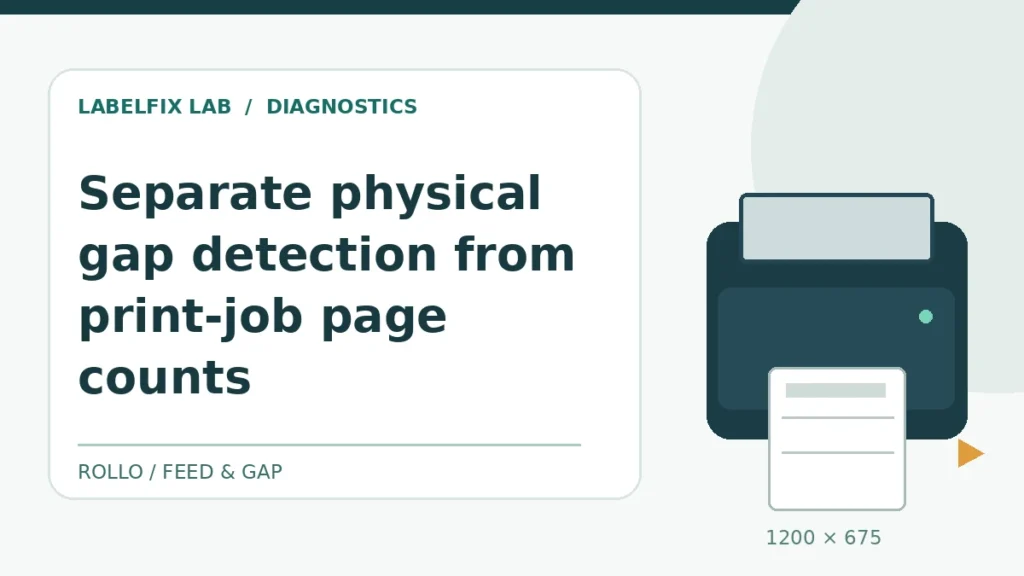
Quick answer: When a Rollo printer skips one or more shipping labels, first decide whether it is advancing too far to locate the next physical gap or whether the software is sending more than one page. Both waste labels, yet they are not the same failure. The quickest diagnosis compares what happens during a simple feed operation with what happens during a print job.
Take a photo of the roll position and count the labels moved during one action: one press of the feed control, one one-page PDF, and a two-page PDF. Stop sending large batches while investigating. Exact feed-button behavior and calibration controls vary by Rollo model; consult that model’s documentation before using a button sequence. Our Rollo X1040 half-label troubleshooting separates split-layout errors from heat-related mid-print stops.
Identify the failure before changing settings
These observations narrow the fault domain. Run one controlled test at a time, and stop before making hardware changes if the source document itself is empty or wrong.
| What you see | Check next | What it suggests |
|---|---|---|
| Feed advances across two gaps | Inspect stock gaps and sensor path | Media sensing or calibration candidate |
| One-page file generates two blank advances | Inspect file page count and print dialog | Software/page-format candidate |
| Skips start after a new roll is loaded | Compare stock pitch, width, and winding | Roll and guide alignment candidate |
| Works with one size, skips with another | Compare label length in driver and stock | Media preset and sensing mismatch |
| Labels are wrinkled or drift sideways | Check straight feed without overtight guides | Mechanical tracking candidate |
Step-by-step troubleshooting
1. Count the gaps instead of judging a batch by eye
Mark the liner near the next gap with a pencil outside the printable region, then observe how far the roll travels during a single feed action. Check whether it consistently stops beyond the intended gap or merely ejects an extra page after a printed label. Record the number of physical labels moved per command.
A mechanical advance that crosses several gaps points toward sensing or media geometry; an extra software page has a different pattern.
2. Check that the roll has detectable gaps or marks
Different labels may be separated by transparent gaps, black marks, or continuous material. A printer configured for gap sensing will not reliably detect a black-mark-only stock without the correct compatible sensor mode. Verify the roll’s specified sensing method and the capabilities of your exact Rollo model.
Do not assume that every roll sold as “4×6 thermal” has the same liner and spacing.
3. Center media guides without deforming the liner
Remove any wrinkled leading edge and reload the stock according to your printer’s media path. Guides should hold the label straight without squeezing the roll so tightly that the liner bows or peels. Observe whether the edge starts aligned but drifts during several controlled feeds.
A crooked path can move the sensing gap away from the expected region even though the print mechanism still works.
4. Match the actual label height, not just width
A 4×6 shipping label must be configured using the correct length as well as width. Check whether the application is printing landscape, portrait, or a custom 4×6 preset, and verify that the driver does not silently use Letter or a previous saved size.
A page that is twice the intended height can look like a gap-sensor problem when the printer is simply receiving the wrong job geometry.
5. Inspect the file page count and layout
Open the original downloaded label. Check for trailing blank pages, combined labels on one sheet, or a 4×6 label positioned inside a larger PDF page. Use a trusted local PDF viewer for the comparison; do not crop away a real carrier barcode or customer address.
If an application sends two pages, calibration cannot change the fact that two pages were requested.
6. Calibrate only with the correct media loaded
If your documented Rollo model supports a media calibration procedure, run the official method after correcting the roll path and stock type. Keep hands away from moving rollers. Do not copy a calibration-button pattern from a video for an unrelated model.
After calibration, test one feed and one short print; avoid consuming an entire roll while guessing.
7. Check how the problem changes after idle time
Some symptoms appear only after powering on, after closing the cover, or after changing a roll. Record which event causes the first skip. A repeatable after-roll-change failure suggests a setup change, while random mid-roll misfeeds suggest an intermittent path or sensor condition.
Document the pattern before resetting multiple settings so the cause remains traceable.
8. Escalate with measurements and controlled samples
Measure one label and one gap in millimeters. Record the model, media product, whether the problem occurs with both feed and print commands, and the number of extra labels. If the issue persists with manufacturer-compatible stock and official calibration, contact the support team.
That evidence is more actionable than a complaint that the printer “wastes labels.”
Two distinctions that prevent unnecessary repairs
Skip versus deliberate extra feed
After printing, a device may advance stock for tearing or peeling, depending on the design and settings. What seems like a skipped label might instead be an offset or post-print movement. Distinguish a genuinely missed printable label from normal presentation behavior described in the model manual.
Thermal alignment is not always a sensor fault
When the image starts too high or too low but each label physically stops at the right gap, adjust print origin or page settings only after confirming stock dimensions. This is an alignment issue, not necessarily a feeding issue.
Mistakes to avoid
- Repeatedly recalibrating without identifying the sensor media type.
- Overtightening guides to force a wandering roll straight.
- Using Print to fit on a source label that needs actual size.
- Removing real shipping barcodes to force a visual crop.
When to ask the manufacturer or your IT administrator
If the same symptom persists after a documented model-specific test with verified compatible stock and a known-good source file, stop repeating resets. Save the exact test results, model identification, software versions and a non-sensitive photo of the failure. Support can use that evidence to choose the next safe diagnostic rather than guessing at replacement parts.
Use the instructions for the actual model from Rollo’s official resources for calibration and media handling.
Frequently asked questions
Why does my Rollo skip a label after each print?
First check if the PDF contains an extra page and whether the page height matches the label. If one feed action also crosses gaps, investigate sensor and stock alignment.
Will changing darkness fix skipped labels?
No. Darkness affects thermal marking, not the location of the next gap. Diagnose the feed and page geometry independently.
Do I need to recalibrate after changing roll brands?
A change in gap spacing, liner translucency, or mark type may require checking media settings. Follow your exact model’s recommended procedure only after loading compatible stock.
Is a 4×6 label always compatible with every Rollo?
Not necessarily. Compatibility depends on the precise printer model, maximum media width, roll or fanfold handling, gap/mark sensing, and the driver settings.
Related LabelFix Lab guides
- general skip-and-gap diagnosis
- thermal printer calibration basics
- label roll core compatibility
- print positioning troubleshooting
Editorial note: This is a manufacturer-neutral diagnostic workflow; model-specific buttons and menu names must be checked against the latest official instructions before use. No claim of hands-on testing is made.
Independent general troubleshooting information for shipping labels and thermal printers. Model-specific button sequences, cleaning supplies and service instructions can differ; consult your manufacturer's official documentation. Never alter a carrier-generated barcode.