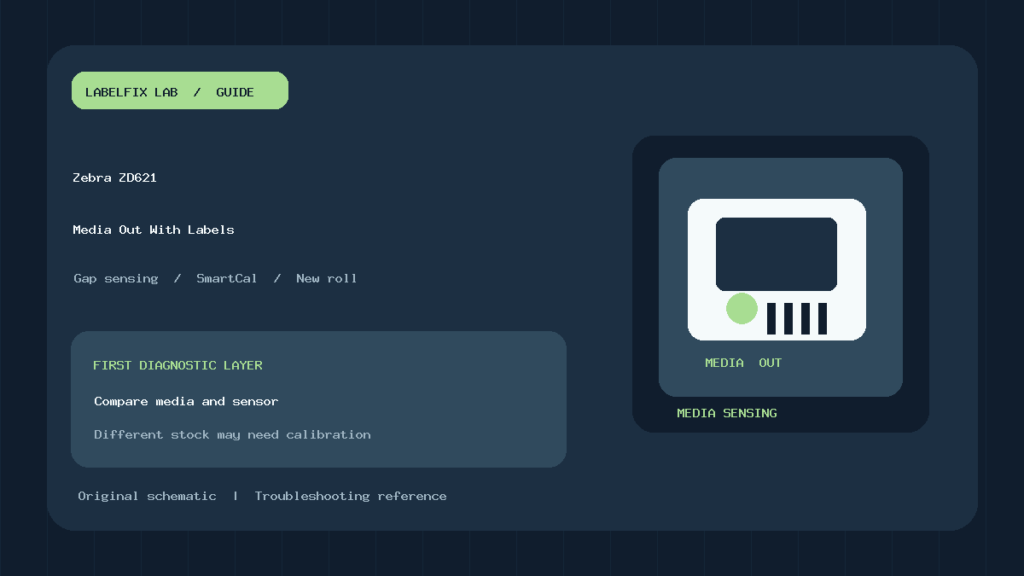
Quick answer: If your Zebra ZD621 shows Media Out while labels are loaded, the printer may be unable to detect the next valid label in the media path. A visible roll does not prove the sensor is seeing the correct gap, notch or black mark. Zebra’s official guide distinguishes an empty roll, a missing label on the liner, the wrong media type or sensor position, and a roll change that requires a supported SmartCal calibration.
The ZD621 is part of Zebra’s desktop family with multiple print and media-handling configurations. Identify your actual model, installed label material and print job before adjusting settings. This guide is for the media-out condition, not the separate Ribbon Out, Head Open or RFID-specific alerts.
Diagnose the exact failure pattern
| What happens? | Likely cause group | First controlled test |
|---|---|---|
| Status flashes red and Supplies is red | Media-out alert | Inspect the loaded roll and media path |
| One label is missing from backing liner | Gap may be read as end of roll | Advance to the next complete label per Zebra |
| Same approved roll type replaced with a new roll | Normal end-of-media recovery | Load and use the supported FEED step |
| New vendor, length or media type installed | Sensor thresholds or format mismatch | Use SmartCal as documented |
| Black-mark media replaced gap labels | Wrong sensor location or media mode | Compare sensor type and physical marks |
| Printer feeds but label is cut off | Programmed size or job format | Check actual dimensions and print origin |
1. Verify the full printer model and media path
Check the model identifier and its present accessories. A tear-off, cutter or label-dispenser configuration may route media differently. Zebra’s ZD621-compatible media-loading guide illustrates approved routing, guides and movable sensing positions.
Open the printer only using the manufacturer’s safe procedure. Confirm the roll is seated and the labels extend through the correct path without pinching guides or obscuring the movable media sensor. A roll can look aligned from outside yet miss the sensing path; a missing label in the middle of the liner can also trigger media-out before the physical roll is empty.
2. Understand how the ZD621 recognizes a label
Die-cut labels often have a translucent backing gap; the printer uses a transmissive sensor to detect boundaries. Other stocks use a dark registration mark or notch, requiring the appropriate sensing method and physical alignment. Continuous media does not present repeating label gaps. These are distinct registration systems, so a profile saved for one stock type can misread another.
The ZD621’s movable sensor has a standard center-area position for common gap sensing, while special marks or notches may need a different placement. For details, use Zebra’s official media sensor illustration instead of guessed positions. Our thermal printer calibration basics explains the general difference between media type, sensor and label pitch.
3. A missing label is not the same as an empty roll
Zebra specifically notes that a missing sticker somewhere on the liner can make the machine report Media Out. For this scenario, its supported procedure is to pull the media forward until the next intact label is positioned appropriately above the platen roller, close the unit and use FEED to re-establish position. Follow the current model-specific instructions and keep hands clear of cutter or moving parts.
Do not simply cover a missing gap with tape or disable detection. The printer uses the media pattern to know where each label begins. A damaged liner or an incorrect roll can create repeated false media-out alerts even if plenty of labels remain.
4. Same stock versus changed stock: different recovery
This distinction matters. Zebra’s media-out recovery guidesame media may require loading and advancing once to resume. But if the new roll is a different size, length, supplier, batch or media type, the manufacturer recommends running SmartCal to adapt sensing.
Don’t recalibrate every time you load an unchanged approved roll, and don’t skip calibration after a meaningful media change if the printer loses boundaries. Record the original stock dimensions and configuration before making adjustments.
5. Run SmartCal only when appropriate
Zebra describes SmartCal as a routine that feeds and measures a few labels to determine sensing levels and label length. It is not a universal repair for missing data, wrong PDF page size or a broken physical sensor. Use only the documented ZD621 procedure, with the correct media already loaded and the device in the expected state. This may consume several labels normally.
If the sensor cannot recognize the stock through SmartCal, Zebra has a more advanced manual calibration process. That should be followed exactly and only when the cause has been narrowed, because manual steps involve repositioning the sensor and the liner. Don’t use a random button-hold instruction written for ZD220 or an industrial ZT model.
6. Check gap, black-mark and continuous modes
Zebra’s alert reference identifies a common mismatch: the printer is set for non-continuous media but continuous stock is loaded. Conversely, black-mark labels require detection where marks are actually printed. Look at the liner’s underside, gaps, holes and repeating pitch; then verify the selected media type in the supported setup tool or printer menu.
Preprinted artwork can sometimes interfere with optical sensing if positioned where the sensor expects a gap. Zebra’s manual-calibration guide discusses sensor placement to reduce false readings from preprinted areas. Use approved media and sensor diagrams. Our Zebra printer label-size guide
7. A media warning is not always a label-size problem
When the printer detects boundaries correctly but prints too far right or down, the source document’s width, origin and selected driver profile may be wrong. Zebra also notes that changing the physical label width or length usually requires changing the programmed dimensions or active label format. Calibration will not automatically redesign a Letter PDF to fit a 4 × 6 shipping label.
Run a small approved label test using the correct ZD621 configuration. If that prints but your marketplace PDF doesn’t, inspect the application and print driver. Our ZPL shifted or clipped guide
8. Compare a printer self-test with a business-app print
A self-test can help establish that the printer is powered, can feed the loaded stock and generate an image independently of the business application. If it succeeds while a warehouse system reports Media Out, compare the job’s media declaration and any commands that change label mode or length. Record the active queue and app version; a change in one label template can cause repeated faults.
Do not wipe all stored settings or flash random firmware. On managed label printers, a reset can remove network, media, calibration and programming settings needed by other workstations.
9. Special handling options: cutter and dispenser
Some ZD621 configurations use a cutter or dispenser. Follow the proper media route through the installed accessory. Zebra’s guide specifies threading material through the cutter’s media slot on cutter models, and label-dispenser hardware can wait for a label to be removed. If the feed problem occurs only with the accessory engaged, inspect that path and its documented state before recalibrating the standard feed.
Never pull paper forcefully through an engaged cutter or block a label-taken sensor. If the unit shows a separate cutter error, troubleshoot it as such rather than treating every red indicator as Media Out.
10. Worked example: changed to black-mark stock
A packing line replaces ordinary gap labels with black-mark media. The ZD621 still uses its old gap-sensing configuration, advances several labels and reports Media Out. A controlled fix is to record current settings, confirm the new material’s mark placement, align the sensing method and movable sensor using Zebra’s diagram, then run the correct documented calibration. Finally print one approved label with the correct dimensions.
If the original gap roll succeeds and the black-mark roll fails under otherwise identical conditions, that is valuable evidence about media configuration, not proof of a damaged printer.
11. When to escalate
If a correct approved roll is loaded, sensor position is right, and the manufacturer-supported calibration still cannot register labels, collect the alert pattern, current media type, sensor profile and one controlled test result. Ask Zebra or a qualified service technician to review the evidence. Avoid bypassing media sensing: shipping barcodes printed across label boundaries can become unreadable.
Frequently asked questions
Why does my ZD621 say Media Out with a full roll?
It may not see the expected gap or mark, or there may be a missing label on the backing liner. Compare stock, sensor position and the current media mode.
Do I need SmartCal after every roll change?
Not usually when loading the same approved media. Zebra recommends SmartCal when changing meaningful characteristics such as size, length, batch or material.
Can a wrong PDF trigger a Media Out error?
A job may send incompatible label length or mode instructions, but first confirm the actual sensor and media state. Wrong page size can also cause clipping without any Media Out condition.
Will a factory reset fix sensor alignment?
It may remove valid settings without correcting physical placement. Document configuration and follow the supported sensor and calibration procedure instead.
Official Zebra references
- Zebra ZD421/ZD621: Media Out alert
- Zebra: detecting and recovering from Media Out
- Zebra: SmartCal media calibration
- Zebra: advanced manual media calibration
Editorial scope: Manufacturer-based diagnosis rather than a claim of individual device testing. Use documentation matched to the installed firmware and physical printer configuration.
Independent general troubleshooting information for shipping labels and thermal printers. Model-specific button sequences, cleaning supplies and service instructions can differ; consult your manufacturer's official documentation. Never alter a carrier-generated barcode.