Quick answer: When a Rollo X1040 Wireless printer produces only half a 4×6 shipping label, identify which “half-label” problem you have. If the paper physically stops moving halfway through printing, inspect label stock, heat/darkness and the feed path. If the printer feeds normally but the image occupies only half of a label or splits across two labels, recalibrate label detection and correct the PDF/paper-size settings. Those symptoms share a description but need different fixes.
This guide is specific to the Rollo Wireless X1040. The older wired X1038 has different printer controls, so do not copy its button sequences or density numbers without checking the exact model. Use non-sensitive sample labels while diagnosing; do not repeatedly print live carrier labels that could become duplicate operational documents.
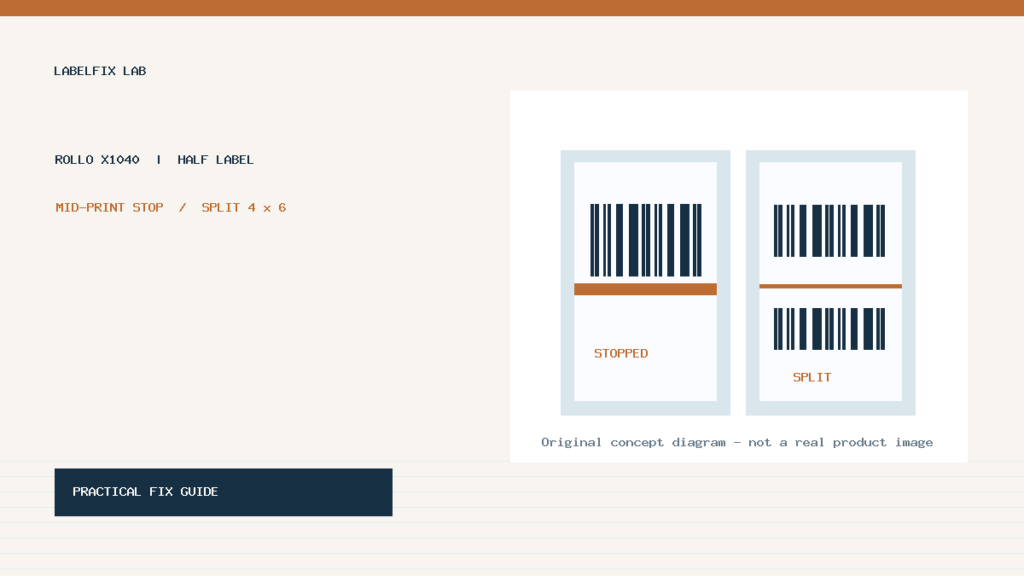
First: recognize the two different half-label failures
| Symptom | Likely layer | First diagnostic |
|---|---|---|
| Label stops mid-print; paper does not finish feeding | Heat, stock sticking, mechanical feed or power | Try a light sample and review printing darkness |
| Paper feeds fully, but content prints only on top half | Source size, scaling or print layout | Inspect PDF dimensions and 4×6 setting |
| One label image continues onto the next physical label | Calibration, gap detection or wrong page size | Run X1040 label calibration and 4×6 test |
| Extra blank label follows each job | Sensor calibration or extra blank PDF page | Compare a known-good single-label sample |
| Only AirPrint from iPhone creates a partial image | File type or mobile print path | Print the original PDF instead of a screenshot |
| Only one marketplace or browser fails | Platform label format, app or browser scaling | Compare source file against a vendor test label |
Rollo maintains separate support articles for labels stopping mid-print and 4×6 images printing partially or splitting across labels. That distinction is the fastest route to a useful fix.
1. If the paper physically stops, check for overheating and sticking
The X1040 is a direct-thermal printer that uses heat to mark its label stock. On some media, a very dark barcode or thick horizontal line can create more heat than the stock handles comfortably. Rollo says excessive darkness may cause the label to adhere to the printhead and stop during a job. This is a different problem from a page-size mismatch.
Inspect the printout: is the last completed area unusually dark, with the paper stuck where a dense barcode should continue? Compare with a clean, correctly loaded approved label roll and a light sample. Do not pull stuck adhesive material aggressively through a closed head or use an unknown solvent on the printhead. Our thermal printer printing too dark and paper-jam checks explain the general mechanisms.
2. Adjust X1040 darkness using the correct printer controls
For the X1040 specifically, Rollo’s mid-print stopping article directs operators to the Rollo App and Printer Portal under the default printer’s settings, then Printing Defaults. Its current guidance recommends decreasing darkness to 26% or lower when heat-related sticking is suspected. This is a targeted troubleshooting value, not a universal setting for every type of label or job.
Use a controlled test to see whether feed completes and the barcode remains scannable. Too little darkness can make labels faint and unreadable, so do not simply minimize heat without checking print quality. The same Rollo article lists speed 4 and density 2 for the X1038 USB model, not as the X1040’s equivalent settings. Keep those two instructions separate.
3. If paper feeds completely but the design is cut, inspect the source PDF
Open the original downloaded shipping file and check its page dimensions. A platform may generate a 4×6 thermal label or place the label on an 8.5×11-inch Letter sheet. Sending the Letter layout directly to a 4×6 printer can shrink, crop or split the content. A browser screenshot is also not a dependable replacement for the original PDF.
Select the platform’s native 4×6 thermal output when available. Where the source is actually a larger page, use an appropriate authorized conversion/crop workflow without distorting the barcode. Our 4×6 shipping label printing too small and crop a 4×6 label from Letter PDF guides help determine whether the document itself needs correction.
4. Recalibrate the X1040 when the label splits across physical stock
Calibration helps the printer learn where the loaded labels start and end. Rollo’s current half-label/split-label instructions provide a model-specific wireless procedure. It involves clearing and re-feeding stock, then using the X1040 control to detect the label pitch and print a self-test.
Follow those steps as published for your model and firmware. Do not substitute the older USB Rollo’s round-button sequence for the wireless X1040, and do not force labels through a closed printhead. After calibration, print one vendor sample label before returning to the shipping app. If the sample fits on a single 4×6 label, the feed/sensing path is more likely healthy.
5. Confirm the actual 4×6 paper size in the host’s print path
A calibrated printer can still receive a mismatched paper size from Windows, macOS, a browser or an application. In the print dialog, select the correct Rollo X1040 printer and the 4×6-inch paper size for standard shipping labels. Do not leave Letter/A4 selected merely because the PDF viewer chose it automatically.
Rollo’s instructions distinguish print environments: they mention fitting to the printable area in one general step and 100% scaling on macOS for a correctly sized file. Follow the platform-specific options for the exact source. A valid 4×6 file should not be arbitrarily stretched until it fills the page; verify barcode geometry and margins. For background, see why PDF page boxes matter.
6. Inspect custom margins and stock configuration
On Windows, check the printer preferences, stock dimensions and any margin settings for the selected Rollo entry. On a Mac using a custom size, verify that the defined width, height and margins match the stock and the application’s requirements. Rollo’s 4×6 troubleshooting notes refer to zero margins in certain custom-size settings; do not apply that blindly to every page format without reviewing the source.
If you use more than one label size, name each preset clearly and record which app uses it. The Rollo app may rely on the printer’s detected stock size, while a browser could use a saved preset from an older job. A mismatch between the printer’s learned pitch and the app’s selected paper can cause half-page content even when the hardware is operating normally.
7. Compare a known-good vendor sample with the failing PDF
Rollo recommends printing its sample label in the relevant troubleshooting flow. If the sample prints on exactly one physical label with clean margins but a marketplace file splits, investigate that marketplace’s label format, document dimensions and print-dialog settings. If the vendor sample also splits after calibration, investigate printer media sensing or feed problems.
Use a harmless sample so you can repeat a controlled test without accidentally creating duplicate shipping instructions. Compare physical output with a ruler, not just the screen preview. If the paper feeds 6 inches but only part of the image is visible, that is a different observation from paper physically moving only 3 inches.
8. Watch for an extra blank page in the PDF
A shipping label can appear to generate a blank extra label when the source PDF has an extra blank page, whitespace below the label or unintended scaling. Count the PDF pages and inspect the physical page boxes before blaming the printer’s feed sensor. Our 4×6 label printing on two pages guide covers this document-layer problem.
If the original file has one correctly sized page and Rollo’s test label still feeds an extra blank label, focus on calibration and media detection. If only one downloadable file does it, compare that platform’s template settings. Avoid deleting or reprinting all orders until you know whether the extra physical label contains any useful data.
9. iPhone and iPad: print the PDF, not a photo screenshot
For the X1040, Rollo documents AirPrint from a supported iPhone or iPad when the printer and device are on the same Wi-Fi network. It also warns that printing photos, PNGs, JPEGs or screenshots through the built-in print option can be unreliable; the recommended route is to use the actual label PDF.
See Rollo’s AirPrint guidance. If a saved screenshot produces a partial print, compare the original PDF before changing printer calibration. If both fail only on a phone, check network membership, print destination and the app’s file-handling path. Our mobile shipping-label size guide covers generic mobile PDF scaling.
10. Rollo app, browser and direct USB may behave differently
The wireless X1040 can receive jobs through supported routes that do not share identical print menus. Record whether the error happens through the Rollo mobile app, AirPrint, a desktop browser or an approved USB setup. Successful output from one path suggests the physical print mechanism and stock can work, but it does not prove every software preset is correct.
When a printer fails only after a router restart, solve Wi-Fi discovery separately from scaling. A failed wireless connection is more likely to produce no job than half of a correctly accepted thermal print. For that case, see Rollo Wireless printer offline troubleshooting rather than repeatedly recalibrating a healthy mechanism.
11. Distinguish a real stop from a preview that looks incomplete
A print preview can clip a label because its virtual page dimensions are wrong, even before the hardware starts. If the preview already shows only half the barcode, correct the document or scaling first. If the preview looks fine but paper jams exactly at a dense area, focus on heat/stock interaction, friction and feed mechanics. If the printer physically advances to the next label while the design continues, focus on label sensing and format mismatch.
This separation matters because some fixes contradict each other: reducing darkness can help a heat-sticking problem but cannot repair a Letter-size PDF, while changing a margin cannot release stock physically adhered to the printhead. Make one change at a time, print the same sample and keep a record of the result.
12. A reliable X1040 half-label checklist
- Confirm the printer model is the wireless X1040, not the X1038 USB model.
- Observe whether paper physically stops or feeds fully with a partial/split image.
- For a physical stop, inspect stock and test the manufacturer’s suggested lower darkness setting.
- For a split image, run the supported X1040 calibration and vendor sample test.
- Check the source file is truly one 4×6 page and not a Letter-size layout.
- Match the print dialog’s printer, paper size, margins and platform-specific scale options.
- For iOS AirPrint, use the PDF source instead of a screenshot.
- Retest the same harmless sample and verify the printed barcode before returning to production.
FAQ
Why does my Rollo X1040 print only half of a barcode and stop?
If the paper itself stops at a dense area, excessive darkness and stock sticking are possibilities. Inspect the label path and follow Rollo’s X1040 darkness guidance.
Why is one 4×6 label split across two labels?
Mis-calibrated label sensing, an incorrect paper size or a larger source PDF can cause that symptom. Calibrate first, then check the 4×6 template and print settings.
Should I use speed 4 and density 2?
Those exact values appear in Rollo’s support guidance for the X1038 USB, not the wireless X1040. The X1040 section recommends lowering its darkness percentage for suspected heat sticking.
Can I print a shipping-label screenshot through iPhone AirPrint?
For a more reliable X1040 workflow, Rollo recommends opening the original label as a PDF rather than printing an image screenshot.
Bottom line
On a Rollo X1040, “half a label” can mean a heat-related mid-print stop, a calibration/feed error, or a document layout problem. Observe how the paper moves, compare an official sample with the failing PDF, and use X1040-specific settings. That simple distinction prevents unnecessary changes to healthy printer hardware.
Independent general troubleshooting information for shipping labels and thermal printers. Model-specific button sequences, cleaning supplies and service instructions can differ; consult your manufacturer's official documentation. Never alter a carrier-generated barcode.