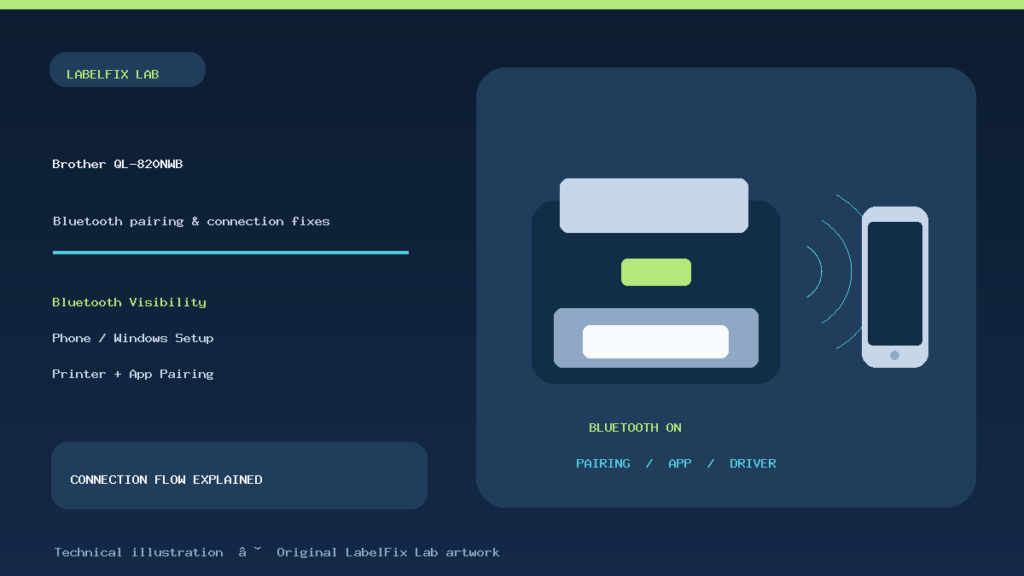
Quick answer: If your Brother QL-820NWB will not connect over Bluetooth, first confirm the exact QL-820NWB model, then enable Bluetooth from its own menu: Menu → Bluetooth → Bluetooth(On/Off) → On. Verify that the printer is discoverable, attempt pairing from a supported phone or computer workflow, and confirm that the selected label app actually supports this connection. Seeing a device in a Bluetooth list and being able to print through an application are two different tests.
This article concerns Brother’s QL-820NWB family, not the QL-810W, QL-800 or QL-1100, whose connectivity options differ. Brother’s official model FAQs document both mobile Bluetooth pairing and a specific Windows installer path. Do not assume a generic Windows “Add Bluetooth device” dialog installs every label editor and driver needed by your particular setup.
Find which part of the connection fails
| Symptom | Likely layer | Controlled first check |
|---|---|---|
| Printer never appears in Bluetooth list | Bluetooth off, discovery setting, distance or wrong model | Open printer’s Bluetooth menu and check visibility |
| Device appears but pairing fails | Old pairing, device policy or host setup | Record the message; retry through the official workflow |
| Phone says paired but app finds no printer | Unsupported app or app’s printer selection | Test Brother’s supported label app or integration |
| Windows pairs but cannot print | Missing driver, wrong port or print queue | Run Brother’s connection-type installer |
| It prints by USB but not Bluetooth | Wireless transport rather than media/printhead | Keep the same test label and compare paths |
| It connects after restart but disappears later | Visibility, sleep, reconnection or stored association | Check device settings and auto re-pair behavior |
1. Verify you have the QL-820NWB, not a similar QL model
Brother has several label printers with nearly identical names and very different connection features. For example, a QL-810W setup guide may focus on wireless networking, while the QL-820NWB has its own Bluetooth controls and an LCD menu. Read the nameplate, confirm any trailing revision suffix such as a compatible “c” model, and match support downloads to the exact identifier in your region.
A connection guide for a generic portable Bluetooth printer may describe a PIN, scanning app or operating-system menu that does not apply to your Brother model. The correct first test is whether you can navigate to Bluetooth from the QL-820NWB’s physical menu.
2. Turn on Bluetooth on the printer itself
Brother’s mobile pairing FAQ gives a concrete sequence: press Menu, choose Bluetooth, open Bluetooth(On/Off), and set it to On. Confirm the selected state on the printer rather than assuming Bluetooth is enabled because the unit has Bluetooth hardware. The manufacturer’s guidance notes that this setting remains stored after power-off, so repeated re-enabling should not normally be required every day.
If the Bluetooth menu is unavailable, check the device’s management settings before concluding that the radio has failed. Brother’s printer-setting documentation explains that an Airplane Mode management setting can make the WLAN and Bluetooth menus disappear on the QL-820NWB. Do not change unrelated wireless security or network settings without recording the current values.
3. Check visibility, range and nearby connections
The QL-820NWB’s Bluetooth Device Name and Visible to Other Devices configuration can be inspected through Brother’s Printer Setting Tool on a supported computer. If discovery is set to Not Discoverable, a new phone may not see it in a normal device scan. Confirm a discoverable state using the manufacturer’s instructions.
Bring the phone or PC close to the printer, remove unusual USB hubs or other experimental adapters from the diagnosis, and temporarily minimize nearby sources of radio interference. If the model previously paired to a different host, compare behavior with that known-good connection. Some application or device restrictions can prevent a connection even if Bluetooth hardware works, so do not infer a defective printer from one unsuccessful scan.
4. Pair the QL-820NWB with an iPhone or iPad
Brother’s official mobile guide directs users to enable Bluetooth on the printer, then open Settings → Bluetooth on the Apple device and select the nearby printer. Once the operating-system association succeeds, open a compatible label application and select the intended printer in that application’s own printer-selection menu if required. App-specific support matters: the ability to pair does not mean that an arbitrary PDF or shipping app can send labels via Bluetooth.
If the printer was paired previously but no longer reconnects, check both sides of the stored association. Brother documents a reconnection attempt from the Apple device’s Bluetooth settings. Where Printer Setting Tool is available, it also exposes an Auto re-pairing option for reconnecting to previously connected iPhones/iPads at power-on. Note the original setting before changing it.
5. Pair from Android without confusing Bluetooth with Wi-Fi Direct
For Android, Brother’s documented sequence also begins with the printer’s Bluetooth(On/Off) setting and the phone’s Bluetooth settings. Allow the phone time to discover nearby devices and choose the correctly named printer. If the app asks you to select a printer separately, choose the Bluetooth connection option supported by that app.
Be careful not to mix protocols: Bluetooth pairing, Wi-Fi infrastructure and Wireless Direct are separate connection routes. Brother provides a distinct guide for mobile Wi-Fi setup. If Bluetooth fails but the printer works over Wi-Fi, that tells you something about the transport or app, not that the cutter or DK roll has failed.
6. Windows: use Brother’s Bluetooth installation pathway
Brother’s Windows FAQ for the QL-820NWB instructs users to download the official Software/Document Installer, launch it, and select Bluetooth Connection at the Connection Type step. Then follow the guided driver and pairing process and install the supported P-touch Editor workflow. This is more reliable than guessing a generic printer queue or selecting a similarly named printer driver from an unrelated Windows list.
If Windows reports that the printer is paired but a job stays in the queue, confirm the selected Brother queue, printer port and actual Bluetooth path. Cancel a stuck test job safely and retry a single harmless label. Our Windows driver-installation checks explain the broader separation between a device being visible and a print queue being functional.
7. Test printing after pairing, not pairing alone
Use a short non-sensitive label such as “BLUETOOTH TEST” with the physical DK roll’s correct width and length. A successful native label editor print demonstrates that device selection, driver or mobile integration and the wireless transport work together. A print job that never starts may still be an app-routing issue; a printed but cut-off label is a different size/template issue.
If a label prints via USB with the same source and stock but fails only over Bluetooth, avoid adjusting cutting pressure, density or label dimensions. Instead compare the app, selected queue and connection status. If both paths fail, refer to our Brother QL-820NWB general print guide to troubleshoot DK media and printer-side faults.
8. What to do when a phone reconnects to the wrong printer
In a warehouse or retail counter with multiple label devices, it is easy to select an adjacent unit with a similar default name. Check the full device name or address exposed by Brother’s tools before printing a sensitive label. On mobile, confirm the application has the intended printer selected. Test with a harmless sample and physically observe which machine prints.
A previously working device association can persist after staff replace hardware or swap workstations. Record which connection was in use, clear only the outdated association through the supported operating-system and app path, then pair the correct device. Do not reset every printer in the room; that can disrupt other staff.
9. Check management settings if Bluetooth disappears
Brother’s printer-setting documentation includes Bluetooth discoverability, auto re-pairing, the displayed device name and Airplane Mode. A managed QL-820NWB may have those values intentionally set by an administrator. Ask before overriding a store or company’s wireless policy. If a menu suddenly disappears after a device-settings change, compare the new state with a known-good saved configuration.
Bluetooth problems after a firmware or OS update should also be recorded with exact version numbers before troubleshooting. An update may change app permissions, connection support or driver behavior; use the current manufacturer packages matched to your machine, and avoid unofficial “universal Bluetooth printer drivers.”
10. Distinguish mobile-label applications from browser PDFs
A 4 × 6 shipping PDF, a tiny die-cut SKU sticker, and a two-color label made in P-touch Editor are not interchangeable output paths. The QL-820NWB uses compatible Brother DK rolls, and an app must understand the available stock and printer communication mode. If your Bluetooth test prints but a shipping website does not, verify the shipping site’s supported integration or export the source to a compatible print route where allowed.
When a PDF is the source, record its native page dimensions and compare them with the physical roll and app’s page preset. Avoid shrinking carrier barcodes indiscriminately to make them fit a narrower label. Our Brother QL-800 size diagnosis illustrates the general size-mismatch problem, though menus and capabilities must be checked for the QL-820NWB separately.
QL-820NWB Bluetooth checklist
- Confirm the exact model and operating-system version.
- Enable Bluetooth using the printer’s own menu.
- Check the device name, visibility and any Airplane Mode policy.
- Bring the host close and identify the intended device.
- Use Brother’s supported mobile workflow or Windows installer.
- Verify app printer selection, not just OS pairing.
- Print a simple DK label to prove data transfer.
- Compare with USB or Wi-Fi only when supported and useful.
- Record any errors and the settings that changed.
Frequently asked questions
Does Brother QL-820NWB support Bluetooth?
Yes. Brother publishes model-specific Bluetooth pairing instructions. Check the exact hardware/revision and supported host workflow rather than assuming every app works over that connection.
Why does my QL-820NWB show paired but print nothing?
Pairing proves only an association. The Windows driver and queue, or mobile application’s selected printer and supported communication method, may still be incorrect.
Why is the Bluetooth menu missing?
Brother’s management documentation notes that Airplane Mode can hide Bluetooth and WLAN on the QL-820NWB. Verify policies and the exact model before altering settings.
Can I connect an iPad directly through Bluetooth?
Brother’s FAQ documents Bluetooth pairing with compatible Apple mobile devices. You still need an application that supports sending appropriate labels over the chosen connection.
Official Brother documentation
- Brother: QL-820NWB mobile Bluetooth pairing
- Brother: Bluetooth setup on Windows
- Brother: mobile Wi-Fi infrastructure and Wireless Direct
- Brother: Printer Setting Tool including Bluetooth settings
Editorial scope: This manufacturer-informed guide is not a claim of physical testing on each OS version or app. Refer to the latest Brother directions for your exact model and region.
Independent general troubleshooting information for shipping labels and thermal printers. Model-specific button sequences, cleaning supplies and service instructions can differ; consult your manufacturer's official documentation. Never alter a carrier-generated barcode.