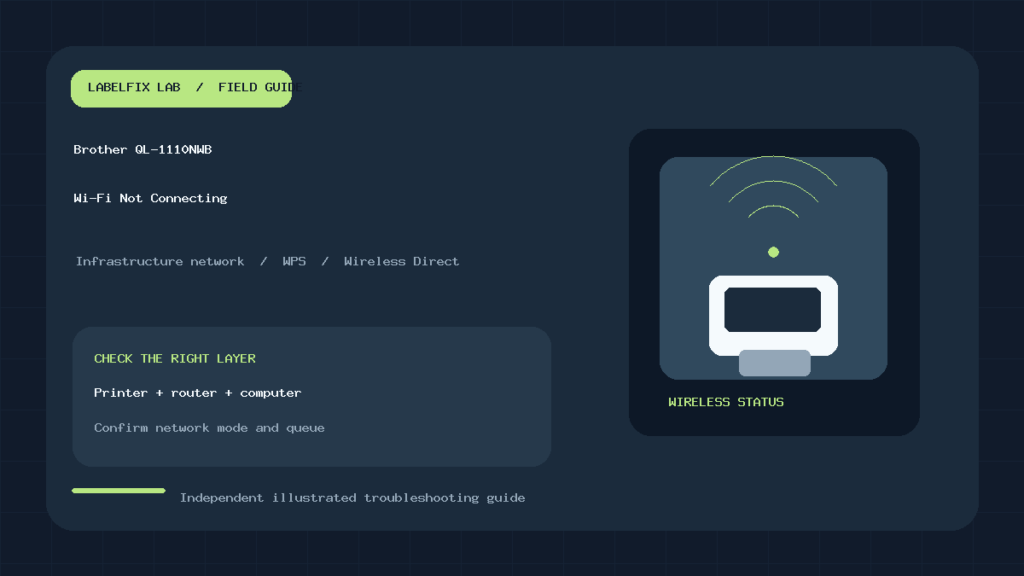
Quick answer: If your Brother QL-1110NWB is not connecting to Wi-Fi, determine whether it failed to join a wireless network, joined the network but cannot be found by the computer, or appears in the print dialog but will not accept a job. These are different faults. First check the exact connection mode, printer status, router access, and the installed Brother driver. Test a simple label in the manufacturer-supported application before troubleshooting the shipping platform.
The QL-1110NWB supports network-based printing, but the similar-looking QL-1100 is a different, USB-oriented model. If your printer label says QL-1100, use the QL-1100 4 × 6 diagnosis. This article is for the QL-1110NWB and compatible regional revisions; exact menu names may vary with firmware, operating system and app version.
Diagnose the symptom before changing network settings
| What you observe | Likely layer | First safe check |
|---|---|---|
| Printer never joins the intended Wi-Fi network | Router, credentials, wireless mode or network compatibility | Repeat Brother’s supported infrastructure setup |
| Wi-Fi indicator is green but computer cannot find it | Network visibility, IP, isolation or discovery | Verify both devices are on a reachable network |
| Computer sees printer but job stays in queue | Driver, stale port, app or print spooler | Compare printer address and a local test job |
| Phone sees the printer via Wireless Direct but laptop cannot | Two distinct network paths | Confirm which mode each device is using |
| Simple test prints but shipping label fails | PDF size, DK roll or app formatting | Inspect the downloaded label and printer preset |
1. Verify the model and the connection method
Read the model identification on the printer, rather than using a saved printer name. The Brother QL family includes wired, wireless and Bluetooth-capable variations. A driver or support procedure that belongs to another unit may have different connectivity or roll options. Brother’s official QL-1110NWB wireless setup guide describes connecting to an existing router in Infrastructure mode.
In Infrastructure mode, the printer and computer communicate across your existing local network. In Wireless Direct, a mobile device can connect directly to the printer without a router. Those methods are not interchangeable: seeing a printer’s direct wireless network does not prove it has joined the office router. Brother also documents WPS as an option when the router supports it. Choose one intended topology before proceeding.
2. Follow the approved wireless installation workflow
For a computer-based setup, download the correct QL-1110NWB driver and compatible P-touch Editor software from Brother’s support website. Brother’s instructions describe the printer, a computer, a wireless router or access point, and a USB cable as the setup components for the illustrated process. When the installer asks for a connection method, choose the network method you actually intend to use. Do not assume a USB test automatically configures Wi-Fi.
- Confirm the printer is powered and ready, with a supported DK roll loaded.
- Verify the computer is connected to the correct local Wi-Fi or Ethernet network.
- Run the model-specific Brother setup and select Infrastructure, WPS or Wireless Direct as appropriate.
- Complete the connection configuration and add the resulting network printer queue.
- Send one harmless sample label from P-touch Editor or another supported Brother test path.
Record the network name, connection mode and printed configuration details available through the supported workflow. Avoid factory or network resets merely because the first installer attempt timed out: a reset removes settings that may still be required by another computer.
3. Green Wi-Fi light, but no communication?
A green wireless indicator can suggest wireless activity or connection state, but it does not by itself establish end-to-end communication with the application. Brother publishes a separate FAQ specifically for a green Wi-Fi lamp when devices cannot communicate. Check whether the printer and computer occupy the intended network, whether client isolation or a guest network prevents local traffic, and whether the printer’s address changed after a router restart.
On managed networks, ask the network administrator about wireless client isolation, multicast or discovery restrictions, segmentation and approved printer ports. Avoid turning off security controls just to make a printer appear. If the printer was added by an old IP address, a stale queue may point to its previous location. The broader network printer offline after a router change guide explains how to separate address changes from device faults.
4. Compare discovery with actual printing
Seeing a name in a printer list is not a successful end-to-end test. Confirm the printer in the operating system matches the physical QL-1110NWB, not a previously installed duplicate or another Brother model. Examine whether the job is pending, canceled or reported as sent. If a local Brother sample prints while the shipping PDF does not, you have evidence that the radio path, driver and imaging system can function.
Try a simple, original test with one printer and one application at a time. A queue that keeps indicating offline even while the printer is reachable may need its correct port, current driver or spooler state reviewed; see our offline-but-connected checklist. Do not delete shared queues or change an office network printer’s address without approval.
5. Wireless Direct is not the same as the office router
Direct mode is useful where there is no appropriate access point, but it can change which network the phone or laptop is using. Brother notes that Wireless Direct cannot connect the printer to multiple mobile devices at the same time in the cited support workflow. If one phone works and another doesn’t, check whether an existing direct session is occupying the connection before blaming the label roll.
A phone switching to the printer’s direct wireless network may temporarily lose ordinary internet access unless it has another usable data path. This is not proof of a broken Wi-Fi radio. Conversely, if your warehouse application sends jobs to a printer address on the office LAN, a direct-mode phone connection will not automatically make that LAN address reachable.
6. Check router changes, not just the printer
If the unit printed yesterday but stopped after a new router, mesh system or password change, compare the old and new network configuration. Confirm that the router supports the printer’s documented wireless requirements, and use the manufacturer’s supported setup path to reconnect. Network names that look similar may still lead to different VLANs, guest isolation or access points. Where an IP reservation is used, an administrator should verify it still matches the printer.
A temporary USB test, where supported, can help establish whether the computer can print using the correct model driver independently of radio connectivity. It does not prove the Wi-Fi setup is complete, and it should not be confused with the QL-1100’s USB-only workflow.
7. When the 4 × 6 shipping label is the only failure
The QL-1110NWB’s wireless connection and its label formatting are separate subsystems. If a Brother editor sample prints but a marketplace label is tiny, clipped or rotated, compare the actual DK roll designation, source PDF page dimensions, driver stock setting and print scaling. Our dedicated QL-1110NWB 4 × 6 size guide covers that second problem. Avoid reinstalling the network driver repeatedly to fix a Letter-sized PDF sent to a 4-inch roll.
8. Worked example: discovered, but no labels print
Imagine the printer’s Wi-Fi LED is lit and the operating system lists a QL-1110NWB, yet a shipping application says the job was sent without producing a label. First print from Brother’s supported local editor. If that works, inspect the shipping app’s selected queue and page size. If it does not work, confirm whether the queue reaches the current printer address and whether the driver is valid. Only after isolating the layer should you alter settings. This preserves a useful comparison instead of changing router, driver and label stock simultaneously.
9. When a network reset is justified
Brother publishes a model-specific network reset procedure, but use it only after recording the existing setup and confirming that rebuilding the configuration is acceptable. Resetting a printer used by multiple people can disrupt everyone. Reinstalling software also will not remove client isolation or repair a physically disconnected router. Prefer a documented change with a clear success test and rollback.
Frequently asked questions
Does a green QL-1110NWB Wi-Fi light guarantee printing?
No. It does not establish that the host can discover the printer, connect to the correct address and submit a valid job. Test the application-to-printer path separately.
Can I use Wireless Direct instead of a router?
Yes, where supported by the printer and application, but it is a different connection topology. Confirm the mobile-device limitations and the selected mode using Brother’s instructions.
Why does USB work while Wi-Fi doesn’t?
USB success narrows the issue toward wireless setup, network reachability or the network queue. It does not tell you which of those is wrong without further tests.
Why is a 4 × 6 label printed small only over Wi-Fi?
The network queue might use different paper defaults than the USB queue. Compare driver presets, the original PDF size and DK media before assuming the radio link changes image scaling.
Manufacturer references and review notes
- Brother: QL-1110NWB wireless setup in Infrastructure mode
- Brother: wireless connection methods and Wireless Direct note
- Brother: model-specific network settings reset
Editorial scope: This is a diagnostic guide based on manufacturer documentation, not a claim that a particular QL-1110NWB was physically tested. Settings and compatibility can change with model revision, firmware, network policy and operating system.
Independent general troubleshooting information for shipping labels and thermal printers. Model-specific button sequences, cleaning supplies and service instructions can differ; consult your manufacturer's official documentation. Never alter a carrier-generated barcode.