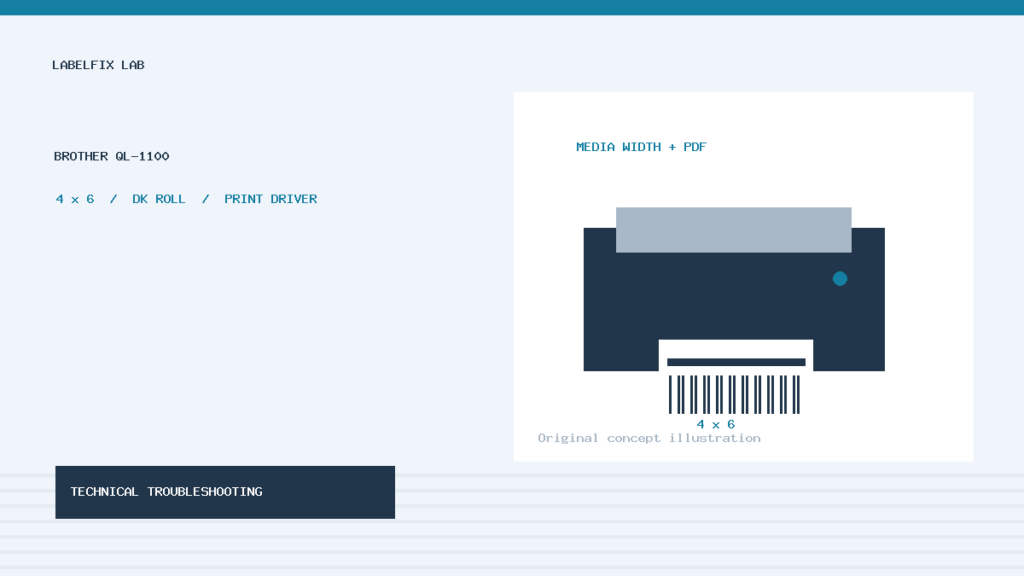
Quick answer: If a Brother QL-1100 will not print a 4×6 shipping label, confirm the actual DK roll, the supported USB connection and driver, and the paper size selected by the application. A QL-1100 may print correctly from Brother’s label software but cut off information from a carrier PDF when the wrong 4.07-inch shipping-label option is selected. It is important to distinguish that size mismatch from a printer the computer cannot detect.
This independent troubleshooting guide covers Brother QL-1100 and, where the manufacturer explicitly includes it, QL-1100c. It is not a replacement for the different QL-1110NWB wireless setup. Use the exact official manual, current driver and supported DK roll for your model and operating system.
What is special about the QL-1100?
The QL-1100 is a wide-format direct thermal label printer with USB connection and up to 4-inch printable width, according to Brother’s QL-1100 specifications. It supports shipping-oriented DK label rolls. The printer does not require ink, toner or a thermal-transfer ribbon, and its physical media size must agree with the driver and source document.
Some official media and driver entries appear as 4.07 × 6.4 inches (103 × 164 mm) rather than exactly 4.00 × 6.00 inches. Brother also lists DK-1241 102 × 152 mm and DK-1247 103 × 164 mm in its consumables catalog. Those are not identical rolls; check the actual installed part number before choosing a preset.
Fast symptom table
| Observed problem | Likely layer | First useful check |
|---|---|---|
| QL-1100 is absent from the print dialog | USB detection, driver or printer queue | Check supported direct USB and correct installed driver |
| One app prints, but a shipping PDF is cut off | Paper-size option, scale or page-box mismatch | Compare actual DK roll with app’s size selection |
| Print preview looks correct but edges disappear | Printable width and margin restrictions | Inspect physical measurements and Brother driver options |
| Printer feeds a blank label | Media orientation, empty data or print path | Print harmless label from Brother software |
| More than one label feeds per job | Wrong label length, source page count or gap detection | Check roll type and PDF page dimensions |
| Job stays pending in Windows | Queue or driver communication | Resolve the selected QL-1100 queue, then retest |
1. Read the DK roll number before changing software
Inspect the label-roll package or approved supply records to identify the DK code and its actual width/length. Loading a roll that fits the spool does not guarantee the selected template matches its cut label. Confirm the roll is seated according to the QL-1100 user guide and that label backing follows the intended route.
If you have 4 × 6-inch labels, confirm whether the roll is DK-1241 or a different supported size. Brother’s naming is more precise than the casual “4×6” used by many shipping platforms. Some setup dialogues use a 103-mm shipping stock preset for a roll whose available printable area is only 101.6 mm. Do not trim or stretch barcode artwork to disguise a physical mismatch.
2. Know which of Brother’s similar shipping-size options to use
Brother has a specific support answer for two 4.07-inch label-size options in third-party applications. For shipping-label PDFs, it points to the option marked “Shipping label”, such as 4.07 × 6.4 inches (103 × 164 mm), when that corresponds to the loaded stock. For other applications it distinguishes the otherwise similar non-shipping label entry.
A separate Brother FAQ discusses a driver option named “Adjust to 4-inch shipping label”. The right combination depends on your roll and the source, so use the vendor’s instructions instead of applying every option simultaneously. If the app shows only Letter or A4, check the intended QL-1100 queue and driver installation before modifying the PDF.
3. Distinguish PDF page dimensions from actual label dimensions
A platform may deliver a true thermal-label PDF, or a Letter-size page containing a smaller label image. A QL-1100’s driver cannot always infer how to crop a Letter file. Open the original download in a capable PDF viewer, inspect page size, and use the seller platform’s thermal output when available.
When the PDF already matches the roll, begin with an unscaled/actual-size print as supported by that workflow. When it is a larger sheet, use a proper source conversion or cropping method before printing. Our crop a 4×6 label from Letter PDF and PDF MediaBox vs CropBox guides explain these source problems.
4. Confirm the physical USB connection
The QL-1100 is a USB-oriented model. If a computer cannot find it, establish power and a supported cable connection before editing print layouts. Test a known-good short USB cable at a direct port, avoiding an unstable hub if possible. Then confirm that the correct printer model appears in the operating system.
Brother’s USB printing troubleshooting covers the print queue, connection status and driver recovery. Do not assume the QL-1100 has built-in Wi-Fi because the QL-1110NWB is network-capable. See our QL-1110NWB guide for that distinct model.
5. Use the current supported Brother driver
Use the Brother support page for your precise QL-1100/1100c model and OS. A stale duplicate printer entry, generic driver or an old queue can make the correct size options disappear. Record the active printer name, driver version, port and current settings before changing them.
On Windows, inspect the selected printer and Printing Preferences, not only the application preview. If the queued job does not leave the workstation, diagnose communication first. On Mac, verify the installed supported printing path and label preset. Avoid copying driver files from the QL-700 or QL-800 simply because they are in the same family. Our thermal printer not detected by Windows explains the generic detection layer.
6. Print a harmless test from Brother software
Prepare a short synthetic label in a supported Brother application such as P-touch Editor for your installed software version. Use the actual DK roll and select its correct stock size. If this prints cleanly, it demonstrates basic media, printer and USB functionality.
Now repeat with one authorized shipping PDF. If the source PDF fails while Brother software succeeds, focus on its page size and the selected shipping-label preset. If neither path prints, investigate USB, print queue, loading and printer hardware instead of regenerating the marketplace label multiple times.
7. Remember the printable area is not exactly the outer paper width
Brother lists the QL-1100’s maximum printable width as 101.6 mm and warns that available width can depend on environment. The paper itself and its margins are different measurements. Barcode bars placed right at the edge of a PDF may be cut off if the source design ignores the printer’s actual printable region.
Measure the printed content and compare it with the source design. If the left or right quiet zone is cropped, regenerate an appropriately sized source rather than stretching the barcode or applying large arbitrary offsets. Our barcode quiet-zone cut-off guide explains why preserved blank margins matter to scanning.
8. If the label prints too small or over two pieces
Confirm whether the source is an actual single-label file, whether “Fit” or “Shrink oversized pages” is selected, and whether the printer queue uses the right DK size. An incorrect page-to-roll relationship can shrink the shipping label or cause parts to cross a cut boundary.
If the file contains multiple labels on one sheet, adjust the platform output or use a legitimate single-label conversion. Do not enlarge a low-resolution screenshot as a substitute for the original barcode PDF. See shipping label printing too small and 4×6 label printing on two pages for separate failure patterns.
9. If the printer feeds but produces a blank label
The QL-1100 uses direct thermal technology, so check the compatible label stock, its printable orientation and whether the source document actually contains visible artwork. A clean print from Brother software but a blank output from a downloaded PDF suggests a source or rendering issue, not necessarily a dead thermal head.
Observe whether the feed is smooth and whether the labels show streaks, smears or no thermal reaction. Follow the manufacturer’s cleaning instructions if debris is visible. Never add ink or a transfer ribbon. Our blank label troubleshooting covers a general diagnosis.
10. Watch for cutting and feeding errors separately
The QL series includes automatic cutting, but a cutter issue and a print-size issue should not be conflated. If all content prints cleanly and the cutter misses the gap, inspect the supported DK roll and feed/cut settings. If the image stops mid-page, inspect the source size and print engine instead.
Do not insert objects into the cutter or pull labels forcefully through a closed printer. Use Brother’s supported jam-clearing procedure, then test one non-sensitive label before returning to a batch. For model-family background see Brother QL-700 not printing or cutting, while remembering its media width differs.
11. Repeatable QL-1100 troubleshooting sequence
- Verify the exact QL-1100/1100c model and supported OS.
- Check the installed DK roll’s part number and measurements.
- Confirm power, direct USB recognition and the intended printer queue.
- Print a safe label from supported Brother software.
- Inspect the source shipping PDF and select the appropriate shipping-label stock option.
- Check scaling, margins and the 101.6-mm printable-width limitation.
- Compare the physical output with the source and scan its barcode only with suitable test data.
FAQ
Does the Brother QL-1100 support 4×6 shipping labels?
Yes, Brother lists shipping-sized DK rolls. Check the specific stock number and the driver preset because some shipping labels use 103 × 164-mm dimensions rather than exactly 4 × 6 inches.
Is the QL-1100 Wi-Fi capable?
Its published connection specifications list USB. Do not assume the wireless connectivity of another QL model.
Why are there two similar 4.07-inch size entries?
Brother distinguishes entries intended for shipping-label PDF printing and other workflows. Follow its FAQ for the specific QL-1100 stock and application.
Why does P-touch Editor print but my shipping platform fail?
The source PDF may have the wrong dimensions or the third-party app may select a different printer, paper preset or scaling mode.
Bottom line
A Brother QL-1100 printing failure is best divided into roll/USB problems and PDF/size problems. Confirm the actual DK stock, printer driver and source dimensions, then test one variable at a time. The QL-1100’s model-specific shipping-label size options make that distinction especially important.
Independent general troubleshooting information for shipping labels and thermal printers. Model-specific button sequences, cleaning supplies and service instructions can differ; consult your manufacturer's official documentation. Never alter a carrier-generated barcode.