Quick answer: On a Zebra ZT230, a “Ribbon Out” alert with ribbon visibly loaded does not always mean the ribbon roll is empty. First confirm whether the job should use thermal transfer or direct thermal printing. If it truly requires thermal transfer, inspect the approved ribbon path, sensor/reflector area and media loading, then run the model’s documented ribbon and media sensor calibration. Do not disable the alert or switch to direct thermal merely to make a transfer job run.
This guide is specific to the Zebra ZT230 and the related ZT200-series troubleshooting principles. Keep a record of the current settings and use only official handling procedures. An industrial label printer can have hot or moving mechanisms; power down and allow cooling before inspecting internal components as instructed by Zebra.
What Zebra means by “Ribbon Out” on the ZT230
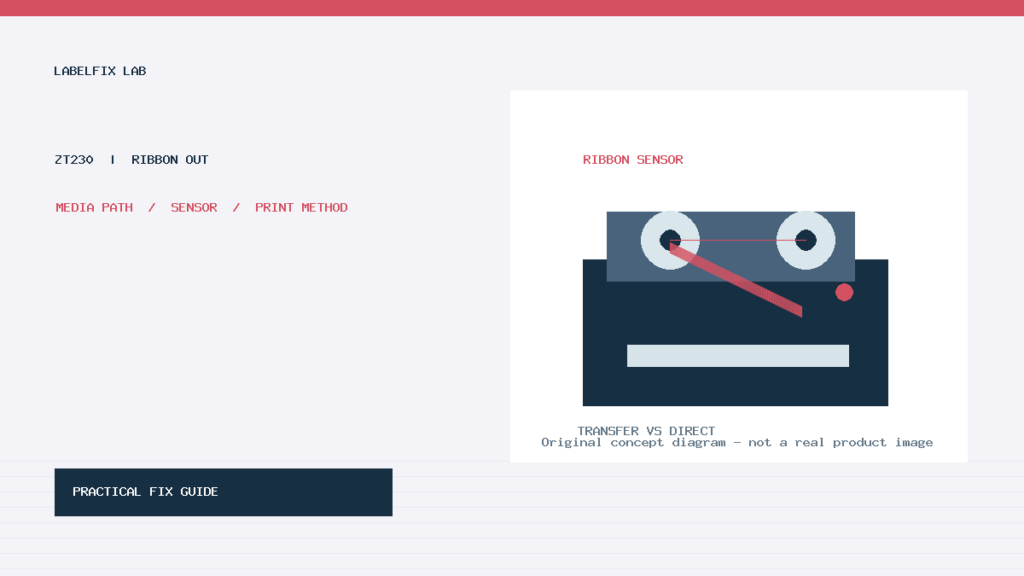
Ribbon Out is a supply/sensing condition, not a generic report that a Windows print job failed. Zebra’s ZT200 Ribbon Out support article identifies a steady red status indicator together with a flashing red supplies indicator in its diagnostic description, and lists incorrect ribbon loading, ribbon-sensor detection and media obstructing the sensor among possible causes in thermal transfer mode.
Zebra also distinguishes a printing setup that is intentionally direct thermal from one configured for ribbon-based transfer. Confirm which print method the label material actually needs before attempting a sensor repair. For basics, see our direct thermal versus thermal transfer guide and general ribbon-out checks.
Start with the exact alert and state
| Observation | Potential explanation | First useful action |
|---|---|---|
| Ribbon Out on a transfer job, ribbon roll installed | Incorrect ribbon path, sensor obstruction or sensor sensitivity | Follow ZT230 ribbon path, then calibrate |
| Ribbon Out even though job uses no ribbon | Printer or driver still requests thermal transfer | Confirm direct-thermal media and print-method settings |
| Ribbon Out after replacing media stock | Changed supply path or calibration | Recheck media loading and sensor calibration |
| Ribbon tears, wrinkles or sticks to head | Wrong coating orientation, tension, heat or ribbon-media match | Inspect supplies and follow vendor loading guidance |
| Only one workstation gets an error | Job-level print-method command or driver settings | Compare printer settings with that application’s job |
| Labels skip while ribbon alert is absent | Media sensing or label-gap problem | Use the separate ZT230 calibration diagnostic |
1. Confirm the correct print method before opening the printer
Do not apply the ZT230 roll-ribbon procedure to every Zebra. The ZD421 Ribbon In alert on cartridge models is a distinct Direct Thermal versus Thermal Transfer mismatch described in Zebra’s desktop-printer documentation.
Direct thermal media darkens from printhead heat without an ink ribbon. Thermal transfer uses a coated ribbon to transfer the image onto compatible stock. The ZT230 print configuration has to match the installed media and the job’s required process. A thermal-transfer job with the printer configured to detect ribbon must follow a correct ribbon path.
If the intended media is direct thermal and no ribbon should be present, verify the print-method setting in the printer and in the driver or sending application. Zebra’s official support materials describe direct-thermal configuration as one path out of an apparent ribbon error in suitable setups. Do not change to direct thermal when using a transfer label that needs a ribbon; you may get blank or unusable labels even if the immediate warning disappears.
2. Inspect ribbon loading using the ZT230 diagram
Open the printer only through the manufacturer’s safe procedure. Compare the entire ribbon path to the diagram inside the supplies compartment or the official ZT230 loading guidance. Check that the ribbon is not passing on the wrong side of a guide or reflector, and that the take-up path is correctly threaded.
Zebra’s ZT200 ribbon-loading article emphasizes the sensor’s optical path and the relevant reflector plate. A roll that physically fits may still bypass the expected detection location if routed incorrectly. Record the observed path before changing it so the issue can be reproduced and safely reversed.
3. Check media routing that interferes with the ribbon sensor
Ribbon and labels travel through different parts of the mechanism. A label strip routed over the wrong guide can interfere with the sensing geometry even when a ribbon is installed. Look for folded backing material, labels peeling from the liner, or tape and scraps near the documented sensor and reflector area.
Do not poke or bend sensor components. Use cleaning and service directions for the ZT230; a damaged sensor window is more serious than an ordinary roll reload. If the alert started right after changing stock or opening the printhead, a careful visual comparison against the correct load diagram is often a productive first step.
4. Verify ribbon coating and compatibility
A thermal-transfer ribbon is coated on a particular side. Incorrect coating orientation, a ribbon incompatible with the label stock or excessively high heat can lead to sticking, tearing or wrinkles. Zebra’s ZT230 support information describes an outside-coated ribbon for this printer family and refers operators to appropriate coating tests.
Use the approved ribbon specifications for the exact model and print media. The ribbon is generally selected to cover the label width adequately, but do not choose a width by guesswork when production labels have different dimensions. If a new ribbon batch introduced the problem, compare its part number, width, winding and coating side with the previously known-good supply. Our ribbon wrinkle guide distinguishes diagonal print gaps from true sensing faults.
5. Compare the printer’s own settings with the driver
A ZT230 may receive settings from its control panel, Windows driver, printer-management software or the label job itself. A job that requests the wrong print method can appear to create a spontaneous supply error. Record the current printer-reported method and compare it to the application’s media configuration.
For a controlled test, use a permitted configuration/diagnostic label or a harmless sample job described in the user guide. If one workstation fails but another prints through the same loaded printer and media, inspect job-specific settings and driver differences before replacing sensors. See driver vs PDF viewer vs label editor for why these layers differ.
6. Calibrate the ribbon and media sensors in the supported way
The industrial ZT411 has its own documented ribbon-detection workflow. For a ZT411 showing Ribbon Out with supplies loaded, see the ZT411 Ribbon Out troubleshooting guide; do not substitute ZT230 button instructions or assumptions.
If correct loading and print-method settings do not resolve the alert, follow Zebra’s ZT200 sensor-calibration guide. Calibration teaches the device the optical characteristics of the currently loaded ribbon and media. It is particularly relevant after supply changes or when the printer does not detect a ribbon that is present.
Use the documented sequence for the ZT230 rather than a button sequence copied from an unrelated model. The manual calibration procedure specifies how to handle media and ribbon at different stages. Some procedures require temporary repositioning of supplies; skipping a step can produce a worse calibration. Have spare blank stock available and do not run production labels as the test.
7. Distinguish ribbon calibration from gap-sensor calibration
The ZT230 can also skip labels when its gap, notch or black-mark media sensing is incorrect. That symptom may coincide with a ribbon issue after a roll change, but it is not the same error. Verify whether the screen actually reports ribbon out, media out, or uncontrolled label feeding.
Recalibrate only for the relevant condition after confirming the selected media type and dimensions. Our ZT230 skipping-labels guide covers the gap and feed side; continuous-feeding diagnosis covers the more general media-sensor patterns. Avoid adjusting print offsets to hide a sensing error.
8. Examine ribbon wrinkles, breakage and heat carefully
A wrinkled ribbon can leave diagonal white voids in printed labels. A torn ribbon may create a true missing-ribbon condition; excess heat can contribute to carrier sticking. Inspect a few recent labels and compare the print pattern before increasing darkness or tension. Use the vendor’s approved adjustments for the current head and media combination.
Lowering darkness may help a ribbon that sticks due to excess heat, but it may also make printed text too light if performed without testing. Check a sample barcode with a suitable scanner and confirm readability before returning to production. For detailed contrast problems see thermal printer printing too dark and blurred barcode troubleshooting.
9. When the error follows a new ribbon lot
Compare the new supply against a known-good one: core, width, coating side, material grade and path. The installed labels may also have changed, affecting both ribbon transfer and the optical sensor environment. Do not assume a sensor failure based on timing alone; material differences are easier to test first.
If the issue appears on every new ribbon but disappears with a previously approved batch, document the evidence and contact the supply vendor with exact part numbers. If every ribbon fails only in one ZT230, sensor service becomes more plausible after correct loading and calibration. Production teams should avoid substituting incompatible materials solely to suppress an alarm.
10. Avoid risky “fixes” that only mask the alarm
- Do not permanently set direct thermal for a job that needs transfer ribbon.
- Do not defeat or obscure the ribbon sensor or reflector.
- Do not use another printer model’s calibration commands without verification.
- Do not repeatedly open a hot printhead or pull jammed ribbon through a closed mechanism.
- Do not replace multiple components before testing a known-good media/ribbon pair.
If the printer still reports Ribbon Out after the documented setup, supported calibration and material checks, consult authorized Zebra service. Industrial printers can have worn sensors, contamination or damaged mechanisms that require inspection rather than software changes.
11. ZT230 ribbon-out workflow for technicians
- Record the exact display message, LEDs, printer firmware, job source and current print method.
- Confirm the intended media is direct thermal or thermal transfer.
- For transfer jobs, compare the installed ribbon path and coating orientation with Zebra’s diagram.
- Inspect media and ribbon guide positions for obstruction, folds or debris.
- Test the approved ribbon/media combination and a harmless diagnostic label.
- Run the ZT230-specific ribbon/media calibration if needed.
- Compare driver and application settings with printer settings, changing one variable at a time.
- Escalate persistent failures with logs and part numbers to the manufacturer or service team.
FAQ
Why does the ZT230 say Ribbon Out when a full ribbon is installed?
The optical sensor may not see the expected ribbon path. Incorrect loading, media obstructing the sensor, calibration or a print-method mismatch are documented possibilities.
Can I switch from thermal transfer to direct thermal to clear the message?
Only if the label stock and application are genuinely intended for direct-thermal printing. Otherwise this hides the root problem and can produce blank or unsuitable labels.
Does a red status light prove a bad ribbon sensor?
No. Read the full alert and indicator combination. Many loading and setup conditions are more common to verify before diagnosing hardware failure.
Will changing print darkness fix Ribbon Out?
Not by itself. Darkness can affect ribbon sticking or print quality, but a true sensor or loading alert needs the correct path, print method and calibration.
Bottom line
For a Zebra ZT230 Ribbon Out error with ribbon loaded, work from the print method to the physical ribbon path and sensor calibration. Keep ribbon and media changes documented, verify the software’s job settings, and avoid disabling safety or sensing mechanisms. That order separates simple setup mistakes from real service problems.
Independent general troubleshooting information for shipping labels and thermal printers. Model-specific button sequences, cleaning supplies and service instructions can differ; consult your manufacturer's official documentation. Never alter a carrier-generated barcode.