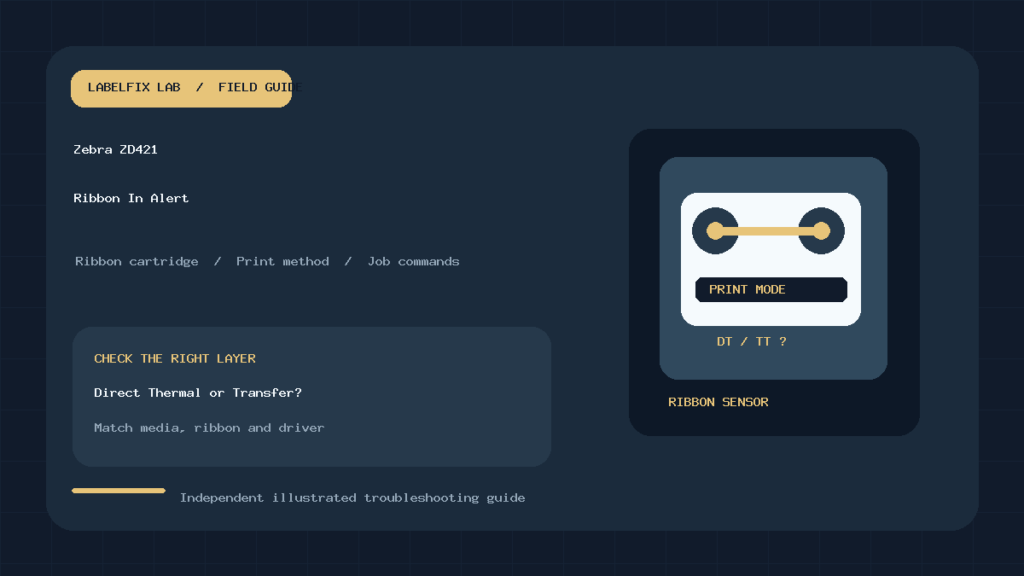
Quick answer: A Zebra ZD421 “Ribbon In” alert on the ribbon-cartridge version commonly means the printer has a ribbon cartridge installed while the print job or device is set for Direct Thermal operation. A direct-thermal job does not need a ribbon; a thermal-transfer job uses one. Confirm the exact ZD421 variant, label stock and active print method before removing supplies or changing commands.
Important model distinction: Zebra’s specific Ribbon In alert page applies to the ZD421 Ribbon Cartridge Printer Only. ZD421 direct-thermal, ribbon-roll and cartridge versions differ physically. A “Ribbon Out” alert, a media-out light or a printhead-open error needs a different branch of troubleshooting. This guide does not treat them as the same fault.
What the alert means
| Printer setup | Ribbon/cartridge | Expected print method | What to investigate |
|---|---|---|---|
| Direct-thermal-capable configuration with direct-thermal media | Not needed | Direct Thermal | Why is a ribbon installed, if applicable? |
| Ribbon-cartridge printer using thermal-transfer media | Loaded and recognized | Thermal Transfer | Why was the job or printer set to Direct Thermal? |
| Thermal-transfer configuration displaying Ribbon Out | Absent, exhausted or not detected | Thermal Transfer | Ribbon loading, sensor or cartridge recognition |
| Correct method but blank labels | Depends on stock | Matches the media | Ribbon orientation, coating, imaging and data path |
1. Identify the exact ZD421 hardware variant
Open the manufacturer’s documentation for the specific printer label and serial/model configuration. The ZD421 family has multiple print-engine and ribbon options; do not assume a cartridge-loading video applies to a dual-capacity ribbon-roll printer. Zebra’s Ribbon In alert explanation explicitly scopes the error to the cartridge model.
The model determines which parts, sensors and consumables exist. Never force a cartridge into a roll-ribbon chassis or install a roll spindle using directions for the cartridge edition. For broader setup, driver, gap and stock issues, start with our ZD421 model troubleshooting guide.
2. Match the physical label stock to the method
Direct-thermal labels contain a heat-sensitive coating that darkens under the printer’s printhead; they generally do not require a transfer ribbon. Thermal-transfer labels use a ribbon coating transferred to the label surface. Some label material is marketed for both workflows, but verify its actual specifications rather than relying on color or package artwork.
If you load appropriate direct-thermal media into a supported direct-thermal workflow, a transfer ribbon may be unnecessary. Conversely, thermal-transfer stock will not necessarily produce a useful image when a job incorrectly requests direct-thermal printing. Our Direct Thermal vs Thermal Transfer explainer describes how the two systems differ. Keep fingers and tools away from an operating printhead.
3. Check the device’s Print Method or Print Type
On configurations with a screen or managed setup interface, inspect the current print method. Zebra documents changing the device to THERMAL TRANS for a genuine ribbon-based job, through the appropriate interface, such as the color display or the network print-server page where supported. On other configurations, use Zebra’s model-supported utilities and instructions. The goal is alignment among the physical stock, installed ribbon and chosen print method.
Do not switch blindly to Thermal Transfer merely to silence an alert if you are using direct-thermal stock without needing ribbon. Likewise, do not remove a required ribbon and leave the device configured for transfer. The print method can be influenced by the printer’s persistent state and the job sent by software, so a setting that appears to revert may be overwritten by a template or app.
4. Inspect the print job and ZPL command
Zebra identifies an important software cause: a ZPL label format may request Direct Thermal with ^MTD when the intended transfer job should use ^MTT. The exact command values matter; they should be reviewed by the person maintaining the approved label format. For reference, ^MT selects the print method in ZPL. If software resends ^MTD on each job, changing only the front-panel setting may not persist.
Check the authorized template, middleware, ERP/WMS print service, printer driver and application stock settings. Compare one known-good ZPL job with the failing job without sending unsafe raw commands to a production printer. A shipping PDF sent through an ordinary graphics driver is a different workflow from raw ZPL, so determine which path the application actually uses before editing a format.
5. If the cartridge is installed but the message says Ribbon Out
Ribbon Out is not Ribbon In. On cartridge models, Zebra documents that Ribbon Out can occur when transfer mode requires a cartridge that is absent or not properly recognized. There are also separate manufacturer instructions for erroneous cartridge faults, including a potential cartridge authentication condition even when a genuine cartridge is installed. Stop and confirm the precise alert text and lights before touching sensors.
Use Zebra’s cartridge seating and approved media-path inspection instructions. Cleaning or examining cartridge contact pins may be appropriate only under the manufacturer’s safe maintenance procedure. Do not bridge contacts, bypass recognition, scrape sensors or disable alerts. For ribbon-roll and other transfer printers, our general ribbon-out diagnosis describes broader causes but is not a substitute for the ZD421 cartridge guide.
6. Why the label might still come out blank
Clearing an alert is not a print-quality test. If the printer accepts a label but prints white stock, verify the correct supply combination, printing surface, thermal coating, ribbon orientation, printhead condition and received data. Use an approved configuration or print-quality test. A format that contains no objects, is positioned outside the printable area, or uses incompatible commands may output a blank label even though the ribbon and sensor are now healthy.
Keep diagnostics controlled: do not repeatedly raise darkness, load random stock or reset all printer settings. Make one change at a time, record the exact error and compare whether the printer can print a built-in test and a known-good user label. This makes it easier to distinguish imaging failure from print-method mismatch.
7. Distinguish Ribbon In from other ZD421 light patterns
Zebra’s indicator documentation associates blinking amber with the Ribbon In condition on the cartridge model. Other combinations can indicate media problems, printhead cover state, cutter errors or authentication. The same single color seen without its full light pattern or text is not enough for diagnosis. Refer to the model-specific control-panel guide rather than guessing the meaning of an LED.
For example, a red media indication after a new label roll could call for a stock and gap-sensor check, not a ribbon-mode edit. A printhead-open status means the lid or latch must be inspected according to Zebra’s instructions. These are distinct mechanical states.
8. Worked example: ribbon loaded, transfer stock, alert appears
A warehouse uses a ZD421 ribbon-cartridge printer with approved thermal-transfer labels. A new template is sent, and the printer displays Ribbon In. A useful investigation records the media and installed cartridge, checks whether the device is in Direct Thermal mode, and asks whether the updated template sends ^MTD. If the new job is actually a transfer format, its application settings and commands should request Thermal Transfer. Verify with an approved test after making the documented change.
Contrast that with a shop that deliberately switched to direct-thermal labels and no longer needs transfer coating. Its resolution may involve a different supply configuration. The correct answer is not simply “always remove the ribbon” or “always change a command”: it depends on which media and workflow are intended.
9. When to escalate
If the Ribbon In alert persists after confirming the specific printer variant, correct media, approved cartridge and active print method, collect a configuration report, relevant label format and exact alert state. Ask your Zebra support channel or qualified technician to review them. Persistent recognition or authentication errors should not be circumvented. A photo of the light pattern and the media identifiers can prevent a support case from being treated as a generic driver problem.
Frequently asked questions
Does Ribbon In mean the cartridge is empty?
No. On the supported ZD421 cartridge model it indicates a ribbon is present while Direct Thermal is selected. A missing or unrecognized cartridge is a different alert branch.
Why does the alert return after a reboot?
The application or ZPL format may reset the print method when a job starts. Compare the live job with the printer’s intended configuration.
Can I change the ZPL method from Direct Thermal to transfer?
Only when thermal-transfer media and ribbon are actually in use and the application owner controls the authorized label format. Zebra documents ^MTD and ^MTT as relevant settings.
Will recalibrating the gap sensor fix Ribbon In?
Not usually. Media calibration is intended for detecting label boundaries; it does not correct a mismatch between transfer media, ribbon presence and print method.
Official Zebra references
- Zebra: Ribbon In – ZD421 Ribbon Cartridge Printer Only
- Zebra: Ribbon Out alert
- Zebra: erroneous ribbon-cartridge faults
Editorial scope: Guidance is a source-based troubleshooting workflow, not a hands-on repair certification. Follow the instructions for your precise hardware revision, firmware and approved consumables.
Independent general troubleshooting information for shipping labels and thermal printers. Model-specific button sequences, cleaning supplies and service instructions can differ; consult your manufacturer's official documentation. Never alter a carrier-generated barcode.