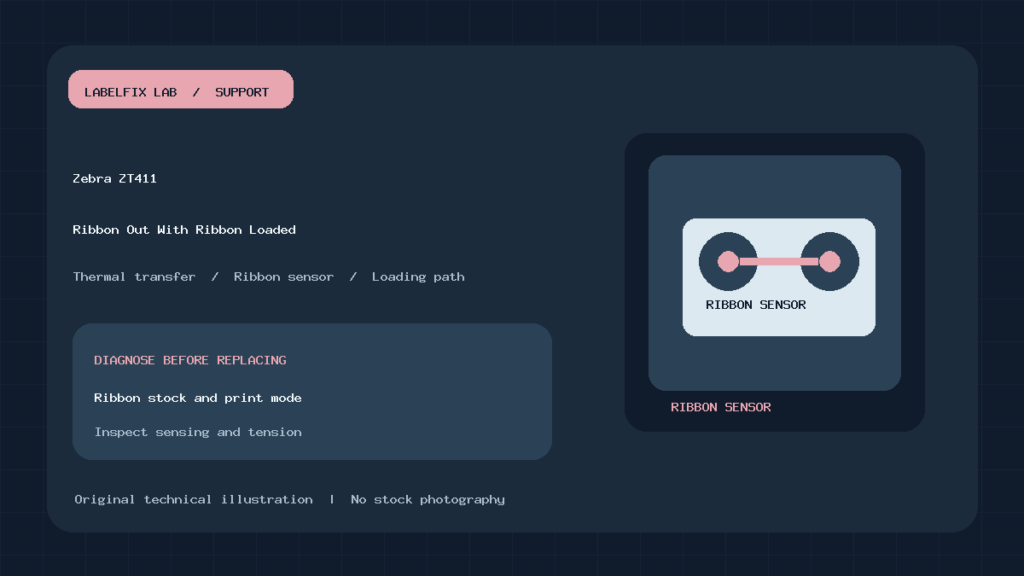
Quick answer: If a Zebra ZT411 reports “Ribbon Out” while ribbon is visibly loaded, confirm whether the printer is supposed to use Thermal Transfer media, then inspect ribbon routing, ribbon movement, the selected print method and the ribbon sensor. The ZT411 can display ribbon-related errors for different reasons; merely seeing a full roll is not proof that the printer is detecting and using it correctly.
Zebra provides a specific ZT411/ZT421 Ribbon Out support article and a ribbon troubleshooting section. This guide follows their diagnostic categories without inventing button shortcuts, assuming one firmware version or instructing unqualified users to bypass sensors.
Find the correct branch before opening the printer
| What you see | Likely cause layer | First safe check |
|---|---|---|
| Ribbon Out and no ribbon is loaded | Thermal Transfer selected with missing supply | Confirm intended stock and method |
| Ribbon Out with a loaded full ribbon | Ribbon path, rotation, sensor or threshold | Inspect loading diagram and sensor profile |
| Ribbon Out with direct-thermal labels | Incorrect Thermal Transfer mode | Compare media and configured print method |
| Ribbon In with a roll present | Direct Thermal selected while ribbon is installed | Check whether ribbon is actually needed |
| Normal feed, but blank image | Print data, coating side, head or ribbon transfer | Run a supported self-test with correct media |
| Ribbon wrinkles or tears under load | Routing, tension, heat or mechanical resistance | Stop job and compare loading and material |
1. Confirm the real print method and media
The first question is whether the installed labels use Direct Thermal or Thermal Transfer. Thermal-transfer labels generally require a compatible ribbon; direct-thermal stock is heat-sensitive and typically prints without ribbon. If the ZT411 is configured for Thermal Transfer while loaded with direct-thermal labels and no ribbon, Zebra warns that the machine can wait for a ribbon that is not actually required.
Check the current print-method setting through the documented printer interface or approved management software. Compare it to the actual material and your authorized label template. Don’t select the other method simply to clear a warning if it contradicts the media. For the basics, see our Direct Thermal versus Thermal Transfer guide.
2. Check the exact alert: Ribbon Out versus Ribbon In
The error words matter. Zebra’s industrial-printer status documentation distinguishes a missing/not-detected ribbon from a ribbon installed while Direct Thermal mode is selected. These states require different responses. Record the text and indicator pattern before restarting, because clearing it temporarily can hide what caused the job to stop.
If the screen indicates a different problem—such as Media Out, Head Open or Cutter Error—use that diagnostic category. A single red or yellow light without the full panel context is not a sufficient diagnosis. This is particularly important when one production line uses multiple ZT400-series configurations.
3. Inspect loading and take-up routing
On a ribbon-roll ZT411, both the supply and take-up path matter. Follow Zebra’s ZT411 ribbon-loading guide for the exact media-handling arrangement. Confirm the ribbon is seated, threaded in the approved direction and can advance as designed. Do not pull the ribbon across a hot printhead or reach into moving spindles during operation.
An improperly routed ribbon can be physically present but not move past the sensor or printhead correctly. A roll that is too loose, poorly mounted or incompatible with the take-up arrangement may generate inconsistent sensing and poor transfer. Record the type and dimensions of the installed ribbon, particularly if the fault began after a supply change.
4. Use the sensor profile, not guesswork
Zebra describes a ribbon sensor threshold in its sensor-profile diagnostics. The ZT411 sensor-profile guide explains that if the observed ribbon readings fall below the threshold, the printer may fail to acknowledge the loaded ribbon.
That does not mean users should adjust an arbitrary threshold number by trial and error. Record the sensor profile and compare it with Zebra’s reference for the media and firmware. Contamination, an obstructed path, incompatible material or a configuration change may require different actions. Use manufacturer-approved cleaning and setup instructions, and consult a qualified technician if sensor values remain abnormal.
5. When is calibration appropriate?
Calibration may be relevant when the printer’s sensor response no longer matches a correct ribbon or media configuration. However, a routine that learns label gaps is not necessarily the same as ribbon sensing, and neither corrects a wrongly selected print method. Follow the ZT411 firmware-specific procedure from Zebra’s user guide after recording the original settings.
If a printer started skipping labels following a roll change, our ZT411 label-sensor calibration guide treats that boundary-detection problem. For a Ribbon Out alert, evaluate the ribbon sensor and method as their own path rather than repeating media calibration indefinitely.
6. Compare the printer configuration and print job
Some warehouse management systems, driver presets or raw command formats can alter printing mode or other device settings when a job starts. A ZT411 that appears correct while idle but immediately returns to the wrong mode after a new print may be receiving conflicting instructions. Compare one known-good job with the failing format through your approved print administration tools.
Determine whether the application sends raw ZPL or a driver-rendered image. Do not feed undocumented test commands into a production queue. Document which application and workstation sent the job, the date of any template change and the corresponding printer configuration report. A machine-wide reset might disrupt functioning templates and host connections.
7. Ribbon loaded but paper is blank
Once the warning is cleared, verify the printed result instead of declaring the issue solved. In a transfer workflow, check the ribbon coating orientation, compatible labels, correct thermal-transfer print method, acceptable darkness and a known-good test image. A blank shipping label can also arise from an empty or incompatible print format even when the mechanical transfer path is normal.
Excessive heat or darkness can cause ribbon damage; blindly increasing darkness to force a visible image may make the situation worse. Follow an approved test and compare the physical stock, ribbon and output. Our general Ribbon Out diagnosis includes cross-model considerations, but this ZT411 article concentrates on its documented industrial workflow.
8. If the problem began with a new ribbon shipment
Compare the previous and new supplies without mixing many variables. Note core dimensions, coating-side specification, roll width, winding direction, ribbon material and manufacturer-recommended compatibility. A batch of supplies may look interchangeable while differing in dimensions or reflectivity relevant to sensing. Contact the material supplier with the exact printer/ribbon combination rather than inventing an adjustment to suppress the error.
In a managed operation, keep one approved known-good roll as a control if permitted. If the fault follows a specific new roll while an approved original works under the same settings, you’ve narrowed the cause toward supply compatibility or loading. If both fail after a firmware or template change, investigate software and configuration as well.
9. Worked example: full ribbon, error after media switch
A packaging line used thermal-transfer labels yesterday, but today it carries a roll of direct-thermal labels. The operator leaves the ribbon installed and the previous Thermal Transfer setting intact, then the machine reports Ribbon Out after the ribbon is removed during testing. The correct response begins by documenting which media is now intended, aligning the printer method with that approved workflow, and then verifying a safe sample print. Repeated ribbon-sensor cleaning will not fix an intentional no-ribbon Direct Thermal process configured as transfer.
Now consider the reverse case: transfer media and a correctly installed ribbon, but Ribbon Out persists. That calls for examining the actual ribbon path, detection signal, sensor profile and approved calibration. The warning text alone is not enough to choose between those cases.
10. Escalate persistent sensor or hardware faults
Collect a configuration report, sensor profile, alert-state photo, ribbon and label identifiers, plus the result of one approved printer test. If sensor readings or ribbon motion remain inconsistent with Zebra’s instructions, obtain qualified support. Do not bypass a sensor or force the device to keep printing with unrecognized supplies; it may waste labels, damage equipment or produce unreadable barcodes.
Frequently asked questions
Why does the Zebra ZT411 say Ribbon Out when a full roll is installed?
The sensor may not recognize the ribbon because of loading, movement, configuration or threshold issues. Verify the correct print method and use Zebra’s loading and sensor-profile guidance.
Can the ZT411 print without a ribbon?
In an appropriate Direct Thermal configuration with compatible direct-thermal media, yes. Thermal Transfer printing requires a compatible ribbon.
Should I reset the printer to clear Ribbon Out?
Not as a first step. Record the configuration and isolate media, method and sensor issues; a broad reset can remove valid production settings.
Is Ribbon Out the same as Media Out?
No. Ribbon detection and label-boundary/media sensing are separate subsystems, though changes in stock and setup can affect both.
Official Zebra references
- Zebra: ZT411/ZT421 Ribbon Out error guidance
- Zebra ZT411/ZT421: Ribbon Issues
- Zebra: sensor-profile interpretation
- Zebra: loading the ribbon
Editorial scope: This diagnostic article summarizes Zebra documentation. It does not claim a particular ZT411 was physically tested; follow the procedure for the installed hardware, firmware and approved materials.
Independent general troubleshooting information for shipping labels and thermal printers. Model-specific button sequences, cleaning supplies and service instructions can differ; consult your manufacturer's official documentation. Never alter a carrier-generated barcode.