Quick answer: If a barcode scanner beeps but types the wrong letters, punctuation or numbers into Excel, a point-of-sale system or a web form, first check whether it is configured as a USB or Bluetooth HID keyboard and whether the scanner’s keyboard-country setting agrees with the active keyboard layout on the host device. A scanner may decode the printed barcode correctly but send keystrokes that Windows, macOS or the receiving app interprets under a different language layout. In other situations the scanner sends correct text but Excel converts identifiers into numbers or scientific notation. Those are different problems and need different fixes.
This independent troubleshooting guide is for authorized scanners and non-sensitive test labels. Scanner model menus, country settings, suffix configuration, firmware and connection modes vary; use the manufacturer manual for your exact model before scanning programming barcodes. Avoid testing with real payment cards, private identity documents or live customer labels.
How wrong-character scans usually appear
| What you see | Potential cause | First useful comparison |
|---|---|---|
| A becomes Q or W becomes Z | US QWERTY versus French AZERTY keyboard mapping | Compare active host layout and scanner country setting |
| Latin letters appear as Arabic or another script | Host input language or IME is active | Switch to a supported Latin layout for a safe test |
| Hyphens or slashes become other punctuation | Keyboard locale, modifier handling or scanner mapping | Use a synthetic punctuation sample in plain text |
| Letters are correct in Notepad but wrong in Excel | Excel formatting or cell behavior | Compare raw text before and after entry |
| Leading zeros disappear | Excel interprets identifiers as numbers | Format destination as Text before scanning |
| Each scan creates a new row or moves across cells | Scanner Enter/Tab suffix or app handling | Inspect suffix setting and target workflow |
| Two characters appear for one expected character | Prefix/suffix rules, duplicate app event or scanner configuration | Test in a blank plain-text field |
| Text differs only through Bluetooth | Connection profile, keyboard mode or paired-device layout | Compare supported connection methods using same sample |
1. Understand HID keyboard emulation
Many barcode scanners behave like keyboards. They read a printed symbol, decode its content and send a sequence of HID keyboard events to the computer or phone. This is convenient because a spreadsheet or browser can accept scan data without specialized barcode software. But a keyboard event is not necessarily the same thing as a fixed Unicode character across every keyboard layout.
For example, the same key position may be interpreted differently under QWERTY and AZERTY. A scanner configured for one keyboard country can therefore appear to “read” a valid barcode incorrectly on a host expecting another layout. The barcode image itself may be completely correct. Our USB barcode scanner setup for Windows and Excel gives the broader connection workflow.
2. Start with a safe synthetic test barcode
Use a valid test label containing only harmless known text such as ABC123-QWZ. The exact symbology and encoding must be supported by your scanner and created through a trustworthy generator, not an arbitrary image. Keep the expected text visible beside the test label so you can compare it character by character.
Click into a plain-text program such as Notepad on Windows, or an equivalent neutral text field on your host. Scan once and record the exact output. Do not start with an Excel cell that may automatically change numeric values, or a point-of-sale search field that may substitute a product name for a code.
3. Compare the active Windows keyboard layout
On Windows, check the keyboard/input-language indicator and which layout is active when the scanner sends its characters. Depending on your settings, Windows key + Space can cycle through installed input languages. Use only a layout already approved for the workstation; changing keyboard language can also affect human typing and other business apps.
After selecting a compatible layout for the scanner, repeat the exact same safe barcode in the same plain-text field. If the substitution disappears, the evidence strongly supports a keyboard interpretation mismatch. Don’t assume this proves every problem is fixed; punctuation, modifiers and scanner suffixes may still need testing.
4. The scanner may have its own keyboard-country configuration
Some scanners provide configuration barcodes or a vendor utility for choosing a keyboard country or regional mapping. A scanner set for US English may not deliver the intended symbols under a host using another layout, and vice versa. The exact naming and programming method vary by device family.
Read the genuine user manual for your scanner before changing a country setting, and record the current value. Don’t scan setup codes from a different brand or model: unrelated configuration barcodes can change suffixes, scan modes, beeper settings or connection type. For model-specific connections, see Zebra DS2208 setup and Tera connection troubleshooting.
5. Why QWERTY and AZERTY can swap characters
Under a typical US QWERTY layout and a French AZERTY layout, certain letters occupy different key positions. A scanner’s chosen keyboard-emulation mapping and the host’s active layout can interact so the intended characters appear substituted—often noticeable with A/Q and W/Z. Numbers and punctuation can also behave differently due to modifier requirements on some layouts.
Don’t assume the exact same mapping error occurs on every operating system or with every scanner model; some devices send characters through other interfaces that bypass keyboard-position translation. Capture the actual output and compare with the scanner’s documented configuration rather than applying a universal “set English” rule without testing.
6. Arabic, French, German and other input languages
A workstation used for multilingual entry may switch between Arabic and English, or between several European layouts during the day. If an HID scanner sends key events while an unintended input language is active, the text may be transformed or displayed using the wrong script. This is especially noticeable when an inventory SKU contains Latin letters, dashes or slashes.
For a simple diagnostic, confirm the application’s input focus, select the intended supported layout and scan synthetic text. If the host uses an input method editor (IME), investigate how that app processes keystrokes rather than guessing the printer or barcode label is damaged. Some receiving programs normalize characters on purpose; that also deserves separate testing.
7. Test punctuation and modifier keys separately
Even after letters match, characters such as -, /, _ and : may differ across keyboard layouts. For a warehouse SKU, losing one hyphen can create an entirely different lookup key. Test a harmless code using known punctuation supported by the scanner and its symbology.
Record the expected and observed characters in two columns. If all letters are correct but punctuation fails, check supported country or special-character handling settings; do not change barcode symbology simply to mask a host-layout mismatch. If the wrong character appears only in one target application, inspect that application’s own validation or replacement rules.
8. Separate raw scanner output from Excel conversion
Excel commonly interprets long digit sequences as numbers, changes them to scientific notation, removes leading zeros or limits numeric precision. That can happen even if the scanner sends every correct character. For example, the raw code 001234567890 may become a numeric value missing its first two zeros if entered into a General-formatted cell.
Check a plain-text field first. Then set the destination Excel cells or import workflow to Text before scanning, so identifiers remain identifiers rather than arithmetic values. For more detail see barcode scanner Excel leading zeros and scientific notation.
9. Excel auto-formatting is not repaired by scanner-country settings
Suppose the scanner sends 000123 correctly into Notepad but Excel displays 123. That points to Excel’s cell interpretation, not necessarily the scanner’s country configuration. Switching from Arabic to English keyboard input won’t restore zeros that were discarded after the cell was treated as a number.
Set the target range to Text before input and repeat with fresh synthetic data. Once a long number has already lost precision through numeric conversion, changing display formatting does not guarantee that the original digits can be recovered. Re-import from the authorized original barcode or source record.
10. Enter and Tab suffixes can look like typing errors
Many scanners can append an Enter, Tab or other suffix after decoding. In Excel, Enter may move down a row and Tab may move to the next column. A user may interpret that as a character appearing in the wrong cell or a second scan, even though the actual identifier was transmitted correctly.
Check whether a suffix is intended for the receiving workflow. For a browser POS app, Enter may submit a search immediately; for a simple text form it may be unwanted. Adjust only through official scanner configuration. Our extra characters after scanning and scanner enters a barcode twice cover these separate cases.
11. Why a prefix can break a product lookup
Some warehouse apps require a leading prefix to identify the scanner or symbology. Others expect the raw SKU with no added prefix. If a barcode visibly encodes one value but the input field receives extra characters, the lookup may fail or return an unexpected record. Capture the actual text and any invisible control characters before blaming an incorrect product sticker.
Do not blindly strip all leading characters; standardized barcode systems such as GS1 may require meaningful metadata or separators. Check the application’s documented input contract and the scanner settings. See barcode scanner returns the wrong SKU.
12. A Bluetooth scanner may use more than one input profile
Some wireless scanners support distinct modes such as HID keyboard emulation and other supported serial or app-based connections. The actual setting affects how the host receives characters. A keyboard-country mismatch usually makes sense within an HID-like mode, while a direct serial data stream may need a different application-side diagnostic.
Record whether the device is paired by Bluetooth, connected through a USB receiver or used through a vendor application. A scanner that works properly with a wired computer but delivers wrong punctuation on a tablet could have a different host layout or input profile. Our NETUM Bluetooth pairing guide discusses connection setup, not keyboard translation.
13. Check keyboard Caps Lock and case conversion
Some scanner and host combinations interact with Caps Lock, keyboard modifiers or software case-normalization rules. If the intended code uses uppercase letters but a receiving field contains lowercase text, distinguish true input substitution from the app simply changing the display case. Case sensitivity depends on the downstream system; many identifiers should not be silently altered without checking their specification.
Test a harmless code containing both uppercase and lowercase characters where the symbology and scanner support them. Compare a neutral text field, Excel and the target app. Do not assume every barcode type permits every character or that a product key is case-insensitive.
14. Barcode symbology still matters for character content
A scanner may support multiple formats such as Code 128, EAN/UPC and Data Matrix. Their encoding rules and expected data types differ. If the symbology does not permit the exact characters you expect, the problem may be the label-generation workflow rather than keyboard layout.
Start with a verified test symbol appropriate for the required data. Code 128 can represent a broader alphanumeric character set than a retail EAN/UPC numeric code. Don’t force a GTIN into a different symbology merely to get a punctuation character. Our Code 128 not scanning and 1D versus 2D barcodes give the broader context.
15. Capture a before-and-after mapping table
For a repeatable investigation, create a small test table with expected characters and observed output. Keep the same scanner, synthetic symbol and destination while changing only the approved keyboard layout. This exposes systematic substitutions rather than a one-off typo.
| Test input | Observed | Interpretation |
|---|---|---|
ABC123 |
QBC123 |
Possible layout mapping difference involving A/Q |
SKU-001 |
SKU-001 in text, SKU-001 in Excel |
Basic alphanumeric path appears correct |
001234 |
001234 in text, 1234 in Excel |
Likely numeric conversion in Excel |
LOT/2026 |
Wrong separator symbol | Check punctuation mapping and modifier behavior |
These rows are hypothetical diagnostic examples, not evidence of any specific scanner model having a defect. Interpret actual output with your device documentation.
16. Example: English SKU turns into Arabic characters
A warehouse PC allows both Arabic and English input. An HID scanner sends a short Latin SKU while the host’s active input method is configured for Arabic. The result differs from the visible barcode. The operator confirms the host layout with a harmless test, changes to the intended approved input language and repeats without modifying the product label.
17. Example: only Excel drops the first zeros
A barcode containing a synthetic 12-digit identifier scans perfectly in Notepad, but a General-formatted Excel cell loses zeros. The operator sets a fresh destination range to Text and rescans the legitimate source. The fix is cell interpretation, not firmware replacement or scanner reset.
18. Example: AZERTY workstation substitutes letters
A scanner’s country mapping and the host’s active French keyboard layout do not agree. The operator observes systematic A/Q or W/Z differences in a neutral text field. After applying the manufacturer’s supported keyboard-country choice or a consistent host layout, the same safe barcode produces the intended characters.
19. Example: barcode causes immediate form submission
A web POS form receives the correct code but submits the search before the operator can inspect it. The scanner has an Enter suffix configured for another application. The operator checks the supported suffix setting and the POS workflow rather than altering the product barcode itself.
Scanner wrong-letter troubleshooting checklist
- Identify scanner model and connection mode: HID keyboard, supported serial or app integration.
- Use a harmless known-code test and capture output in a neutral text field.
- Compare active host keyboard layout and documented scanner-country mapping.
- Test letters and punctuation separately before entering business data.
- For Excel, set identifiers to Text before scanning.
- Check Enter/Tab suffixes, prefixes and case handling separately.
- Verify the intended symbology and receiving application’s data contract.
- Avoid programming barcodes from unrelated scanner manuals.
- Change one configuration at a time and retest the same synthetic input.
Frequently asked questions
Why does my barcode scanner type Q instead of A?
A mismatch between the scanner’s keyboard-country mapping and the active host layout may cause substitutions associated with QWERTY and AZERTY. Confirm with a safe plain-text test and the correct scanner manual.
Why are Arabic letters entered instead of English SKU characters?
For HID keyboard input, the active host input language or IME may interpret key events under an unintended layout. Compare a neutral text field after selecting an appropriate supported layout.
Why does the barcode scan correctly in Notepad but not Excel?
Excel may auto-convert identifiers to numbers, remove leading zeros, change case or interpret long values as scientific notation. Format the target column as Text before scanning.
Why does a scan jump to the next cell?
The scanner may append Tab or Enter after the identifier, and Excel navigates accordingly. Check the intended workflow and supported suffix settings.
Should I reset the scanner to fix incorrect characters?
Not as the first step. Record the existing configuration, confirm the input mode and layout mismatch, then make a documented reversible change. A factory reset could remove useful custom settings.
Related LabelFix Lab guides
- Excel leading zeros and scientific notation
- USB barcode scanner setup in Windows and Excel
- Scanner sends extra characters
- Duplicate barcode scans
- Wrong SKU after scanning
- Zebra DS2208 scanner setup
- Tera USB and Bluetooth scanner troubleshooting
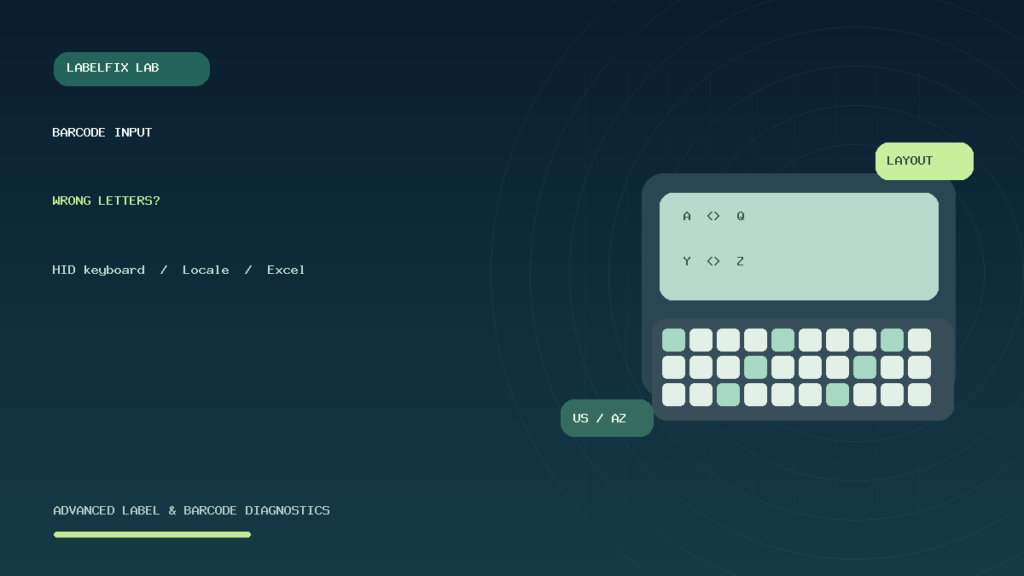
Editorial limitations: Illustrative scan outputs are synthetic and not tests of a named device. Exact keyboard mapping and programming codes must be checked in the scanner manufacturer’s official documentation. The featured image is original editorial artwork showing a generic keyboard, not a proprietary product photo.
Independent general troubleshooting information for shipping labels and thermal printers. Model-specific button sequences, cleaning supplies and service instructions can differ; consult your manufacturer's official documentation. Never alter a carrier-generated barcode.