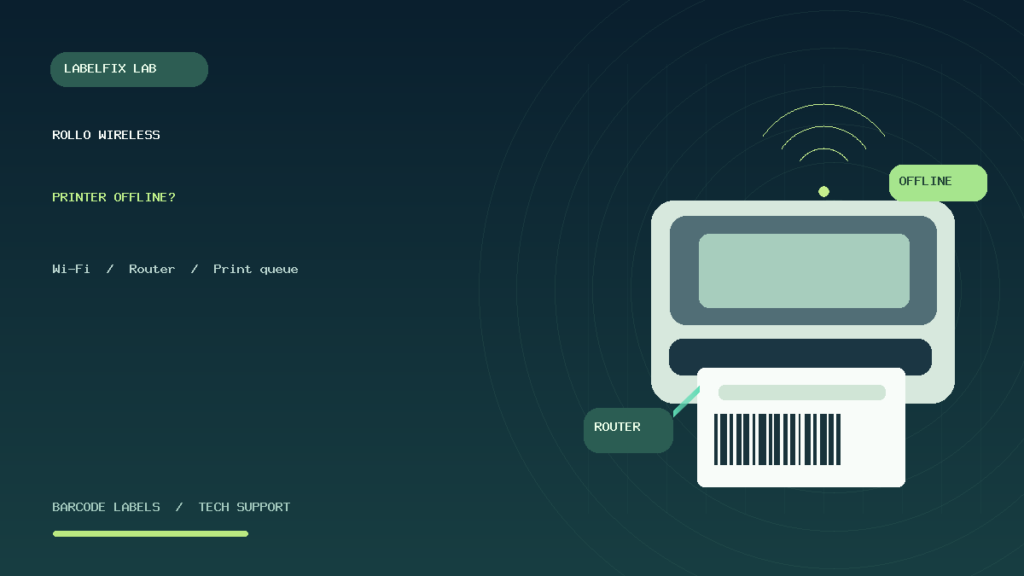
Quick answer: If your Rollo Wireless printer shows “Offline,” disappears from a shipping app, or stops receiving jobs after a router restart, separate the printer’s connection to the local network from the computer or phone’s route to that printer. A device can be powered on and associated with Wi-Fi while the printing application targets an outdated queue or cannot discover it. Conversely, a printer that receives a job but produces the wrong-size 4 × 6 label has passed the network stage and needs a page-layout diagnosis, not a router reset.
Rollo sells different printer configurations, including wireless and USB-oriented hardware; model identification and supported app/OS methods matter. Don’t assume wireless setup steps for one model apply to another. Use the current manufacturer instructions for the exact unit and host software before resetting Wi-Fi or altering router security. This guide offers controlled diagnostics and does not claim live hardware tests or verification of today’s compatibility matrix.
Find your wireless printing failure first
| Observed behavior | Likely layer | Best initial check |
|---|---|---|
| Printer cannot join the intended Wi-Fi network | Network setup, credentials, radio requirements or router policy | Check the current official supported connection steps |
| Printer is on Wi-Fi but never appears in an app | Discovery, app support or local network isolation | Compare host and printer network association |
| Printer appears but says Offline in Windows | Stale queue, port/address or actual reachability | Inspect current printer destination and test job |
| Worked until the router was restarted | Address, connection or network configuration change | Verify current network path and printer state |
| Phone prints; Windows PC does not | Windows queue/driver or network access from one host | Hold printer and stock constant; compare host paths |
| Job arrives but the label prints tiny or cropped | PDF, print scale, media preset, page orientation | Inspect source PDF and real stock size |
| Printer feeds a blank label from every app | Media or printer imaging, not just wireless discovery | Use a supported local/independent test |
1. Verify that you actually have a Rollo wireless model
Read the full model information from the unit and its approved documentation. A Rollo USB-only printer is not made into a compatible Wi-Fi printer simply because the computer has wireless networking. Some setups use vendor software or supported operating-system printing paths; available functions differ by model and platform. If the wireless X1040 receives a job but prints only half a 4×6 label, use our separate Rollo X1040 partial-print guide.
Record the printer model, how it should connect (Wi-Fi or another documented method), host device, operating system and the shipping application. The most useful starting point is identifying the expected workflow rather than guessing based on a generic “wireless thermal printer” tutorial.
2. Distinguish joining Wi-Fi from being discoverable
A wireless printer can be connected to an access point but still not appear in a computer’s printer list if discovery is unsupported or blocked. Device association, IP network reachability, supported print protocol and application recognition are separate stages. Don’t treat a steady network indicator as proof of successful end-to-end printing.
Check the documented status method for your model to determine the actual network connection. Then confirm the phone or computer is on a network allowed to reach the printer. Public, guest or intentionally isolated networks often restrict device-to-device communication; check with the network administrator rather than disabling isolation without authorization. See Wi-Fi label printer not found for a broader network diagnosis.
3. Confirm compatible Wi-Fi settings using official model guidance
Different wireless printers and firmware releases support different radio bands, security modes and onboarding processes. Do not assume the Rollo hardware supports every router setting or that switching the entire router to a weaker security standard is necessary. Consult the current documentation for supported bands and protocols on the exact printer.
When pairing fails, collect the network name, approved security type and error state without sharing passwords or private configuration screenshots publicly. An access point that merges bands, a mesh system or a guest network can influence device onboarding in model-specific ways; make narrow, reversible changes only when supported by official instructions and local network policy.
4. Why the printer may go offline after a router restart
After a restart, a network printer may rejoin with a different local address or become associated with another access point. The computer can retain a saved queue pointing at an old network destination. A user may see “Offline” even though the printer itself is powered and ready.
Check the current printer connection state, its documented address reporting if available, and the queue destination that the host is using. For managed networks, ask the administrator whether a stable reservation or documented network printer setup is appropriate. Don’t assign arbitrary addresses or disable firewall controls to make a printer visible. Our label printer offline after router restart guide covers this distinction.
5. Windows: a saved printer is not necessarily a reachable printer
Windows may display a printer name that was installed before the router or workstation changed. The queue can remain visible while jobs stall or fail. Compare the selected printer entry, actual port or supported network destination, and queue status. Confirm your shipping platform is not using a different default printer with a similar name.
If a harmless one-page sample sits in the queue without reaching the printer, investigate host delivery before changing label darkness or the media sensor. If the printer receives it and prints, connection succeeded in that test and remaining defects may relate to layout. See Windows print job stuck and offline but connected printer.
6. Mac, iPhone and compatible app discovery
Depending on the precise printer model and supported software, a Mac or mobile device may use a documented vendor application or an operating-system printing interface. For example, certain supported Apple printing workflows rely on network discovery and compatible application output. Don’t assume that any visible Wi-Fi label printer supports every form of AirPrint or that pairing is identical across iOS, macOS and Android.
When a mobile printing option isn’t listed, check the current Rollo model and supported-app documentation. Compare one approved harmless test with the device on the intended local network. If another supported device prints correctly, the problem may be specific to the first host or app. Our Mac thermal printer not detected and label PDF wrong size from phone cover related symptoms.
7. Differentiate Bluetooth, Wi-Fi and a USB printer cable
“Wireless” is not one universal transport. A dedicated radio receiver, Bluetooth pairing and Wi-Fi network printing are distinct connection methods, and a computer may recognize one without supporting another. Identify what the exact Rollo model requires. Don’t try to pair a Wi-Fi-only print workflow through a Bluetooth menu simply because both are wireless technologies.
If USB printing is available and supported for your hardware, a harmless comparison through that path can help isolate the network, but it doesn’t prove all wireless software settings are correct. Keep label stock and source document constant while comparing connection methods. Avoid repeatedly unplugging equipment during active packing jobs.
8. Check the shipping application, not just the printer
Some shipping websites create a PDF in the browser; others can use a vendor-compatible print integration or operating-system queue. If the application has an incorrect saved printer or paper preset, it may fail even when another program prints successfully. Record the app name, version, output file format and exact destination.
Use one harmless sample and compare two trusted supported paths, without sharing real order numbers. When a simple test label reaches the printer but the original shipping workflow does not, investigate the app integration or its PDF export before resetting the router again.
9. Correct 4 × 6 page geometry after connectivity is confirmed
Once the printer receives jobs, check actual stock dimensions and the original shipping PDF canvas. A native portrait 4 × 6-inch page is 101.6 × 152.4 mm or 288 × 432 PDF points. Some platforms produce a US Letter PDF (612 × 792 points) with a small shipping label image inside it; fitting that entire page onto a thermal roll can shrink the barcode.
When physical media and source page match, Actual Size / 100% is a useful starting point. When they differ, forcing 100% can clip content. Obtain an authorized compatible source instead of recreating postage codes or cropping away essential routing information. Our PDF Size Checkershipping labels too small
10. A label printing too far left is not a Wi-Fi problem
If the printed image reaches the device but is shifted, clipped or upside down, the connection has done its job for that print. Inspect the source page, orientation, driver margins, printable width and stock preset. Be cautious about changing multiple rotation controls; the viewer and driver can both rotate the same document.
Try a harmless test label with a visible border and known dimensions. If every image has the same lateral offset, investigate page origin. If positions progressively drift after several labels, inspect label length and sensing. See label printing off center and shipping label sideways or clipped.
11. What if Rollo feeds blank labels after reconnecting?
An online printer that feeds white stickers is not necessarily suffering from Wi-Fi. Check whether the original document contains visible artwork, whether the loaded stock is compatible direct-thermal material for the installed unit, and whether a vendor-supported independent test can form a dark image.
If a harmless test prints normally but a shipping PDF emerges white, investigate rendering and source geometry. If all supported tests fail to image, use official supply and device-side diagnostics. Our Rollo printing blank labels guide focuses on imaging and source-file causes.
12. Media calibration and skipped labels are separate
If the printer is connected but advances multiple blank stickers between images, examine actual label gap, pitch, and documented media sensing. A network reset won’t change the physical geometry of the roll. If the file contains two pages or jobs are sent twice, check those first to avoid blaming sensors.
Use the official calibration process only when the evidence points to boundary detection problems. Our Rollo printer skipping labels and thermal printer calibration articles cover that separate branch.
13. Avoid creating duplicate shipping-label jobs
Repeatedly clicking Print because the printer says “Offline” can queue several copies of the same postage or tracking document. Once the connection returns, those jobs may all print. Verify the queue and the original shipping service’s allowed reprint process before submitting another job.
Use a harmless one-page test for troubleshooting. Do not allow duplicate live labels to be mixed with active packing stations, especially when several people share the printer. If the printer repeats previous jobs, see thermal printer reprints an old shipping label.
14. Wi-Fi isolation or firewall policy in a shared workplace
In an office or warehouse, a guest Wi-Fi network may prevent clients from reaching local printers. Security controls can also restrict device discovery. Rather than turning off network security broadly, ask an administrator to confirm the approved printer subnet, supported discovery protocol and authorized communication path.
Record whether failure affects one client, all clients or only one application. One failing laptop suggests host configuration or permissions; all clients failing after network changes suggests a shared network dependency. A printer that can generate a local diagnostic but isn’t reachable from any supported host is a different problem from a printhead that cannot form an image.
15. Example: printer disappears immediately after router replacement
The packing team replaces its router. The Rollo Wireless printer powers on, but Windows still uses the previous network printer destination. The operator follows the current model’s network reporting and supported discovery process, then checks the queue rather than adjusting the label roll. The recovery is about network association and host routing, not print darkness.
16. Example: phone prints but laptop remains offline
A supported mobile workflow can deliver a harmless label while a laptop’s queue says Offline. That shows the printer can receive at least one network print under current conditions. The laptop’s selected printer, network access and print service should be examined rather than assuming the printer has globally lost Wi-Fi.
17. Example: job prints but barcode is tiny
After restoring the connection, the printer produces a tiny barcode in the middle of a 4 × 6 sticker. The source PDF was a Letter page and the print dialog applied an additional fit-to-page reduction. The fix belongs to compatible source output and physical page settings, not Wi-Fi signal strength.
18. Example: network is stable but only one shipping app fails
A known-good sample prints from a supported system app, but a marketplace portal reports that it cannot use the saved printer. The operator checks that portal’s supported output method and selected queue. Repeated factory resets or changing router passwords would not address an app-specific destination mismatch.
Rollo Wireless offline troubleshooting checklist
- Identify the exact wireless-capable Rollo model and supported host workflow.
- Confirm Wi-Fi association separately from printer discovery and job delivery.
- Check that the host is permitted to reach the printer on the intended local network.
- Verify current network printer destination after a router or access-point change.
- Inspect the active Windows/Mac/mobile print queue and selected output path.
- Test one harmless label before resubmitting live carrier documents.
- For received jobs, diagnose PDF geometry and thermal stock separately.
- Change one documented connection or printer setting at a time.
Frequently asked questions
Why does my Rollo Wireless printer show Offline?
Possible causes include lost network association, changed network destination, host queue state, local network isolation or unsupported application printing. Check which stage failed before resetting the device.
Why did it stop working after I restarted my router?
The printer’s association or local address may have changed while a saved host queue points at an old destination. Use the manufacturer’s supported network setup and verify actual printer reachability.
Does every Rollo printer support AirPrint?
Do not assume support across all models. Confirm the exact wireless printer and current Apple printing compatibility from official documentation before using AirPrint-specific instructions.
Why can my phone print but Windows cannot?
The printer may be functioning while the PC has a stale queue, unsupported driver, different network access or incorrect saved destination. Compare the two approved host paths using harmless samples.
Will fixing Wi-Fi solve a barcode that prints too small?
No. Once the job reaches the printer, wrong size and clipping usually involve PDF canvas, print scale, driver preset or physical media rather than the network.
Related LabelFix Lab guides
- Rollo printing blank labels
- Rollo skipping labels
- Wi-Fi thermal label printer not found
- Printer offline after router restart
- Printer offline but connected
- Stuck Windows print jobs
- Shipping label too small
Editorial scope: This is independent wireless-printer troubleshooting, not verification of live Rollo model compatibility, firmware or AirPrint certification. The featured image is an original generic wireless-printer illustration, not a product photograph or copied brand graphic.
Independent general troubleshooting information for shipping labels and thermal printers. Model-specific button sequences, cleaning supplies and service instructions can differ; consult your manufacturer's official documentation. Never alter a carrier-generated barcode.