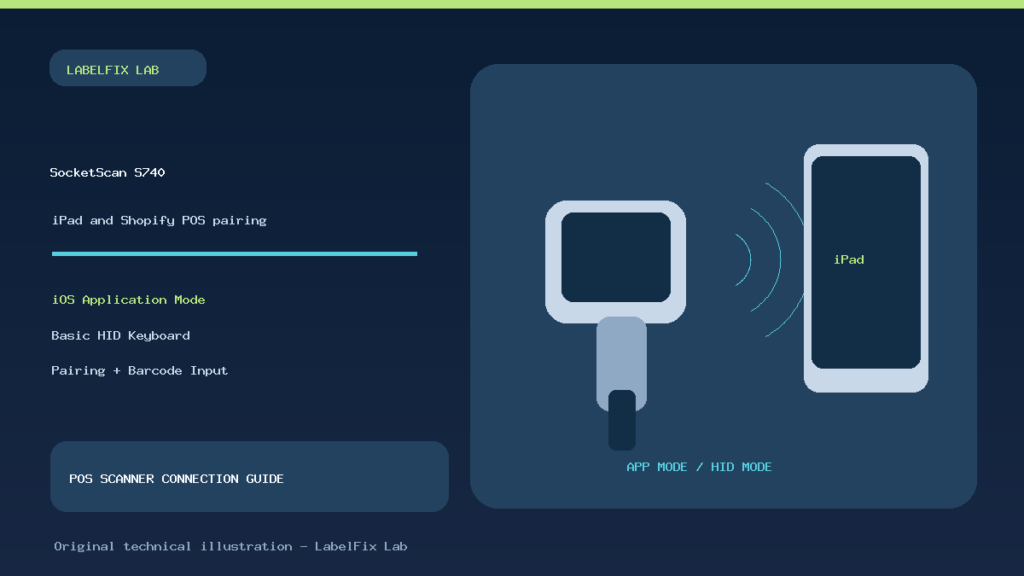
Quick answer: If your SocketScan S740 is visible to an iPad but will not connect inside Shopify POS, check the reader’s Bluetooth connection mode before treating it as a hardware failure. Socket Mobile documents two fundamentally different workflows: iOS Application Mode for compatible apps built with its SDK, and Basic Keyboard Mode (HID) for typing decoded characters into normal text fields. Its 700 Series guide says iOS Application Mode is the default. A reader paired at the operating-system level in the wrong mode can be “connected” yet unavailable to the POS app.
This guide is for the SocketScan S740, a 1D/2D Bluetooth area imager. It is not the S700 1D model; the S740 can read supported QR and other 2D barcodes on paper and screens, but a POS application must still recognize the decoded data and the connection mode. Confirm the current Shopify and Socket Mobile app versions before changing a working retail setup.
Pinpoint where the connection breaks
| What you observe | Likely area | Controlled first step |
|---|---|---|
| Scanner does not appear on iPad | Power, discovery, battery or old pairing | Check charge and supported pairing setup |
| iPad says connected, Shopify sees nothing | HID versus iOS Application Mode | Use Socket Mobile’s app-specific setup |
| It types into Notes, not Shopify scanner interface | Keyboard mode or application integration | Confirm intended host mode in Socket Companion |
| App connects but certain QR codes fail | Symbol quality, data type or app validation | Compare with known-good 2D sample |
| It disconnects after switching apps | Different app requirements or remembered pairing | Check mode requirements before re-pairing |
| Each scan triggers the wrong POS action | Enter/Tab suffix or focus | Inspect output in a neutral text field |
1. Verify the physical scanner is the S740
Check the exact product label on the reader. The S740 is part of the SocketScan 700 family but supports both linear and two-dimensional codes. Socket Mobile describes it as a universal Bluetooth reader compatible with supported Apple, Android and Windows hosts. Do not assume every feature of a different S700, S720 or DuraScan model applies identically; use the S740 or 700 Series documentation for programming.
Also check the power state and charge level. A reader that briefly flashes but cannot remain on may need proper charging before any pairing test. Set up a harmless test barcode so you do not repeatedly enter a real customer’s product or shipping identifier while troubleshooting.
2. Decide whether your app needs iOS Application Mode
Socket Mobile’s official SocketScan 700 Series User Guide lists iOS Application Mode as the default for supported iOS apps, while Basic Keyboard Mode turns the reader into an HID keyboard. Many integrations designed for Socket Mobile hardware expect an app-aware connection and will not discover a reader that the iPad treats only as a generic keyboard.
Check the current instructions for the particular Shopify POS version or other retail app. Socket Mobile provides an app-specific setup page, plus its Companion utility to configure the reader’s mode. Do not blindly select HID simply because it appears in the standard Bluetooth accessory list.
3. Know what Basic Keyboard (HID) mode can and cannot do
In HID mode, a decoded barcode acts like typed text in a focused field. This can work well for a spreadsheet, inventory search box or basic form. It does not necessarily expose SDK-level scan events, connection status and device management to Shopify or another POS system. Socket Mobile notes that Basic Keyboard Mode is broadly compatible with devices and typically does not require app-specific software.
Use a harmless code in a neutral text editor to verify keyboard-mode output. If it types correctly there but the POS app’s scanner setup page cannot find the reader, that strongly points toward the wrong integration mode rather than faulty barcode optics. Our barcode scanner host-mode guide explains the keyboard-versus-app distinction in general terms.
4. When switching modes, clear the old pairing safely
The official SocketScan 700 Series guide warns that changing connection modes may require removing pairing information from both the host and scanner. A device that was linked as a keyboard can remain in the iPad’s remembered device list after you program it for Application Mode. If so, a new app-based connection may be blocked by the stale association.
Follow Socket Mobile’s mode-change and pairing-reset instructions for this model. On an iPad, use the operating system’s Forget This Device option for the intended S740 where the current setup procedure calls for it, and complete the scanner-side reset or mode command as documented. Do not delete unrelated Bluetooth connections used by other registers.
5. Use the Socket Mobile Companion app for Shopify POS
Socket Mobile’s official Shopify scanner support recommends its Companion application for guided pairing. It also advises that if a data reader was paired directly in iPad Bluetooth settings but is not detected by the Shopify app, remove or forget that reader, restart the iPad and follow the app-specific pairing path.
Update the app if required and configure the intended reader through the supported workflow. The exact screens can change over time, so do not rely on a years-old screenshot. Confirm that Shopify’s hardware settings identify the S740, then scan one test item to ensure the decoded SKU is accepted.
6. Do not confuse pairing with inventory success
Shopify may report no matching item even when the S740 successfully read the barcode and sent the characters. For example, the barcode payload might be a UPC while the catalog is mapped only to a different SKU. Test the same item through the application’s intended barcode field and compare the inventory record. Avoid changing barcode labels to conceal missing or mismatched product data.
If a neutral text field receives accurate data but the POS rejects the item, the most relevant next read is our scanner and SKU mismatch guide. This is a data validation problem, not necessarily a Bluetooth problem.
7. Why S740 can read QR codes but the POS cannot use them
The S740 includes 2D capability, unlike a reader limited to traditional 1D bars. Still, not every QR symbol represents a retail item. A QR on a customer return or shipping label may contain a URL, a proprietary token or a payload the current POS does not accept. Check the source and expected data rather than treating a read beep as proof of a valid inventory identifier.
Test a known-good, non-sensitive QR and a conventional UPC/Code 128 sample to separate scanner decode from business application logic. For physical labels, inspect print size, contrast, glare and quiet zones. Our shipping-label QR troubleshooting explains print-related causes separately.
8. Check auto presentation mode and trigger behavior
Socket Mobile describes an optional Auto (Presentation) Mode for the S740 when used in a suitable dock or stand. If the reader behaves as though it scans at unexpected times, check whether presentation mode is enabled intentionally. In hand-held use, a trigger-driven workflow may be preferable. Follow the correct manual before changing trigger or auto-scan settings.
Keep the reader stable and aim at the intended symbol. A shop counter with multiple nearby barcodes can yield a valid but unwanted scan; that is different from Bluetooth loss. Test with one code in a clear field of view and observe the resulting POS item.
9. Troubleshoot distance and interference systematically
A Bluetooth connection that works beside the iPad but drops across the store should be investigated as a range or radio environment issue. Move near the host, test the same harmless code and gradually increase distance. Metal fixtures, dense shelving and other wireless devices may affect reliable operation. Record whether the scanner disconnects only when the tablet sleeps or another app takes focus.
Do not reset the whole POS system because one scanner disconnects at a particular location. Our wireless barcode scanner disconnect guide covers battery, sleep and interference patterns common to other readers.
10. Understand keyboard suffixes and unexpected iPad behavior
In keyboard-style operation, some scanners append Enter or Tab after the barcode text. A POS search field may submit the current item unexpectedly or jump focus to another control. This can look like a duplicated or incorrect scan while the S740 is actually transmitting accurate data plus a configured suffix.
Compare raw output in a neutral field and examine the current Socket Mobile programming options. Avoid randomly scanning configuration barcodes from a different SocketScan model. Our extra-characters after scan guide explains how to distinguish a suffix problem from corrupted barcode data.
11. Record a clean one-variable pairing test
Prepare an iPad with the intended POS version and one S740. Record the previous connection mode, remove only stale pairing according to official instructions, then use Companion or the app’s supported onboarding. Scan one harmless UPC, then a compatible 2D example if the app supports it. Confirm scanner discovery, data arrival and product acceptance as three separate results.
If mode switching repeatedly fails, note the exact firmware or reader model and consult Socket Mobile support with the iPadOS version, Shopify version and pairing steps attempted. Avoid restoring factory defaults unless a documented support path requires them; this can erase custom keyboard or app settings used by staff.
SocketScan S740 iPad setup checklist
- Identify the exact S740 and charge it.
- Check whether the intended app requires Application Mode.
- Confirm current connection profile: iOS App or Basic HID.
- Forget old pairing only as part of a documented mode switch.
- Use Socket Mobile Companion and app-specific setup.
- Confirm the correct scanner appears inside the POS.
- Scan a known-good harmless retail code.
- Separate successful decode from SKU acceptance.
- Verify QR/2D support and intended payload if relevant.
- Document range, sleep or suffix issues separately.
Frequently asked questions
Why is my S740 connected to iPad but not visible in Shopify POS?
It may be paired in Basic Keyboard Mode while Shopify expects an app-aware connection. Review Socket Mobile’s current Shopify instructions and Companion setup.
What is the S740’s default Bluetooth mode?
Socket Mobile’s 700 Series user guide lists iOS Application Mode as the default. Settings can change after programming.
Can SocketScan S740 scan QR codes?
Yes, it is a supported 1D/2D reader, but the receiving app must accept the data encoded in the particular QR symbol.
Should I reset Bluetooth pairing to change modes?
Follow the official mode-change procedure. Socket Mobile documents that host and scanner pairing records may need to be cleared when switching profiles.
Official Socket Mobile references
- SocketScan 700 Series user guide: Bluetooth modes
- S740 programming guide: iOS App, SPP and HID
- Socket Mobile Shopify POS support
- SocketScan S740 official model overview
Editorial scope: Support-document-based diagnosis, not a claim of physical testing of every S740 firmware, app or iPadOS revision. Follow current compatibility and setup guidance.
Independent general troubleshooting information for shipping labels and thermal printers. Model-specific button sequences, cleaning supplies and service instructions can differ; consult your manufacturer's official documentation. Never alter a carrier-generated barcode.