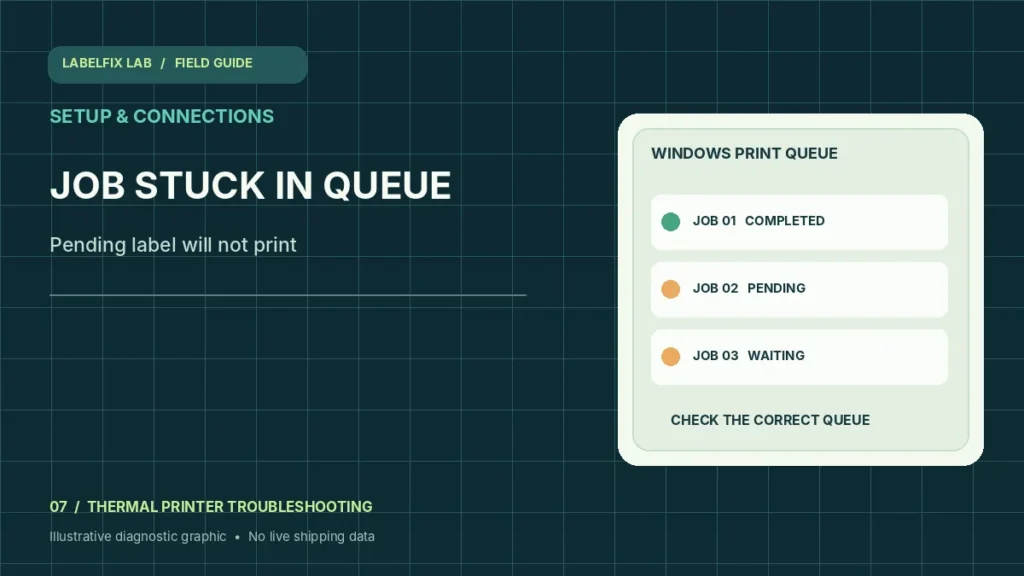
A shipping label stuck at Pending, Printing or Error in a Windows queue is a job-delivery problem until proven otherwise. It is different from a printer that feeds blank labels or creates distorted barcodes. The safest first move is to understand where the job stops, so you don’t accidentally print duplicate tracking labels or delete a label you cannot retrieve.
Start with the observable symptom
These patterns narrow the troubleshooting path; they are not a guarantee of a specific cause. Record what actually happens instead of changing multiple settings together.
| What happens | Where to start |
|---|---|
| Job stays Pending | Paused queue, job dependency or selected destination |
| Job shows Printing forever | Connection, spooler interaction or driver workflow |
| Job instantly disappears but nothing moves | Wrong device/port or incompatible command format |
| Queue reports Offline | Device connection and port status |
1. Identify and preserve the original shipping document
Make sure the shipping platform lets you retrieve the label again before cancelling anything. For live orders, keep a record of the tracking assignment and avoid producing multiple usable copies. Use a non-live sample for troubleshooting whenever possible.
2. Confirm the queue belongs to the intended printer
From Windows Printers & scanners, locate the printer’s actual model and open its queue. Many workstations have several similarly named entries after driver installation. A queued job on an old virtual USB port or office printer will not reliably reach the active thermal printer.
3. Check Paused and Use Printer Offline states
Look for a paused queue, a disabled connection or an Offline status. Printer menus and operating-system versions differ; change only the affected queue setting. If the printer is explicitly Offline, see our offline troubleshooting to isolate the connection first.
4. Observe the printer during one supported test job
Does its status light change, does the feed motor move, or does it print an internal configuration label? A successful printer-generated self-test indicates the device can print independently of Windows, not that the USB or network queue is working. Keep these two facts separate.
5. Review the current port and connection type
Check USB, Ethernet or Wi-Fi connection according to the actual model. A saved Windows queue can exist after a cable is unplugged. For network printers, note whether the configured port still points at the correct device; avoid changing unrelated router or security settings.
6. Consider the driver and print language
A driver for a similar printer may accept the job in Windows while sending data the device cannot interpret. Check the full model number and use the official driver or vendor utility. If raw symbols print instead of labels, read the printer-language guide.
7. Cancel only a confirmed failed or duplicate job
If a job is blocking the queue, cancel it through the supported Windows interface after verifying that the document can be regenerated. Do not indiscriminately remove other users’ jobs from a shared shipping workstation. Restarting print services may require administrator coordination.
8. Re-send one known-good label and verify output
After making a single reversible change, print exactly one sample and inspect its barcode and address. If the queue clears but output is tiny or split, the issue is now the PDF or driver page layout. Use the PDF size checker rather than repeatedly resetting the queue.
Interpret the outcome before changing more settings
If Windows never detects the USB device, the issue belongs in device detection. If Windows marks it Ready but the job disappears silently, use connected but not printing. A stuck job is a specific state, not a diagnosis by itself.
Avoid these common mistakes
- Deleting unrecoverable shipping jobs before confirming a replacement exists
- Reinstalling all printer software without observing the queue behavior
- Resending production labels many times while checking whether one job is stuck
Frequently asked questions
Can a queued job cause two copies of a shipping label?
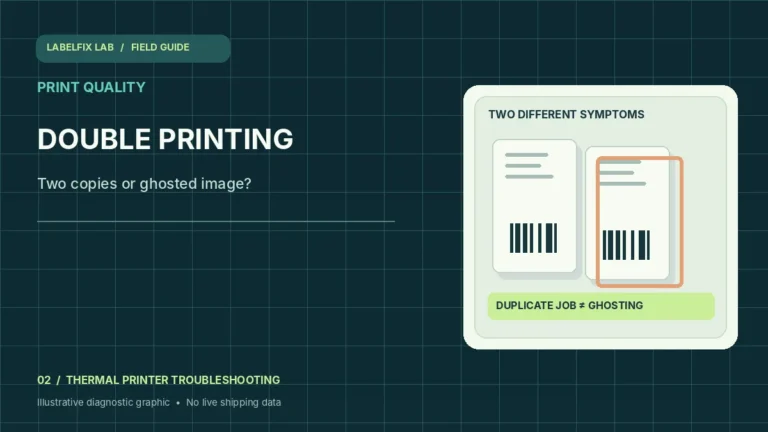
A retry or duplicate submission can produce unexpected copies. Check copies settings and existing jobs before resending a real tracking label.
Will clearing the queue repair hardware?
No. It may remove an obstruction in software but cannot fix a broken USB cable, jam or unsupported driver.
Should I restart the Windows Print Spooler?
That can be a later administrative troubleshooting action on some systems, but check the affected queue and preserve other users’ work first.
Editorial note: This independent guide provides general troubleshooting, not guaranteed fixes for every model or carrier. Device-specific calibration and safety steps must follow the official printer manual. Label dimensions and software options vary by shipping service.
Independent general troubleshooting information for shipping labels and thermal printers. Model-specific button sequences, cleaning supplies and service instructions can differ; consult your manufacturer's official documentation. Never alter a carrier-generated barcode.