Quick answer: When a Zebra Programming Language (ZPL) shipping or product label prints too far to the right, gets cut off, appears much smaller than expected, or feeds an extra sticker, begin by comparing the physical media and printer resolution with the dimensions and positions expressed in the actual ZPL. Commands such as ^PW (print width), ^LL (label length) and ^LH (label home) can influence the layout. But they cannot repair the wrong media, an incompatible printer-language path or a shipping label whose source artwork exceeds the device’s printable area.
This advanced guide is for legitimate testing and debugging on printers and applications that support the relevant ZPL command set. Command support and behavior can vary by printer model, firmware and integration. Confirm the exact syntax and model capabilities in official Zebra documentation before changing a production label. Do not replace an authentic carrier barcode with a synthetic example.
How to recognize a ZPL geometry problem
| Symptom | First thing to inspect | Why it matters |
|---|---|---|
| Right edge of all labels is cropped | ^PW, imageable width and horizontal origins |
Artwork may extend beyond the printable dot columns |
| Bottom of a label is cut off or next label advances | ^LL, physical label pitch and media sensing |
Logical label length may not match actual stock |
| Everything shifts right by a constant distance | ^LH, ^FO, ^LS and driver offsets |
Global and per-field positioning can add together |
| 4 × 6 design appears tiny | 203/300 DPI conversion, scaling and source dimensions | Dots and physical inches are different units |
| Raw commands print as text | Printer language, driver and print job delivery | The printer may not be interpreting ZPL at all |
| First label is aligned but later labels drift | Actual gap/pitch, ^LL and sensor mode |
Cumulative feed registration differs from a fixed origin shift |
| ZPL works but PDF printing fails | Separate raw-printer-language versus PDF/driver paths | They use different renderers and page-size settings |
1. Identify the actual printer language and print path
A printer’s USB connection does not establish that it understands a particular print language. Some label printers support ZPL, others support related emulations, and some require a different language or supported driver. A PDF viewer normally prints graphics through an operating-system driver, while a warehouse integration may send raw printer-language commands.
Record how the job is generated, whether the data is actual ZPL text, and how it reaches the printer. If the printer prints characters beginning with ^XA instead of a rendered label, investigate compatibility and the selected output path before modifying ^PW or ^LL. See printer printing random characters and printer driver versus label editor.
2. Think in dots, not inches
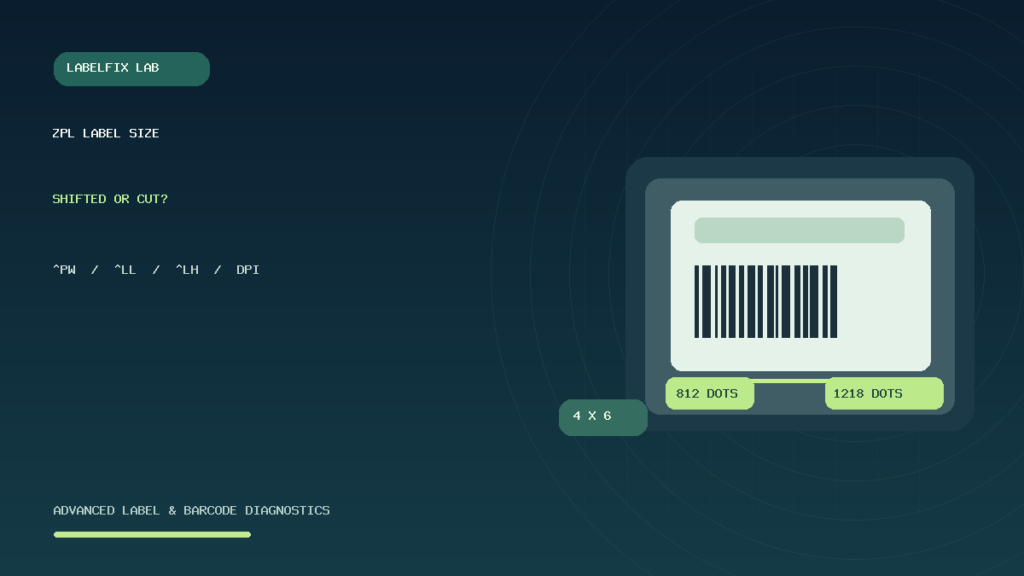
ZPL positions and many dimensions are expressed in printer dots. The same number of dots occupies a different physical distance on a 203 DPI device and a 300 DPI device. For a nominal 4 × 6-inch label, a simple calculation produces about 812 × 1218 dots at 203 DPI, or 1200 × 1800 dots at 300 DPI. These are illustrative calculations, not universal safe settings: printer dot density, imageable width, supported stock and margin behavior still matter.
A design prepared for 300 DPI and sent unmodified to a nominal 203 DPI device may become physically larger and crop, depending on how the target renderer handles it. A raw ZPL job does not necessarily perform the same “Fit to Page” operation as a PDF reader. Our 203 vs 300 DPI thermal printer guide explains the resolution trade-off.
3. What the ZPL ^PW command controls
^PW specifies the intended print width in dots for the supported ZPL format. It is not the same as the plastic housing width or necessarily the full physical width of the liner. If your format uses a print width wider than the printer’s supported imageable area, content beyond that area can be clipped rather than magically scaled to fit.
Check the target’s actual print width and review the widest field, including barcode quiet zones and text that extends past the declared region. Changing ^PW alone does not rescale all the contents: a field placed at a large horizontal coordinate may still exceed the device’s printhead width. For label-stock measurements, see Zebra printer label sizes.
4. What ^LL means, and how it differs from stock pitch
^LL specifies the label length in printer dots within the supported ZPL workflow. A die-cut sticker’s body height and the distance from the beginning of one sticker to the next are not always identical: the physical pitch can include a gap. The media sensor and handling mode control the printer’s actual registration, and a mismatched logical job length can contribute to unexpected feeding or clipping.
When the bottom of the barcode or address is missing, inspect both the formatted object’s last vertical coordinate and the label length. When the printer advances multiple labels while searching for a boundary, check supported gap/black-mark sensing rather than assuming ^LL alone will cure it. Our skipping labels and calibration guides cover physical registration.
5. ^LH and ^FO: global home versus field origin
^LH establishes a label-home position in a supported ZPL format. ^FO places a field relative to the coordinate system used by the format. If an upstream generator adds a global home offset and the designer independently shifts every field, those movements can accumulate. A rightward displacement affecting every object may therefore be a different problem from one misplaced barcode field.
Begin by listing the relevant positioning commands and whether a global offset is being applied. Compare their values across a known-good job and the failing one. Be mindful that other commands, printer settings and stored formats can also affect output; the exact interaction should be checked against your firmware’s command reference.
6. Other positioning controls can hide the real cause
ZPL includes additional label- and field-position controls, including ^LT (label top) and ^LS (label shift) in supported implementations. A host application may generate these automatically. Changing one coordinate while another shift remains in place can make the issue look intermittent across templates.
Instead of modifying every number at once, compare two complete jobs: one that prints correctly and one with the defect. Identify which commands differ and reproduce the problem with a harmless synthetic format. Changes should be reversible and tested on the same physical roll.
7. A harmless illustrative ZPL layout
The following is a synthetic demonstration for a compatible nominal 203 DPI printer using appropriate label stock. It is not an issued shipping label, a validated production format or a universal configuration file. Check your printer’s manual, printable width and command support first.
^XA
^PW812
^LL1218
^LH0,0
^FO40,45^A0N,38,38^FDTEST LABEL - NOT POSTAGE^FS
^FO40,115^BY2,2,90^BCN,90,Y,N,N^FD12345678^FS
^FO40,270^A0N,28,28^FDSynthetic test only^FS
^XZ
^XA starts a format, ^XZ ends it, ^FO locates the test fields and ^FD supplies their data. The sample contains a dummy identifier and must not be substituted for an authentic carrier-issued label. If you copy any snippet into an application, ensure the data path is designed to interpret ZPL rather than treating the commands as printable text.
8. Why 300 DPI changes the result
A format width of 812 dots corresponds to roughly four inches at nominal 203 DPI, but only around 2.7 inches at 300 DPI. Using the same integer coordinates on different resolutions can change the physical layout substantially. Translating an intended 4-inch width to a 300 DPI system yields roughly 1200 dots; that does not mean every 300 DPI printer can image an entire four-inch width without margins.
When moving a template across printer resolutions, use the actual target’s dot density and supported print area, then inspect line thickness, text size, barcode module dimensions and field positions—not just the two page-size commands. A scanner test should use an authorized controlled label or properly formed synthetic code.
9. Label orientation and rotation
Artwork may be portrait in its data source but printed sideways if a ZPL orientation or rotation setting changes the field direction. Some software adds an orientation transform at the driver or template level, while a raw ZPL job may implement its own rotation controls.
Do not assume the fix is to rotate the label both in the application and again in the printer format. Check the original intended page orientation, which layer performs the rotation and whether the physical stock direction is appropriate. Our shipping labels printing sideways or cut off guide explains this symptom in general PDF workflows.
10. Barcode fields need more than a nominal page width
Code 128 and other linear symbols require space for the encoded bars, human-readable text if present, and an appropriate clear area around the symbol. Even if a barcode command begins safely inside the label, its generated width can extend past the printable boundary. The width depends on actual encoded data, module settings and selected symbology—not merely the origin coordinate.
Do not shrink barcode bars arbitrarily until a previously non-scannable label barely fits. Check the source data and supported barcode formatting and use a suitable label/printer combination. Our Code 128 not scanning and quiet zones cut off cover scannability.
11. Why a printer may remember earlier settings
Depending on firmware and print workflow, printer configuration, saved formats or host-generated commands can influence subsequent jobs. A shipping application might send a new label width while another workflow sends a different default. Confirm which settings are local to a format and which are controlled by the printer or host before assuming a value persists globally.
A reliable troubleshooting test is to send one complete harmless format under a known supported configuration, inspect the print, then compare it with the failing job. Avoid changing stored defaults or performing factory resets on a production printer without documented reasons and a recovery plan.
12. Spooler and PDF settings can bypass your intended ZPL
A PDF exported from a shipping platform is not necessarily a ZPL job. If a browser prints through a Windows driver, changing a text file containing ^PW will not influence the PDF unless that file is actually part of the output path. Confirm the source format before attempting command-level repairs.
When a PDF looks too small or becomes two pages, inspect the original PDF dimensions and print dialog. Use PDF MediaBox vs CropBox for confusing PDF geometry or PDF Size Checker for page dimensions. Do not mix raw-command troubleshooting with unrelated PDF settings.
13. Example: the right edge of a Code 128 barcode is missing
A template places its barcode at a horizontal coordinate close to the right edge. The symbol grows as a long SKU or tracking value is encoded, leaving its last bars beyond the printable area. The operator measures available width, checks the actual encoded content and verifies the required quiet zone, then uses a supported label format and layout. Increasing ^PW beyond the physical printhead width would not create more printable dots.
14. Example: a 300 DPI label sent to a 203 DPI printer
A label designed with coordinates for a higher-density printer is sent as raw data to a lower-density model. Objects become larger in physical dimensions and are clipped. The team converts the layout using the actual device’s dot density and validates the entire synthetic label, rather than changing the printer’s media sensor to compensate for scaling.
15. Example: extra blank sticker after an otherwise correct job
The print is sharp and correctly positioned on the first label, but another blank sticker advances afterward. The operator checks the ZPL’s intended length, the physical gap and feed-registration setup, then confirms whether the application submitted an additional format or job. The symptom is not proof that ^LH or barcode darkness is wrong.
16. Example: commands print literally
Instead of a label, paper emerges containing the characters ^XA and ^FO. The operator confirms that the printer or its emulation supports the command language and that the integration sends it through the intended raw-command route. Tweaking field coordinates cannot repair a printer that is treating the command stream as plain text.
ZPL label-size debugging checklist
- Identify the actual model, resolution, supported ZPL dialect and delivery path.
- Measure physical media width, body height, pitch and imageable area.
- Compare
^PWand^LLwith the target printer’s dot units. - Review
^LH,^FO,^LTand any other actual shifts in the job. - Check barcode width and quiet zones, not just starting coordinates.
- Use a complete harmless test format, not live carrier barcode data.
- Separate raw ZPL jobs from PDF/browser/driver printing.
- Change one documented factor and repeat the exact test.
Frequently asked questions
What does ^PW do in ZPL?
In supported ZPL implementations, ^PW sets the print width in dots. It cannot extend the printer’s physical imageable width or automatically resize every barcode field.
Why does a 4 × 6 ZPL label print too small?
The format may use dot dimensions designed for a different printer resolution. Compare actual 203/300 DPI and imageable size before changing layout coordinates.
Will ^LL fix every skipped label?
No. ^LL helps define logical label length, but physical gap/mark sensing, media pitch and extra job pages are separate causes of skipped stock.
What is the difference between ^LH and ^FO?
^LH defines label-home positioning while ^FO places an individual field within the active coordinate system. Their effects can combine with other shifts.
Why are ZPL commands printing as plain text?
The selected printer or delivery route may not be interpreting ZPL. Confirm printer-language support and the raw-command output path before editing layout commands.
Related LabelFix Lab guides
- Zebra printer label sizes and imageable width
- 203 DPI versus 300 DPI
- Printer outputs random characters or commands
- Thermal printer image off-center
- Paper size keeps changing to Letter
- Driver, editor and PDF print paths
- Shipping label barcode not scanning
Editorial limitations: Examples are original synthetic demonstrations, not authentic shipping labels or verified commands for every Zebra model. Check official command references and printer-specific printable dimensions before production changes. The featured image is original illustrative artwork, not an actual printer screenshot or product photograph.
Independent general troubleshooting information for shipping labels and thermal printers. Model-specific button sequences, cleaning supplies and service instructions can differ; consult your manufacturer's official documentation. Never alter a carrier-generated barcode.