Quick answer: If a barcode scanner appears to drop leading zeros, turn long codes into scientific notation, or convert product IDs into dates in Excel, the scanner may be sending the correct characters. Excel often interprets the scanned or imported value as a number, date, or other data type. The first diagnostic is to compare the raw scan in a plain text editor against the value stored in the worksheet. For inventory identifiers, the safest general principle is to treat the entire code as text, not arithmetic.
This guide addresses data integrity when scanners enter SKU, UPC/EAN, asset, or tracking values into Excel. It is different from initial USB or Bluetooth connection setup. Microsoft changes the available import menus and automatic data-conversion controls over time; use your installed Excel version’s documented methods and test them with harmless identifiers before scanning production records.
How to identify the problem
| What you scan | What appears in Excel | Likely mechanism |
|---|---|---|
000123456789 |
123456789 |
Leading zeros removed during numeric interpretation |
1234567890123456 |
Scientific notation or a value with changed trailing digits | Numeric formatting or precision limitation |
03-04 |
A calendar date | Automatic date recognition based on locale/settings |
0012-AB |
Different punctuation or missing characters | Keyboard-layout mismatch, scanner formatting, or transformation in app |
| Correct code | Another row or column gets the value | Scanner suffix, cursor selection, or worksheet automation |
| Correct code | Duplicated code on two rows | Repeated scan event or spreadsheet workflow |
The examples are illustrative. The exact date format and scientific-notation display depend on the Excel version, workbook formatting, and regional settings. A number shown in scientific notation is not always corrupted, but once a long numeric identifier has been rounded or overwritten, restoring its original digits may be impossible without the source.
1. Test what the scanner actually sends
Use a known, non-sensitive barcode with a verified expected string. In an ordinary USB HID keyboard mode, open a basic plain text editor, focus its input area, and scan once. Compare every character with the original string, including zeros at the beginning and any punctuation. Observe whether the scanner also sends Enter or Tab after the code.
If the editor gets the full code but Excel changes it: focus on Excel cell types, import conversion, formulas, or macros. If the editor also receives an altered code: inspect the scanner’s documented keyboard layout, prefix/suffix settings, symbology, and host interface. For non-keyboard scan interfaces, use a supported software diagnostic rather than assuming the text editor must receive input.
Our USB barcode scanner setup for Windows and Excel explains HID keyboard versus virtual COM or managed scanner modes.
2. Format the destination column as Text before scanning
For a simple manual scanning worksheet, select the entire intended barcode or SKU column before entering any data and set its number format to Text. This helps preserve a string such as 000123456789 in its complete form rather than converting it to the numeric value 123456789.
Test with an identifier that begins with several zeros, followed by an unusually long code and one containing hyphens. A spreadsheet template used by several staff members should have its identifier columns prepared consistently so a new user doesn’t accidentally scan into an unformatted blank column.
Changing cell formatting after Excel has already removed digits does not necessarily restore them. The workbook may contain only the transformed numeric value. Keep or re-import the original raw data instead of assuming that applying Text formatting reconstructs missing digits.
3. Scientific notation: display format versus lost precision
Excel can display large numbers with notation such as 1.23457E+15. In some cases that’s a display choice; in others, the number has already been stored with a loss of exact precision. Excel’s normal numeric representation is not designed to preserve arbitrarily long barcode identifiers as precise numeric integers. For conventional Excel numbers, only approximately 15 significant decimal digits are reliably preserved; identifiers longer than that must be handled as text from the outset.
If a 16-, 18-, or 20-character tracking or asset code was entered as a numeric value, you cannot safely infer its original trailing digits from the display. Retrieve the original scanner output, manufacturer identifier, carrier record, or source CSV treated as text. Do not pad guessed digits or simply change the cell format to Number and assume the original value has returned.
4. Why codes with slashes and hyphens may become dates
A code like 03-04 or 1/2 can resemble a date. Excel may apply automatic date recognition based on settings and locale. If that happens, the result can become an internal serial date value rather than the intended SKU string. Your worksheet can then display a month/day format despite the scanner having typed the expected characters.
Prepare the destination column as Text before input, or use a documented text-preserving import route. Check the exact cell’s stored value, not merely the displayed appearance. Once a code has been converted, retrieve the original string rather than guessing how the date was originally written.
5. CSV files are a frequent source of barcode corruption
A comma-separated file is essentially plain text with separators; it doesn’t carry the same reliable per-cell formatting as a carefully configured workbook. Double-clicking a CSV may open it with automatic type detection, changing leading zeros or long numeric codes during import. The CSV file itself may still contain the original full values even when the visible worksheet does not.
For an import workflow, use your Excel version’s supported text/CSV import or data transformation method and explicitly designate barcode, SKU, GTIN, serial, and tracking columns as Text before loading. In some interfaces this means removing automatically inserted Changed Type steps or setting type to Text within a query editor. Always verify a sample row after importing.
Save the original CSV unchanged as a recovery source. Opening, saving, and reopening the transformed workbook can propagate irreversible mistakes if the process is not controlled.
6. Excel formulas can appear to repair a code but still be wrong
A formula that pads a numeric value with zeros to a predetermined width can produce visually consistent identifiers in certain legitimate internal applications, but it cannot reconstruct arbitrary lost digits from a damaged 16-digit or longer original. It can also add zeros to identifiers that should not have them.
For externally assigned barcodes or shipment tracking codes, prefer preserving the source string exactly as issued. If a verified source defines a fixed-width internal code, a formula may be part of a documented business process—but its output should be tested against trusted reference values before replacing the primary data.
7. Barcode scanner sends Enter: why data jumps to the next row
Many scanners are configured to send a carriage return after a successful read. In Excel, that can move the active cell to another row. Some users mistake the cursor movement for missing data or a double scan. Test one code in a plain editor to observe whether a newline follows the characters. Then confirm the active cell position before scanning into the workbook.
If your process expects one SKU per row, an Enter suffix may be useful. If it expects a barcode and a quantity in adjacent columns, Tab may be more suitable, provided the scanner and application support that configuration. Change scanner suffix settings only via the official guide for your exact model, and confirm they don’t disrupt other inventory applications. Our scanner suffix troubleshooting guide covers this behavior.
8. Duplicated entries versus duplicate display
If a scan seems to appear twice, distinguish two complete values arriving from the reader from one value being processed into two worksheet records by automation. Check for enabled macros, worksheet change events, add-ins, and formulas that copy or derive values. Use a harmless workbook with known settings to isolate Excel’s behavior from scanner hardware.
For a scan that truly produces two inputs in a neutral text editor, inspect trigger mode, active input pathways, and wireless buffering. If the neutral editor receives one string but the workbook records two rows, investigate spreadsheet automation and event logic instead. See barcode scanner scanning twice for a controlled comparison.
9. Keyboard layout can change punctuation in scan values
Keyboard-emulation scanners can use their own host keyboard-country mapping. If the scanner outputs hyphens, slashes, or other punctuation incorrectly, the scanned code may differ from the intended identifier even before Excel processes it. Compare a test code with mixed letters, digits, and punctuation in a plain editor. Then check the scanner’s documented locale setting and the active operating-system keyboard layout.
Do not edit the source barcodes to compensate for a host keyboard mismatch. A product identifier should remain stable across receiving systems; only the input interpretation or configuration should be changed as appropriate.
10. Keep scanners, product records, and export files consistent
Design the inventory process so every barcode/GTIN/SKU column is text at collection, export, import, and storage boundaries. If a barcode starts with zeros in the point-of-sale system, the warehouse export should preserve those zeros, and the accounting worksheet should not convert them into a number. The same applies to serial numbers and externally issued tracking IDs.
Store the raw received identifier separately from derived quantities such as number of items or order totals. Barcode identifiers are labels, not values intended to be added or averaged. Avoid formatting changes that make distinct IDs compare equal after automatic conversion.
11. Example: UPC loses its starting zero
A scan produces 001234567890 in a text editor, but the spreadsheet displays 1234567890. If the original value was already converted, changing the cell to Text may only show the shortened string. The operator uses the trusted original scan or source file, formats the destination column as Text, and imports or scans again to verify the whole ID is preserved.
12. Example: a 17-digit asset tag becomes scientific notation
The original encoded identifier is 12345678901234567, but Excel interprets it as numeric and displays a shortened exponential form. Even after widening the column, the value may not have the original final digits. The correct response is to retrieve the exact source and store it in a text-typed field, not to round, estimate, or reconstruct the digits.
13. Example: a product SKU converts into a calendar date
A short alphanumeric workflow uses a code resembling 03-04. Excel interprets it as a date under the active locale settings. The team switches the destination field to Text before scanning and verifies the unchanged string against a harmless reference. This distinguishes spreadsheet auto-formatting from a scanner decoding error.
14. Example: the right code lands on the wrong row
A scanner has a trailing Tab suffix, so after typing into cell A2 it moves focus to B2 rather than A3. The next scan appears in the quantity column, leading to apparent missing items. Confirm the suffix and desired worksheet structure. Adjust the workbook workflow or supported scanner setting deliberately; don’t remove valid characters from the barcode content.
Safe barcode-data checklist for Excel
- Test the scanner’s raw output in an appropriate neutral destination.
- Set barcode, SKU, GTIN, and tracking columns to Text before entry.
- Import CSV data through a method that preserves text column types.
- Verify leading zeros, long codes, hyphens, and date-like values with known test cases.
- Keep the original unmodified export for comparison and recovery.
- Check scanner suffix and worksheet macros when rows seem duplicated or skipped.
- Never guess lost digits or accept a rounded barcode as a valid identifier.
Frequently asked questions
Why does Excel remove the first zero from a scanned barcode?
The cell or import process may interpret the code as a number. Format identifier fields as Text before scanning and verify the raw value; formatting afterward may not restore lost zeros.
Why does Excel show my barcode as E+15 or another exponent?
Excel may display long numeric values in scientific notation. More importantly, identifiers exceeding normal numeric precision may already have lost exact trailing digits. Reimport the original as Text.
How do I stop barcode scans becoming dates?
Prepare the receiving column as Text or use text-preserving import settings before data entry. Confirm your locale and the exact intended SKU; retrieve the original if conversion has already happened.
Can I repair a corrupted long barcode just by widening the cell?
No. Column width can change display, but it cannot recover digits that have been rounded or discarded by numeric conversion. Use the original trusted source.
Why does each barcode scan move to another Excel row?
Look for an Enter or Tab suffix, the active-cell setting, or worksheet automation. Observe the complete scan in a text editor before reprogramming the scanner.
Is it safe to treat UPC or tracking numbers as ordinary numbers?
Generally not when exact identity matters. They should be treated as text strings so leading zeros and every digit remain intact across imports and exports.
Related LabelFix Lab guides
- USB barcode scanner setup for Windows and Excel
- Scanner adds unwanted Enter, Tab, or punctuation
- Duplicate scans and repeated Excel rows
- Shopify POS barcode versus SKU lookup
- FNSKU product identifier not scanning
- Scanner beeps but does not deliver data
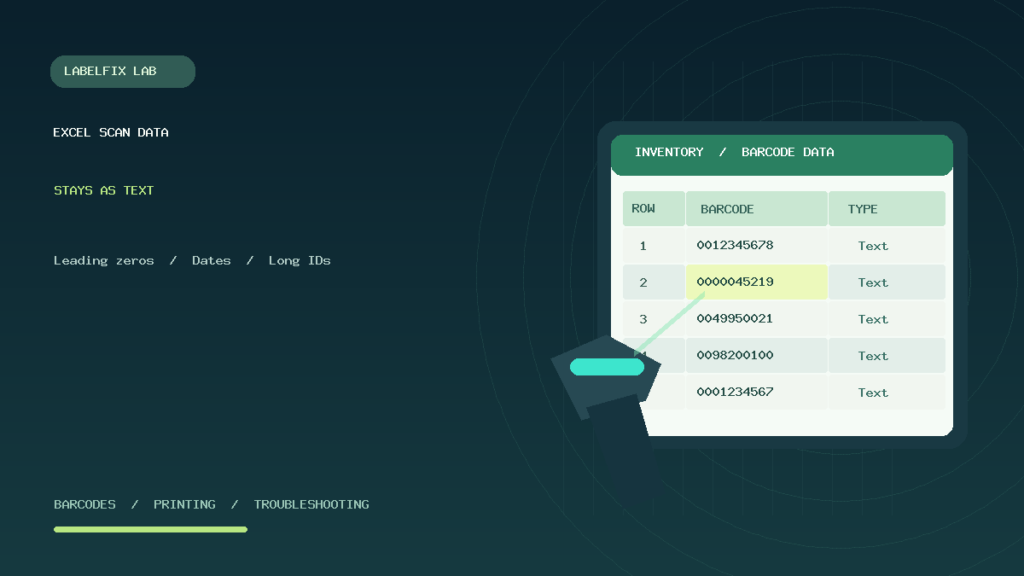
Editorial note: Examples use fictional identifiers, not real shipping or inventory data. Excel menus, import controls, and behavior may vary by version and settings. The original accompanying illustration depicts a generic inventory spreadsheet rather than a verified Microsoft UI screenshot. Consult Microsoft’s current documentation for version-specific controls.
Independent general troubleshooting information for shipping labels and thermal printers. Model-specific button sequences, cleaning supplies and service instructions can differ; consult your manufacturer's official documentation. Never alter a carrier-generated barcode.