Quick diagnosis: If a NETUM Bluetooth barcode scanner is not pairing—or pairs but will not type a scanned code—separate Bluetooth discovery, Bluetooth connection, barcode decoding, and text delivery to the intended app. A scanner listed as “paired” is not necessarily connected and ready to transmit keystrokes. Likewise, a beep after scanning does not prove that a phone or Windows computer received any data.
NETUM sells different models and combinations of Bluetooth, USB and sometimes dedicated wireless receiver functions. Exact pairing barcodes, LED meanings, reset sequences and supported barcode formats differ. Use the configuration guide supplied for your full model number rather than a generic barcode sheet copied from a different product.
Diagnose the NETUM symptom first
| Observed behavior | What to verify | Useful first comparison |
|---|---|---|
| Scanner is not visible in Bluetooth settings | Whether model supports Bluetooth and is in discoverable pairing mode | Check full model, charge and documented pairing action |
| Device shows as paired but nothing types | Connected state, Bluetooth HID profile, cursor focus, offline mode | Try a non-sensitive test in a simple text field |
| Works on Android but not Windows | Host mode, old pairing, Bluetooth support and application | Compare supported OS input modes, not just the barcode |
| Works with USB dongle but not Bluetooth | Whether the dongle uses a separate proprietary radio path | Switch only using documented model-specific connection steps |
| Scanner sends Enter or Tab after every code | Configured output suffix | Observe scan results in a neutral text editor |
| Scans QR slowly or not at all | Model’s actual 2D capability, supported symbology and label quality | Use a compatible sample barcode before changing pairing |
1. Confirm your NETUM hardware supports the connection you expect
Check the scanner’s physical model identifier and manufacturer packaging. “Wireless barcode scanner” is not synonymous with Bluetooth; a dedicated 2.4 GHz USB receiver is a different protocol path, even though both operate in a similar radio band. Some models support one wireless method, some provide multiple modes and others are wired only.
Also verify supported operating systems and barcode symbologies. A 1D scanner designed for linear bars will not be upgraded to QR capability by pairing with a smartphone. Do not assume the model’s charge cable supports host data. Record the full identifier and use its own official pairing manual.
2. Check power and the documented discoverable mode
Charge the device with approved equipment and identify the manufacturer-supported way to enter Bluetooth pairing mode for your specific NETUM model. A light that is on does not necessarily mean that the scanner is advertising itself as a discoverable Bluetooth device. If you cannot find a supported pairing instruction, do not experiment with unrelated programming barcodes that could silently change the connection interface.
On your target phone or laptop, ensure Bluetooth is enabled and the host is permitted to connect new peripherals. In a managed workplace, local policies may block accessories. Keep the scanner nearby and avoid pairing the same unit with several actively connected hosts during initial diagnosis.
3. Distinguish “paired” from “connected”
A host may remember a device after a previous pairing but not have an active input connection. Inspect the actual current connection state where the OS provides it. If the scanner previously worked on another phone, it may still try to reconnect there depending on its supported behavior; use the manufacturer’s documented host-switching or reconnection steps rather than factory resetting immediately.
If the device is paired but still silent, the next step is not necessarily deleting the connection. Check whether it is in keyboard-emulation mode, a vendor-specific app mode or an offline storage mode. Those outputs behave differently in a general text field.
4. Test a safe barcode in a plain text field
Open a note-taking app or an ordinary editable text field on your phone, or a plain text editor on Windows. Put the cursor in the input area and scan a clean, non-sensitive code whose data you know. If the scanner is operating as a supported Bluetooth keyboard device, you should see the exact expected characters, possibly followed by a configured Enter or Tab.
If the characters appear correctly in a simple field but not in your inventory app, investigate the application’s focus and expected input protocol rather than assuming Bluetooth pairing failed. If nothing appears, verify connection, HID mode and any offline buffer behavior. If the scan does not decode at all, examine the symbol and scanner capability before addressing Bluetooth.
5. Android: check the input field, keyboard and app workflow
Android devices differ in their external-keyboard handling and app requirements. Once a supported NETUM scanner is connected, use a simple text field for the baseline test. On-screen keyboards may behave differently while a physical input device is attached, so a keyboard disappearing is not itself evidence of a scanner failure.
Test a compatible linear barcode and, on a 2D-capable unit, a known-good square barcode as separate cases. Some apps process HID keystrokes like ordinary typing, while other solutions require a vendor-supported scanner integration. If the app only recognizes a specific input protocol, altering the printed label won’t solve the mismatch.
6. iPhone and iPad: verify a supported Bluetooth input mode
iOS and iPadOS can work with supported Bluetooth keyboard input devices, but individual scanner models and app integrations vary. Confirm the exact NETUM model’s stated iOS compatibility and host mode. With the scanner connected, focus a safe text field and scan once; compare the result with expected characters.
If a mobile app offers its own scanner screen, barcode camera interface or separate Bluetooth scanner integration, determine which path the app supports. A device that types in Notes but not into that app points to an app-handling issue rather than necessarily a broken Bluetooth connection. Avoid giving third-party apps unnecessary access to customer tracking details during setup.
7. Windows: confirm device detection and keyboard output
In Windows Bluetooth settings, check whether the device appears and remains connected. For a keyboard-style configuration, use Notepad or another plain text editor to observe exact input. If the unit is supported in a virtual serial or app-managed interface, Notepad may not receive characters; use a documented test application for that interface.
Compare punctuation and dashes as well as digits. A scanner’s keyboard locale and Windows’ active keyboard layout can differ. If long numeric data loses leading zeros only in Excel, the destination’s number formatting may be the cause; see our USB scanner setup and Excel guide.
8. Avoid confusing Bluetooth and 2.4 GHz dongle pairing
A USB wireless receiver supplied with some NETUM products may use a dedicated protocol, not ordinary Bluetooth. It might pair to the scanner through the model’s own programming method. If your exact scanner supports both radio modes, use the documented process for changing modes. A Bluetooth pairing name will not necessarily appear while the device is operating through its separate receiver.
Also, a generic replacement dongle may be incompatible with the scanner even if the connector fits. Ask the manufacturer or approved supplier about original replacements rather than assuming any 2.4 GHz receiver can connect. Changing to another host mode may interrupt the previous setup until you explicitly return to it.
9. Check inventory/offline memory modes
Some wireless scanning workflows store data locally and transfer it later. A NETUM model that supports such a mode could be decoding codes while intentionally not sending them to the host in real time. Read the exact manual for how real-time output and offline collection are indicated. If legitimate data may be stored, transfer or preserve it before resetting the device.
For packing stations that require an immediate confirmation after each parcel is scanned, verify a supported real-time output configuration. For warehouse stocktaking, offline collection may be intentional. Those operational requirements should determine the settings, not a one-size-fits-all tutorial.
10. Decode problems are not Bluetooth problems
If a known-good sample will not decode at all, check whether the scanner supports that code family. A 1D-only reader cannot recognize QR, Data Matrix or other 2D symbols. Even a compatible 2D imager may fail when a shipping label is clipped, over-darkened, highly reflective or printed too small.
Use the original carrier label and inspect its quiet margins and contrast. Never reconstruct a tracking barcode with a generic generator to make it easier for the reader. Our QR code scanning guide and shipping barcode print checks cover this separate issue.
11. Enter/Tab suffixes and unexpected characters
A correctly connected scanner may add a carriage return or Tab after each barcode, causing a form to submit or focus to move. Observe the output in a neutral input field before changing scanner programming. If punctuation is wrong, verify the keyboard mapping. Changing the source barcode instead of the host input settings risks corrupting valid IDs.
When using official programming barcodes, record the original suffix and host mode so you can restore the required workflow. Our extra characters after scan guide explains the difference between scanner-generated suffixes and receiving-app formatting.
12. A controlled reconnection checklist
- Confirm the exact model and supported radio protocol.
- Charge the scanner and identify its documented Bluetooth discoverable mode.
- Keep it near the target host and reduce competing active pairings where supported.
- Check whether the OS reports an active connection, not only a remembered pairing.
- Test a known barcode in a simple editable field using the intended host mode.
- Once basic input works, test the actual inventory app and its suffix needs.
Change one setting at a time and record the result. If an official reset is justified, document any stored inventory data and the existing host configuration first. Avoid third-party tools that offer unknown “unlock all barcode functions” software.
Example: NETUM appears connected to iPhone but scans nothing
The scanner appears in Bluetooth settings, but an inventory app shows no input. Testing the same harmless code in a simple text field helps separate keyboard data delivery from the app’s own scanner integration. If the text field works, review the inventory application’s supported input method. If it does not, return to the exact scanner’s supported Bluetooth HID setup, rather than changing barcodes.
Example: a scanner works with a USB receiver but will not appear in Bluetooth search
The unit may be set to a dedicated receiver mode, not actively advertising via Bluetooth. Check whether that exact variant supports both modes and follow the appropriate vendor configuration instructions. The receiver’s presence is not evidence that the scanner should be discoverable by a phone at the same time.
Example: data arrives after scanning many items
A worker scans ten products while far from a host, then later sees all codes appear in a batch. An offline storage or buffer-transfer mode may explain that behavior on models offering it. Read the manual before assuming a defective wireless radio. If the workflow requires immediate posting, select a documented real-time mode only after preserving existing stored data.
Frequently asked questions
Why will my NETUM scanner not show in Bluetooth devices?
Check the exact model’s Bluetooth capability, power and documented discoverable mode. Some wireless scanners use only a dedicated USB receiver rather than Bluetooth, and not every pairing barcode applies across models.
Why is the scanner paired but not typing?
Paired is not always connected. Verify active link, host interface, text-field focus and whether the scanner is configured for offline collection rather than keyboard-style output.
Can NETUM Bluetooth scanners work with iPhone or Android?
Compatibility depends on the specific model, Bluetooth profile and application. Use the model’s official supported host list and test a harmless code in a simple text field.
Is the USB receiver the same as Bluetooth pairing?
No. A dedicated 2.4 GHz dongle may use a separate proprietary radio protocol and pairing process. Follow the correct configuration path for the supplied receiver.
Does a Bluetooth pairing fix unreadable QR codes?
No. QR decoding depends on 2D reader capability, enabled symbology and printed label quality; a working Bluetooth link alone cannot add unsupported optical decoding.
Related guides
For another brand with optional dedicated receivers, see Tera scanner USB and wireless troubleshooting. If the link works initially but fails later, check wireless scanner disconnection causes.
- Scanner beeps without typing data
- Windows and Excel keyboard-scanner setup
- Enter and Tab suffix troubleshooting
- 1D versus 2D reader capability
- QR scanning and barcode print problems
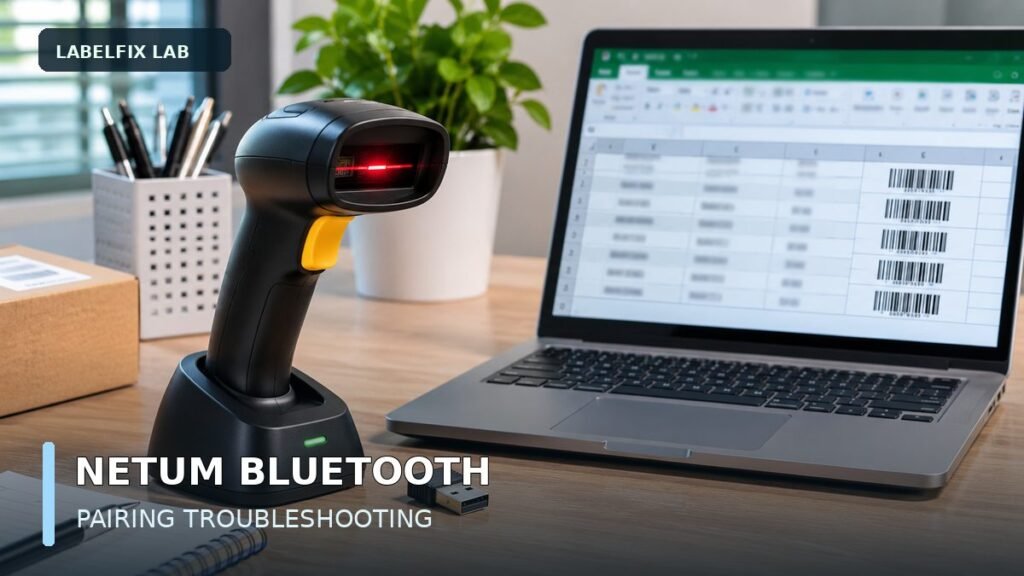
Editorial note: This guide provides a general diagnostic method and does not claim that a particular NETUM hardware model, mobile OS release or pairing barcode was tested. Illustrative images show generic scanners, not actual NETUM products. Always confirm model-specific instructions with the manufacturer.
Independent general troubleshooting information for shipping labels and thermal printers. Model-specific button sequences, cleaning supplies and service instructions can differ; consult your manufacturer's official documentation. Never alter a carrier-generated barcode.