Quick answer: If a Tera barcode scanner lights up or beeps but does not send barcodes to a computer or phone, first establish which connection method your exact unit is using: USB cable, a dedicated 2.4 GHz receiver, or Bluetooth. These are different host paths. A wireless scanner can decode a label successfully but transmit nothing because the receiver is not paired, the computer is focused on the wrong field, or the device is in an offline data-collection mode. Diagnose the connection before changing barcode printing settings.
Tera sells different handheld scanner configurations, so no one pairing barcode, LED pattern, button sequence or factory-reset method applies universally. Record your full model number and use the programming sheet provided for that exact model. The steps below are a safe troubleshooting framework, not a claim that a particular Tera unit was physically tested.
Match the symptom to the failing layer
| What you notice | First suspect | First controlled check |
|---|---|---|
| Scanner beeps but nothing appears in Notepad | Wrong host interface, unpaired receiver, focus or storage mode | Confirm the active connection method and USB detection |
| Works with USB cable but not with wireless dongle | Receiver connection or model-specific 2.4 GHz pairing | Try the original receiver in a direct supported USB port |
| Works on laptop but not on phone | Bluetooth profile, mobile permissions, host compatibility | Check phone Bluetooth settings and intended input app |
| Scans several items but values arrive later | Offline-storage or batch-transfer behavior | Identify real-time versus inventory mode in manual |
| Typing starts and stops as you walk away | Wireless link, interference, power or receiver placement | Test at short distance with no metal obstruction |
| Barcodes type correctly in editor but fail in inventory app | App field, suffix, data format or validation | Compare exact sample characters in both destinations |
1. Identify the model and the three possible data paths
Read the physical model label, order documentation or manufacturer’s supplied configuration sheet. Some Tera variants offer a USB keyboard connection, others include a proprietary wireless receiver, and some provide Bluetooth support. Having a USB port for charging does not prove the device can send scan data over that cable. Likewise, a scanner with a 2.4 GHz receiver does not necessarily pair using the phone’s standard Bluetooth screen.
Record the operating system, the original cable and receiver, power or charging status, and whether the scanner previously worked with this host. Avoid following a reset sequence designed for another model; configuration barcodes can change communication modes and suffixes at once.
2. Test a safe sample in a plain text editor
Use a clean printed barcode with an expected non-sensitive value such as TEST12345, in a symbology that your scanner supports. On a Windows machine, open a plain text editor and click where the next character should be entered. Then scan once and compare the entire result, including punctuation or trailing newline behavior.
When the model is configured as a keyboard-style HID input device, the exact sample should appear. If it does, the scanner and host keyboard path work for that test; focus on the shipping or inventory application next. If the sample decodes but nothing appears, check pairing, interface mode and whether the scanner has stored rather than transmitted it. A beep is not evidence that Windows received a keystroke.
3. Test the USB cable path without assuming it is data-capable
Connect the scanner through a documented data-capable cable and supported port. Some cables supply power but cannot transfer data, while some scanner designs use their USB socket primarily for charging. Confirm what your exact model supports before declaring the cable connection broken.
Observe whether the host reports an input device or a vendor-specific serial interface. A scanner intentionally configured to send serial-style data is not expected to type into Notepad. If a wired input mode is supported and works reliably, record that success; it gives you a useful baseline for diagnosing the wireless path separately.
4. Troubleshoot the 2.4 GHz receiver path
A dedicated USB receiver is not the same thing as ordinary Bluetooth. Insert the correct receiver supplied for your scanner into a supported computer port. In a controlled test, avoid a hub or dock if the host has a compatible direct port. Watch whether the computer detects a device and whether scanning produces text in a focused field.
If the scanner’s wireless receiver needs model-specific pairing, use only the matching manufacturer’s programming instructions. Do not assume a replacement USB dongle from another product will automatically work, even if both are labeled “2.4G.” Receiver protocols and pairing data can be proprietary. Keep the scanner close to the host during initial pairing.
If the computer receives a scan at close range but not across the room, move the receiver away from metal cabinets or noisy USB 3 equipment where practical, then retest. Short-distance success followed by long-distance failure is evidence about link conditions, not proof that a barcode suddenly became unreadable.
5. Troubleshoot Bluetooth separately
Bluetooth-compatible Tera models may use a keyboard-emulation profile or a documented app-specific workflow. Check the official supported pairing method and ensure the scanner is in that mode before searching from the phone or laptop. A phone showing “paired” does not guarantee scan characters reach the target app; a device can be paired but disconnected or the app can lack an active editable field.
For Android or iPhone, open a safe text field and test a known-good barcode using the supported input mode. Some mobile operating systems manage on-screen keyboards differently when a physical keyboard input device is connected. Don’t erase device pairings or reset the scanner until you record the existing working configuration and determine the actual symptom.
6. Check whether the scanner is in real-time or storage mode
Certain wireless scanners support an offline or inventory-collection workflow where data is stored and uploaded later, which can be useful away from a computer. Other models send each scan immediately. A device that acknowledges scans but produces no immediate text might be behaving exactly as configured for batch collection.
Read the operating manual for your specific model’s mode terminology and how it indicates or transfers stored data. Before changing the mode, consider whether it contains legitimate inventory records that must be safely transferred first. Avoid an undocumented reset that could discard stored scans. For live order packing, select a supported real-time input path if the workflow requires each scan immediately.
7. Solve Enter, Tab and keyboard layout problems only after connection works
When the expected scan appears but the form automatically submits, the reader may be configured to send Enter or Tab after the code. Compare in an ordinary text editor and look for cursor movement or new lines. Some inventory apps intentionally rely on those suffixes, so remove them only when the target workflow requires it.
If punctuation changes but digits remain correct, check the host keyboard layout and the scanner’s documented locale settings. If leading zeros disappear only in Excel, the spreadsheet may be converting identifiers into numbers. Our USB scanner setup for Windows and Excel shows how to preserve text IDs and isolate the destination software.
8. Confirm the scanner can read the required code type
Not every Tera unit supports every symbology. Some handheld models are 1D-only; other variants are 2D imagers. Verify model support before testing QR, Data Matrix or PDF417 codes. The fact that a scanner reads an ordinary product barcode does not prove it can decode the square code on a return label.
For a supported code that still fails, check print quality, quiet zones, wrinkles, glare and physical size. A label printed too small may be unreadable even when the scanner itself works. Compare with our 1D versus 2D shipping barcode guide and barcode print-quality troubleshooting.
9. If the scanner disconnects during a long picking session
Note whether the disconnect correlates with battery charge, distance, a sleep interval, host standby, USB-port power management or a change in location. Charge the unit using approved equipment, then test at a fixed short distance. Record whether a receiver reconnects without re-pairing or needs the manufacturer’s supported reconnection procedure.
On managed business computers, coordinate any USB power or driver changes with IT. Avoid disabling unrelated security controls or installing unofficial “Tera driver fix” executables. Most connection investigations benefit more from reproducible logs than from repeated factory resets.
Case study: the Tera scanner beeps but will not type
A worker sees a decode indicator after reading a box label, yet Notepad stays blank. Their scanner was previously used to collect stock away from the warehouse PC. They check its exact operating mode and find the manual distinguishes immediate keyboard output from batch collection. After safely transferring any stored records and selecting the supported real-time mode, a known-good sample appears in the editor. The critical cause was an output configuration, not the barcode image.
Case study: USB cable works, wireless stops unexpectedly
The scanner sends characters over the documented cable path, but its 2.4 GHz receiver intermittently disconnects. Using the same sample code and host, the worker tests with the original receiver plugged into a direct port, a charged scanner and a short unobstructed distance. If those changes restore reliability, the team can investigate hub compatibility or wireless placement before considering a device fault.
Case study: the scanner types into Notepad but not the shipping website
A known sample appears exactly in a text editor, but the website’s tracking field reports no match. This does not mean the receiver is broken. Check field focus, whether the application expects that barcode’s symbology or tracking data, and whether a suffix triggers a premature submission. Use a harmless test identifier rather than sharing real customer tracking details with troubleshooting services.
Safe checklist before you reset anything
- Record full Tera model number and actual cable/receiver details.
- Confirm whether the active path is USB, 2.4 GHz dongle or Bluetooth.
- Test a non-private known-good barcode in the correct host mode.
- Protect stored inventory records before changing offline modes.
- Use only the matching manufacturer programming sheet.
- Change one communication setting at a time and retest.
Frequently asked questions
Why is my Tera scanner beeping but not typing?
A successful decode does not prove the host received input. Check the active host mode, paired receiver or Bluetooth connection, cursor focus, and whether the unit stores scans for later transfer.
Can I pair a Tera 2.4 GHz scanner through Windows Bluetooth?
Not merely because it uses a 2.4 GHz radio. A dedicated USB receiver may use a proprietary protocol and pairing procedure distinct from Bluetooth. Follow the exact model’s instructions.
Why does the Tera scanner work with a cable but not wirelessly?
Compare the data-capable wired setup with the documented wireless pairing and receiver. Check the original dongle, direct USB connection, power and distance before modifying other settings.
Can every Tera handheld scanner scan QR codes?
No universal capability should be assumed. Check whether the precise variant supports 2D symbologies and whether the needed format is enabled.
What does inventory mode mean on a wireless barcode scanner?
On models that offer it, inventory/offline mode may hold decoded values locally for later transfer rather than sending each code immediately. Confirm the instructions before changing settings or erasing stored data.
Related guides
For a Bluetooth-first scanner workflow, compare the NETUM Bluetooth pairing troubleshooting guide. If your problem happens only intermittently after successful pairing, follow the wireless scanner disconnection decision tree.
- USB barcode scanner setup for Windows and Excel
- Scanner beeps but does not type
- Unexpected Enter and extra characters after scan
- 1D and 2D barcode capability differences
- QR-code print and scanning problems
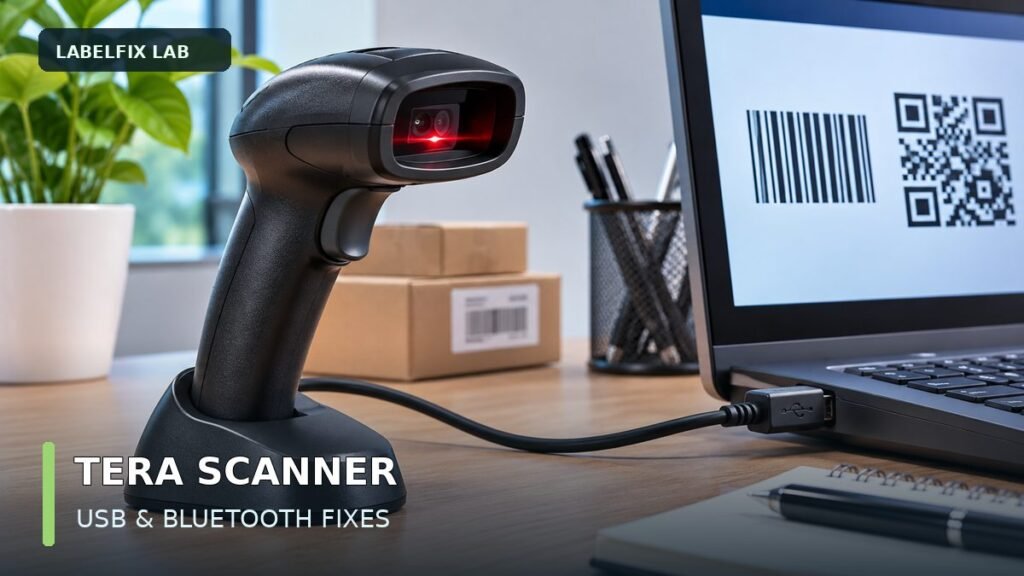
Editorial note: Illustrations used with this article represent generic scanner hardware and are not a photograph of a specific Tera model. Feature availability varies by model and software revision. This is a diagnostic guide, not a verified Tera pairing manual or a report of physical testing.
Independent general troubleshooting information for shipping labels and thermal printers. Model-specific button sequences, cleaning supplies and service instructions can differ; consult your manufacturer's official documentation. Never alter a carrier-generated barcode.