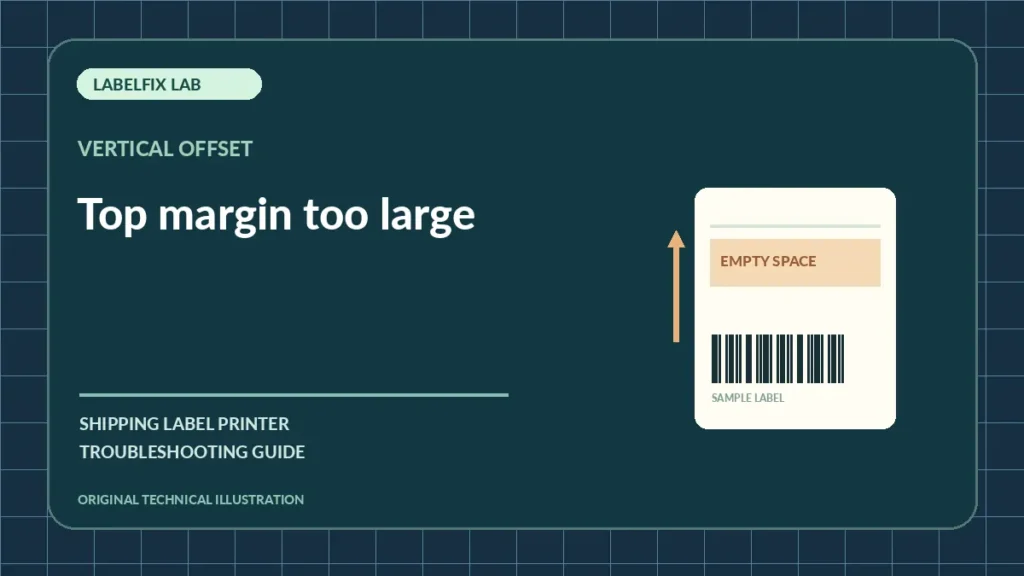
When a shipping label prints with a huge blank band at the top or the barcode begins too low, the symptom is a vertical placement error. It may come from the PDF’s own whitespace, a driver top offset or the printer starting the image after the intended label boundary. The first goal is to identify which layer introduces the empty space.
Quick symptom comparison
Start with what you can observe. A single indicator or printed pattern does not establish a component failure without another controlled test.
| Symptom | First checks |
|---|---|
| Large top margin already visible in PDF | Source layout and page box |
| Every label starts equally too low | Driver top offset or device preset |
| Top position changes on consecutive labels | Gap sensor, calibration or feed tracking |
| Lower address text is cut off | Printable height or image shifted beyond boundary |
1. Inspect the PDF before changing the printer
View the full page outline at normal scale. A carrier may intentionally reserve white space around a barcode; do not assume every blank band is an error. Compare the visible content with the physical page boundaries. Check size using the PDF dimension checker.
2. Identify whether the offset is consistent
Print two or three non-live samples from the same original file. If the blank band is exactly the same every time, a fixed page-layout or top-offset setting is a candidate. If the blank area grows or varies between prints, look more closely at media sensing or stock travel.
3. Verify stock height and document page length
A common portrait shipping label measures 152.4 mm vertically, but the roll’s actual usable length and gap matter. A driver set to a longer page can move the start or end position unexpectedly. Check the physical roll and manufacturer specifications.
4. Review documented vertical or top-of-form offsets
Some drivers expose top offset, vertical shift or tear-off position. These controls have different purposes. Record the original numbers before making a small, reversible adjustment. Do not use a horizontal X offset to compensate for a vertical problem.
5. Look for gap or black-mark detection errors
A printer that starts each label farther from the correct boundary may be misdetecting the registration point. Check whether stock is gap, black-mark or continuous and calibrate only by the manufacturer’s method. Read our calibration guide for the underlying distinctions.
6. Test a device-generated label for comparison
If the internal printer sample is vertically aligned but the shipping PDF always starts low, inspect application scaling, PDF page-box placement and driver settings. If both show inconsistent start positions, the document is less likely to be the main cause.
7. Avoid solving position by shrinking barcodes
Fit to Page or a reduced percentage might hide clipping by making everything smaller, but can compromise barcode proportions and required space. Maintain the correct stock format and solve the cause of the offset rather than reducing the label artwork.
8. Inspect the entire bottom edge before shipping
A large top margin can push carrier routing data below the printable region. If anything is missing, reprint the original properly. A barcode looking readable near the center does not prove the label is complete.
What the results mean
A fixed vertical offset differs from left/right off-center printing. If labels skip entirely, compare the gap and sensor checklist before changing margins.
Before you return to shipping production
Make a controlled test print, confirm that the barcode, clear margins, recipient address and routing information are complete, and compare with the original shipping document. If uncertainty remains, use the documented test mode for your printer model or contact manufacturer support. Do not use a damaged or partially printed tracking label on a parcel.
Determine whether blank top space is inside the PDF or added by the printer
A large top margin can originate in the PDF itself, the application print layout or the printer’s start-of-label position. The comparison is easiest when you keep page length and stock unchanged and observe repeated non-live prints.
| Where the blank space appears | Likely next check |
|---|---|
| White area already exists in the original PDF above the address | Use the correct original carrier export; do not shift routing artwork by hand. |
| PDF has little top space, every paper label starts too low by the same amount | Review supported vertical/top-of-form driver offset and printable area. |
| Start position moves farther down across consecutive stickers | Investigate gap detection, media pitch and registration calibration. |
| Top looks correct, but left/right side is clipped | Use horizontal alignment diagnosis, not vertical adjustment. |
Measure before applying an offset
Print three safe samples using the same document and roll. Record whether the empty band is fixed or increasing and whether the bottom routing data is being cut off. Do not use Fit to Page merely to make a clipped barcode fit. Reprint only when the entire carrier label is complete.
Frequently asked questions
Why does my 4×6 label start too low?
The source PDF, driver vertical offset and media boundary detection are common starting points. Compare the original and repeated test labels.
Will changing scaling fix a large top margin?
Not reliably, and it can shrink the barcode. Diagnose page placement and stock start position separately.
What is top-of-form?
It is a printer or driver reference for the beginning of the printable label; the available adjustment depends on the device.
Editorial disclosure: This independent guide explains general diagnostic principles. Exact button sequences, errors, media types and service steps vary by printer manufacturer and model. We do not claim hands-on testing of every device.
Independent general troubleshooting information for shipping labels and thermal printers. Model-specific button sequences, cleaning supplies and service instructions can differ; consult your manufacturer's official documentation. Never alter a carrier-generated barcode.