Quick answer: If a PDF417 barcode will not scan, first confirm that your scanner supports PDF417 decoding and that its PDF417 symbology is enabled. Then compare the original digital symbol with a paper print at the intended size. A weak, streaked, scaled, or cropped print may fail even though the scanner works with other barcodes. Finally, separate a true decode failure from an application that rejects or reformats successfully decoded data.
This is an independent troubleshooting guide for shipping, warehouse, document, and inventory workflows. Use synthetic sample labels for testing, not personal identification documents or customer records. There is no universal switch that repairs all PDF417 symbols: the source data, printer, scanning device, and receiving software must agree.
First: what PDF417 is (and is not)
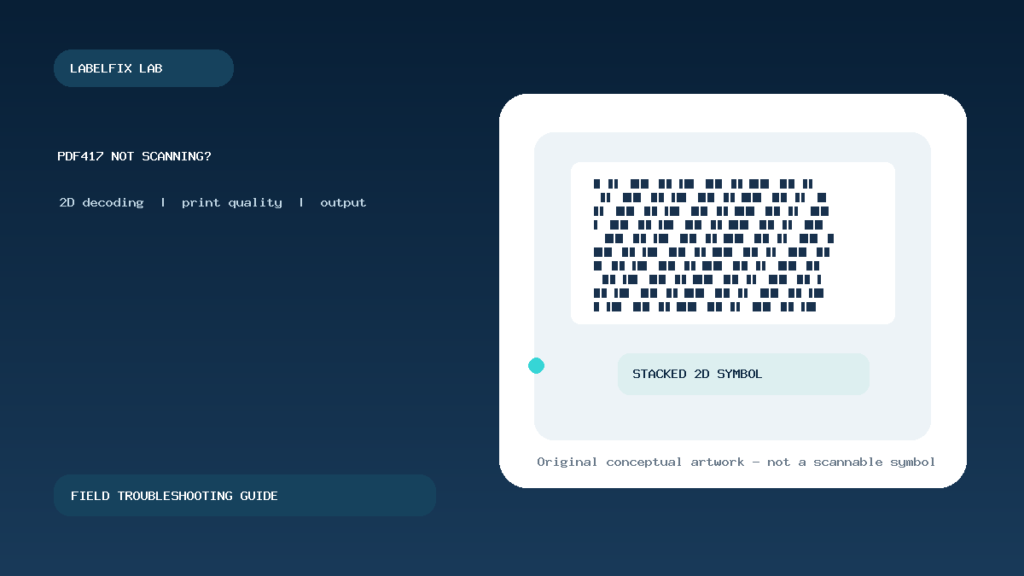
PDF417 is a stacked two-dimensional barcode symbology made from multiple short rows of bars and spaces. Its name does not mean that every barcode in a PDF document is PDF417. A shipping-label PDF may contain Code 128, Data Matrix, QR, PDF417, or other symbols depending on its issuer. Confirm the symbology before altering printer or scanner settings.
PDF417 and MicroPDF417 are also not interchangeable scanner settings. Some devices list them as separate decoders. Zebra’s product reference documentation, for example, exposes a dedicated enable/disable control for PDF417. A scanner that successfully reads a QR code has demonstrated some 2D capability, but not necessarily that PDF417 is enabled. See our 1D vs 2D barcode guide for the broader distinction.
Fast diagnosis: match the symptom to the correct layer
| What happens | Likely layer | Useful next check |
|---|---|---|
| Code 128 reads; PDF417 never reads | Scanner model, supported decoder or configuration | Check the exact scanner manual for PDF417 support and enablement |
| PDF417 reads on a screen but not from paper | Print quality, scale, media, or reflections | Reprint the original file at actual size on clean stock |
| One printed label reads, another does not | Damaged symbol or variable print path | Inspect bars, row continuity, quiet areas and cropping |
| Scanner beeps, but target field stays empty | Input mode, app validation, or formatting rule | Compare raw data in a permitted plain-text field |
| Wrong symbol is returned from a multi-code label | Aim, decoding order, or preferred-symbol setting | Isolate the PDF417 symbol and inspect priority settings |
| Only tiny PDF417 symbols fail | Module size, resolution, optics or viewing distance | Compare with a correctly sized reference symbol |
1. Identify the actual barcode before troubleshooting it
Examine the label artwork at a comfortable zoom. PDF417 typically looks like a wide, stacked rectangle composed of multiple rows, whereas QR has prominent square finder patterns and Code 128 uses one long row of bars. These visual cues can orient a diagnosis, but a barcode verifier or the issuing system’s documentation is the reliable source for the actual symbology.
Ask the label issuer which symbol must be scanned at this stage of the workflow. A carrier label may include several machine-readable fields for different purposes. Do not assume that a scanner failing a small stacked symbol means the whole shipping label is unusable; likewise, do not substitute a tracking-number barcode when the workflow explicitly requires another data field.
2. Confirm your scanner is suitable for stacked 2D codes
Many traditional handheld laser scanners were designed for common one-dimensional barcodes. A compatible area-imaging scanner may decode PDF417, but capabilities depend on the model and installed configuration. Verify support on the exact manufacturer’s datasheet and programming guide, not from the word “2D” in an unrelated listing.
A straightforward controlled test is to scan a known-good, synthetic PDF417 sample supplied by a trustworthy equipment vendor. If the same device reads Code 128 but cannot read that reference PDF417, investigate hardware support and decoder settings before spending time replacing thermal labels. Our Zebra DS2208 setup guide explains why model-specific input settings matter.
3. Check the PDF417 decoder setting and keep a record
Some scanners let an administrator enable or disable individual symbologies. For supported Zebra models, the official PDF417 reference parameter shows this separate control; the 123Scan utility documentation describes configuring and validating scanner settings.
Record the current profile before changing anything. Use the device’s own official procedure. Programming barcodes from the wrong scanner family can change unrelated settings such as interface mode, beeper behavior, data formatting, or code lengths. After any authorized change, retest exactly the same reference PDF417 in the same application.
4. Isolate PDF417 when several barcodes share a label
A busy label may have a large 1D tracking barcode, a stacked PDF417 and smaller routing marks. With some aiming systems, the scanner decodes the most prominent symbol in its field of view. Move or orient the label so only the intended PDF417 is in the scan area, or use a supported device setting for targeting a preferred symbology.
Zebra documents a PDF prioritization feature for certain scanner families. It can delay reporting particular 1D results while the reader seeks PDF417. This feature is model-specific and can introduce a delay; do not blindly enable it for every warehouse station. First determine whether your problem is wrong-symbol selection or a genuine failure to decode PDF417.
5. Reprint the original label at its intended physical dimensions
When the problem begins after sending a PDF to a different printer, check physical dimensions before changing scanner settings. Print from the original file or platform at its required size, with “Actual size” or 100% scaling when appropriate. Avoid “Fit to page,” an accidental Letter/A4 preset, an enlarged browser screenshot, or a cropped image copied into a word processor.
Any resizing can change the width of the smallest printed barcode elements. On a thermal printer, rounding those elements to available dots can make some bars merge and spaces vanish. Start with actual-size shipping-label PDF printing and our PDF MediaBox versus CropBox explanation if the preview dimensions are confusing.
6. Evaluate printer resolution and print density together
Thermal printer resolution (commonly described in dots per inch) affects how faithfully small rows and narrow bar elements can be rendered. The required symbol dimensions depend on the application and barcode specification; there is no safe universal percentage for shrinking every PDF417 to fit a label.
A 203-dpi printer can create useful 2D symbols when the artwork and element size are appropriate, but a smaller symbol may demand more resolution or different sizing. Test an appropriately sized source before upgrading hardware. Similarly, increasing “darkness” indefinitely is not a fix: excess heat can thicken bars and close gaps. See 203 vs 300 DPI for barcode quality and thermal printing too dark.
7. Inspect the whole stack, not just one row
PDF417 is a multi-row symbol. A damaged edge, vertical white streak, torn stock, folded corner, or smear can disrupt several rows simultaneously. Under good light, look for bars that bleed together, white gaps that disappear, missing portions at the top or bottom, and patterns interrupted by a crease.
Printhead debris or a failing heating element may create recurring vertical gaps in the printed pattern. A nearly empty ribbon, wrong print method or damaged transfer ribbon can also harm a thermal-transfer label. Compare with a test print and inspect the head only using the manufacturer’s safe cleaning procedure. Our lines and streaks diagnosis and blurry barcode fixes help distinguish these defects.
8. Preserve clear margins and protect contrast
Barcode symbols need appropriate surrounding quiet areas so the reader can distinguish the symbol from adjacent text, artwork or borders. Leave the margin specified for your PDF417 implementation instead of cropping directly against the first and last bar. Also check that logos, colored shapes, or a label edge have not intruded on the symbol.
Use dark bars on a clean, sufficiently contrasting background; avoid reflective tape directly over the code, extreme glare from glossy laminate and poorly bonded labels that wrinkle around carton edges. GS1’s general barcode quality checklist discusses contrast, sizing, quiet zones and physical damage, although the exact PDF417 specification must come from the issuer or applicable standard.
9. Compare a paper scan with a screen scan carefully
If permitted, show the same legitimate PDF417 sample on a monitor or device screen and attempt a scan using hardware that supports screen reading. Success from a screen but failure from paper is useful evidence of a print-media or scaling issue. Failure on both points more strongly toward incompatible hardware, decoder settings or an invalid symbol, though screen glare and focus can also cause failure.
Do not rely on a phone-camera result as a certified barcode-quality measurement. A generic camera app may recognize a QR code but lack PDF417 decoding altogether. Conversely, a dedicated scanner may have display-friendly exposure settings absent from a general camera. Compare capabilities, not just whether the light flashes.
10. Distinguish “cannot decode” from “decoded but not accepted”
A decode beep normally means the reader recognized something; it does not prove the receiving warehouse system accepted the intended field. With permission, direct scanner output to a harmless, plain-text test field and record whether data appears. If text is visible there but a shipping app refuses it, investigate interface mode, focus, allowed input format, expected length, prefixes, suffixes and app validation.
For keyboard-emulation devices, incorrect country settings can change characters even when the optical read is fine. A Tab or Enter suffix may also move focus before you notice the result. Use our guides for scanner beeps but does not type and wrong characters from an HID scanner to separate the data path from the printed symbol.
11. Watch for alternate PDF417 variants and source defects
MicroPDF417 has its own rules and may have a separate decoder toggle. Do not assume a printer software label named “PDF417” outputs the symbol expected by a receiving party. Confirm the source application’s selected symbology and that any intended error-correction and formatting parameters comply with the issuer’s requirements. Re-encoding unknown production payloads by hand can silently change important data.
If you only have a screenshot of a code, ask the authorized issuer for the original downloadable file. Enlarging a pixelated screenshot may create a sharper-looking picture without reconstructing the lost bar structure. Similarly, a low-resolution image embedded into a PDF can look crisp at normal zoom while containing malformed narrow elements.
12. Follow a one-variable-at-a-time diagnostic sequence
- Record printer model, DPI, media type, scanner model, host connection and the exact failure.
- Confirm the symbology with the source system or a qualified verifier.
- Test a known-good synthetic PDF417 on the same scanner; check support and enablement.
- Scan the original image on a suitable display, if permitted, then a clean print at required size.
- Inspect margins, missing bars, row alignment, print darkness, glare and physical damage.
- Compare raw decoded output in a neutral field to the receiving application’s response.
- Document the single change that resolves the failure before changing the next parameter.
Do not scan private licenses, medical records or actual customer shipping data merely to build a diagnostic sample. A synthetic identifier is enough to test optics, symbology support and keyboard transmission.
FAQ
Can a regular 1D scanner scan PDF417?
Not necessarily. Many basic 1D-only devices do not support the stacked PDF417 format. Check the exact model’s supported symbologies, not the brand alone.
Will printing a shipping label at 300 DPI automatically fix PDF417?
No. Higher resolution may help with small barcode elements, but an unsupported decoder, corrupted source, wrong scaling, cropped margins or damaged media can still prevent scanning.
Why does the scanner read a neighboring barcode instead?
Multiple symbols can be visible at once. Isolate the intended code, improve aiming, or use an officially supported preferred-symbol control if the workflow needs it.
Is PDF417 the same as a PDF shipping label?
No. PDF is a document format; PDF417 is a barcode symbology. A shipping-label PDF may contain PDF417 or another barcode type entirely.
Bottom line
For a PDF417 barcode that will not scan, identify the symbology first, verify scanner capabilities and decoder settings, then inspect the original-to-print path. If the scanner beeps but the app does not accept the data, troubleshoot host input separately. This layered approach avoids unnecessary printer replacements and preserves the exact information your shipping or inventory workflow requires.
Independent general troubleshooting information for shipping labels and thermal printers. Model-specific button sequences, cleaning supplies and service instructions can differ; consult your manufacturer's official documentation. Never alter a carrier-generated barcode.